
Creating clear, professional flowcharts is essential for project planning, process documentation, and system design. For Mac users, finding software that combines ease of use with robust functionality can be a challenge—especially when budget is a concern. Fortunately, several high-quality flowchart tools offer full-featured experiences at no cost. These applications support drag-and-drop interfaces, real-time collaboration, export options, and integration with cloud storage, making them ideal for students, educators, developers, and small business teams.
This guide highlights ten of the most capable free flowchart tools available for macOS, focusing on accessibility, user experience, and practical functionality. Whether you're mapping out a workflow, designing an algorithm, or illustrating a customer journey, these tools deliver reliable performance without requiring a subscription.
Key Features to Look for in Flowchart Software
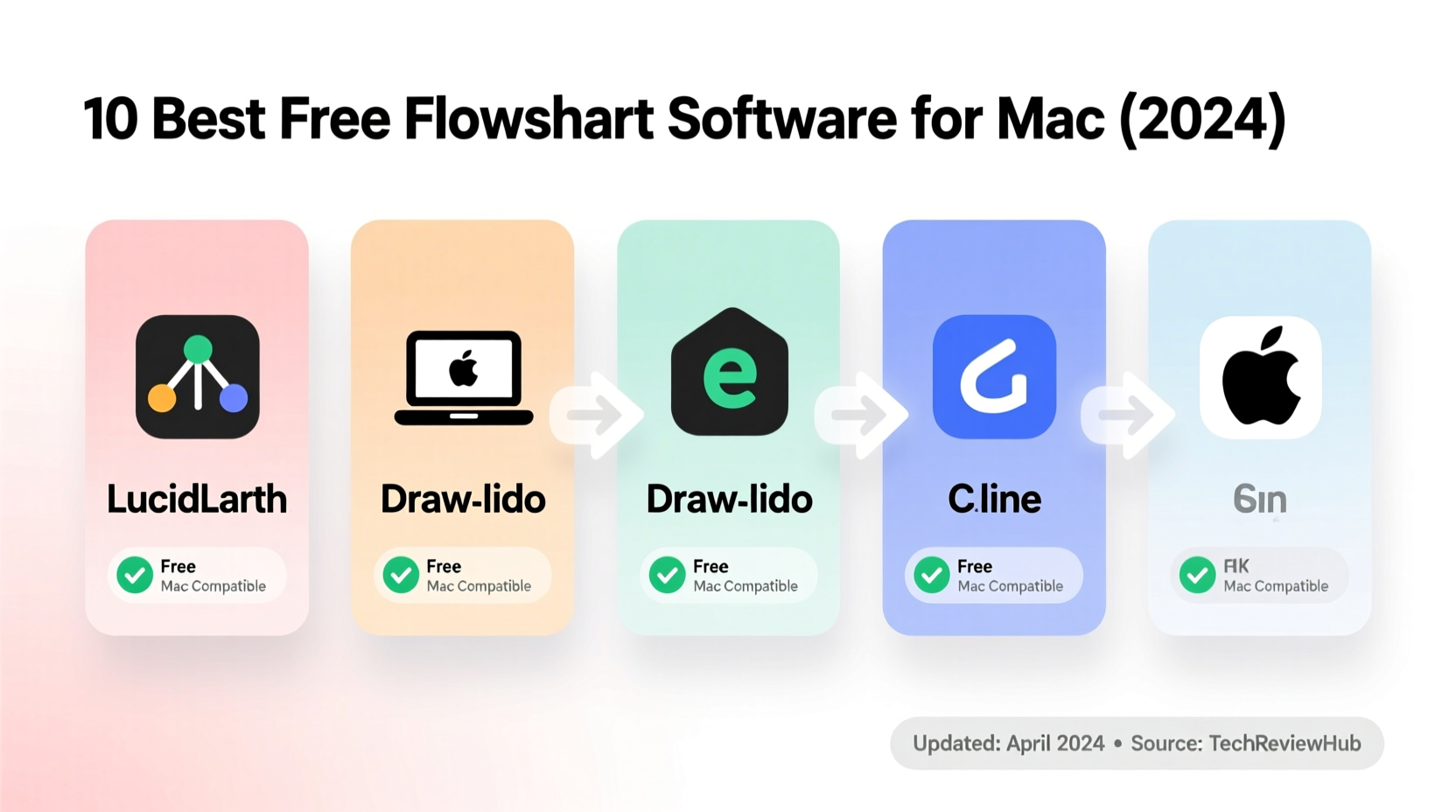
Before diving into specific tools, it's important to understand what makes a flowchart application truly effective. The best platforms balance simplicity with flexibility, allowing both beginners and advanced users to create meaningful diagrams efficiently.
- Drag-and-Drop Interface: Enables intuitive placement of shapes and connectors.
- Cross-Platform Sync: Ensures access from any device via web or desktop apps.
- Export Options: Supports saving in PNG, PDF, SVG, or sharing links directly.
- Templates: Pre-built designs speed up creation for common use cases like decision trees or swimlane charts.
- Collaboration Tools: Real-time editing and commenting features are vital for team projects.
- Auto-Alignment & Layout: Automatically organizes elements for cleaner visuals.
Top 10 Free Flowchart Tools for Mac
The following list evaluates each tool based on usability, feature set, compatibility with macOS, and overall value as a free offering. All are tested on modern Apple systems, including those with M1/M2 chips, and do not require additional emulation layers.
- diagrams.net (formerly draw.io) – Fully offline-capable, open-source diagramming app with native Mac support via desktop client or browser. Offers extensive shape libraries and seamless Google Drive/Dropbox integration.
- Lucidchart (Free Tier) – Web-based platform with a generous free plan. Excellent UX, smart connectors, and one-click styling. Ideal for collaborative classroom or startup environments.
- Canva (Flowchart Templates) – Known for graphic design, Canva provides simple flowchart templates suitable for non-technical users. Drag-and-drop editor works well in Safari and Chrome.
- Pencil Project – Open-source GUI prototyping tool that supports basic flowcharting. Lightweight and runs natively on macOS through Electron.
- Whimsical – Clean interface focused on wireframes, notes, and flowcharts. Free tier allows up to four editable boards, perfect for personal task mapping.
- Apache OpenOffice Draw – Part of the free OpenOffice suite. While less modern, it’s fully functional for static diagrams and compatible with older file formats.
- Sketchboard – Designed for agile teams, Sketchboard offers infinite canvas and sticky-note-style brainstorming alongside flowchart capabilities. Free plan includes limited history.
- Coggle – Mind-mapping tool with strong branching logic that doubles as a hierarchical flowchart creator. Real-time collaboration and clean output make it popular among educators.
- ProcessOn – Chinese-developed but English-friendly platform. Generous free plan with 9 private diagrams and unlimited public ones. Fast loading and responsive UI.
- PlantUML (with VS Code plugin) – Text-to-diagram engine ideal for developers. Write code-like syntax to generate flowcharts automatically. Best paired with Markdown editors on Mac.
Comparison Table: Free Flowchart Tools for Mac
| Tool | Offline Use | Real-Time Collaboration | Max Free Diagrams | Export Without Watermark |
|---|---|---|---|---|
| diagrams.net | Yes (desktop app) | No | Unlimited | Yes |
| Lucidchart | No | Yes | 3 documents | Yes |
| Canva | No | Yes | Unlimited | Yes (basic resolution) |
| Pencil Project | Yes | No | Unlimited | Yes |
| Whimsical | No | Yes | 4 boards | Yes |
Real-World Example: Student Group Project Planning
A team of computer science undergraduates at a university in Vancouver needed to visualize the logic flow of a mobile app prototype. They chose diagrams.net because it allowed offline work during transit and synced effortlessly via Google Drive. One member created the initial structure using decision diamonds and process rectangles, while others added annotations and alternate paths. Since the tool doesn’t impose watermarks, they embedded the final flowchart directly into their presentation slides without issues. The professor praised the clarity of their submission—a direct result of choosing accessible, reliable software.
“Choosing the right diagramming tool isn’t just about looks—it’s about reducing friction in thinking.” — Dr. Lena Torres, Human-Computer Interaction Researcher, University of British Columbia
How to Get Started: A Quick Setup Guide
Follow these steps to begin creating effective flowcharts on your Mac today:
- Assess Your Needs: Determine whether you need real-time collaboration, offline access, or developer-focused automation.
- Download or Access Online: Install desktop versions (like diagrams.net) or bookmark web apps (like Lucidchart).
- Pick a Template: Start with a blank canvas or choose a relevant template (e.g., “Process Flow” or “Decision Tree”).
- Add Shapes and Connectors: Use the toolbar to drag symbols onto the workspace and link them logically.
- Label Clearly: Keep text concise and consistent in font size and style.
- Review and Export: Double-check flow direction and save as PDF or image for sharing.
Frequently Asked Questions
Is there completely free flowchart software for Mac without ads?
Yes. diagrams.net and Pencil Project are entirely ad-free, open-source tools that respect user privacy and allow offline usage. Both are maintained by active development communities and do not track user behavior.
Can I use these tools without an internet connection?
Only certain tools support offline mode. diagrams.net Desktop and Apache OpenOffice Draw can be used fully offline. Web-based platforms like Lucidchart and Whimsical require connectivity unless cached ahead of time.
Are free versions safe for sensitive business processes?
Most reputable tools encrypt data in transit. However, for highly confidential workflows, prefer offline solutions like diagrams.net or self-hosted instances. Avoid uploading internal processes to unknown platforms, even if labeled “free.”
Final Thoughts and Next Steps
The right flowchart tool should enhance—not hinder—your ability to think visually. The ten options listed here prove that powerful diagramming doesn't have to come with a price tag. From student assignments to startup planning sessions, Mac users now have access to professional-grade tools that prioritize usability and freedom.
Start experimenting with one or two platforms that match your workflow needs. Test exporting options, try collaboration features, and assess how quickly you can build accurate representations of complex ideas. Over time, you'll develop a preference based on speed, reliability, and integration with your existing toolkit.




 浙公网安备
33010002000092号
浙公网安备
33010002000092号 浙B2-20120091-4
Comments
No comments yet. Why don't you start the discussion?