
Finding accurate information online should be fast and reliable. Yet most people use only the most basic features of Google, missing out on powerful tools that can cut through noise and deliver exact answers. Whether you're researching for work, school, or personal curiosity, mastering advanced search techniques transforms how efficiently you retrieve information. These 10 proven strategies go beyond typing keywords—they help eliminate irrelevant pages, target specific sources, and extract data with surgical precision.
Use Quotation Marks for Exact Phrases
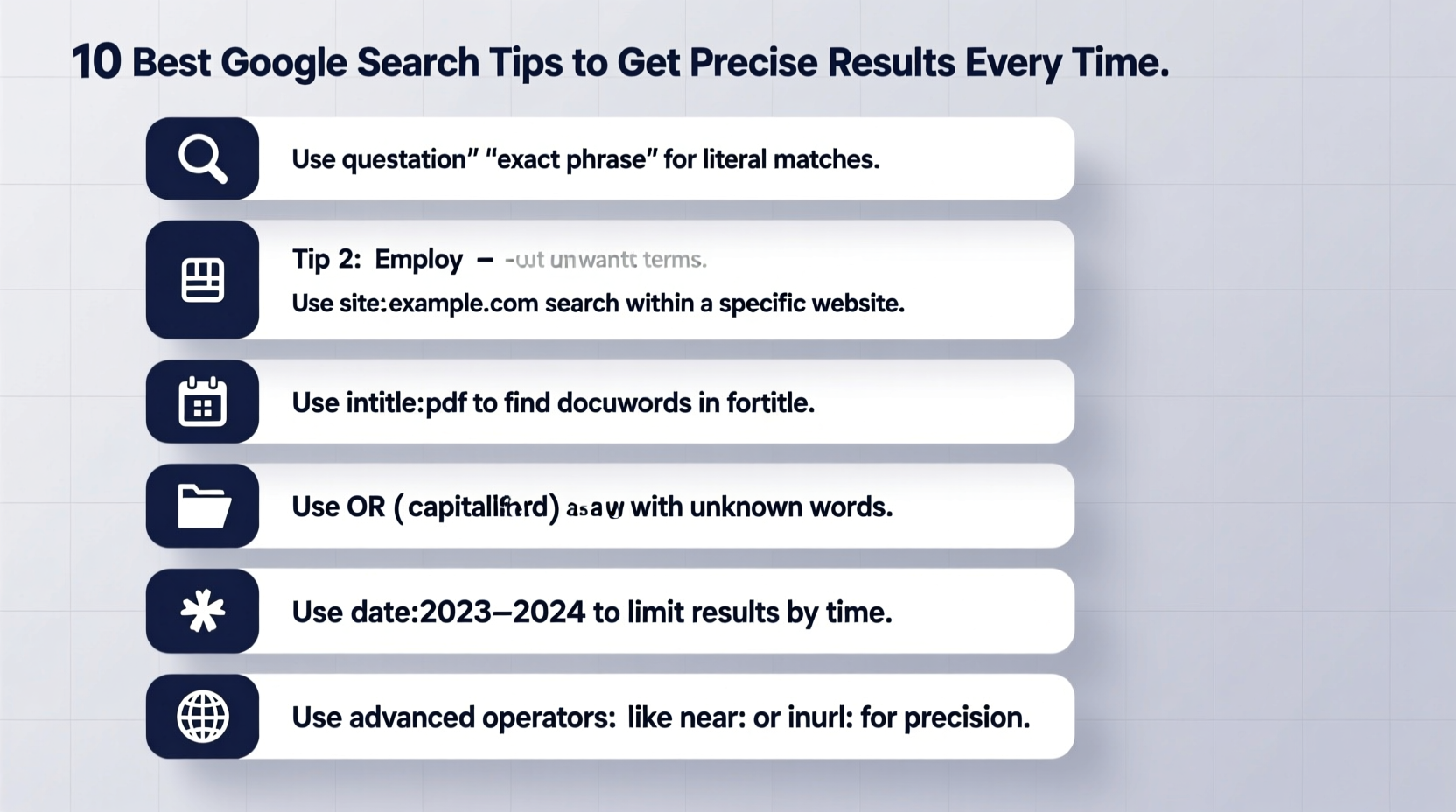
When you need results that match a specific phrase word-for-word, wrap it in quotation marks. Without them, Google treats each word separately and may return pages where terms appear far apart or in different contexts.
For example, searching \"climate change impact on agriculture\" returns pages containing that exact sequence. This is especially useful when looking for quotes, technical terms, or research topics where phrasing matters.
Leverage the Minus Sign to Exclude Unwanted Terms
Sometimes your keyword triggers unrelated results. The minus sign (-) removes pages containing specific words. This refines results by filtering out common distractions.
Example: Searching jaguar speed -car -vehicle focuses on the animal’s running speed rather than automobiles. Similarly, apple recipes -electronics -iPhone avoids tech news and zeroes in on food ideas.
This technique works best when a term has multiple meanings. It's one of the fastest ways to clean up cluttered result pages.
Search Within a Specific Website
If you trust a particular source—like CDC.gov, Harvard.edu, or BBC.com—you can limit results to that domain using the site: operator.
Try site:cdc.gov vaccine guidelines for children to get only CDC-published content. Or site:wikipedia.org quantum physics history to explore Wikipedia articles exclusively.
This method saves time by bypassing general results and going straight to authoritative platforms. It's ideal for academic research, policy review, or verifying claims from credible institutions.
“Over 70% of users never click past the first page of Google. But those who refine their queries find better answers in seconds.” — Dr. Lena Patel, Information Science Researcher at MIT
Find Related Sites with the Related: Operator
You’ve found a great website but want alternatives or similar resources. Use related: followed by the URL to discover sites with comparable content.
Example: related:nytimes.com brings up other major news outlets like The Guardian, Washington Post, or Reuters. related:khanacademy.org shows alternative educational platforms such as Coursera or edX.
This tip is perfect for competitive analysis, finding backup sources, or expanding your reading list across trusted domains.
Use Wildcards with the Asterisk (*)
The asterisk acts as a placeholder for unknown or variable words within a phrase. It helps when you remember part of a quote or title but not the full text.
Try searching \"to be or not * that is the question\"—Google fills in \"to be\"—and returns Shakespeare references. Or look up best restaurants near * airport to see results tied to various airports.
While less commonly used, this tool is invaluable for reconstructing forgotten lines or exploring variations of a structured phrase.
Compare Definitions Side-by-Side
To quickly compare synonyms or understand nuanced differences, type define: followed by multiple words.
Enter define:empathy vs sympathy or define:efficiency vs effectiveness to see concise breakdowns. Google pulls definitions from dictionaries and displays them together, making contrasts clear without clicking through multiple links.
| Search Query | Result Type | Best For |
|---|---|---|
define:resilience |
Dictionary definition | Understanding core meaning |
define:AI vs machine learning |
Side-by-side comparison | Distinguishing concepts |
define:photosynthesis process |
Step explanation + diagram (if available) | Educational clarity |
Find File Types with the Filetype: Operator
Need a PDF report, PowerPoint presentation, or Excel spreadsheet? Use filetype: to restrict results to specific formats.
Examples:
climate data 2023 filetype:pdfmarketing strategy template filetype:pptemployee salary records filetype:xlsx
This is particularly helpful for researchers, students, and professionals seeking original documents, white papers, or editable templates directly from government, academic, or corporate sites.
Check When Pages Were Indexed
Time-sensitive searches require recent information. Add after: or before: with a date to filter results by publication time.
For instance:
inflation trends after:2023-01-01iPhone 15 reviews before:2023-10-01
You can also use relative terms like “past year” in filters via Google’s Tools menu, but manual date operators give more control. Combine with site: for timely updates from trusted sources.
after:YYYY-MM-DD with precise keywords and exclude opinion pieces using
-opinion -editorial.
Reverse Search Numbers, Codes, and IDs
Numbers often hold hidden context. Enter product codes, patent numbers, ISBNs, or flight numbers directly into Google to decode them.
Try searching:
ISBN 978-0-262-03384-8→ reveals the book \"Introduction to Algorithms\"FL1234 today→ shows real-time flight statusPV-US-6008322→ pulls up a U.S. patent filing
This works because Google indexes structured identifiers across databases, forums, and official registries. It turns obscure strings into actionable insights.
Use Allintitle: and Intitle: to Target Page Titles
If you want pages where your keywords appear in the title—indicating stronger relevance—use allintitle: or intitle:.
allintitle:renewable energy policies Europe returns pages whose entire title includes all those words. This usually means the content is focused and comprehensive.
Similarly, intitle:study intitle:mental health finds articles specifically titled about mental health studies. Title-based searches reduce off-topic hits significantly.
Real-World Example: Academic Research Made Faster
A graduate student researching urban air quality initially searched air pollution data cities, getting scattered blog posts and news snippets. Frustrated, she applied several techniques:
- Used
site:.gov air pollution statisticsto access government environmental agencies. - Added
filetype:csvto locate downloadable datasets. - Ran
allintitle:long-term air quality studyto identify peer-reviewed summaries. - Excluded non-relevant terms with
-indoor -home -filter.
In under ten minutes, she gathered five high-quality sources instead of spending hours sifting through weak matches. Her paper was completed two weeks early.
Essential Google Search Checklist
Before hitting enter, ask yourself:
- Are key phrases in quotes for exact matching?
- Have I excluded irrelevant terms with minus signs?
- Am I limiting to a trusted site using
site:? - Do I need a specific file type (
filetype:pdf)? - Is recency important? If so, add
after:YYYY-MM-DD. - Could
related:help me find alternative sources? - Should I verify definitions side-by-side with
define:?
FAQ
Can these tips work on mobile devices?
Absolutely. While voice search is convenient, manually typing refined queries in the Google app or browser yields better accuracy. Copy-paste complex operators if needed.
Why aren’t my advanced searches working?
Check spacing—operators like site: must have no space between the colon and domain. Also ensure you’re not placing punctuation inside quotation marks incorrectly. Test one operator at a time to isolate issues.
Does Google penalize complex searches?
No. Google encourages precise queries. Complex syntax doesn’t affect ranking; it improves relevance. The engine interprets operators instantly and delivers filtered results fairly.
Final Thoughts: Turn Search Into a Superpower
Most people treat Google like a simple lookup tool. But with these 10 techniques, you shift from passive browsing to active discovery. Each operator gives you finer control—like switching from a flashlight to a laser beam.
Mastery comes with practice. Start by incorporating one or two methods into daily searches. Over time, they become second nature. You’ll spend less time scrolling, avoid misinformation, and uncover deeper insights—all with the same search bar everyone else uses.




 浙公网安备
33010002000092号
浙公网安备
33010002000092号 浙B2-20120091-4
Comments
No comments yet. Why don't you start the discussion?