
Streaming content from your phone or laptop to a smart TV, Chromecast, or other display device should be seamless. Yet, many users face frustrating interruptions—buffering, disconnections, or outright failure to connect. A key culprit behind these problems often lies in the choice between 2.4 GHz and 5 GHz Wi-Fi bands. While both are standard on modern routers, they behave very differently when it comes to wireless casting. Understanding how each band performs—and where they fall short—is essential for diagnosing and resolving casting failures.
How Wi-Fi Bands Impact Wireless Casting
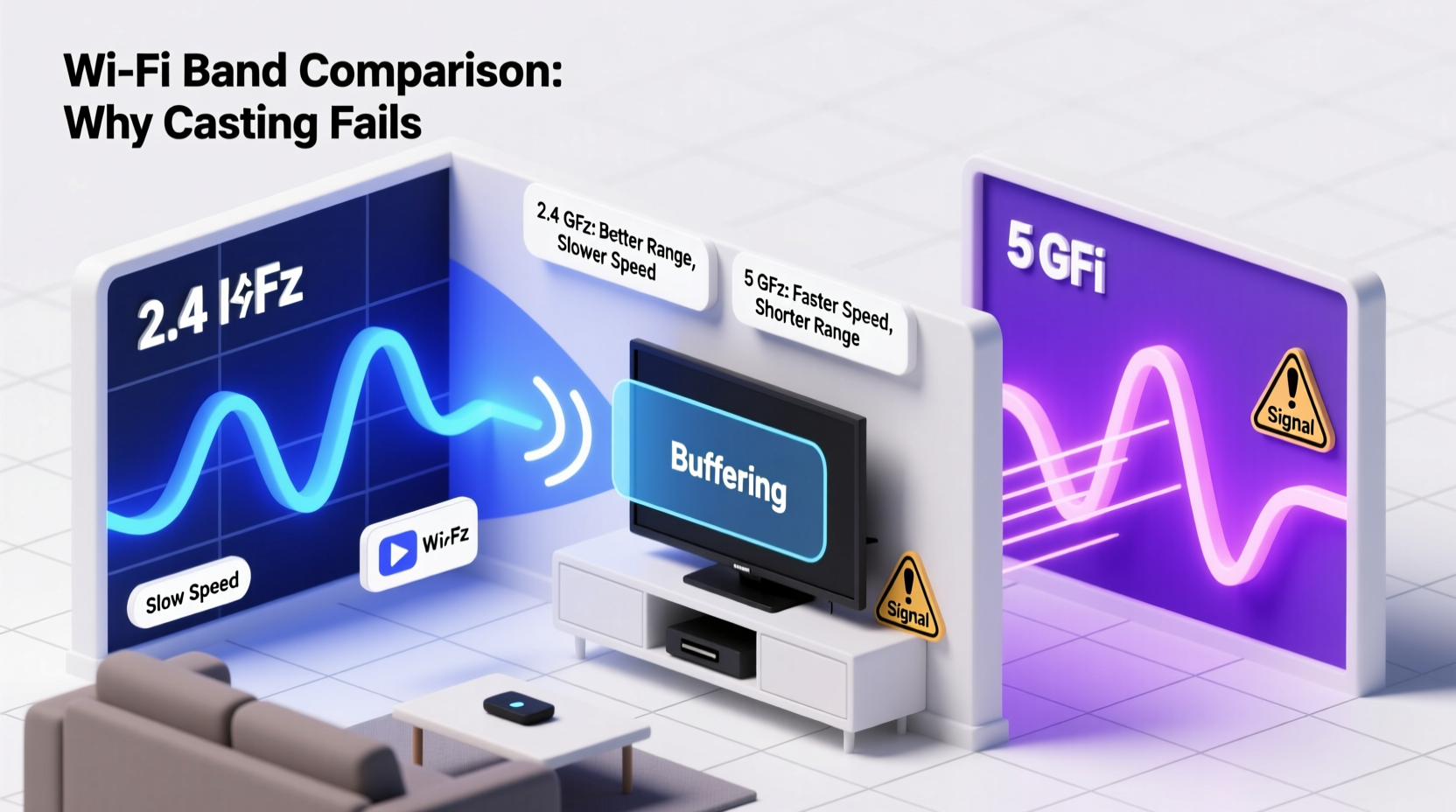
Wireless casting relies on a stable, low-latency connection between your device and the receiving hardware (like a Chromecast, Fire Stick, or Apple TV). The two primary Wi-Fi frequency bands—2.4 GHz and 5 GHz—offer different trade-offs in range, speed, and interference resistance. These differences directly influence whether your screen mirroring or media streaming works reliably.
The 2.4 GHz band has longer range and better wall penetration, making it ideal for devices far from the router. However, it operates on fewer channels and is crowded with signals from microwaves, cordless phones, baby monitors, and neighboring networks. This congestion leads to interference that can disrupt real-time data transmission required for casting.
In contrast, the 5 GHz band offers faster speeds and more available channels, reducing interference. But its signal degrades quickly over distance and struggles with obstacles like walls and floors. If your casting device is too far from the router or separated by multiple barriers, the 5 GHz connection may drop or become unstable.
Common Casting Issues by Band
Each band introduces unique challenges when used for casting. Recognizing these patterns helps pinpoint the root cause.
Problems with 2.4 GHz
- Lag and buffering: Due to lower bandwidth, high-definition video may stutter.
- Connection drops: Interference from household appliances disrupts the signal.
- Device discovery failure: Some casting protocols like Google Cast rely on multicast DNS (mDNS), which can be unreliable on congested 2.4 GHz networks.
Problems with 5 GHz
- Poor range: Signal weakens beyond one room, especially through concrete or metal walls.
- Intermittent disconnects: As signal strength fluctuates, the connection may drop during playback.
- Router steering issues: Automatic band switching (band steering) can move your device mid-cast, breaking the session.
“Casting performance isn’t just about speed—it’s about consistency. A slightly slower but stable 2.4 GHz connection can outperform a fast but spotty 5 GHz link.” — David Lin, Network Engineer at HomeTech Labs
Comparing 2.4 GHz and 5 GHz for Casting: Key Differences
| Feature | 2.4 GHz Band | 5 GHz Band |
|---|---|---|
| Maximum Speed | Up to 150 Mbps (theoretical) | Up to 867 Mbps+ (depending on standard) |
| Range | Longer, better wall penetration | Shorter, easily blocked |
| Channel Congestion | High – only 3 non-overlapping channels | Low – up to 25 non-overlapping channels |
| Ideal Use Case | Devices far from router, basic HD streaming | Close-range 4K casting, low-interference environments |
| Casting Reliability | Moderate – prone to interference | High – if within strong signal range |
Step-by-Step Guide to Fix Casting Failures
Follow this structured approach to diagnose and resolve casting issues tied to Wi-Fi band selection.
- Verify both devices are on the same network: Ensure your phone/tablet and casting receiver are connected to the same SSID and, crucially, the same frequency band.
- Check current Wi-Fi band: On Android, go to Settings > Network & Internet > Wi-Fi > Connected Network > Network Details to see frequency. On iOS, this info isn’t visible natively; use a Wi-Fi analyzer app.
- Disable band steering: Access your router settings and turn off “Smart Connect,” “Band Steering,” or similar features that automatically switch devices between bands.
- Separate SSIDs for each band: Rename your 2.4 GHz and 5 GHz networks differently (e.g., HomeWiFi_2G and HomeWiFi_5G) so you can manually control which one your devices use.
- Assign receiver to optimal band: Plug your Chromecast or streaming stick into a TV near the router and connect it to 5 GHz for best performance. For distant rooms, use 2.4 GHz despite lower speed.
- Reboot and test: Restart your router, casting device, and source device. Try casting again under controlled conditions.
Real-World Example: The Living Room Streaming Problem
Consider Sarah, who uses a Chromecast Ultra in her basement family room. Her phone connects to the 5 GHz network upstairs, but the Chromecast defaults to 2.4 GHz due to weaker signal down below. When she tries to cast from Netflix, the app fails to detect the device. After troubleshooting, she discovers her router uses a single SSID for both bands. Even though her phone shows strong signal, it’s on 5 GHz while the Chromecast is on 2.4 GHz—preventing them from communicating directly. By splitting the SSIDs and manually connecting both devices to 2.4 GHz (due to basement signal limitations), casting works immediately. Later, she installs a mesh node downstairs to enable stable 5 GHz coverage, upgrading her setup for 4K streaming.
Troubleshooting Checklist
- ☐ Both source and receiver on same Wi-Fi network
- ☐ Same frequency band (either both 2.4 GHz or both 5 GHz)
- ☐ Band steering disabled on router
- ☐ Unique SSIDs for 2.4 GHz and 5 GHz
- ☐ Router firmware updated
- ☐ Casting device restarted
- ☐ No physical obstructions or interference sources nearby
Frequently Asked Questions
Can I use 5 GHz for casting if my device is far from the router?
Generally not recommended. 5 GHz signals degrade significantly over distance and through walls. If your device is more than one room away or behind thick barriers, 2.4 GHz will likely provide a more stable connection even at lower speeds.
Why can’t my phone find my Chromecast?
This is often due to being on different Wi-Fi bands. Even if both devices show connection to the same network name, automatic band selection may place them on separate frequencies. Splitting your SSIDs and forcing both onto the same band usually resolves detection issues.
Does Wi-Fi 6 solve casting problems between bands?
Wi-Fi 6 improves efficiency and reduces latency, but it doesn’t eliminate band compatibility issues. However, newer standards support better band steering algorithms and improved mDNS handling, which can make cross-device communication more reliable—if properly configured.
Optimizing Your Setup for Seamless Casting
The goal isn’t necessarily to favor one band over the other, but to match the band to your environment and usage. In open-concept homes with modern construction, 5 GHz provides superior performance for 4K and HDR content. In older homes with thick walls or multi-level layouts, 2.4 GHz remains the more dependable option for consistent connectivity.
For the best results, consider a mesh Wi-Fi system that extends 5 GHz coverage throughout your home. Alternatively, use Ethernet backhaul with access points to maintain strong dual-band availability. This allows you to keep high-bandwidth devices on 5 GHz while maintaining broad 2.4 GHz coverage for legacy and IoT devices.
Conclusion
Understanding the behavior of 2.4 GHz versus 5 GHz Wi-Fi is critical to solving casting issues. It's not always about raw speed—reliability, proximity, and network configuration matter just as much. By taking control of your Wi-Fi bands, disabling automatic switching, and ensuring all casting components operate on the same frequency, you can eliminate most common streaming failures. Don’t assume your network is working optimally just because devices are connected. Test, adjust, and optimize based on real-world performance. With the right setup, wireless casting can be as smooth and dependable as a wired connection.




 浙公网安备
33010002000092号
浙公网安备
33010002000092号 浙B2-20120091-4
Comments
No comments yet. Why don't you start the discussion?