
In recent years, 4K monitors have transitioned from niche professional tools to mainstream consumer products. With prices dropping and availability increasing, many users are tempted to upgrade from Full HD (1080p) to Ultra HD (3840x2160). But for those who primarily use their computers for browsing, office work, streaming, and general productivity—does the jump to 4K actually make a difference? The answer isn’t as straightforward as marketing might suggest.
While 4K offers four times the pixel density of HD, the real-world impact depends on screen size, viewing distance, software support, and individual visual acuity. For creative professionals or gamers, the benefits are often clear. But what about someone checking email, writing documents, or watching YouTube? Let’s explore whether the upgrade is genuinely worthwhile—or just an expensive luxury with diminishing returns.
Understanding Resolution: What Does 4K vs HD Mean?
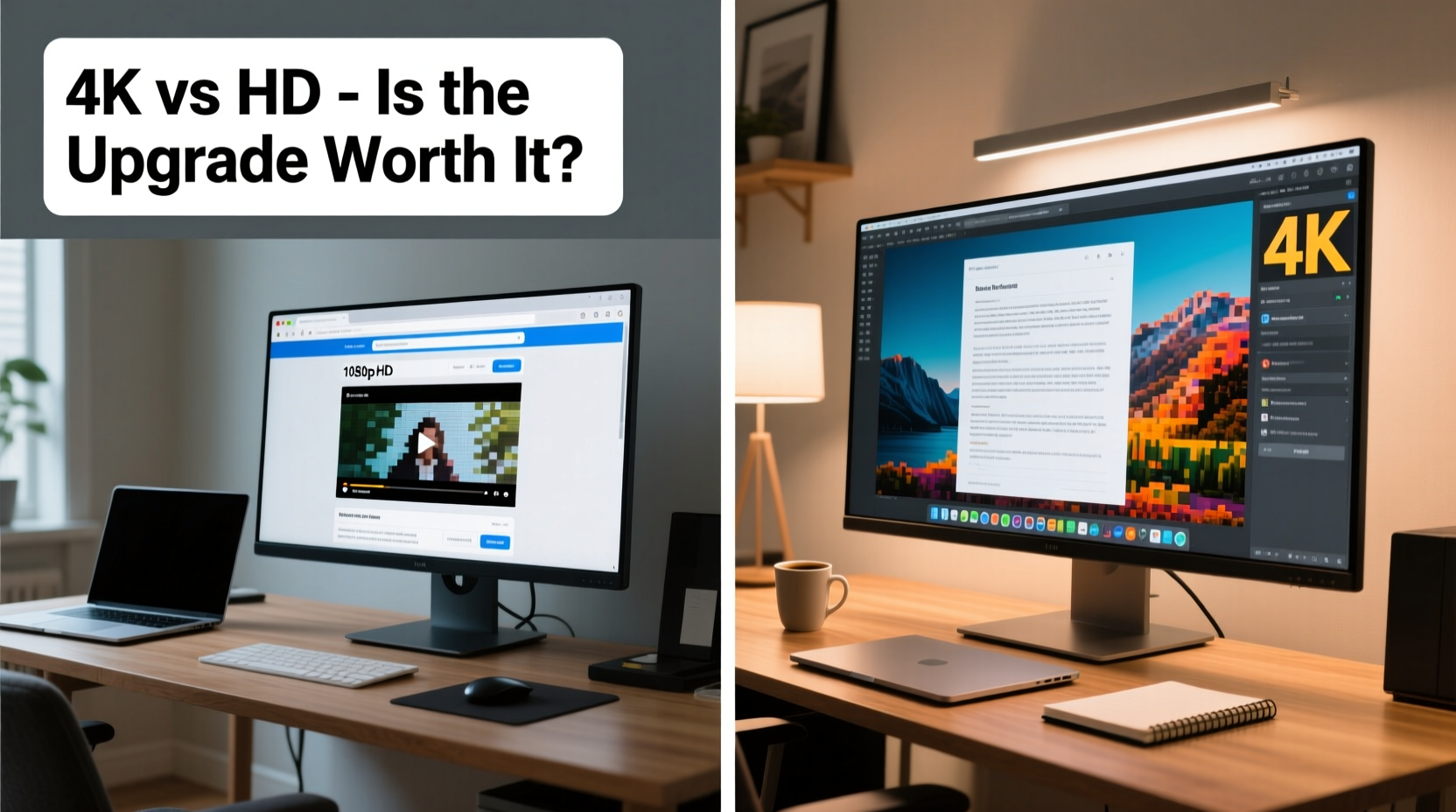
At its core, resolution refers to the number of pixels displayed on a screen. Full HD (also known as 1080p) has a resolution of 1920x1080 pixels. In contrast, 4K or Ultra HD (UHD) delivers 3840x2160 pixels—a total of over 8 million pixels compared to roughly 2 million in HD.
This means each square inch of a 4K display contains significantly more detail. However, higher resolution doesn't automatically translate to better user experience. The perceived sharpness, or pixel density, is measured in pixels per inch (PPI). A 27-inch 4K monitor has a PPI of about 163, while the same size at 1080p drops to around 82 PPI. That doubling of pixel density can dramatically affect how crisp text and images appear.
Yet, human vision has limits. At typical desktop viewing distances (about 20–30 inches), the ability to distinguish fine details diminishes. Studies from the Society for Information Display suggest that most people cannot reliably perceive improvements beyond 300 PPI at arm’s length—roughly equivalent to a high-end smartphone screen. So while 4K technically offers superior clarity, whether you *notice* it depends heavily on context.
Everyday Use Cases: Where 4K Shines—and Falls Short
Let’s examine common daily computing activities to determine if 4K provides tangible benefits.
Web Browsing and Email
For reading articles, scrolling through social media, or managing your inbox, 4K brings sharper text and crisper icons. Websites designed with high-resolution assets look noticeably cleaner, especially those using vector graphics or retina-ready images. However, many sites still serve low-res images or poorly optimized layouts, which can result in blurry or inconsistently scaled content even on a 4K screen.
Office Work and Document Editing
Working with spreadsheets, word processors, or PDFs benefits from increased screen real estate. On a 4K monitor, you can comfortably view multiple windows side by side without sacrificing readability. For example, having Excel open alongside a research browser tab and Slack becomes far more manageable.
However, older software may not scale properly. Microsoft Office generally handles high DPI well, but legacy applications like certain internal business tools or outdated utilities can appear blurry or tiny. This inconsistency can disrupt workflow rather than enhance it.
Video Streaming and Media Consumption
If you regularly watch Netflix, YouTube, or Disney+ in 4K, then naturally a 4K monitor unlocks the full potential of that content. HDR support on premium 4K panels further enhances color depth and contrast. But realistically, most casual viewers consume HD (1080p) content. When upscaled, HD video on a 4K screen looks good—but not dramatically better. The improvement is subtle, often limited by source quality and ambient lighting conditions.
Multitasking and Productivity Layouts
One area where 4K consistently outperforms HD is multitasking. With double the horizontal and vertical resolution, you gain significant workspace. You can run four full-browser windows in a grid layout, edit code on one side while referencing documentation on the other, or monitor dashboards across multiple virtual desktops.
A study conducted by the University of Utah found that knowledge workers increased productivity by up to 35% when moving from single 1080p screens to dual or high-resolution setups. While this wasn’t exclusively about 4K, the principle holds: more usable screen space reduces context switching and improves focus.
Hardware and Compatibility Considerations
Upgrading to 4K isn’t just about buying a new monitor. Your entire system must support the increased graphical load. Here’s what to consider:
- Graphics Card: Older GPUs may struggle to drive 4K at 60Hz, especially if running multiple monitors. Even integrated graphics on budget laptops often max out at 1080p output via HDMI.
- Cables: Not all cables support 4K. HDMI 1.4 supports 4K at 30Hz, which feels sluggish. HDMI 2.0 or DisplayPort 1.2+ is required for smooth 60Hz operation.
- Operating System Scaling: Both Windows and macOS have improved high-DPI support, but misconfigured scaling leads to blurry apps or inconsistent font sizes. It requires careful setup.
- Laptop Limitations: Many ultrabooks with 4K screens throttle performance to save battery, reducing actual usability despite the high resolution.
“High resolution only matters when the rest of the ecosystem supports it. A 4K monitor paired with outdated drivers and poor scaling defeats the purpose.” — Lin Chen, Display Systems Engineer at Dell Technologies
Real-World Example: Sarah’s Home Office Upgrade
Sarah, a freelance writer and part-time online course creator, used a five-year-old 24-inch 1080p monitor for her daily work. She upgraded to a 27-inch 4K model after seeing glowing reviews online. Her initial reaction was excitement—the text looked incredibly sharp, and she could fit two Google Docs side by side without zooming.
But within days, challenges emerged. Her aging laptop couldn’t maintain stable 4K output over HDMI, causing occasional lag during Zoom calls. Some websites rendered fonts too small, forcing her to constantly adjust browser zoom levels. And her favorite note-taking app appeared blurry due to lack of native scaling support.
After tweaking display settings and upgrading her HDMI cable to version 2.0, performance stabilized. She enabled 150% scaling in Windows, which resolved most UI issues. Over time, she grew accustomed to the enhanced clarity and appreciated the extra space for organizing research materials. Ultimately, the upgrade paid off—but only after overcoming compatibility hurdles.
Sarah’s experience highlights a key truth: the value of 4K depends not just on the monitor itself, but on the entire computing environment.
Comparison Table: 4K vs HD for Everyday Use
| Feature | Full HD (1080p) | 4K UHD |
|---|---|---|
| Pixel Count | ~2.1 million | ~8.3 million |
| Text Clarity (27” monitor) | Good | Excellent (with proper scaling) |
| Multitasking Capability | Moderate (2 windows comfortable) | High (3–4 windows easily) |
| Software Compatibility | Universal | Varies; some legacy apps blurry |
| Hardware Requirements | Low (most systems support) | Moderate to High (needs modern GPU/port) |
| Streaming Quality (YouTube/Netflix) | Good for HD, upscaled 4K | Better for native 4K/HDR content |
| Price (27” IPS Panel) | $150–$200 | $300–$500 |
| Best For | General use, older systems, tight budgets | Productivity, creatives, future-proofing |
Actionable Checklist: Is a 4K Monitor Right for You?
Before making the leap, evaluate your needs and setup with this checklist:
- ✅ Do you sit less than 30 inches from your screen? Closer viewing increases perceived sharpness.
- ✅ Is your computer less than 3–4 years old? Older systems may lack 4K output capability.
- ✅ Are you using HDMI 2.0 or DisplayPort 1.2+? Older ports limit refresh rate and resolution.
- ✅ Do you frequently multitask or work with large documents? More screen space boosts efficiency.
- ✅ Are you willing to adjust OS scaling settings? Improper scaling ruins the 4K experience.
- ✅ Do you consume native 4K content? If not, benefits are reduced.
- ✅ Is your budget flexible? 4K monitors cost significantly more, including potential cable/GPU upgrades.
Frequently Asked Questions
Does 4K make text easier to read?
Yes, but only when combined with proper operating system scaling. Without scaling, text becomes too small to read comfortably. With correct settings (e.g., 150% on Windows), text appears sharper and more defined than on HD, especially on larger screens (27” or above).
Can I use a 4K monitor with an older PC?
Possibly, but with limitations. Your GPU must support 4K output at 60Hz. Many older discrete cards and integrated graphics chips only support 4K at 30Hz over HDMI, which results in choppy cursor movement and animation. Check your graphics card specifications and ensure you have the right cable type.
Do all apps look better on 4K?
No. Modern, well-maintained software (like Chrome, Microsoft 365, Adobe Suite) renders beautifully on 4K. However, older or poorly coded applications may appear blurry because they don’t support high-DPI scaling. These apps are rendered at lower resolution and stretched, negating the clarity advantage.
Final Verdict: Who Benefits Most From 4K?
The upgrade from HD to 4K is noticeable—but not universally beneficial. For users engaged in detailed visual work, multitasking, or consuming high-resolution media, the advantages are real and lasting. The increased screen real estate alone can transform how you interact with digital content.
However, for casual users on older hardware, or those who primarily browse the web and check email, the gains are subtler. You’ll see sharper text and smoother lines, but these improvements may not justify the cost or technical complexity. Additionally, without proper configuration, a 4K monitor can introduce usability issues rather than solve them.
Ultimately, the decision should be based on your specific usage patterns, hardware readiness, and willingness to fine-tune display settings. If you're building a new system or replacing a worn-out monitor, stepping into 4K makes sense as a future-proof investment. But if you're squeezing every dollar and mostly doing light computing, sticking with HD remains a smart, functional choice.




 浙公网安备
33010002000092号
浙公网安备
33010002000092号 浙B2-20120091-4
Comments
No comments yet. Why don't you start the discussion?