
In the evolving world of digital content creation, choosing the right display setup can make or break a video editor’s productivity. As 4K resolution becomes standard and ultrawide screens gain popularity, professionals face a critical decision: should they invest in a high-resolution 4K monitor or opt for the expansive workspace of an ultrawide? Both offer compelling advantages, but their impact on workflow efficiency varies significantly depending on editing style, software, and project complexity. This article breaks down the strengths and limitations of each option, helping editors make an informed choice that aligns with their creative process.
Understanding the Core Differences
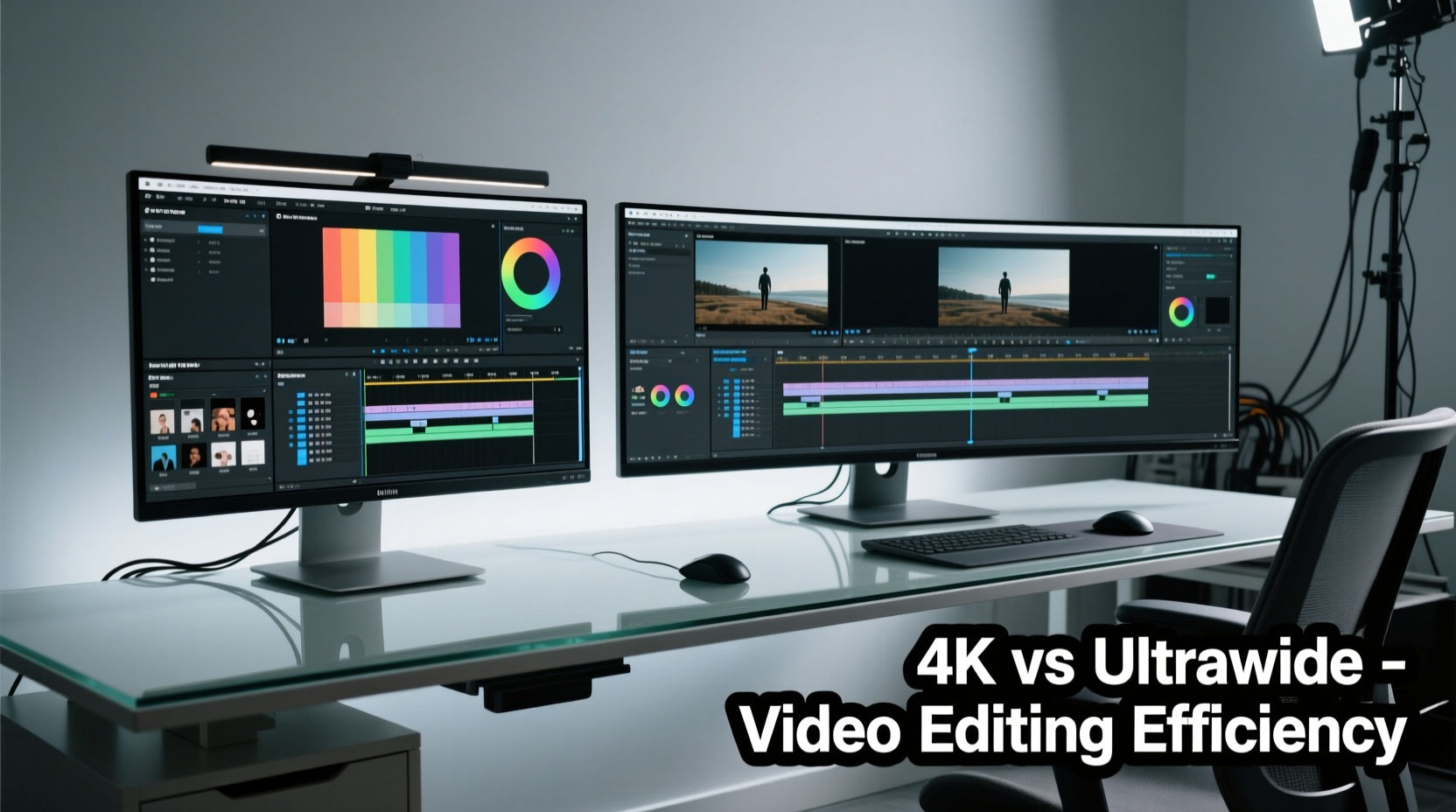
A 4K monitor typically refers to a display with a resolution of 3840 x 2160 pixels—four times the clarity of Full HD—and usually maintains a 16:9 aspect ratio. These monitors deliver exceptional pixel density, making them ideal for detailed work such as color grading, visual effects, and timeline scrubbing where precision matters.
In contrast, ultrawide monitors use extended aspect ratios like 21:9 or even 32:9, offering more horizontal screen space at resolutions such as 3440 x 1440 (common) or 5120 x 2160 (for premium models). While some ultrawides now support 4K-level horizontal resolution, their vertical resolution often remains lower than true 4K panels. The defining advantage lies in the panoramic view—perfect for spreading out timelines, tool panels, and preview windows side by side without constant tab switching.
The fundamental trade-off is clear: 4K prioritizes sharpness and detail; ultrawide emphasizes spatial efficiency and multitasking. For video editors, both factors are crucial—but not equally so across all workflows.
Workflow Efficiency: Where Each Monitor Excels
Efficiency in video editing isn’t just about speed—it’s about minimizing cognitive load, reducing context switching, and maintaining immersion in the creative process. Let’s examine how each monitor type supports these goals.
4K Monitors: Precision and Detail Clarity
When working on high-resolution footage—especially from cinema cameras or drones—a 4K monitor allows editors to view native 4K clips at full resolution without upscaling artifacts. This level of fidelity is essential during:
- Color correction and grading (spotting subtle tonal shifts)
- Visual effects compositing (aligning layers with pixel-level accuracy)
- Cropping and reframing within the frame (using crop tools confidently)
- Inspecting fine details like skin texture, noise, or lens flares
Additionally, many professional applications—including DaVinci Resolve, Adobe Premiere Pro, and Final Cut Pro—render UI elements sharper on 4K screens due to higher DPI scaling. This results in crisper text, icons, and waveform scopes, reducing eye strain over long sessions.
Ultrawide Monitors: Multitasking and Timeline Management
The strength of ultrawide displays lies in their ability to accommodate multiple application windows simultaneously. Video editors often juggle:
- The main preview window
- The timeline with multiple tracks
- Effects controls panel
- Audio meters and mixer
- Asset bins or media browser
On a standard 16:9 screen, this requires constant toggling between tabs or floating panels that overlap the canvas. An ultrawide monitor eliminates much of this friction. With sufficient width, editors can place the preview on one side, the timeline stretched across the center, and tools anchored to the right—all visible at once.
This layout reduces mouse travel and mental reloading when switching contexts. It also enables longer timeline visibility, allowing editors to see more of a sequence without frequent scrolling. For narrative projects with complex edits, documentaries, or multicam assemblies, this spatial advantage translates directly into time saved and fewer errors.
“With an ultrawide, I can lay out my entire edit environment without hiding anything. That uninterrupted view keeps me focused and cuts down timeline navigation by half.” — Jordan Lee, Freelance Editor & Colorist
Performance Considerations Across Systems
While screen real estate and resolution matter, performance compatibility is equally important. Not all systems handle these displays equally well.
4K monitors demand significant GPU power, especially when decoding high-bitrate codecs (like ProRes RAW or H.265) or playing back multiple streams. Editors using older machines may experience lag unless hardware acceleration is fully enabled. Additionally, bandwidth requirements increase—HDMI 2.0 or DisplayPort 1.4+ is necessary to run 4K at 60Hz with full chroma subsampling.
Ultrawide monitors, particularly those at 3440x1440, are less taxing on GPUs than 4K but still require adequate VRAM and modern drivers. However, some NLEs don’t optimize well for non-standard aspect ratios. For example, black bars may appear around the preview window if the software doesn’t stretch the interface intelligently. Also, exporting for standard 16:9 delivery formats can feel counterintuitive when the primary workspace is wider.
Hybrid Solutions: Dual Monitor Setups and Super Ultrawides
Many professionals bypass the 4K vs ultrawide debate entirely by combining both. A dual-monitor configuration—such as a central ultrawide flanked by secondary 4K reference screens—is common in post-production suites. This approach offers:
- Main editing on ultrawide for workflow fluidity
- Dedicated 4K screen for client review or color-critical tasks
- Extra space for communication tools (Slack, email, script notes)
Alternatively, 49-inch super ultrawides (e.g., Samsung Odyssey Neo G9 at 5120x2160) blend aspects of both worlds. Though technically two 2560x1440 panels stitched together, they provide vast horizontal space with enough vertical resolution to simulate two side-by-side 1440p screens. Some editors treat these as virtual dual monitors, splitting the display into functional zones.
Comparison Table: Key Features at a Glance
| Feature | 4K Monitor (3840x2160) | Ultrawide Monitor (3440x1440) |
|---|---|---|
| Aspect Ratio | 16:9 | 21:9 |
| Pixel Density (PPI) | High (~157 PPI on 27\") | Moderate (~109 PPI on 34\") |
| Timeline Visibility | Good | Excellent (longer horizontal span) |
| Detail Accuracy | Superior (native 4K playback) | Fair (upscaled previews common) |
| Multitasking Capability | Limited without second screen | Strong (natural window separation) |
| GPU Demand | High | Moderate |
| Ideal For | Color grading, VFX, 4K finishing | Editing, timeline-heavy workflows |
Real-World Example: Documentary Editor's Setup Transition
Sophia Tran, a documentary editor based in Toronto, switched from a dual 1080p setup to a single 34-inch ultrawide after struggling with timeline fragmentation. Her films often involve multi-hour interviews with dozens of audio tracks and B-roll layers. Previously, she had to constantly minimize and maximize panels to access different parts of the timeline.
After adopting a 3440x1440 ultrawide, she arranged her Premiere Pro workspace with the source monitor on the far left, the main program monitor centered, the timeline spanning nearly the full width, and audio meters docked to the right. She reported a 30% reduction in timeline navigation time and fewer missed cues during sync checks. However, when delivering final masters, she connected a calibrated 4K reference monitor to verify image quality—proving that specialization, not compromise, drove her efficiency.
Actionable Checklist: Choosing Your Ideal Editing Display
Use this checklist to evaluate which display best fits your workflow:
- ✅ Assess your primary editing tasks: Are you doing heavy color work or long-form storytelling?
- ✅ Evaluate your computer specs: Can your GPU drive 4K smoothly at 60Hz?
- ✅ Test software compatibility: Does your NLE support ultrawide layouts effectively?
- ✅ Consider future-proofing: Will you be handling 6K/8K proxies or HDR grading soon?
- ✅ Plan for ergonomics: Ensure desk depth accommodates ultrawide width without glare.
- ✅ Budget for calibration: Invest in a colorimeter regardless of display type.
- ✅ Try before you buy: Rent or demo both types to compare real-world usability.
Frequently Asked Questions
Can I edit 4K video on an ultrawide monitor?
Yes, but with caveats. Most ultrawides do not have true 4K vertical resolution (2160 lines), so while horizontal detail is strong, vertical clarity may fall short. You’ll likely view 4K footage at a scaled resolution. For accurate assessment, output to a separate 4K reference monitor during review stages.
Is a 4K monitor better than ultrawide for color grading?
Generally, yes. True 4K monitors offer superior pixel density and are often factory-calibrated with better color accuracy (especially IPS or OLED variants). Combined with proper ambient lighting and calibration tools, they provide a more reliable environment for precise grading decisions.
Do ultrawide monitors cause distortion at the edges?
Some users report mild peripheral distortion on curved ultrawides, particularly at the far left and right. Flat ultrawides minimize this effect. To reduce eye strain, position the screen closer and keep critical UI elements centered. Most adapt within a few days of regular use.
Final Recommendation: Match the Tool to the Task
There is no universal winner between 4K and ultrawide monitors for video editing. The optimal choice depends on your specific role, system capabilities, and workflow priorities. If your focus is on technical precision—color science, VFX alignment, or mastering deliverables—a 4K monitor delivers unmatched clarity. But if your day revolves around assembling narratives, managing complex timelines, and reducing window-switching fatigue, an ultrawide will streamline your process in ways resolution alone cannot match.
For maximum flexibility, consider a hybrid approach: a primary ultrawide for editing, paired with a secondary 4K display for quality assurance. This combination leverages the strengths of both technologies, creating a balanced, efficient workspace tailored to modern editing demands.




 浙公网安备
33010002000092号
浙公网安备
33010002000092号 浙B2-20120091-4
Comments
No comments yet. Why don't you start the discussion?