
In today’s digital workspace, the right monitor can significantly influence how quickly and comfortably you complete tasks. As professionals increasingly rely on multiple applications, large datasets, and complex workflows, choosing between a 4K monitor and an ultrawide display has become a critical decision. Both offer distinct advantages—high pixel density versus expansive horizontal space—but which one truly enhances work efficiency more? The answer depends on your workflow, software demands, and ergonomic preferences.
Understanding the Core Differences
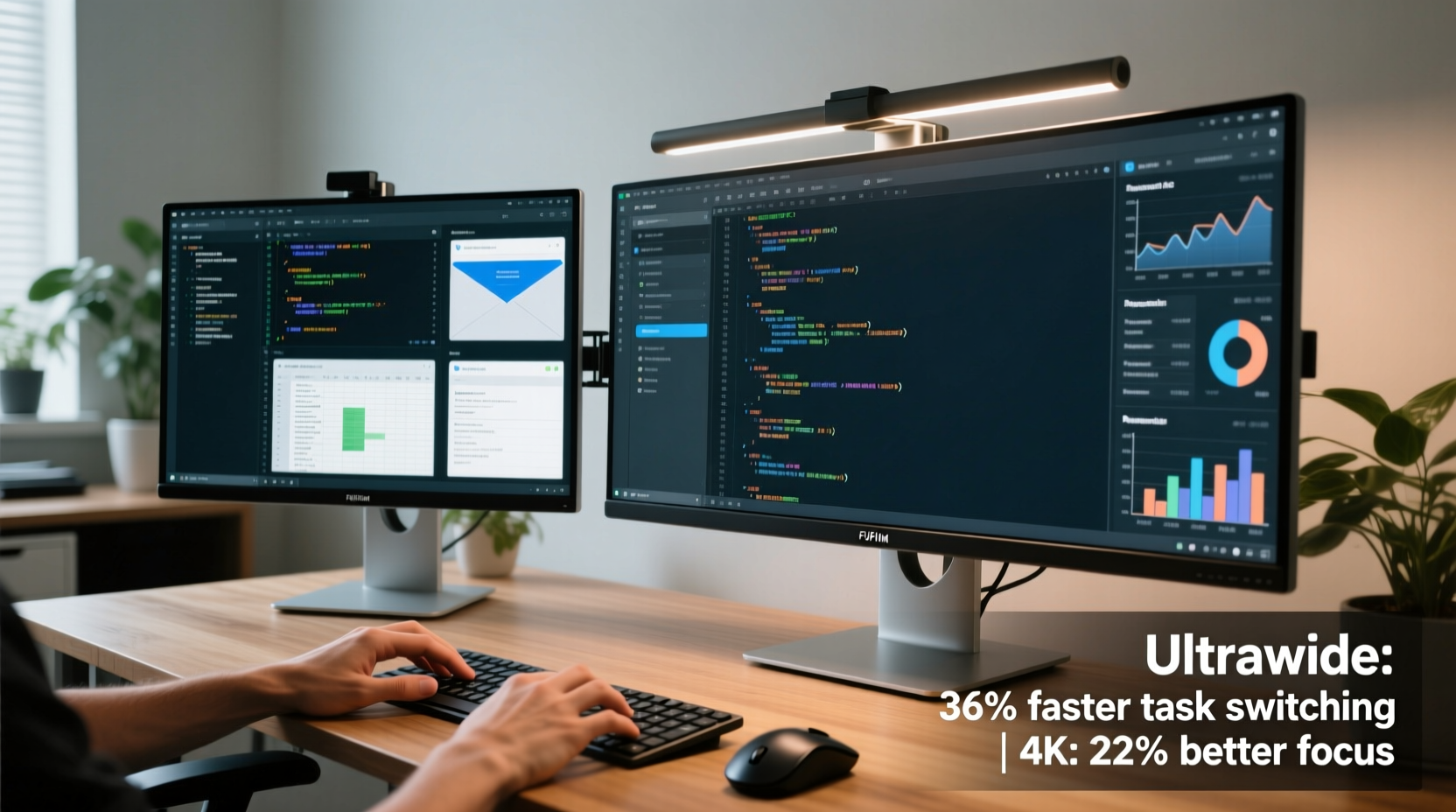
The fundamental distinction between a 4K monitor and an ultrawide lies in their resolution, aspect ratio, and screen layout.
A 4K monitor typically refers to a display with a resolution of 3840 x 2160 pixels and a 16:9 aspect ratio—the standard widescreen format. This means it delivers four times the pixel count of a Full HD (1080p) screen, offering sharper text, crisper images, and better detail for design or data-intensive work.
An ultrawide monitor, on the other hand, usually features a 21:9 or even 32:9 aspect ratio, with common resolutions like 2560 x 1080 (FWHD), 3440 x 1440 (QHD+), or 5120 x 1440 (5K). These screens stretch horizontally, mimicking two side-by-side 16:9 monitors without the bezel interruption.
While both options improve over traditional 1080p displays, they serve different productivity needs. A 4K screen excels in clarity and precision; an ultrawide shines in multitasking breadth.
“Pixel density matters for visual accuracy, but screen real estate often determines workflow fluidity.” — Dr. Lena Torres, Human-Computer Interaction Researcher, MIT Media Lab
Work Efficiency: Defining What Matters
Efficiency isn’t just about speed—it’s about minimizing cognitive load, reducing context switching, and enabling seamless interaction across tools. An efficient setup reduces friction between thought and execution.
For knowledge workers, efficiency gains come from:
- Reduced need to minimize/maximize windows
- Easier cross-application referencing (e.g., comparing spreadsheets and reports)
- Clearer visualization of high-resolution content (code, video, graphics)
- Lower eye strain due to proper scaling and spacing
The ideal monitor supports these goals without introducing new challenges like scaling issues, distorted UI elements, or awkward window management.
Comparing Performance Across Key Workflows
Different professions benefit differently from each display type. Let’s examine three common use cases.
Graphic Design and Video Editing
For creative professionals, 4K monitors provide superior color accuracy, finer detail rendering, and better zoom capabilities. When editing 4K footage, working on high-DPI assets, or retouching photos, pixel-level precision is non-negotiable.
However, ultrawide monitors offer a broader timeline view in video editing software like Adobe Premiere Pro or DaVinci Resolve. Editors can keep tool panels, preview windows, and timelines visible simultaneously, reducing reliance on keyboard shortcuts to toggle views.
Programming and Software Development
Developers often juggle code editors, terminals, documentation tabs, and version control panels. Here, horizontal space becomes invaluable. An ultrawide allows side-by-side coding and debugging without constant tabbing.
That said, 4K monitors enable higher font clarity at smaller sizes, allowing more lines of code per screen without sacrificing readability. With proper DPI scaling, developers can maintain dense yet legible layouts.
Many IDEs still don’t optimize well for ultra-wide aspect ratios, leading to awkward whitespace or stretched interfaces. In contrast, 4K integrates smoothly into existing desktop environments.
Data Analysis and Financial Modeling
Analysts spend hours inside spreadsheets, dashboards, and reporting tools. Ultrawides allow viewing dozens of Excel columns alongside pivot tables and charts—eliminating constant horizontal scrolling.
A real-world example: Sarah Kim, a financial analyst at a mid-sized investment firm, switched from dual 1080p monitors to a single 34-inch 3440x1440 ultrawide. She reported a 20% reduction in time spent rearranging windows and noted fewer errors when cross-referencing quarterly figures across sheets.
“I used to lose focus every time I switched between my left and right screen. Now everything flows left to right naturally.” — Sarah Kim, Senior Financial Analyst
Meanwhile, 4K monitors help when dealing with high-density visualizations—heatmaps, geospatial data, or multi-layered BI dashboards—where fine detail impacts interpretation.
Side-by-Side Comparison: Features That Impact Productivity
| Feature | 4K Monitor (3840x2160) | Ultrawide (3440x1440) |
|---|---|---|
| Aspect Ratio | 16:9 | 21:9 |
| Total Pixels | ~8.3 million | ~5.0 million |
| Horizontal Workspace | Moderate – standard width | High – equivalent to ~1.7x wider than 16:9 |
| Vertical Resolution | 2160 px (excellent for long documents) | 1440 px (less vertical space) |
| Text Clarity | Superior with proper scaling | Good, but may require larger fonts |
| Multitasking Flexibility | Requires tiling or virtual desktops | Natural split-screen workflow |
| Gaming & Media Support | Excellent 16:9 compatibility | Black bars in most games/films; some stretching |
| Scaling Challenges | Common on Windows without calibration | Rare; mostly plug-and-play |
This table highlights a key trade-off: 4K wins in pixel density and vertical reach, while ultrawide dominates in horizontal expanse and multitasking intuitiveness.
Hidden Factors That Influence Real-World Efficiency
Beyond specs, several practical considerations affect how much either monitor improves daily output.
DPI Scaling and Software Compatibility
4K monitors often require manual DPI scaling adjustments, especially on Windows systems. Poorly scaled UIs can make menus blurry or buttons too small, negating the clarity benefits. Applications not optimized for high-DPI may appear inconsistent or broken.
Ultrawide monitors generally face fewer scaling issues since their pixel density is closer to standard 1080p levels. However, some older programs stretch awkwardly or fail to center properly on wide screens.
Ergonomics and Viewing Angles
Large ultrawide monitors demand careful positioning. Because the edges curve away from the viewer, frequent head movement may cause neck strain over time. Curved ultrawides mitigate this by matching the natural arc of human vision.
4K monitors are typically flat and centered, promoting a focused central gaze. But users who rely on peripheral awareness (e.g., monitoring chat apps or system alerts) may find them less accommodating.
Cable and Hardware Requirements
Both monitor types demand capable hardware:
- 4K at 60Hz requires HDMI 2.0 or DisplayPort 1.2+
- Ultrawide QHD+ (3440x1440) runs smoothly over DisplayPort 1.2 or HDMI 2.0
- Graphics cards must support the resolution and refresh rate
Laptops with limited video outputs may struggle to drive 4K efficiently, whereas ultrawides are often easier to integrate via Thunderbolt or USB-C DP Alt Mode.
Actionable Checklist: Choosing the Right Monitor for Your Workflow
Use this checklist to determine which monitor aligns best with your productivity goals:
- Evaluate your primary applications: Do they benefit from vertical space (coding, writing) or horizontal sprawl (spreadsheets, timelines)?
- Assess your current multitasking habits: Are you constantly switching between windows? If yes, ultrawide could reduce that friction.
- Check your GPU and ports: Ensure your system supports the resolution and refresh rate without performance drops.
- Test scaling settings: On Windows, preview how text and apps render at high DPI before buying a 4K panel.
- Consider ergonomics: Will the screen fit your desk? Can you position it to avoid glare and maintain neutral posture?
- Think long-term: Is your role likely to evolve toward more visual or collaborative work in the next 2–3 years?
Hybrid Approach: Combining Strengths
Some professionals opt for a hybrid solution—using a 4K ultrawide (like a 5120x1440 model) or pairing a 4K main screen with a secondary ultrawide. This maximizes both resolution and workspace.
For instance, a UX designer might use a 4K ultrawide as their primary canvas for designing interfaces at native resolution while keeping user feedback, Slack, and Jira open on the far right.
However, this approach increases cost, cable clutter, and setup complexity. It also demands advanced window management skills or third-party tiling tools (e.g., Microsoft PowerToys, Magnet on Mac).
Frequently Asked Questions
Can I run two virtual desktops side by side on an ultrawide?
Yes. Modern operating systems support snap layouts that let you divide an ultrawide into two or more equal zones. Windows 11’s Snap Layouts and macOS Stage Manager make this easy. You can effectively simulate dual monitors within a single ultrawide.
Is 4K overkill for office work?
Not necessarily. While basic word processing doesn’t require 4K, the increased clarity reduces eye fatigue during long reading sessions. Additionally, having more rows visible in Excel or more lines in a document improves navigation efficiency.
Do ultrawide monitors cause distortion at the edges?
Flat ultrawides can create slight edge distortion due to viewing angle, but curved models (typically 1500R or 1800R curvature) minimize this effect. Most users adapt within a few days. Positioning the monitor closer to your eyes (24–30 inches) also helps maintain uniform perception.
Final Recommendation Based on Use Case
There is no universal winner. The optimal choice depends on your dominant tasks:
- Choose 4K if: You work with high-resolution media, need precise visuals, read long documents, or prioritize sharpness and future-proofing.
- Choose Ultrawide if: You multitask heavily, analyze wide datasets, edit video timelines, or want a cleaner desk with fewer monitors.
- Consider both: If budget and space allow, a 4K ultrawide or a dual-monitor setup combining both types offers maximum flexibility.
For general office productivity—including email, web research, presentations, and moderate spreadsheet use—an ultrawide often provides more immediate efficiency gains simply by reducing window-switching overhead.
Conclusion: Make the Monitor Work for You
The debate between 4K and ultrawide isn't about technical superiority—it's about alignment with your actual work patterns. Efficiency grows not from raw specs, but from seamless integration into your daily rhythm.
Before making a purchase, ask yourself: Does this monitor reduce friction in my most frequent tasks? Will it help me stay focused longer with less mental fatigue? These are the metrics that truly define productivity.
Take the time to test configurations, adjust settings, and observe how your workflow evolves. Whether you choose the crisp precision of 4K or the expansive freedom of an ultrawide, the goal remains the same: to create a workspace where ideas flow faster than ever.




 浙公网安备
33010002000092号
浙公网安备
33010002000092号 浙B2-20120091-4
Comments
No comments yet. Why don't you start the discussion?