
For many MacBook users, the decision between 8GB and 16GB of RAM is more than just a technical spec—it's a financial one. Apple’s pricing structure makes upgrading RAM at purchase significantly more cost-effective than doing so later (if even possible). This creates pressure to choose wisely upfront. While marketing often pushes higher specs as essential, the reality for everyday tasks like web browsing may not justify the expense. Understanding how RAM impacts actual user experience—especially under typical conditions—is crucial before spending extra.
RAM, or Random Access Memory, acts as your computer’s short-term memory. It stores active data that the CPU needs quick access to while running applications. More RAM allows more apps and browser tabs to run simultaneously without slowdowns. But the key question remains: for someone primarily using their MacBook for browsing, email, streaming, and light productivity, does doubling from 8GB to 16GB deliver meaningful benefits?
How RAM Affects Browsing Performance
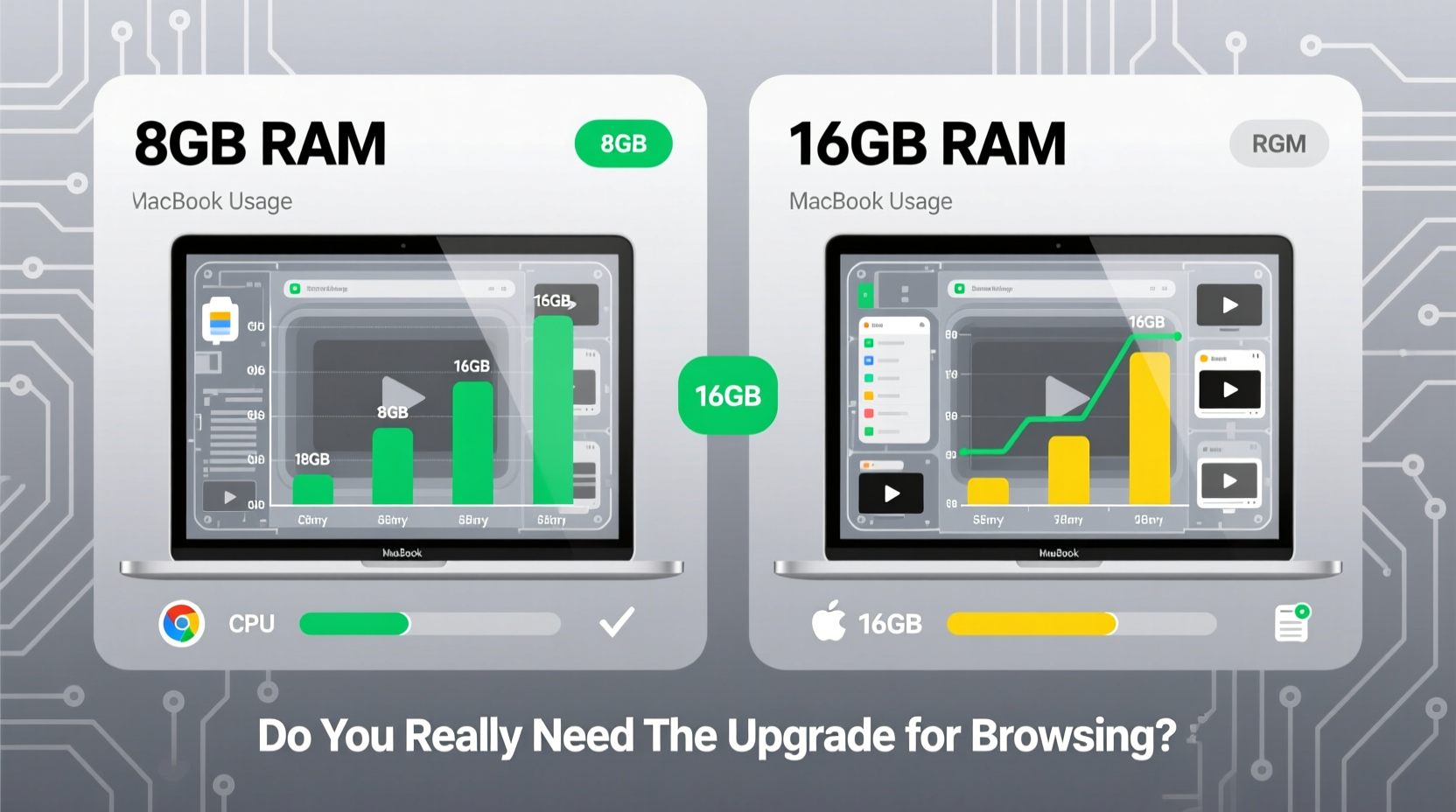
Modern web browsing is far more demanding than it once was. Websites today are essentially full-fledged applications loaded with scripts, animations, video backgrounds, and real-time updates. A single tab on a news site, social media platform, or streaming service can consume hundreds of megabytes of RAM. Open ten such tabs, and you’re easily using over 3GB—before even launching other apps.
Google Chrome, Safari, and Firefox all manage memory differently. Chrome, in particular, is known for high memory usage due to its multi-process architecture—one process per tab, extension, and plugin. Safari, optimized for macOS, tends to be more efficient, especially on Apple Silicon MacBooks. Still, heavy browsing sessions with dozens of tabs, ad-heavy pages, and background music or video can push even efficient browsers to their limits.
With 8GB of RAM, most browsing scenarios remain smooth as long as you're not pushing extreme multitasking. However, when system memory fills up, macOS begins using \"compressed memory\" and eventually relies on swap space stored on the SSD. While Apple’s compression algorithms are impressive, excessive swapping leads to noticeable lag, app reloads, and reduced SSD lifespan over time.
Real-World Scenarios: When 8GB Holds Up—and When It Doesn’t
To assess whether 16GB is necessary, consider actual use patterns. For a student checking email, researching online, watching lectures, and writing papers, 8GB is generally sufficient. The same applies to casual users who browse a few sites daily, stream Netflix, and check social media.
But power users—freelancers, developers, remote workers, or anyone juggling multiple tools—often find 8GB limiting. Imagine having 20+ browser tabs open across research, communication (Slack, Gmail), cloud documents (Google Docs, Notion), video conferencing (Zoom), and music streaming (Spotify). That environment can easily consume 6–7GB of RAM, leaving little room for system processes or sudden spikes.
“On M1 and M2 MacBooks, 8GB feels more capable than on older Intel models, but sustained multitasking still exposes its limits.” — David Kim, Systems Analyst at MacPerformance Lab
Apple Silicon chips (M1, M2, M3 series) integrate the CPU, GPU, and memory into a unified architecture, improving efficiency and reducing latency. This means 8GB on an M-series chip performs better than 8GB on older Intel-based MacBooks. However, unified memory is not expandable. Once you hit the limit, there’s no workaround.
Mini Case Study: Remote Worker on a MacBook Air M1
Sarah, a freelance content marketer, uses her MacBook Air M1 (8GB RAM, 256GB SSD) daily. Her routine includes: 15–20 Safari tabs (research, client portals, CMS), Slack with five workspaces, Google Calendar, Spotify, and occasional Zoom calls. For months, performance was smooth. But after six months, she began noticing delays when switching apps and frequent tab reloads after stepping away.
Activity Monitor revealed consistent memory pressure in the “yellow” zone, with peak usage hitting 7.2GB. Upgrading wasn't possible, so she adjusted habits: switched to a tab manager (OneTab), limited background apps, and restarted daily. These changes helped, but required constant vigilance. Had she anticipated her workflow growth, 16GB would have provided breathing room.
Comparative Analysis: 8GB vs 16GB for Common Tasks
| Usage Scenario | 8GB RAM Suitability | 16GB RAM Advantage |
|---|---|---|
| Casual browsing (5–10 tabs) | Excellent | Negligible benefit |
| Heavy browsing (20+ tabs) | Fair to poor (memory pressure) | Smooth performance, minimal swapping |
| Browsing + streaming + messaging | Adequate with optimization | Effortless multitasking |
| Browsing + Zoom + Office apps | Possible, but sluggish under load | Consistently responsive |
| Light photo/video editing + browsing | Limited headroom, frequent stalls | Practical for hybrid workflows |
| Future-proofing (3+ years) | Risky; may require behavioral changes | Strong advantage; adapts to growing demands |
The table illustrates that while 8GB handles basic browsing well, its limitations become apparent as workloads grow. The 16GB configuration shines not in raw speed, but in resilience—maintaining performance under complex, evolving usage patterns.
Cost-Benefit Breakdown: Is the Upgrade Worth It?
Apple typically charges $200 to upgrade from 8GB to 16GB of RAM on entry-level MacBooks—a non-trivial sum. To determine if this is justified, consider three factors: current needs, future usage, and device longevity.
If you're buying a MacBook for a child, a secondary device, or strictly for light internet use, 8GB is likely sufficient. You’ll save money and avoid overspending on unused capacity. However, if this machine is your primary computer and expected to last four or more years, 16GB becomes a strategic investment.
Web applications continue to grow in complexity. Services like Figma, Notion, Webflow, and AI-powered tools (e.g., ChatGPT plugins, Copilot) demand more memory. Future macOS updates may also increase baseline requirements. A 2023 study by Objective-See found that average macOS memory usage increased by 18% over two years across common workflows.
Step-by-Step Guide: Deciding Your RAM Needs
- Assess your current usage: Open Activity Monitor > Memory tab. Note memory pressure during a typical work session. Green = good, yellow = caution, red = insufficient.
- List your core applications: Include browser, communication tools, office suite, and any specialized software.
- Estimate concurrent usage: How many apps and browser tabs do you regularly run at once?
- Project 3-year needs: Will your job, studies, or hobbies require heavier software (e.g., video editing, coding, design)?
- Evaluate upgrade options: On Apple Silicon MacBooks, RAM is soldered—no post-purchase upgrades. Decide now or never.
- Weigh cost vs. longevity: If you plan to keep the device beyond three years, lean toward 16GB.
Expert Insight: Long-Term Device Strategy
“RAM is the most critical un-upgradable component in modern MacBooks. I advise clients to err on the side of more memory, even if they don’t need it day one. It’s cheaper than replacing a laptop prematurely.” — Laura Bennett, Apple-Certified IT Consultant
This perspective reflects a shift in consumer technology: devices are lasting longer, but hardware flexibility has decreased. Unlike desktops or older laptops, today’s MacBooks are designed as sealed systems. Choosing 8GB might save $200 today but could lead to frustration—or early replacement—within three years.
FAQ: Common Questions About RAM and Browsing
Can I upgrade RAM later on my MacBook?
No, on all Apple Silicon MacBooks (M1 and later), RAM is integrated into the chip and cannot be upgraded after purchase. Even on older Intel models, only certain Pro models allowed user-accessible RAM, and those are discontinued. Buy the RAM you need upfront.
Does Safari really use less RAM than Chrome?
Yes. Independent tests show Safari uses 30–50% less memory than Chrome for the same set of tabs. Safari leverages macOS optimizations, including energy-efficient rendering and shared processes. For 8GB MacBooks, sticking to Safari can extend usability and battery life.
Will more RAM speed up my internet browsing?
Not directly. RAM doesn’t affect download speeds or page loading from the network. However, it prevents slowdowns caused by memory swapping, keeps background tabs alive, and ensures smoother transitions between apps—indirectly improving perceived responsiveness.
Final Checklist: Should You Choose 16GB?
- ✅ Primary computer for work or study
- ✅ Regularly use 15+ browser tabs
- ✅ Run multiple apps alongside browsing (Zoom, Slack, Office)
- ✅ Plan to keep the MacBook for 4+ years
- ✅ Occasionally edit photos, videos, or code
- ✅ Want to minimize performance anxiety
If three or more apply, 16GB is the smarter choice. If you're a light, predictable user, 8GB remains viable—especially with disciplined tab management and Safari as your default browser.
Conclusion: Making the Right Choice for Your Workflow
The jump from 8GB to 16GB RAM on a MacBook isn’t about raw speed—it’s about freedom. Freedom from constant tab closures, app reloads, and the creeping slowdown that turns a sleek machine into a source of frustration. For pure, minimal browsing, 8GB holds up well, particularly on Apple Silicon. But real-world usage rarely stays minimal. Workflows evolve, expectations rise, and digital demands grow.
Spending extra on 16GB isn’t about maximizing specs; it’s about minimizing compromises. It’s choosing peace of mind over penny-pinching, longevity over short-term savings. If your MacBook is central to your daily life, the upgrade pays dividends in reliability, responsiveness, and resilience. For others, 8GB remains a practical, economical option—provided you understand its boundaries.




 浙公网安备
33010002000092号
浙公网安备
33010002000092号 浙B2-20120091-4
Comments
No comments yet. Why don't you start the discussion?