
WhatsApp has become one of the most essential communication tools worldwide, offering fast, secure messaging, voice calls, video chats, and file sharing—all for free over an internet connection. Whether you've just bought your first smartphone or are switching from a feature phone to a smart device, getting WhatsApp up and running is a simple process if you know the steps. This guide walks you through everything you need to know to install and set up WhatsApp on any mobile device, regardless of operating system or experience level.
Understanding WhatsApp and Its Compatibility
Before installation, it’s important to understand what devices support WhatsApp. The app is available for two major platforms: Android (powered by Google) and iOS (used by iPhones). Both require specific minimum versions to function properly:
- Android: Requires Android 5.0 (Lollipop) or higher.
- iOS: Requires iOS 12 or later, compatible with iPhone 6s and newer models.
Older smartphones that don’t meet these requirements may not be able to download or run the latest version of WhatsApp. Additionally, WhatsApp does not support Windows phones, tablets (without cellular calling), or desktop-only installations as a primary account unless linked to a mobile device.
“WhatsApp’s design prioritizes accessibility and security, making it usable even for first-time smartphone owners.” — TechLife Journal, Mobile Communication Report 2023
Step-by-Step Installation Process
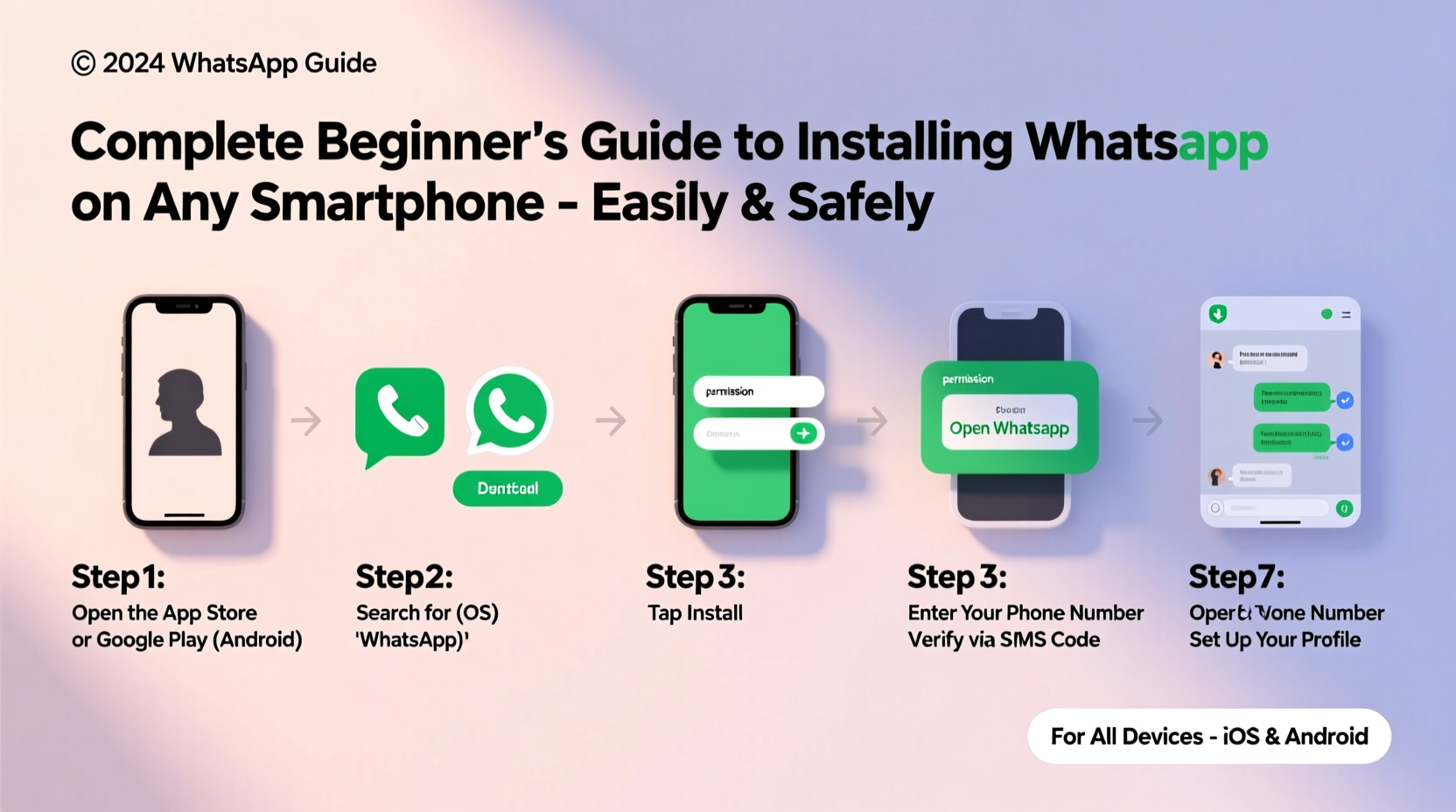
Installing WhatsApp follows a consistent flow across both major platforms. Below is a clear, sequential guide to help you get started without confusion.
- Ensure Internet Connectivity: Connect your phone to Wi-Fi or enable mobile data.
- Open Your App Store:
- On Android: Open the Google Play Store.
- On iPhone: Open the App Store.
- Search for WhatsApp: Tap the search bar and type “WhatsApp Messenger” or simply “WhatsApp.” Make sure the developer listed is “WhatsApp Inc.”
- Download and Install: Tap “Install” (Android) or the cloud/download icon (iPhone). Wait for the app to download automatically.
- Open the App: Once installed, tap “Open” or locate the green WhatsApp icon on your home screen.
The installation itself takes less than a minute on most modern devices with stable internet.
Setting Up Your WhatsApp Account
After installing the app, setting up your account requires verification using your phone number. This ensures each account is tied to a real SIM card and enhances security.
Verification Steps:
- Launch WhatsApp and select your country from the dropdown menu.
- Enter your full phone number, including the country code (e.g., +44 for the UK, +1 for the US).
- Tap “Next.” WhatsApp will send a 6-digit SMS verification code.
- If SMS doesn’t arrive, choose “Call Me” to receive the code via automated voice call.
- Once verified, enter your name (this will appear to contacts who have your number saved).
- Optionally, add a profile photo and adjust privacy settings like last seen, read receipts, and status visibility.
You’re now ready to use WhatsApp. The app will automatically sync your phone’s contact list and show which contacts are already on WhatsApp.
What to Do If Installation Fails
Sometimes, users encounter issues when trying to install or verify WhatsApp. Common problems include failed downloads, missing app stores, or verification errors. Here's how to troubleshoot them effectively.
| Issue | Possible Cause | Solution |
|---|---|---|
| App won’t download | No internet, insufficient storage | Check connection; free up space by deleting unused apps or files |
| Play Store/App Store not working | Outdated OS, login issue | Update OS; sign in to your Google/Apple ID |
| Verification code not received | Network delay, blocked SMS | Wait 10 minutes; check spam folder; request a call instead |
| “This phone number is banned” error | Previous misuse of account | Contact WhatsApp support with appeal details |
Mini Case Study: Maria’s First Smartphone Experience
Maria, a 67-year-old retiree in Spain, recently received her first Android smartphone from her grandson. She wanted to stay in touch with family abroad but had never used an app store before. With his guidance over a video call, she connected to Wi-Fi, opened the Play Store, searched for WhatsApp, and installed it successfully. Initially confused by the verification step, she requested a call instead of SMS and completed setup within 15 minutes. Today, she messages daily with her grandchildren and joined a local gardening group on WhatsApp.
This example shows that while technology can seem intimidating at first, structured guidance makes all the difference—even for complete beginners.
Essential Tips and Best Practices After Installation
Now that WhatsApp is installed and running, follow these best practices to enhance usability, privacy, and performance.
✅ Checklist: Post-Installation Setup
- Verify your phone number successfully
- Set a recognizable profile name and picture
- Review privacy settings under Settings > Account > Privacy
- Enable two-step verification (Settings > Account > Two-step verification)
- Back up chats regularly (Google Drive for Android, iCloud for iPhone)
- Learn basic features: sending texts, photos, voice notes, and making calls
“Enabling two-step verification reduces unauthorized access risk by over 90%.” — Digital Security Alliance, 2022 Annual Report
Frequently Asked Questions
Can I install WhatsApp on more than one phone?
No, WhatsApp can only be active on one primary device at a time. However, you can link up to four additional devices (like tablets or computers) using WhatsApp Web or WhatsApp Desktop, provided your main phone remains connected to the internet.
Is WhatsApp really free?
Yes, WhatsApp is completely free to download and use. It generates revenue through business messaging services, not user fees. There are no charges for calls, messages, or media shared over the app.
What should I do if I change my phone number?
Use WhatsApp’s built-in “Change Number” tool (Settings > Account > Change Number). This updates your account and notifies your contacts automatically, preserving your chat history.
Final Thoughts and Next Steps
Installing WhatsApp doesn’t require technical expertise—just a few taps and a working phone number. From seniors reconnecting with loved ones to students coordinating group projects, WhatsApp serves a vital role in modern communication. By following this guide, even someone using a smartphone for the first time can confidently install, verify, and begin using the app within minutes.
Take the next step today: open your app store, download WhatsApp, and send your first message. Explore its features gradually—group chats, broadcast lists, voice messages—and discover how effortless digital connection can be.




 浙公网安备
33010002000092号
浙公网安备
33010002000092号 浙B2-20120091-4
Comments
No comments yet. Why don't you start the discussion?