
Java remains one of the most widely used programming languages in enterprise applications, Android development, and large-scale backend systems. Whether you're a developer, system administrator, or casual user running Java-based software, knowing which version of Java is installed on your machine is essential. The wrong version can lead to compatibility issues, security vulnerabilities, or failed application launches. This guide walks you through reliable methods to check your Java version across Windows, macOS, and Linux, along with advanced diagnostics and best practices for managing multiple installations.
Why Knowing Your Java Version Matters
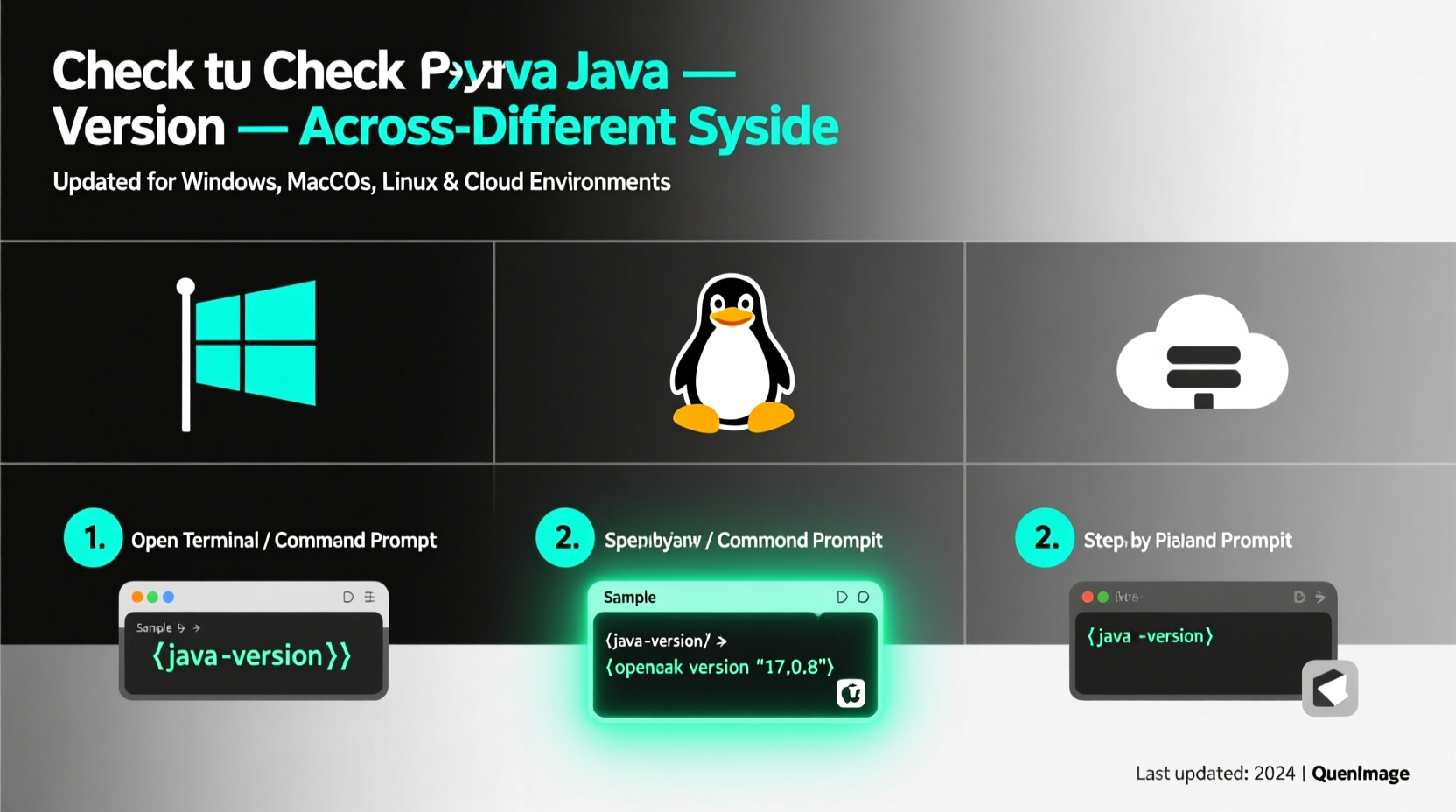
Java evolves rapidly, with Oracle and OpenJDK releasing updates regularly. Each version introduces new features, deprecates older APIs, and patches critical security flaws. Running an outdated or mismatched version can prevent applications from launching or expose your system to known exploits. For example, a Spring Boot 3.x application requires at least Java 17—running it on Java 8 will result in immediate failure.
Beyond compatibility, many organizations enforce strict compliance policies around Java versions. Development teams must ensure consistency between local environments and production servers. A mismatch here can cause elusive bugs that only appear after deployment.
“Version alignment between development and production environments is non-negotiable in modern DevOps pipelines.” — Sarah Lin, Senior DevOps Engineer at TechFlow Solutions
How to Check Java Version: Basic Commands
The primary method for checking Java’s version uses the java -version command, available on all major operating systems. This command queries the JVM currently set in your system's PATH and returns detailed build information.
Step-by-Step: Using java -version
- Open your terminal (macOS/Linux) or Command Prompt/PowerShell (Windows).
- Type
java -versionand press Enter. - Review the output for version number, vendor, and build details.
Sample output:
openjdk version \"17.0.8\" 2023-07-18
OpenJDK Runtime Environment (build 17.0.8+7)
OpenJDK 64-Bit Server VM (build 17.0.8+7, mixed mode)
This indicates OpenJDK 17.0.8 is installed. Note that minor updates (e.g., 17.0.7 vs 17.0.8) matter for security patches.
java -version after installing a new JDK to confirm it's correctly registered in your system PATH.
Checking Java Versions by Operating System
Different platforms store and manage Java installations uniquely. Below are platform-specific approaches to verify and locate Java versions.
Windows: Command Line and GUI Methods
On Windows, use either Command Prompt or PowerShell:
java -version
If Java is not recognized, it may not be installed or missing from the PATH environment variable. To troubleshoot:
- Navigate to
C:\\Program Files\\Java\\orC:\\Program Files (x86)\\Java\\. - Look for folders like
jdk-17,jdk-21, orjre1.8.0_381. - Add the
bindirectory path to your system PATH variable if needed.
You can also check via Control Panel > Programs > Installed Programs, though this shows only Oracle-installed versions—not OpenJDK.
macOS: Terminal and System Checks
macOS includes Java support but doesn’t always ship with it pre-installed. Use Terminal:
java -version
If Java isn't found, macOS may prompt you to install it automatically. Alternatively, developers often use package managers like Homebrew:
brew install openjdk@17
To list all installed Java versions managed by /usr/libexec/java_home:
/usr/libexec/java_home -V
This command displays all detected JVMs, including their paths and architectures (Intel vs Apple Silicon).
Linux: Distribution-Specific Variations
Most Linux distributions support java -version. However, some require initial configuration when multiple versions exist.
Use these commands based on your distribution:
| Distribution | Check Java Version | Manage Alternatives |
|---|---|---|
| Ubuntu/Debian | java -version |
sudo update-alternatives --config java |
| CentOS/RHEL | java -version |
alternatives --config java |
| Fedora | java -version |
alternatives --set java /path/to/jvm |
For deeper inspection, list installed packages:
dpkg -l | grep java    # Debian/Ubuntu
rpm -qa | grep java    # RHEL/CentOS
Advanced Techniques: Locating All Java Installations
Sometimes, java -version only reveals the default JVM. But what if you have multiple versions installed? Here’s how to find them all.
Using java_home (macOS)
/usr/libexec/java_home -V
Output:
Matching Java Virtual Machines (3):
    21.0.1 (x86_64) \"Oracle Corporation\" - \"Java SE 21.0.1\" /Library/Java/JavaVirtualMachines/jdk-21.jdk/Contents/Home
    17.0.8 (x86_64) \"Eclipse Foundation\" - \"OpenJDK 17.0.8\" /Library/Java/JavaVirtualMachines/openjdk-17.jdk/Contents/Home
    11.0.20 (x86_64) \"Oracle Corporation\" - \"Java SE 11.0.20\" /Library/Java/JavaVirtualMachines/jdk-11.0.20.jdk/Contents/Home
Manual Search (All Platforms)
Search common installation directories:
- Windows:
C:\\Program Files\\Java\\ - macOS:
/Library/Java/JavaVirtualMachines/,~/Library/Java/ - Linux:
/usr/lib/jvm/,/opt/java/
Run this script on Linux/macOS to scan recursively:
find /usr/lib/jvm /opt -name 'java' -path '*/bin/java' -exec {} -version \\; 2>&1 | grep -i version
Troubleshooting Common Java Version Issues
Even when Java appears installed, users often face misleading outputs or execution errors.
java -version returns “command not found,” verify that the JAVA_HOME environment variable is set and added to PATH.
Problem: java -version shows old version despite new install
Solution: The system PATH still points to an older JVM. Reorder PATH entries or reconfigure alternatives (Linux), or adjust JAVA_HOME.
Problem: Conflicting JRE and JDK versions
Solution: Ensure both java (JRE) and javac (compiler) point to the same version:
java -version
javac -version
If they differ, reinstall or reconfigure your JDK.
Best Practices for Managing Multiple Java Versions
Modern development often requires switching between Java versions. Manual PATH edits are error-prone. Instead, use version management tools.
Recommended Tools
- SDKMAN! (Linux/macOS): Manage multiple JDKs with simple commands like
sdk use java 17.0.8-tem. - Jabba (Cross-platform): Lightweight version manager inspired by nvm.
- Windows + jEnv: Limited support; prefer manual switching or IDE-level configuration.
“With SDKMAN!, I switch between Java 8, 11, and 21 daily without touching environment variables.” — Marcus Reed, Full-Stack Developer
FAQ: Common Questions About Java Version Management
How do I know if I have JDK or just JRE?
Run javac -version. If it returns a version, you have the JDK. If the command is not found, you likely have only the JRE.
Can I have multiple Java versions on the same machine?
Yes. Most developers do. Use tools like SDKMAN! or manually configure JAVA_HOME per project to avoid conflicts.
Is Java 8 still safe to use?
Public updates for Java 8 ended in 2019. While some vendors provide extended support (e.g., Azul, Oracle), using it in production without paid support poses security risks. Upgrade to LTS versions like Java 17 or 21 when possible.
Essential Checklist: Verify Your Java Setup
- Run
java -versionto check current version. - Run
javac -versionto confirm JDK availability. - Verify
JAVA_HOMEpoints to the correct JDK root directory. - Ensure
JAVA_HOME/binis in your system PATH. - List all installed JVMs using platform-specific tools (
java_home -V,update-alternatives, etc.). - Use a version manager (SDKMAN!, Jabba) if working with multiple projects.
Conclusion: Take Control of Your Java Environment
Understanding your Java version is more than a technical formality—it’s a foundation for secure, stable, and efficient development. From verifying installations to managing complex multi-version workflows, the right knowledge prevents hours of debugging and deployment failures. Whether you're maintaining legacy systems or building cutting-edge microservices, take a few minutes today to audit your Java setup. Confirm your versions, clean up outdated installations, and adopt tools that make version switching seamless. A well-managed Java environment pays dividends in reliability, performance, and peace of mind.




 浙公网安备
33010002000092号
浙公网安备
33010002000092号 浙B2-20120091-4
Comments
No comments yet. Why don't you start the discussion?