
In an era where digital privacy and authentication are paramount, understanding cryptographic keys—especially public keys—is essential. Whether you're logging into a remote server, verifying software integrity, or securing email communications, your public key plays a foundational role in establishing trust without exposing sensitive information. Unlike passwords, which must be kept secret, public keys are designed to be shared openly while still maintaining security through asymmetric cryptography.
This guide walks you through what a public key is, how to locate it across common systems, and how to use it effectively for secure access. You’ll also learn best practices, troubleshooting tips, and real-world applications that demonstrate why mastering this concept matters.
Understanding Public and Private Keys
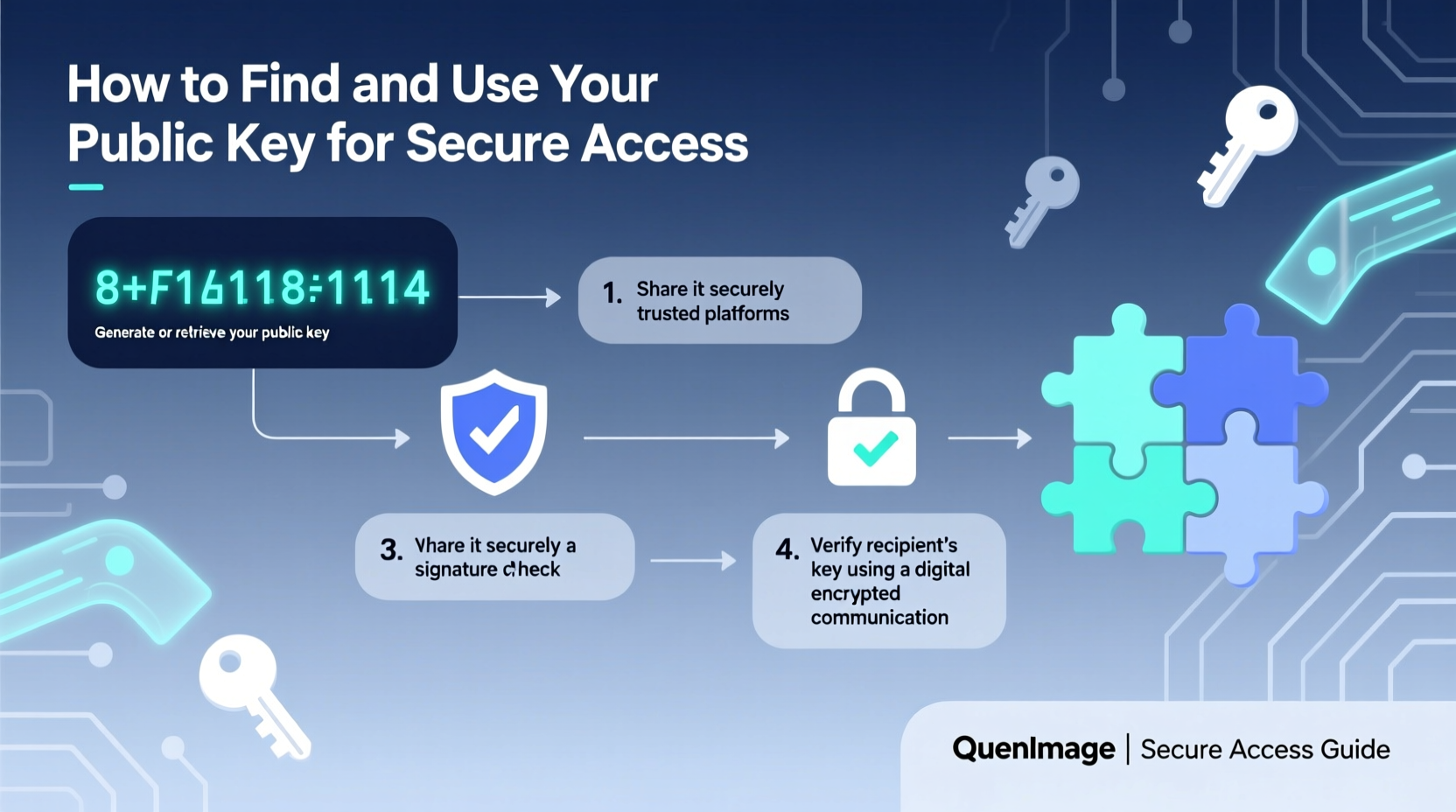
At the core of public-key cryptography (also known as asymmetric encryption) lies a pair of mathematically linked keys: one private, one public. The private key must remain confidential—it’s your digital signature and proof of identity. The public key, however, can be freely distributed. It allows others to encrypt data that only your private key can decrypt, or to verify that a message was signed by you.
Common uses include:
- SSH authentication for secure server login
- Signing Git commits to verify authorship
- Encrypting emails via PGP/GPG
- Securing API access tokens and service accounts
The strength of this system lies in its asymmetry: even if someone has your public key, they cannot reverse-engineer your private key. This makes public keys safe to share on websites, GitHub profiles, or configuration files.
“Public-key cryptography transformed digital trust. It enables secure communication over insecure channels without prior exchange of secrets.” — Dr. Adi Shamir, Co-inventor of RSA Algorithm
How to Find Your Public Key
Your ability to use a public key depends first on locating it. The method varies depending on how and where your key pair was generated.
Finding SSH Public Keys (Linux, macOS, Windows with OpenSSH)
If you’ve used SSH before, there’s a good chance you already have a key pair stored locally. By default, these are located in the ~/.ssh/ directory.
- Open a terminal.
- Navigate to your SSH folder:
cd ~/.ssh - List available files:
ls -al - Look for files like
id_rsa.pub,id_ecdsa.pub, orid_ed25519.pub. The.pubextension indicates the public key. - View the contents:
cat id_rsa.pub
The output will resemble:
ssh-rsa AAAAB3NzaC1yc2EAAAADAQABAAABAQC7... user@hostname
.pub file exists, generate a new key pair using
ssh-keygen -t ed25519 -C \"your_email@example.com\".
Finding GPG Public Keys
For email encryption or code signing, GPG (GNU Privacy Guard) is widely used. To list your GPG keys:
- Run:
gpg --list-secret-keys --keyid-format LONG - Note the key ID (e.g.,
3AA5C34371567BD2) - Export the public key:
gpg --armor --export 3AA5C34371567BD2
The output begins with -----BEGIN PGP PUBLIC KEY BLOCK----- and can be shared directly or uploaded to keyservers.
Using Your Public Key for Secure Access
Once located, your public key becomes a tool for authentication and encryption. Here’s how to apply it in practice.
Setting Up Passwordless SSH Login
One of the most common uses of a public key is enabling secure, password-free access to remote servers.
- Copy your public key to the target server:
ssh-copy-id username@server_ip - Alternatively, manually append the key to
~/.ssh/authorized_keyson the server. - Test the connection:
ssh username@server_ip
If configured correctly, you’ll log in without entering a password (assuming your SSH agent is running).
Adding Your Key to GitHub or GitLab
To sign commits or push code securely:
- Go to Settings > SSH and GPG Keys.
- Paste your full public key (including
ssh-rsaor similar prefix). - Name the key (e.g., “Work Laptop”)
- Save and begin using authenticated Git operations.
Best Practices and Security Checklist
Mismanagement of keys—even public ones—can lead to confusion or indirect risks. Follow this checklist to maintain control and clarity.
Public Key Management Checklist
- ✅ Label each key clearly with purpose and device (e.g., “Personal MacBook – Ed25519”)
- ✅ Store backups of both public and private keys in secure locations
- ✅ Rotate old or compromised keys promptly
- ✅ Revoke outdated keys from services like GitHub, CI/CD platforms, and cloud providers
- ✅ Use strong passphrases on private keys (yes, even though the public key is shared)
- ✅ Regularly audit authorized keys on servers (
~/.ssh/authorized_keys)
| Action | Do | Don't |
|---|---|---|
| Distributing Public Key | Share freely via email, profile pages, or key servers | Never include the private key |
| Verifying Identity | Compare key fingerprints in person or over trusted channels | Rely solely on unverified online sources |
| Storing Keys | Use encrypted storage or hardware tokens (YubiKey, SmartCard) | Save private keys in cloud notes or plain text files |
Real-World Example: Securing Team Server Access
A small development team at a startup hosts their staging environment on a Linux server. Initially, everyone used passwords to SSH in—but after a brute-force attack attempt, they decided to switch to key-based authentication.
The DevOps lead guided each member through generating an Ed25519 key pair locally. Each developer then sent their public key (only!) to the lead via encrypted messaging. The lead added each key to the server’s authorized_keys file under the appropriate user account.
Within a day, password authentication was disabled. Now, only developers with registered keys could connect—and all access attempts were logged with identifiable key fingerprints. When one team member left the company, their public key was simply removed, instantly revoking access without changing shared credentials.
This approach reduced attack surface, improved accountability, and eliminated password-related lockouts.
Frequently Asked Questions
Can someone hack me if they have my public key?
No. A public key alone cannot be used to gain unauthorized access. It enables others to encrypt data for you or verify your signatures—but only your private key can decrypt or sign. As long as your private key remains secure, exposure of the public key poses no risk.
What’s the difference between a public key and a certificate?
A public key is raw cryptographic data. A certificate wraps that key with identity information (like name or domain) and is digitally signed by a trusted authority (such as Let's Encrypt or DigiCert). Certificates are used in HTTPS, enterprise networks, and PKI systems to bind identities to keys.
Should I regenerate my public key regularly?
Not necessarily. Keys don’t expire due to age but should be rotated if compromised, when devices are lost, or as part of organizational policy. Modern algorithms like Ed25519 offer long-term security with compact key sizes.
Conclusion: Take Control of Your Digital Identity
Your public key is more than a string of characters—it’s a cornerstone of modern digital identity. From logging into servers to proving authorship of code, it enables secure, verifiable interactions without sacrificing convenience. Understanding how to find, use, and manage it empowers you to operate safely in decentralized and trustless environments.
Start today: locate your existing public key, add it to your GitHub profile, set up SSH access to a personal server, or sign your next Git commit. Small steps build robust habits. In a world where data breaches and impersonation are common, taking ownership of your cryptographic identity isn’t just technical—it’s essential.




 浙公网安备
33010002000092号
浙公网安备
33010002000092号 浙B2-20120091-4
Comments
No comments yet. Why don't you start the discussion?