
Phone calls no longer require a landline or cellular network. With Voice over Internet Protocol (VoIP), you can make high-quality voice calls from nearly any internet-connected device. Whether you're using a smartphone, tablet, laptop, or desktop, the principles of clarity, stability, and proper configuration remain consistent. This guide breaks down everything you need to know to ensure crisp, reliable internet-based calls—regardless of your hardware or location.
Understanding How Internet Calls Work
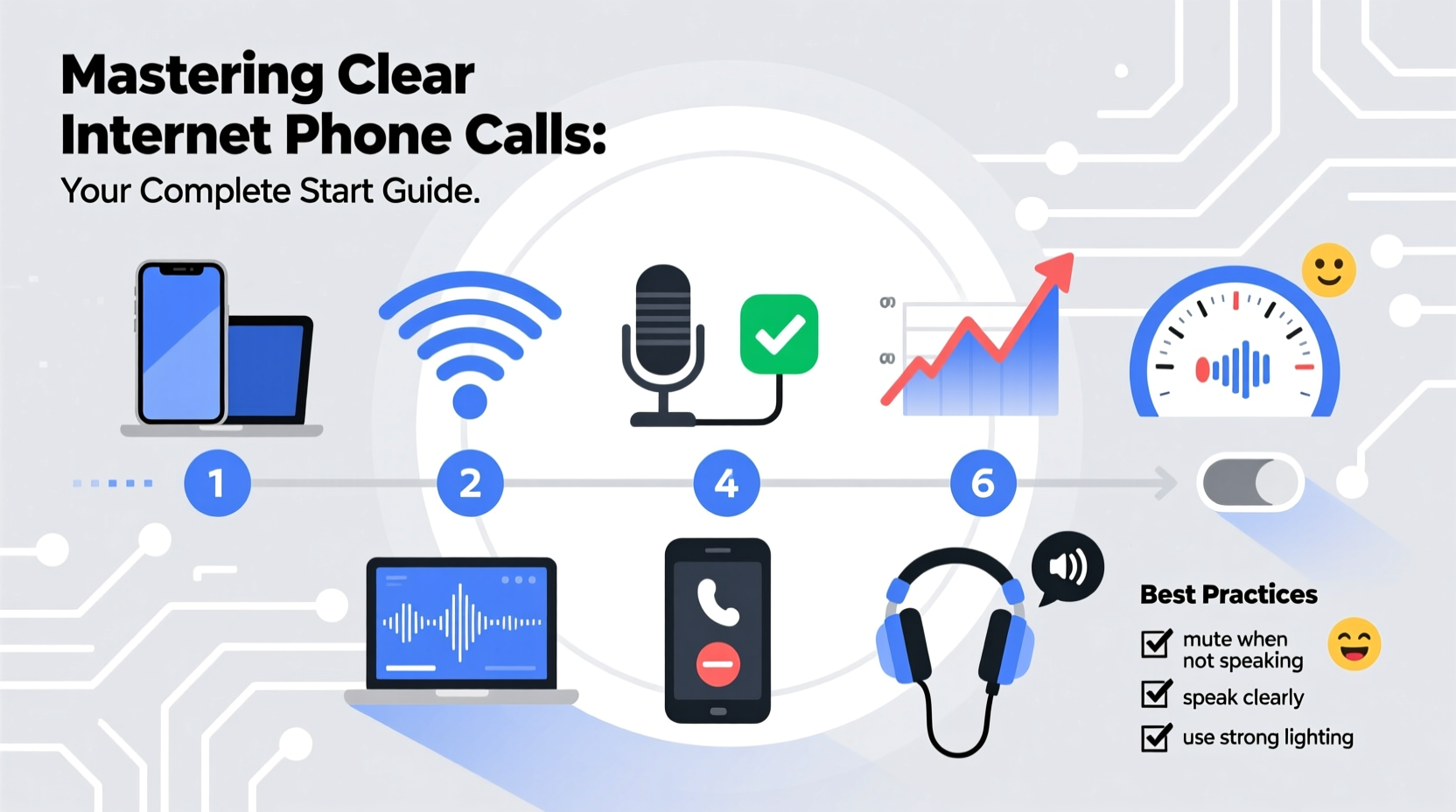
Internet-based calling relies on converting analog audio signals into digital data packets transmitted over an IP network. This technology, known as VoIP, powers platforms like WhatsApp, Zoom, Google Voice, and dedicated services such as Vonage or RingCentral. Unlike traditional phone lines, VoIP uses your broadband or mobile data connection, making it more flexible and often less expensive.
The quality of your call depends on several factors: internet speed, latency, jitter, packet loss, and the capabilities of your device and software. A stable upload and download speed of at least 100 kbps per call is recommended for standard voice, while HD voice may require up to 300 kbps. Latency—delay between spoken words and received audio—should stay below 150 milliseconds for natural conversation flow.
“VoIP has transformed communication by removing geographic and hardware barriers. The key to success lies in optimizing both network and endpoint devices.” — Dr. Lena Patel, Telecommunications Engineer
Essential Setup Requirements for Crystal-Clear Calls
To make consistently clear calls, certain technical conditions must be met. These apply universally across smartphones, tablets, laptops, and desktops.
Internet Connection Quality
Your internet connection is the foundation. Use a wired Ethernet connection when possible for maximum stability. If relying on Wi-Fi, position yourself close to the router and avoid congested frequency bands (e.g., switch from 2.4 GHz to 5 GHz if supported).
Device Compatibility and Audio Hardware
All modern devices support VoIP calling through apps or built-in features. However, audio quality varies significantly based on microphone and speaker quality. For best results:
- Use external headsets with noise-cancelling microphones for professional calls.
- Avoid built-in laptop speakers and mics in noisy environments.
- On smartphones, use headphones or earbuds to reduce echo and background noise.
- Ensure your operating system and calling app are updated to the latest version.
Software and App Selection
Choose a calling platform that matches your needs. Common options include:
| Platform | Best For | Minimum Bandwidth |
|---|---|---|
| Personal calls, cross-platform ease | 100 kbps | |
| Zoom | Business meetings, screen sharing | 60–100 kbps (voice only) |
| Google Voice | U.S.-based calling, integration with Gmail | 100 kbps |
| Microsoft Teams | Enterprise collaboration | 120 kbps |
| Signal | Privacy-focused users | 90 kbps |
Step-by-Step Guide to Making Your First High-Quality Call
Follow this sequence to set up and execute a clear internet call on any device:
- Test your internet connection. Confirm upload speed is above 100 kbps and latency is under 150 ms.
- Install or update your preferred calling app. Download from official sources (App Store, Google Play, or developer website).
- Log in or create an account. Some services require phone number verification.
- Grant microphone and speaker permissions. Check device settings if the app cannot access audio hardware.
- Perform a test call. Many apps offer echo tests or voice memos to verify input/output quality.
- Adjust audio settings. Lower background noise reduction if voices sound muffled; increase volume limiter if peaking occurs.
- Initiate the call. Choose contact, dial, and monitor audio clarity during the first 30 seconds.
Optimizing Call Clarity Across Different Devices
Each device type presents unique challenges and opportunities for improving call quality.
Smartphones and Tablets
Mobile devices are highly portable but vulnerable to signal drops and background noise. To enhance performance:
- Enable Wi-Fi calling in settings if cellular signal is weak.
- Use Bluetooth headsets designed for voice calls (look for CVSD or mSBC codec support).
- Disable auto-brightness and other power-saving modes that may throttle processor performance mid-call.
Laptops and Desktops
These offer greater control over audio input and output. Consider these upgrades:
- Invest in a USB condenser microphone for studio-grade pickup.
- Use active noise cancellation software like Krisp or NVIDIA RTX Voice to filter ambient sounds.
- Configure default audio devices in system preferences to avoid switching mid-call.
Cross-Device Syncing
If you frequently switch devices, use platforms that sync call history and contacts. Google Voice, WhatsApp Web, and Microsoft Teams allow seamless transitions between phone and computer without dropping context.
Troubleshooting Common Call Issues
Even with optimal setup, problems can arise. Here’s how to diagnose and fix frequent issues:
| Issue | Possible Cause | Solution |
|---|---|---|
| Robotic or choppy audio | Packet loss or low bandwidth | Switch to wired connection; pause downloads |
| Echo | Speaker and mic feedback loop | Use headphones; lower speaker volume |
| One-way audio | Firewall blocking traffic | Open UDP ports 5060–5080; disable strict firewall |
| No sound input | Permission denied or muted mic | Check OS privacy settings; unmute in app |
| Delayed responses | High latency | Restart router; choose server region closest to you |
“In 70% of VoIP quality complaints, the root cause isn’t the service provider—it’s local network congestion or outdated firmware.” — Network Support Team, OpenSignal Labs
Frequently Asked Questions
Can I make emergency calls over the internet?
Yes, but with limitations. Some VoIP providers support Enhanced 911 (E911), which routes calls to local responders and shares your registered address. However, unlike cellular networks, internet calls may fail during power outages unless backed by UPS. Always confirm E911 availability with your provider.
Do I need a special phone number for internet calls?
Not necessarily. Apps like WhatsApp and FaceTime use your existing phone number or Apple ID. Others, such as Google Voice, assign a new number. Business VoIP services typically provide local, toll-free, or vanity numbers.
Are internet calls secure?
Security depends on the platform. End-to-end encrypted services like Signal and FaceTime protect voice data from interception. Standard VoIP calls may be encrypted in transit but stored on servers. Avoid discussing sensitive information on unverified platforms.
Conclusion: Make Every Call Count
Clear internet-based phone calls are within reach for anyone with a decent connection and the right setup. From choosing the appropriate app to fine-tuning your audio environment, small adjustments lead to significant improvements in communication quality. Whether you’re catching up with family overseas, attending a remote job interview, or leading a virtual team meeting, mastering VoIP empowers you to connect clearly and confidently.




 浙公网安备
33010002000092号
浙公网安备
33010002000092号 浙B2-20120091-4
Comments
No comments yet. Why don't you start the discussion?