
Keeping your apps up to date is more than just a routine chore—it’s essential for security, performance, and access to new features. With Apple’s ecosystem spanning iPhone, iPad, Mac, Apple Watch, and even Apple TV, managing app updates can become fragmented if not approached strategically. A delayed or missed update might expose your device to vulnerabilities, reduce functionality, or break compatibility with other services. The good news: with the right setup and habits, updating your apps across devices can be effortless, automatic, and reliable.
Why App Updates Matter Beyond New Features
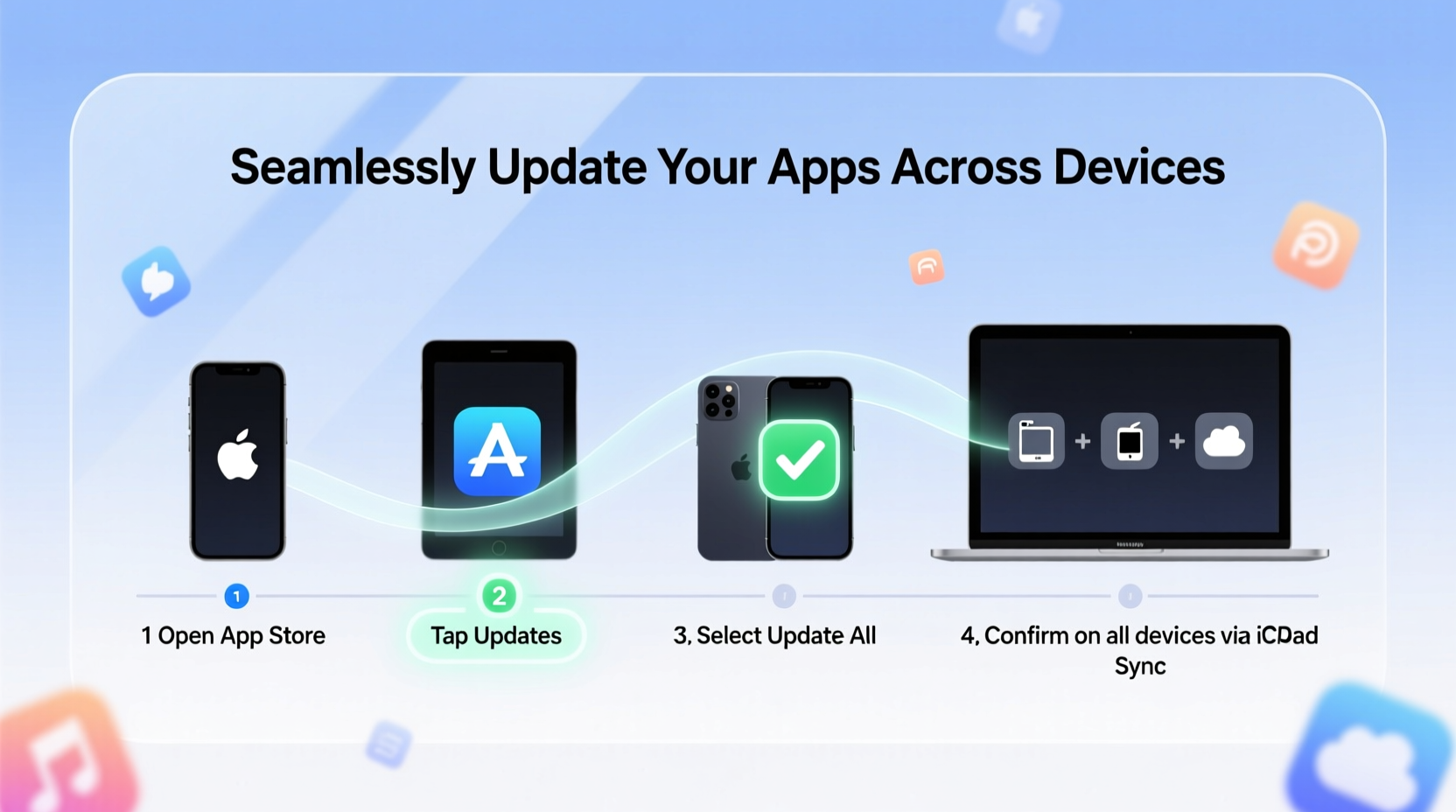
Many users dismiss app updates as minor tweaks or cosmetic changes. In reality, updates often include critical patches for security flaws, bug fixes that improve stability, and performance optimizations that extend battery life. Developers release updates to maintain compatibility with new iOS or macOS versions, ensuring your favorite tools continue working smoothly.
For example, a banking app might patch a vulnerability that could allow unauthorized access to financial data. A messaging app may fix a crash issue affecting older devices. These behind-the-scenes improvements are why staying current isn’t optional—it’s part of digital hygiene.
“Regular app updates are one of the most effective ways users can protect their personal data without doing anything complex.” — Lisa Tran, Senior Security Analyst at Digital Trust Labs
How Automatic Updates Work Across Apple Devices
Apple has built robust mechanisms into its operating systems to streamline app updates. When configured correctly, your apps can update automatically in the background—without interrupting your day.
On iOS and iPadOS, go to Settings > App Store. Here, toggle on “App Updates” under the Automatic Downloads section. This enables silent background updates over Wi-Fi (and cellular, if permitted). Similarly, on macOS, open the App Store, click your profile icon, and ensure “Automatically check for updates” and “Download newly available updates” are enabled.
The system intelligently manages these downloads. It avoids updating large apps when storage is low and prioritizes updates during periods of inactivity or when charging. For families using Family Sharing, one Apple ID can approve purchases and updates for up to six family members, simplifying management.
Step-by-Step: Enable Auto-Updates on Key Devices
- iPhone/iPad: Open Settings > App Store > Toggle on \"App Updates\" under Automatic Downloads.
- Mac: Open App Store > Click your profile (top-right) > Check \"Automatically check for updates\" and \"Download newly available updates\".
- Apple Watch: Open the Watch app on iPhone > General > Software Update > Ensure automatic updates are toggled on.
- Apple TV: Go to Settings > System > Software Updates > Turn on \"Automatic Updates\".
- iCloud Sync Check: Sign in with the same Apple ID across devices to sync purchase history and update eligibility.
Managing Storage and Bandwidth Smartly
One common reason users disable auto-updates is concern over storage space and data usage. Large apps—especially games or creative tools—can exceed 1GB, making frequent manual updates inconvenient.
To balance convenience and resource use, consider these strategies:
- Limits automatic updates to Wi-Fi only to avoid unexpected data charges.
- Use Offload Unused Apps (iOS/iPadOS): This removes the app but keeps its documents and settings, allowing quick reinstallation when needed.
- Review app size before updating manually: Tap the app in the App Store’s Updates tab to see download size.
- Set your device to update overnight while charging to minimize disruption.
| Device | Update Triggers | Data Control Option | Storage Optimization |
|---|---|---|---|
| iPhone/iPad | Background (Wi-Fi), Manual, Scheduled | Cellular Data toggle | Offload Unused Apps |
| Mac | Background, Login-based | Network preferences | Optimize Storage in About This Mac |
| Apple Watch | Synchronized via iPhone | Depends on iPhone settings | Auto-remove unused apps |
| Apple TV | Overnight, during idle | Wi-Fi only option | Automatic app deletion when full |
Real Example: How Sarah Keeps Her Family’s Devices Updated
Sarah, a freelance designer and mother of two, manages five Apple devices across her household. She used to forget updates until an app stopped working—until she implemented a unified strategy.
She turned on automatic updates for all devices over Wi-Fi and enabled Family Sharing so her children’s iPads receive approved updates without constant oversight. On her MacBook Pro, she set the App Store to download updates automatically but notify her before installing major upgrades. For her Apple Watch, she ensured it syncs updates only when connected to power and Wi-Fi to preserve battery.
Now, every morning, all devices are current. Her daughter no longer faces login issues with her educational app, and Sarah’s design tools run smoothly thanks to timely performance patches. What once took 20 minutes weekly now requires zero effort.
Checklist: Optimize Your Cross-Device Update System
- ✅ Use the same Apple ID across all personal devices.
- ✅ Enable automatic app updates on each device.
- ✅ Restrict cellular data usage for large updates.
- ✅ Schedule updates during off-peak hours or overnight.
- ✅ Regularly review storage and offload rarely used apps.
- ✅ Monitor update logs in Settings > [Your Name] > Media & Purchases > Purchase History.
- ✅ Reboot devices monthly to apply any pending system-level changes.
Frequently Asked Questions
Why are some apps not updating automatically even though I enabled the setting?
This usually happens when there’s insufficient storage, the device isn’t connected to Wi-Fi, or the app requires user input (e.g., permissions or sign-in after an update). Check Settings > General > iPhone Storage to free up space or manually trigger the update in the App Store.
Can I choose which apps update automatically?
Not individually within iOS, but you can disable automatic updates entirely and rely on manual control. Alternatively, remove automatic download privileges for specific app categories via Screen Time restrictions.
Do app updates drain my battery?
The update process itself uses minimal power, especially when done in the background. However, poorly optimized new versions may temporarily increase battery usage. If you notice rapid drain after an update, check Battery Usage in Settings and consider waiting for a patch or rolling back by reinstalling from backup.
Staying Ahead: Future-Proofing Your Update Routine
As Apple expands its ecosystem with visionOS and deeper integration between devices, seamless app synchronization will become even more critical. With the introduction of Universal Control and Continuity features, having consistent app versions ensures smooth handoffs between iPhone, iPad, and Mac.
Developers are increasingly adopting phased rollouts, releasing updates gradually to monitor stability. This means your device might not receive an update immediately—even with auto-updates enabled. Patience is key. If an urgent fix is needed, manually check the App Store daily until it appears.
“The future of app management isn’t manual taps—it’s intelligent automation aligned with user behavior.” — Rajiv Mehta, iOS Ecosystem Developer
Final Thoughts: Make Updates Effortless, Not Optional
Updating your apps shouldn’t be a chore. By leveraging Apple’s built-in tools, understanding how updates propagate across devices, and applying smart storage and network settings, you create a self-sustaining system that protects your data and enhances your experience.
Take ten minutes today to audit your current settings. Enable automatic updates, clean up unused apps, and verify your Apple ID sync. Once set up, your devices will stay current with no ongoing effort. In a world where digital threats evolve daily and app functionality expands rapidly, staying updated is the simplest, most powerful step you can take.




 浙公网安备
33010002000092号
浙公网安备
33010002000092号 浙B2-20120091-4
Comments
No comments yet. Why don't you start the discussion?