
For households that love music, the Apple Music Family Plan offers a smart, cost-effective way to give everyone access to millions of songs, curated playlists, and exclusive content. At $16.99 per month—less than half the price of six individual subscriptions—it’s one of the best value digital music offerings available. But setting it up correctly and managing it over time requires more than just tapping a few buttons. From inviting family members securely to troubleshooting playback issues across devices, understanding the full scope ensures a seamless experience for all.
This guide walks through every step of activating, organizing, and maintaining an Apple Music Family Plan, with real-world tips and insights to help you get the most out of your subscription.
Understanding the Apple Music Family Plan
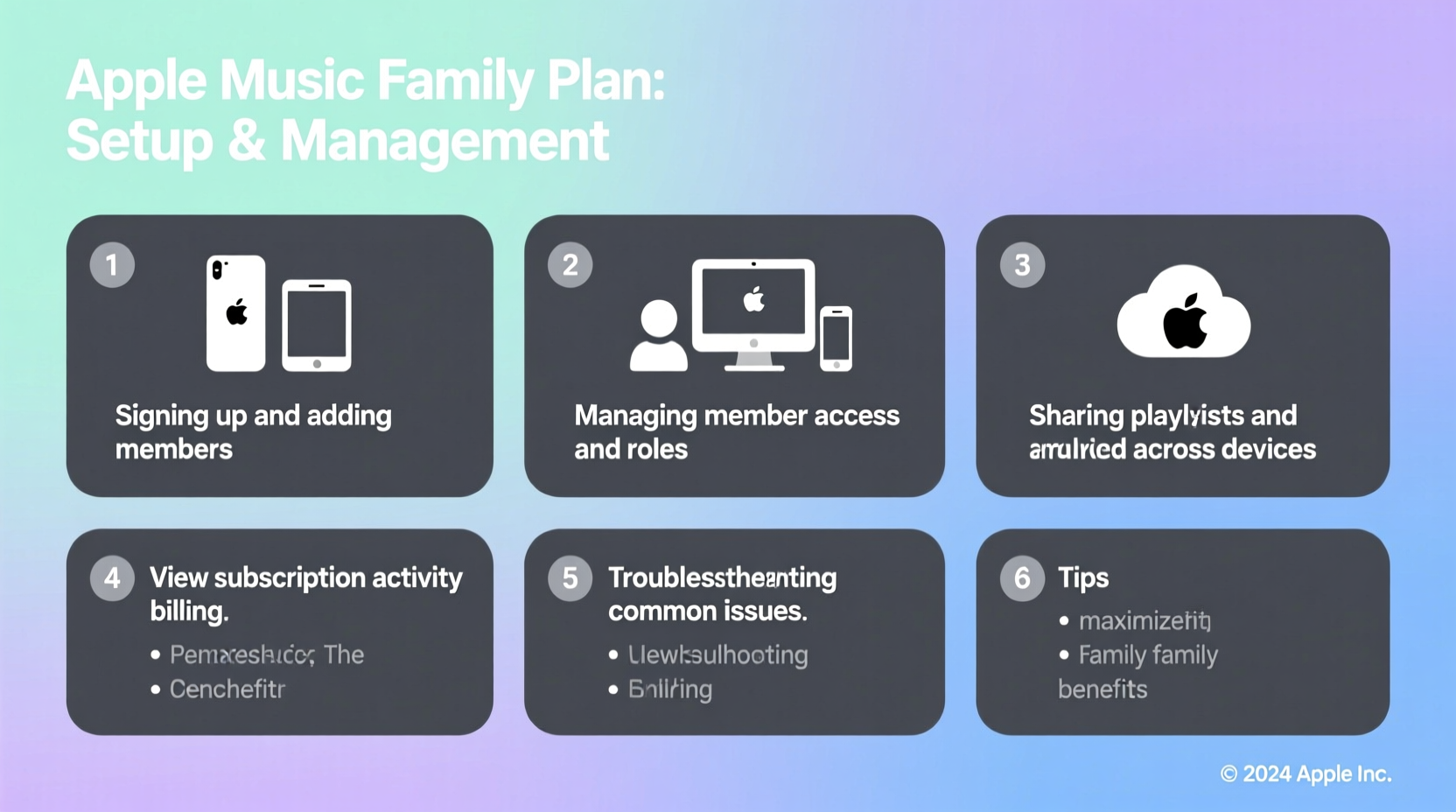
The Apple Music Family Plan allows up to six people to enjoy full Apple Music benefits under one shared subscription. Each member gets their own personalized library, recommendations, and iCloud Music Library, ensuring privacy and tailored listening experiences. Unlike a single account shared via password, the Family Plan uses Apple’s Family Sharing system, which maintains individual user profiles while consolidating billing.
To qualify as a family organizer—the person who sets up and pays for the plan—you must be at least 18 years old and have two-factor authentication enabled on your Apple ID. All members must use the same country or region for their Apple ID, and each must accept the invitation to join.
Step-by-Step Setup Process
Setting up the Family Plan takes less than ten minutes if you’re prepared. Follow this sequence to ensure a smooth activation:
- Open Settings on your iPhone or iPad and tap your name at the top.
- Select Family Sharing, then tap Add Family Member.
- Choose Create a Child Account (if adding kids) or Invite Family Members via message or email.
- Once at least one other person has joined, go to the Music app or visit music.apple.com.
- Tap your profile icon, select View Account, then go to Subscriptions.
- Choose Apple Music and upgrade to the Family Plan.
- Confirm the change and wait for confirmation emails to be sent to all members.
Each invited member will receive a notification. They must accept the invitation and sign in with their Apple ID to begin using Apple Music. Once accepted, they can download the Music app, sync their library, and start streaming immediately.
Managing Access and Permissions
As the family organizer, you maintain control over membership, payment methods, and content restrictions—especially important when children are part of the group. You can approve purchases, set screen time limits, and manage music content ratings through Screen Time settings.
It’s also possible to remove members at any time. Simply go to Family Sharing, select the person, and choose “Remove from Family.” This revokes their access to Apple Music unless they subscribe individually.
| Action | Where to Do It | Impact |
|---|---|---|
| Add a member | Settings > Family Sharing | Gains full Apple Music access |
| Remove a member | Settings > Family Sharing > [Name] > Remove | Loses access after grace period |
| Change payment method | Settings > [Your Name] > Payment & Shipping | Updates billing for all shared services |
| Set content limits | Settings > Screen Time > Content & Privacy | Restricts explicit tracks for minors |
“Family Sharing isn’t just about convenience—it’s about creating a secure digital environment where parents can guide media consumption without sacrificing access.” — Lisa Tran, Digital Wellness Consultant
Tips for Smooth Daily Use
Even after setup, small missteps can lead to confusion. Here’s how to keep everything running smoothly:
- Use distinct Apple IDs: Never share login credentials. Each person should log in with their own ID to preserve listening history and recommendations.
- Sync across devices: Ensure iCloud Music Library is turned on for every member (Settings > Music > iCloud Music Library).
- Handle offline listening: Downloads are device-specific. If someone wants music on multiple devices, they’ll need to download separately on each.
- Resolve payment failures quickly: If the primary card declines, all members lose access. Keep a backup payment method updated.
Real Example: The Martinez Household
The Martinez family includes two parents, two teens, and a grandmother who recently joined Apple Music. Initially, they tried sharing one account, but soon ran into issues: the algorithm kept recommending punk rock to Grandma, and the teens couldn’t save their own playlists. After switching to the Family Plan, each member logged in with their own Apple ID. Within days, Grandma was enjoying jazz playlists tailored to her taste, while the teens built custom workout mixes. When the credit card expired, the organizer updated it within minutes via the Settings app, preventing any service interruption.
Common Issues and How to Fix Them
Occasional hiccups are normal. Here’s how to resolve frequent problems:
- “You’re not eligible for this plan”: Usually means the user already has an active individual subscription. Cancel it first, wait for confirmation, then rejoin the Family Plan.
- Music not syncing: Check that iCloud Music Library is enabled on all devices. Restart the app if needed.
- Invitation not received: Verify the email or phone number used. Resend the invite from Family Sharing settings.
- Playback stops after a few seconds: Could indicate a network issue or corrupted cache. Try signing out and back into the Music app.
Checklist: Maintaining Your Apple Music Family Plan
- ✅ Confirm all members have accepted the Family Sharing invite
- ✅ Upgrade Apple Music to the Family tier
- ✅ Enable iCloud Music Library on each device
- ✅ Set up content restrictions for underage users
- ✅ Review billing information monthly
- ✅ Rotate members if someone no longer needs access
Frequently Asked Questions
Can I add someone who lives in a different country?
No. All family members must use the same country or region for their Apple ID. This is due to licensing restrictions for music content. If someone relocates permanently, they may need to create a new Apple ID tied to the local region.
What happens if I cancel the Family Plan?
All members lose access to Apple Music unless they switch to an individual subscription. Playlists and downloaded music will remain, but streaming and offline playback of cloud content will stop.
Can family members see each other’s listening history?
No. Listening activity, search history, and recommendations are private. The only shared element is the subscription cost. Even shared playlists require manual creation and permission to view or edit.
Maximizing Value Beyond Music
The Apple Music Family Plan integrates seamlessly with other Apple services. When combined with Family Sharing, you can also share purchases from the App Store, iCloud+ storage plans, and subscriptions like Apple TV+. This makes the organizer’s role more powerful—not just a bill payer, but a digital household manager.
Consider aligning your renewal dates by scheduling other subscriptions around the same time. Some families even designate a “digital day” once a year to review memberships, update passwords, and reassess who’s still using the plan.
Final Thoughts
An Apple Music Family Plan is more than a shared subscription—it’s a tool for bringing households together through music while maintaining personalization and control. With proper setup and ongoing management, it delivers exceptional value, privacy, and ease of use. Whether you're coordinating playlists for road trips or helping a child explore their favorite artists, the plan adapts to your lifestyle.




 浙公网安备
33010002000092号
浙公网安备
33010002000092号 浙B2-20120091-4
Comments
No comments yet. Why don't you start the discussion?