
Your phone number is more than just a way for people to reach you—it’s a central hub for communication, verification, and digital identity. Whether you’re activating a new device, switching carriers, or securing your personal data, properly configuring your number ensures seamless calling, reliable messaging, and strong protection against fraud. This guide walks through every critical step to set up your number correctly across devices, services, and security layers.
1. Activate and Verify Your Number
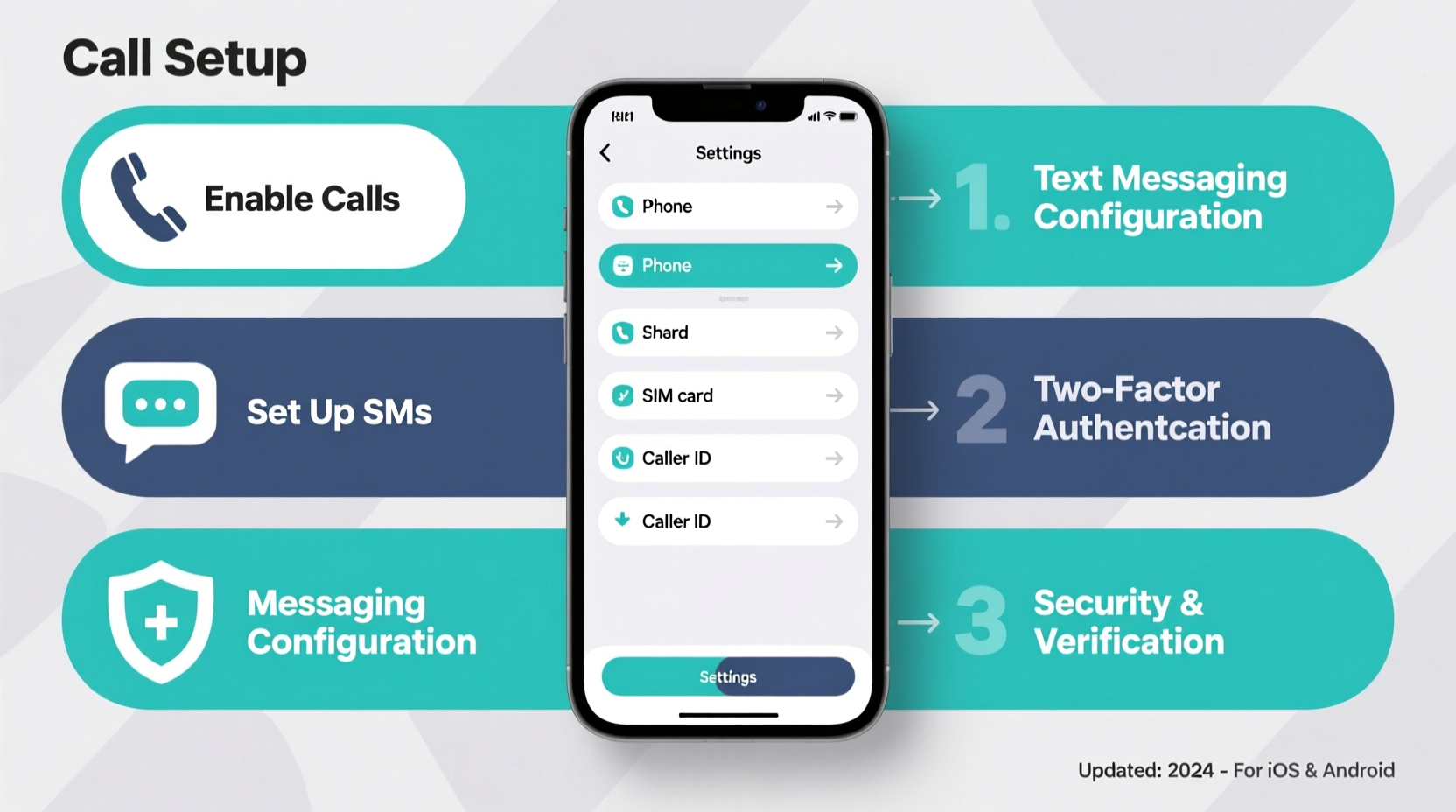
The first step in using any phone number is activation. If you’ve purchased a new SIM card or transferred your number from another provider, follow the carrier’s setup process carefully. Most carriers offer online portals or mobile apps to activate service instantly.
Once activated, confirm that your number works by making a test call and sending a text message. Use a landline or a friend’s phone to verify incoming functionality. Ensure both voice and SMS are operational before moving on.
Porting vs. New Number: What You Need to Know
If transferring (porting) an existing number, allow 24–72 hours for completion. Avoid changing account details during the porting window to prevent delays. For new numbers, double-check that your carrier has registered the correct plan features—especially international calling or unlimited texting.
2. Configure Calling and Messaging Features
Modern smartphones support multiple calling and texting methods beyond traditional cellular networks. Take advantage of built-in tools like Wi-Fi calling, RCS (Rich Communication Services), and visual voicemail to enhance reliability and functionality.
- Enable Wi-Fi Calling: Go to Settings > Phone > Wi-Fi Calling and toggle it on. This allows calls and texts over internet connections when cellular signal is weak.
- Set Up RCS (Android): Open Google Messages, sign in, and follow prompts to enable chat features such as read receipts and high-quality media sharing.
- Activate iMessage & FaceTime (iPhone): Navigate to Settings > Messages and ensure your phone number is selected under \"Send & Receive.\"
- Customize Voicemail Greeting: Call your own number and follow the system prompts to record a professional or personalized greeting.
| Feature | Platform | Benefit |
|---|---|---|
| Wi-Fi Calling | iOS & Android | Call/text without cellular signal |
| RCS Messaging | Android (via Google Messages) | Enhanced texts with typing indicators, group chats |
| iMessage | iOS only | End-to-end encrypted texts between Apple devices |
| Visual Voicemail | Most carriers | See voicemail list and play selectively |
3. Secure Your Number Against Unauthorized Access
Phone numbers are prime targets for scammers due to their role in two-factor authentication (2FA). A compromised number can lead to hijacked email accounts, banking breaches, and social media takeovers.
One of the most common threats is SIM swapping—a scam where attackers trick your carrier into transferring your number to a new SIM. Once they control your number, they receive all your calls and texts, including password reset codes.
“Over 80% of account recovery attempts rely on SMS-based verification. That makes your phone number one of your most valuable digital assets.” — Sarah Lin, Cybersecurity Analyst at TrustNet Security
Essential Security Steps
- Set a Carrier Account PIN: Contact your provider to add a unique PIN or passcode required for any account changes.
- Use App-Based 2FA Instead of SMS: Replace text-message codes with authenticator apps like Google Authenticator, Authy, or hardware keys.
- Monitor for Suspicious Activity: If your phone suddenly loses service without explanation, contact your carrier immediately—it could indicate a SIM swap.
- Limit Public Exposure: Avoid posting your number on public forums, social media profiles, or classified ads.
4. Link Your Number Across Devices and Services
To stay connected seamlessly, sync your number across all relevant platforms. This includes linking it to cloud services, smart home devices, and emergency contacts.
Multi-Device Setup Examples
- Apple Ecosystem: Enable “Text Message Forwarding” in Settings > Messages to send and receive texts from Mac or iPad.
- Android Messages for Web: Visit messages.google.com/web to mirror texts on your computer.
- Smart Speakers: In Alexa or Google Home app, link your number to make calls hands-free (requires subscription for some services).
Also update your number in key accounts: banks, healthcare providers, ride-sharing apps, and workplace communication tools like Slack or Microsoft Teams.
Mini Case Study: Recovering from a Lost Phone
Jamal lost his phone at an airport. Fortunately, he had already enabled Find My iPhone and linked his number to iCloud. He used another device to mark his phone as lost, which locked it remotely and displayed a custom message with a backup contact number. His carrier suspended the line temporarily and issued a replacement SIM. Because he used an authenticator app instead of SMS for 2FA, no accounts were compromised. Within 48 hours, Jamal restored service and resumed normal use—all because his number and security settings were pre-configured.
5. Maintain Ongoing Management and Best Practices
Setting up your number isn’t a one-time task. Regular maintenance ensures continued performance and safety.
Monthly Checklist
- Test outgoing/incoming calls and texts
- Review recent account login activity (Google, Apple, etc.)
- Update emergency contact information
- Check for unwanted number forwarding or call diversions
- Verify 2FA methods still active and secure
Additionally, consider freezing your credit with major bureaus if you suspect identity theft risks tied to your number. Many financial institutions now accept phone number monitoring as part of broader identity protection plans.
Frequently Asked Questions
Can I keep my number if I switch carriers?
Yes. Federal regulations in the U.S. and similar laws in many other countries guarantee number portability. Initiate the transfer through your new carrier, who will coordinate with the old one.
Why aren’t my iMessages working after switching to Android?
iMessage is exclusive to Apple devices. If you’ve switched from iPhone to Android, deregister your number from Apple’s iMessage service via Apple’s official tool to restore normal SMS delivery.
Is it safe to use my real number for online signups?
For low-risk sites, it may be acceptable. However, for sensitive accounts (banking, email, social media), avoid exposing your primary number. Use virtual numbers or burner services like Google Voice for added privacy.
Final Thoughts: Take Control of Your Digital Identity
Your phone number is a cornerstone of modern digital life. Properly setting it up for calls, texts, and security doesn’t just improve convenience—it protects your personal and financial well-being. From enabling Wi-Fi calling to locking down your carrier account with a PIN, each step builds a stronger, more resilient connection to the world around you.
Treat your number with the same care as your passport or Social Security number. Review settings regularly, stay alert to suspicious activity, and prioritize app-based authentication whenever possible.




 浙公网安备
33010002000092号
浙公网安备
33010002000092号 浙B2-20120091-4
Comments
No comments yet. Why don't you start the discussion?