
Unlike traditional computers, smartphones do not use a BIOS (Basic Input/Output System) in the way desktops or laptops do. Instead, they rely on a similar but distinct firmware layer known as the bootloader. Despite this technical difference, many users searching for \"how to access BIOS on a phone\" are actually looking to gain deeper control over their device’s startup process, recovery options, or system-level settings. This guide clarifies the reality of mobile firmware access, explains how to navigate key pre-boot environments, and offers practical steps for managing your phone’s foundational software safely.
Understanding Mobile Firmware: Why Phones Don’t Have a BIOS
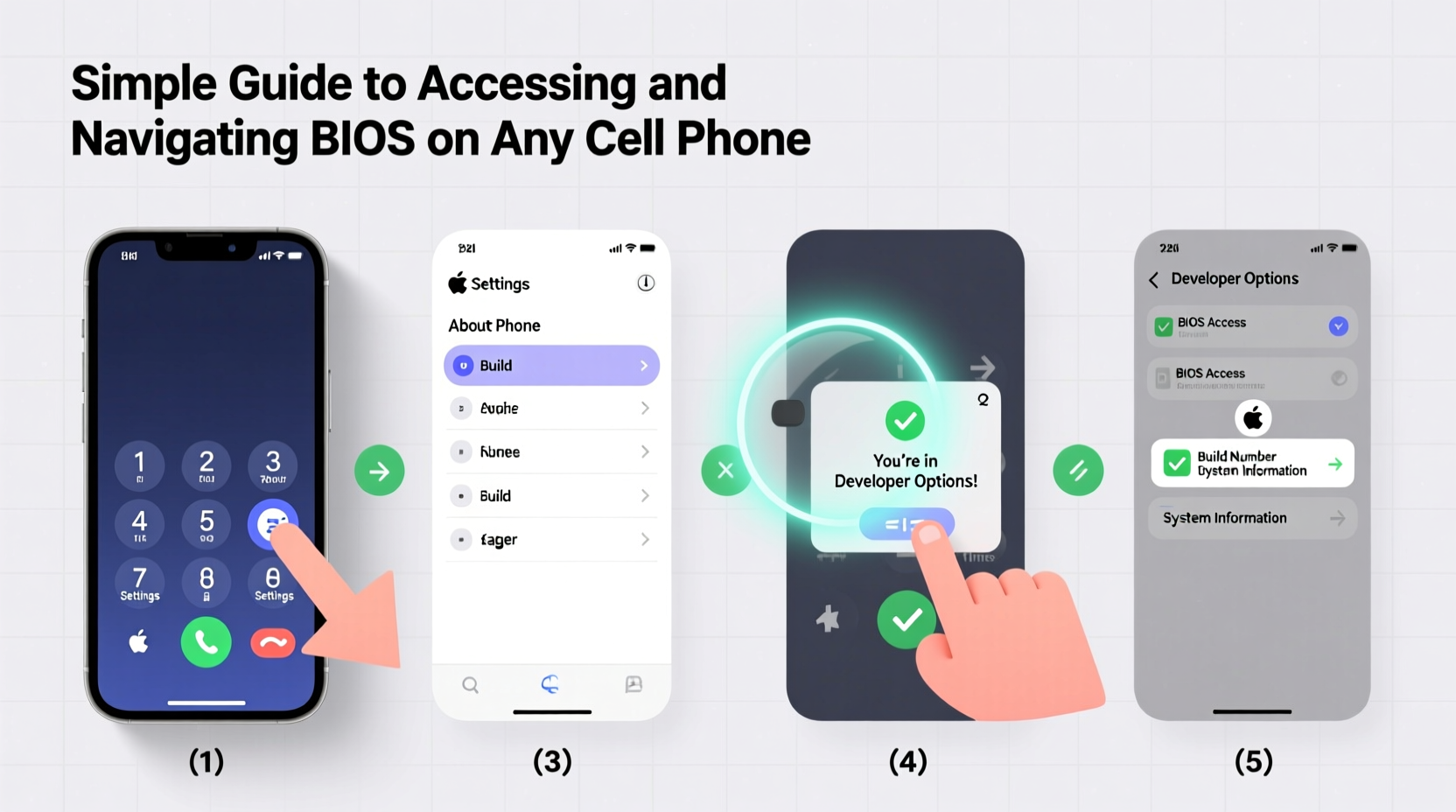
The term \"BIOS\" is deeply rooted in PC architecture. It refers to the firmware that initializes hardware during boot and provides runtime services for operating systems. On smartphones, this role is fulfilled by a combination of components: the bootloader, the Device Tree, and vendor-specific firmware such as Qualcomm’s OEM SBL (Secondary Boot Loader) or Samsung’s proprietary boot chain.
While functionally similar, these systems are more tightly integrated and secure than traditional BIOS implementations. Most modern phones use a locked bootloader by default to prevent unauthorized modifications and protect user data. This design enhances security but limits direct access to low-level settings that would be adjustable in a PC BIOS.
“Mobile devices operate under a trust chain from the first instruction executed. Tampering with this chain can brick the device or void warranties.” — Dr. Lena Torres, Embedded Systems Engineer at MobileSec Labs
How to Access Key Pre-Boot Menus on Android Devices
Although you cannot access a traditional BIOS on a smartphone, you can enter alternative system menus that serve related purposes. These include the bootloader, recovery mode, and fastboot mode—all essential for troubleshooting, flashing firmware, or unlocking advanced features.
Step-by-Step: Entering Recovery Mode
Recovery mode allows you to perform factory resets, apply system updates, or wipe cache partitions. Here's how to access it:
- Power off your phone completely.
- Press and hold the Power button and Volume Up button simultaneously.
- Keep holding until the manufacturer logo appears, then release only the Power button (continue holding Volume Up).
- After a few seconds, the recovery menu will load.
- Use the volume keys to navigate and the power button to select options.
Accessing Fastboot or Bootloader Mode
Fastboot mode is Android’s equivalent of a low-level interface used primarily for flashing images and unlocking the bootloader. To enter fastboot:
- Turn off the device.
- Hold Power + Volume Down.
- Release when the screen displays “FASTBOOT” or a colored bootloader interface.
From here, you can connect the phone to a computer and issue commands via ADB (Android Debug Bridge), such as unlocking the bootloader or flashing custom recoveries like TWRP.
iPhone Users: No BIOS, But DFU Mode Exists
iPhones lack both a BIOS and a conventional recovery environment accessible through button combinations alone. However, Apple provides DFU (Device Firmware Update) mode—a deep-level restore function used when iTunes or Finder cannot detect the device normally.
Entering DFU Mode on iPhone
This process varies slightly depending on model:
- iPhone 8 and later: Press and release Volume Up, then Volume Down. Press and hold the Side button until the screen goes black. Then press and hold both the Side and Volume Down buttons for 5 seconds. Release the Side button but keep holding Volume Down for another 5 seconds until iTunes/Finder detects a device in recovery.
- iPhone 7/7 Plus: Hold Power + Volume Down until the screen darkens. Continue holding until connected to a computer in DFU state.
- iPhone 6s and earlier: Hold Power + Home button until the screen turns off, then continue holding for 10 seconds after.
In DFU mode, the screen remains completely black, distinguishing it from standard recovery mode, which shows the iTunes logo.
What You Can and Cannot Do in These Modes
It’s important to understand the limitations and capabilities of each pre-boot environment. Below is a comparison table outlining functionality across platforms.
| Mechanism | Platform | Primary Use | Can Modify System? | Risk Level |
|---|---|---|---|---|
| Recovery Mode | Android & iOS | Reset, update, wipe cache | Limited (only official updates) | Low |
| Fastboot Mode | Android | Flash partitions, unlock bootloader | Yes (with tools) | High |
| DFU Mode | iOS | Firmware restoration | No (restore only) | Medium |
| Download Mode | Samsung | Odin flashing, firmware repair | Yes (with Odin tool) | High |
Real Example: Recovering a Bricked Android Phone
Jamal installed a beta ROM on his OnePlus 9 without verifying compatibility. After rebooting, the phone got stuck in a boot loop. Unable to access the OS, he followed these steps:
- He powered down the device fully.
- Held Power + Volume Down to enter fastboot mode.
- Connected the phone to his laptop and confirmed detection using
fastboot devices. - Downloaded the correct stock firmware from the official OnePlus site.
- Used fastboot commands to flash the boot, system, and vendor partitions.
- Executed
fastboot rebootand successfully restored full functionality.
This scenario illustrates how understanding bootloader access can rescue a seemingly unusable device—without needing professional repair.
Checklist: Safely Navigating Your Phone’s Boot Environment
- ✅ Confirm your phone model and required button combo for bootloader access.
- ✅ Charge your device to at least 50% before attempting entry.
- ✅ Disable DM-Verity or anti-rollback protections if unlocking the bootloader (Android).
- ✅ Enable Developer Options and USB Debugging (if accessible).
- ✅ Back up all personal data before making changes.
- ✅ Use official firmware files only—avoid third-party sources.
- ✅ Test connectivity with ADB or Odin before initiating critical operations.
Frequently Asked Questions
Can I change CPU voltage or clock speed like in PC BIOS?
No. Smartphones do not expose hardware tuning options to end users. While rooted Android devices may allow limited overclocking via kernel modules, these adjustments occur within the OS—not a BIOS-like interface—and carry significant risk.
Is unlocking the bootloader the same as flashing a custom BIOS?
In concept, yes—it allows installation of alternative firmware (like custom ROMs). However, unlike PCs, you cannot modify the core bootloader itself without specialized exploits. Unlocking merely disables signature verification so unsigned code can run.
Will accessing recovery mode void my warranty?
Generally no. Simply entering recovery does not void warranties. However, unlocking the bootloader (on Android) often triggers a persistent warning and may invalidate coverage, especially if damage occurs due to modified software.
Conclusion: Taking Control of Your Device’s Foundation
While smartphones don’t have a BIOS in the classical sense, they offer powerful alternatives for managing firmware, recovering from failures, and even customizing the operating system. By learning how to access recovery, fastboot, or DFU modes, you gain valuable tools for maintaining, repairing, and extending the life of your device. These skills empower you beyond the surface-level settings and prepare you for worst-case scenarios—from accidental deletions to corrupted updates.




 浙公网安备
33010002000092号
浙公网安备
33010002000092号 浙B2-20120091-4
Comments
No comments yet. Why don't you start the discussion?