
Knowing which version of iOS your iPhone is running isn’t just a technical detail—it’s essential for security, app compatibility, and performance. Whether you're troubleshooting an issue, preparing to install a new app, or considering a software update, identifying your current iOS version is the first logical step. While Apple makes this process straightforward, many users still struggle to locate the information or misinterpret what they see. This guide walks you through every method available, explains what the numbers mean, and helps you verify that your device is up to date and secure.
Why Knowing Your iOS Version Matters
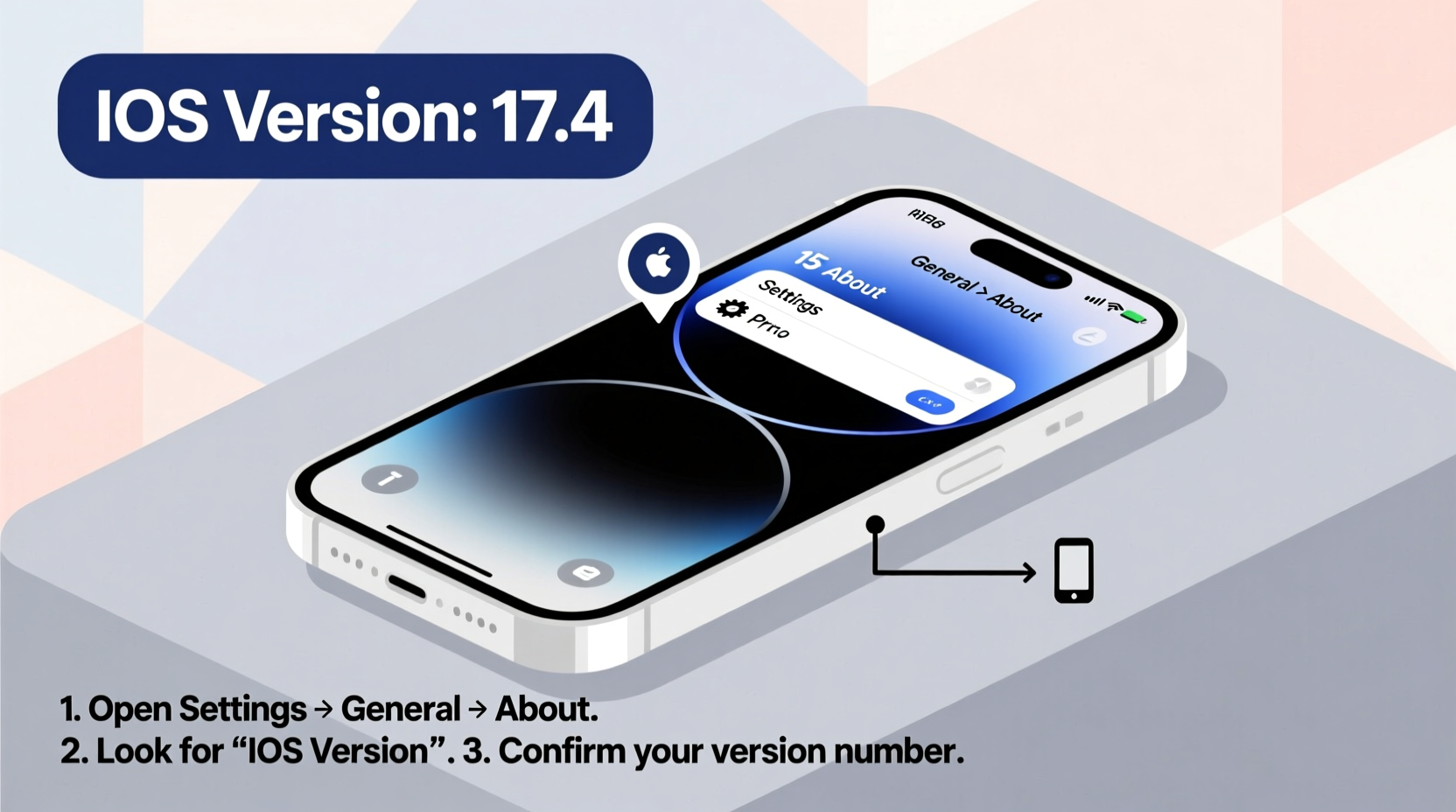
Your iPhone’s operating system—the iOS version—determines which features are available, how securely your data is protected, and whether certain apps will run properly. Developers often specify minimum iOS requirements, and outdated versions may lack critical security patches. For example, iOS 16.4 introduced enhanced phishing protection, while iOS 17 brought improved autocorrect and StandBy mode. Running an older version could leave you vulnerable or limit functionality.
“Staying current with iOS updates is one of the most effective ways to protect your personal data from emerging threats.” — Dr. Lena Torres, Mobile Security Analyst at SecureEdge Labs
Beyond security, knowing your iOS version helps when seeking tech support. Customer service teams often ask for this information before diagnosing issues. It also ensures you’re not missing out on performance improvements or battery optimizations included in newer releases.
Step-by-Step: How to Check Your iOS Version
Finding your iOS version takes less than 30 seconds and requires no special tools. Follow these steps directly on your iPhone:
- Unlock your iPhone and go to the Home Screen.
- Tap the Settings app (the gray gear icon).
- Scroll down and select General.
- Tap About. This screen displays key details about your device.
- Look for the row labeled Software Version. The number listed here (e.g., 17.5.1) is your current iOS version.
What Do the Numbers Mean?
iOS versions follow a standard numbering format: X.X.X (e.g., 17.4.2). Each segment has a specific meaning:
- First number (Major version): Represents a full OS release (e.g., iOS 17). These introduce major features and redesigns.
- Second number (Minor update): Indicates feature additions or enhancements within the major version (e.g., 17.4 added new emoji and Web Push support).
- Third number (Patch): Refers to small fixes, typically addressing bugs or security flaws (e.g., 17.5.1 fixed a Mail vulnerability).
Apple releases major updates annually in September, with minor and patch updates rolled out throughout the year. Staying informed about these distinctions helps you understand whether an update is optional or urgent.
Alternative Methods to Verify iOS Version
While the Settings app is the primary method, there are other ways to check your iOS version—especially useful if your screen is unresponsive or you're assisting someone remotely.
Using iTunes (on Windows or macOS Mojave and earlier)
If you sync your iPhone with a computer via USB:
- Connect your iPhone to your computer.
- Open iTunes.
- Select your device when it appears in the top-left corner.
- Hover over the serial number or click it once. A tooltip will display the iOS version.
Using Finder (macOS Catalina and later)
On newer Macs, Finder replaces iTunes for device management:
- Connect your iPhone via USB.
- Open Finder.
- In the sidebar, select your iPhone under “Locations.”
- The iOS version appears directly beneath the device name.
Via Apple ID Account Page (Indirect Method)
You can also view your iOS version through your iCloud account online:
- Visit iCloud.com and sign in.
- Click Find iPhone (now called Find My).
- Select your device from the list.
- A summary including model and software version will appear.
This method is ideal if your phone is lost or temporarily inaccessible but still connected to Wi-Fi or cellular data.
Do’s and Don’ts When Checking or Updating iOS
| Do’s | Don’ts |
|---|---|
| Check your iOS version regularly—especially before installing sensitive apps. | Ignore update notifications without reviewing what they include. |
| Back up your iPhone before updating to a new major iOS version. | Assume all devices on the same model run the same iOS version—users control updates manually. |
| Verify iOS version authenticity through official channels only. | Rely solely on third-party apps claiming to show system info—they may be inaccurate or collect data. |
| Use automatic updates if you want to stay current effortlessly. | Update over public Wi-Fi networks, which may interrupt downloads or expose data. |
Real-World Example: Resolving App Compatibility Issues
Sarah downloaded a new productivity app recommended by her team but couldn’t open it. The error message read: “This app requires iOS 16.0 or later.” Confused, she assumed her iPhone 12 was compatible. After following the steps in this guide, she discovered her device was still running iOS 15.8.1—just below the required threshold.
She went to Settings → General → Software Update, where she found iOS 17.3 available. After backing up her phone and connecting to Wi-Fi, she installed the update. Within minutes, the app launched perfectly. What seemed like a broken download turned out to be a simple version mismatch—one easily resolved by checking her iOS version first.
Frequently Asked Questions
Can two iPhones of the same model have different iOS versions?
Yes. Unlike Android, where carriers sometimes delay updates, iOS updates are pushed directly by Apple. However, installation is user-controlled. One iPhone may be updated immediately, while another remains on an older version until the owner chooses to upgrade.
Is it safe to use an outdated iOS version?
Not recommended. Older versions may contain unpatched security vulnerabilities. Apple stops signing older versions shortly after new releases, meaning you can’t downgrade anyway. For optimal safety and functionality, keep your iOS up to date.
How do I know if my iPhone supports the latest iOS version?
Apple typically supports iPhones for five to six years after release. As of iOS 17, supported models include iPhone XS and later. You can verify compatibility on Apple’s official website under the iOS 17 tech specs page.
Final Checklist: Stay Informed and Secure
- ✅ Check your iOS version monthly using Settings → General → About.
- ✅ Understand the difference between major, minor, and patch updates.
- ✅ Enable automatic updates unless you need manual control.
- ✅ Back up your device before installing a major iOS update.
- ✅ Verify app requirements against your current iOS version.
- ✅ Use trusted methods—avoid third-party system info apps.
Conclusion
Checking your iPhone’s iOS version is a quick, essential habit that empowers you to maintain security, compatibility, and performance. With just a few taps, you gain insight into your device’s capabilities and readiness for new software. Whether you're troubleshooting, installing apps, or simply staying up to date, knowing your iOS version puts you in control. Make it part of your routine—like checking the weather or charging your phone—and you’ll spend less time solving preventable issues and more time using your iPhone to its full potential.




 浙公网安备
33010002000092号
浙公网安备
33010002000092号 浙B2-20120091-4
Comments
No comments yet. Why don't you start the discussion?