
Every time you browse the web on your phone, websites send small packets of data called cookies to your device. These help remember your preferences, keep you logged in, and personalize your experience. While privacy concerns have led many users to disable cookies, doing so can make browsing frustrating—forcing repeated logins, broken shopping carts, and generic content. The key isn’t to block all cookies, but to manage them wisely. Understanding how to enable and control cookies on your smartphone ensures a smoother, more personalized online experience without compromising security.
Why Cookies Matter for Mobile Browsing
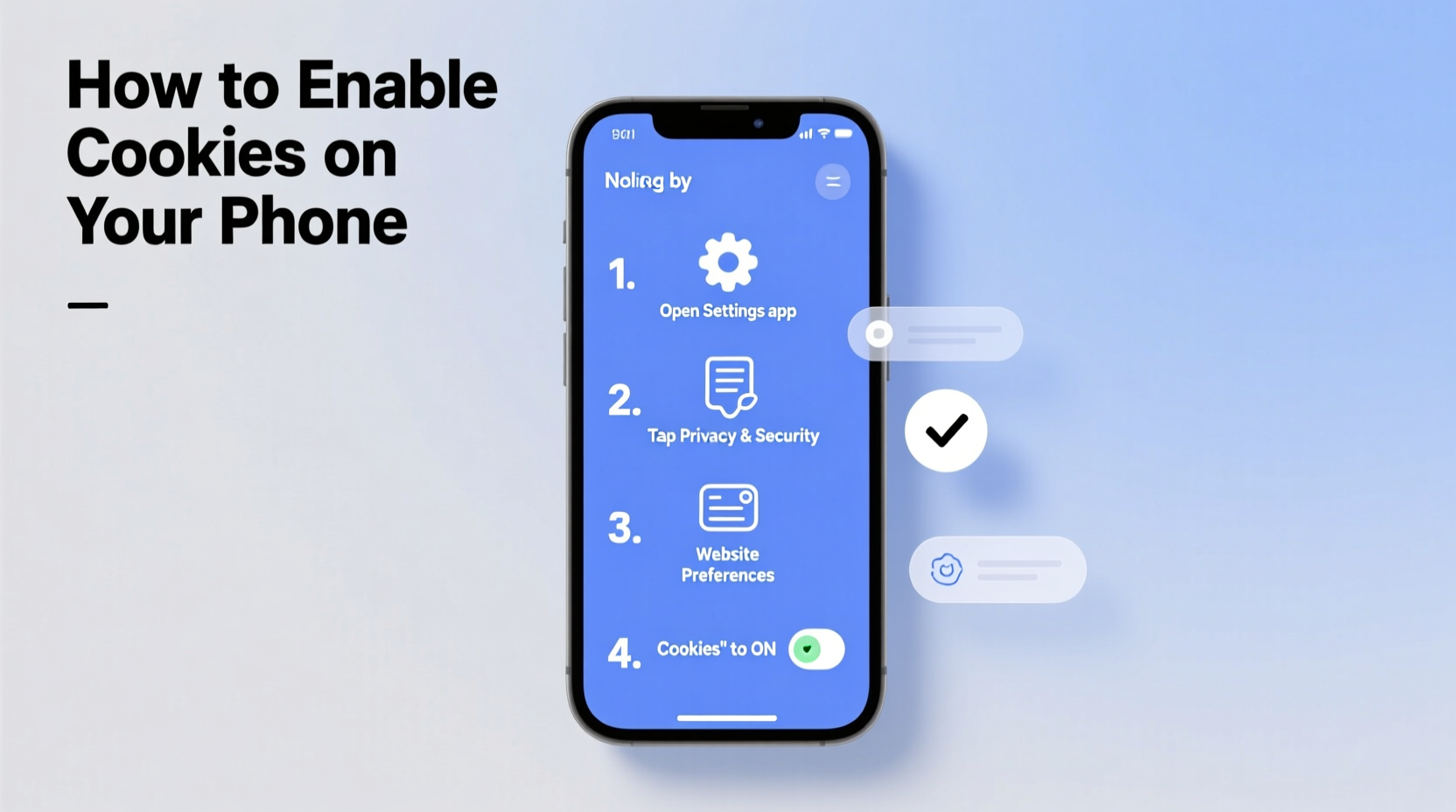
Cookies are not inherently harmful. In fact, they’re essential for modern web functionality. When you visit a website, it may store a cookie to remember items in your cart, your language preference, or even your login status. Without cookies, each visit would be treated as if you’ve never been there before. This means re-entering passwords, losing saved form data, and missing out on tailored recommendations.
There are two main types: session cookies and persistent cookies. Session cookies last only during your browsing session and vanish when you close the browser. Persistent cookies remain on your device for days, months, or even years, helping sites recognize you over time. Third-party cookies, often used for advertising, are more controversial and can be selectively disabled without affecting core functionality.
“Website usability drops significantly when essential first-party cookies are blocked. Users report higher frustration levels and abandonment rates.” — Dr. Lena Torres, Web Usability Researcher at Digital Interaction Lab
How to Enable Cookies on iPhone (iOS)
If you're using an iPhone, cookies are managed through Safari’s settings. Apple prioritizes privacy, so default configurations may limit tracking, but full cookie functionality can still be restored with a few taps.
- Open the Settings app on your iPhone.
- Scroll down and tap Safari.
- Under the \"Privacy & Security\" section, ensure that Block All Cookies is turned OFF.
- For best results, leave Prevent Cross-Site Tracking enabled—it blocks third-party trackers while allowing first-party cookies needed for site functionality.
- Exit Settings. Open Safari and revisit a site where you previously had login issues. You should now stay logged in longer and see improved performance.
How to Enable Cookies on Android Devices
Most Android users rely on Google Chrome as their default browser. Enabling cookies in Chrome is straightforward and gives you granular control over which sites can store data.
- Open the Chrome app on your Android phone.
- Tap the three-dot menu icon in the top-right corner and select Settings.
- Tap Site Settings, then choose Cookies.
- Select Enable cookies or ensure the toggle is turned on.
- To allow third-party cookies (use cautiously), tap “Third-party cookies” and choose Allow. For enhanced privacy, keep this set to “Block third-party cookies in Incognito.”
- Return to browsing. Log into a frequently used site like Gmail or Amazon to test if credentials are remembered.
Note: Some Samsung or Huawei devices may use proprietary browsers like Samsung Internet. The process is similar—navigate to browser settings, find privacy or site permissions, and enable cookies under “Advanced” options.
Do’s and Don’ts of Managing Mobile Cookies
| Do’s | Don’ts |
|---|---|
| Enable first-party cookies for trusted sites like banks, email, and shopping platforms. | Don’t block all cookies—this breaks essential website functions. |
| Use incognito/private mode when visiting untrusted sites to prevent long-term tracking. | Don’t allow third-party cookies from unknown advertisers unless necessary. |
| Review stored cookies monthly and remove those from suspicious domains. | Don’t ignore updates to browser privacy settings—they can reset your preferences. |
| Whitelist essential services (e.g., Google, Facebook, Netflix) if using strict blockers. | Don’t store sensitive logins on public or shared devices—even with cookies enabled. |
Real Example: Maria’s Online Shopping Fix
Maria loved shopping on her favorite fashion site but grew frustrated every time she returned—the cart was empty, and she had to log in again. She assumed the site was glitchy. After reading about cookies, she checked her iPhone settings and discovered Safari was set to “Block All Cookies.” She switched it off, reopened the site, and added items to her cart. Later that evening, she returned to find everything intact. Not only did her login persist, but the homepage now displayed personalized picks based on past views. A small change made her mobile browsing feel seamless.
Step-by-Step: Troubleshooting Cookie Issues
If enabling cookies doesn’t immediately solve your browsing problems, follow this timeline to diagnose and fix common issues:
- Day 1: Confirm cookies are enabled in your browser settings (as outlined above).
- Day 1 (same day): Clear cached data to remove corrupted cookies. In Chrome: Settings > Privacy > Clear Browsing Data > Cookies and Site Data. In Safari: Settings > Safari > Clear History and Website Data.
- Day 2: Revisit problem sites and log in again. Check if sessions persist after closing the app.
- Day 3: Install a cookie manager extension (like Cookie AutoDelete for Firefox Mobile) to automate cleanup while preserving essential cookies.
- Ongoing: Review saved cookies monthly. Remove entries from unfamiliar or expired domains.
Frequently Asked Questions
Are cookies dangerous?
No, cookies themselves are not viruses or malware. They are plain text files that cannot execute code. However, stolen cookies (via unsecured networks) can be misused for session hijacking. Always use secure Wi-Fi and avoid logging into sensitive accounts on public networks.
Will enabling cookies slow down my phone?
No. Cookies take up minimal storage—usually less than a few megabytes total. Performance issues are more likely due to cached images or scripts, not cookies. Regular cleanup prevents bloat.
Can I allow cookies for some sites but not others?
Yes. On Chrome for Android, go to Site Settings > Cookies > See All Cookies and Site Data. You can remove individual entries or use extensions to create per-site rules. Safari offers limited per-site control but allows global adjustments that balance usability and privacy.
Take Control of Your Browsing Experience
Enabling cookies on your phone isn’t about surrendering privacy—it’s about reclaiming convenience. With smart settings, you can enjoy faster logins, persistent shopping carts, and content that feels made for you, all while keeping intrusive trackers at bay. The modern web is designed to work with cookies, and disabling them entirely creates more friction than protection. By understanding how to toggle these settings on iOS and Android, you gain control over your digital experience.
Start today: open your browser settings, enable cookies, and revisit your most-used sites. Notice how much smoother navigation becomes. Share this guide with friends who constantly struggle with logins or lost data—sometimes, the simplest fixes make the biggest difference.




 浙公网安备
33010002000092号
浙公网安备
33010002000092号 浙B2-20120091-4
Comments
No comments yet. Why don't you start the discussion?