
Knowing your Android version is more than a technical detail—it’s essential for app compatibility, security, and accessing the latest features. Many users overlook this information until an app fails to install or a critical update becomes overdue. With Android's fragmented ecosystem spanning multiple manufacturers and software versions, staying informed helps you make smarter decisions about your device’s performance and longevity.
This guide walks you through how to find your Android version, interpret what it means, and leverage that knowledge to enhance your mobile experience. Whether you're troubleshooting, considering an upgrade, or simply curious, understanding your OS version empowers you to get the most from your phone.
Step-by-Step: How to Find Your Android Version
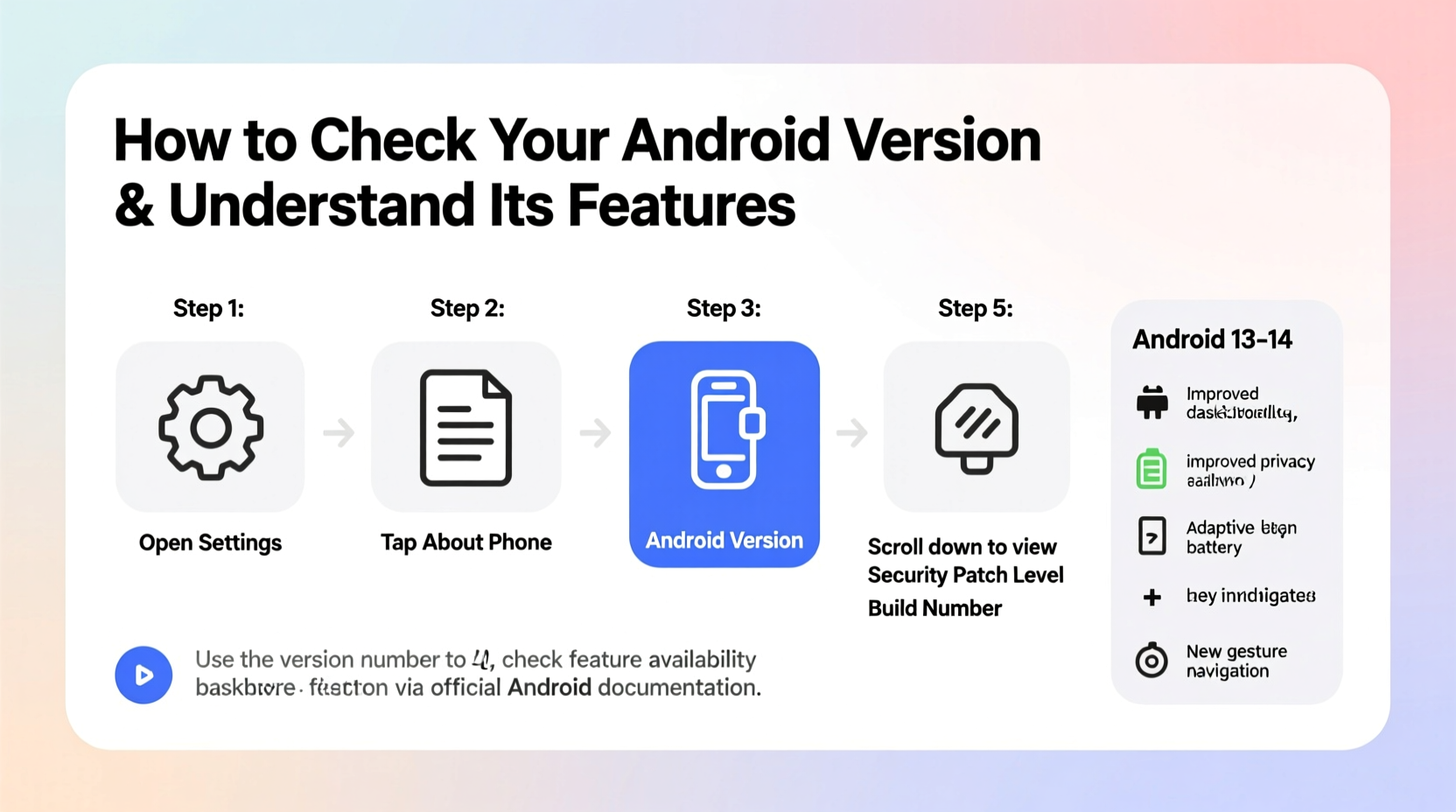
Finding your Android version is straightforward and takes less than a minute. The process is consistent across most devices, though minor variations may occur depending on your manufacturer (e.g., Samsung, Pixel, OnePlus).
- Open Settings: Tap the gear icon on your home screen or app drawer.
- Scroll to “About Phone”: This is usually at the bottom of the menu. On some devices, it may be under “System” or “Software Information.”
- Select “Android Version”: You’ll see a labeled entry showing the current version number (e.g., 13, 14).
- Note the Code Name (Optional): Android versions also have dessert-themed code names (e.g., Android 10 = “Quince Tart,” Android 14 = “Upside Down Cake”). These are often listed below the number.
- Check Security Patch Level: While in the same menu, look for “Security patch” to see when your device last received a critical update.
What Your Android Version Tells You
Your Android version isn’t just a number—it reflects your device’s capabilities, security status, and feature set. Each major release introduces new tools, privacy enhancements, and performance improvements. Understanding what your version offers helps you determine whether your phone is up to date or due for an upgrade.
For example, Android 13 brought granular app permissions, improved notification controls, and better Bluetooth audio support. Android 14 expanded customization with dynamic theming, enhanced privacy dashboards, and smoother transitions across foldable devices.
“Your Android version directly impacts both usability and safety. Devices running outdated OS versions are three times more likely to encounter malware.” — Dr. Lena Torres, Mobile Security Researcher at OpenShield Labs
Manufacturers typically provide major OS updates for 2–4 years, depending on the brand and model. Google Pixel devices lead with guaranteed 5-year updates, while budget models may receive only one or two.
Key Features by Recent Android Versions
To help you contextualize your version, here’s a breakdown of standout features introduced in recent releases:
| Android Version | Year | Notable Features |
|---|---|---|
| Android 14 | 2023 | Customizable lock screens, larger font scaling (up to 200%), privacy dashboard with usage history, AI-powered battery optimization |
| Android 13 | 2022 | Per-app language settings, photo picker for enhanced privacy, themed icons, improved Bluetooth LE Audio support |
| Android 12 | 2021 | Material You design system, faster app launches, privacy-focused UI with microphone/camera indicators |
| Android 11 | 2020 | Bubbles for chat notifications, device controls for smart home gadgets, one-time app permissions |
| Android 10 | 2019 | Dark mode system-wide, gesture navigation, location access limited to app use only |
If your device runs Android 10 or earlier, consider upgrading if possible. Older versions lack modern security protocols and may not support newer apps like banking services or augmented reality tools.
Real Example: Maria’s Upgrade Decision
Maria uses a mid-range Samsung Galaxy from 2020. Recently, her banking app stopped working, displaying “App not supported.” Frustrated, she checked her Android version and discovered she was still on Android 10. After researching, she learned her device was eligible for an update to Android 13 but had missed several over-the-air prompts.
She manually triggered the update via Settings > Software Update > Download and Install. Within 20 minutes, her phone rebooted with Android 13. The banking app installed immediately, and she noticed faster response times and a cleaner interface thanks to One UI’s integration with the updated OS.
This case highlights how awareness of your Android version can resolve real-world issues quickly—without needing a new phone.
When and How to Upgrade Your Android Version
Upgrading ensures you benefit from the latest features and security patches. However, unlike iOS, Android updates depend heavily on your device maker and carrier. Here’s how to approach upgrades strategically:
- Check eligibility: Most flagship phones receive 2–3 major updates; budget models may get only one.
- Enable automatic updates: Go to Settings > System > System Update > Advanced > Auto download and install.
- Monitor for delays: Carriers sometimes delay rollouts by weeks. Visit your manufacturer’s support site to track update status.
- Consider manual flashing (advanced): For developers or rooted users, factory images from Google or Samsung can force an update—but this carries risks.
Essential Checklist: Android Version Health Audit
Use this checklist monthly to stay on top of your device’s software health:
- ✅ Confirm current Android version in Settings > About Phone
- ✅ Verify security patch level is no older than 6 months
- ✅ Check for pending OS updates
- ✅ Review app compatibility issues (e.g., crashes, unsupported messages)
- ✅ Ensure automatic system updates are enabled
- ✅ Back up data before installing a major update
Frequently Asked Questions
Why can’t I find an update even though a new Android version exists?
Google releases Android first for its Pixel devices. Other manufacturers must adapt the OS for their hardware and user interface (like Samsung’s One UI or Xiaomi’s MIUI), which takes time. Carrier approval adds further delays. Not all devices are eligible—check your model’s official support page for update timelines.
Can I downgrade my Android version?
Downgrading is generally not supported and can brick your device. Once you update, rolling back may erase all data and void warranties. It’s only recommended for developers using factory images and proper tools like Fastboot.
Does checking my Android version affect my phone’s performance?
No. Simply viewing your software information is safe and has zero impact on speed, storage, or battery life. It’s a read-only action that retrieves stored system data.
Take Control of Your Device Experience
Your smartphone is only as capable as the software it runs. Knowing your Android version puts you in control—helping you troubleshoot problems, protect your privacy, and unlock powerful features designed to simplify daily tasks. Don’t wait for a crash or security breach to act. Make checking your OS version part of your routine digital hygiene, just like updating passwords or clearing cache.
Whether you’re maximizing battery life with Android 14’s AI optimizations or securing your data with granular permissions from Android 13, staying informed transforms your device from a tool into a tailored extension of your lifestyle.




 浙公网安备
33010002000092号
浙公网安备
33010002000092号 浙B2-20120091-4
Comments
No comments yet. Why don't you start the discussion?