
Uploading images is a routine task for many—whether you're managing a blog, posting on social media, or submitting files for work. Yet, despite its frequency, the process often comes with overlooked risks: data leaks, poor quality, slow performance, or even unauthorized access. A secure and efficient upload isn't just about clicking \"Submit.\" It involves preparation, choosing the right platform, understanding privacy settings, and verifying the outcome. This guide walks through each stage with precision, offering actionable insights to ensure your image uploads are both effortless and protected.
Why Image Upload Security Matters
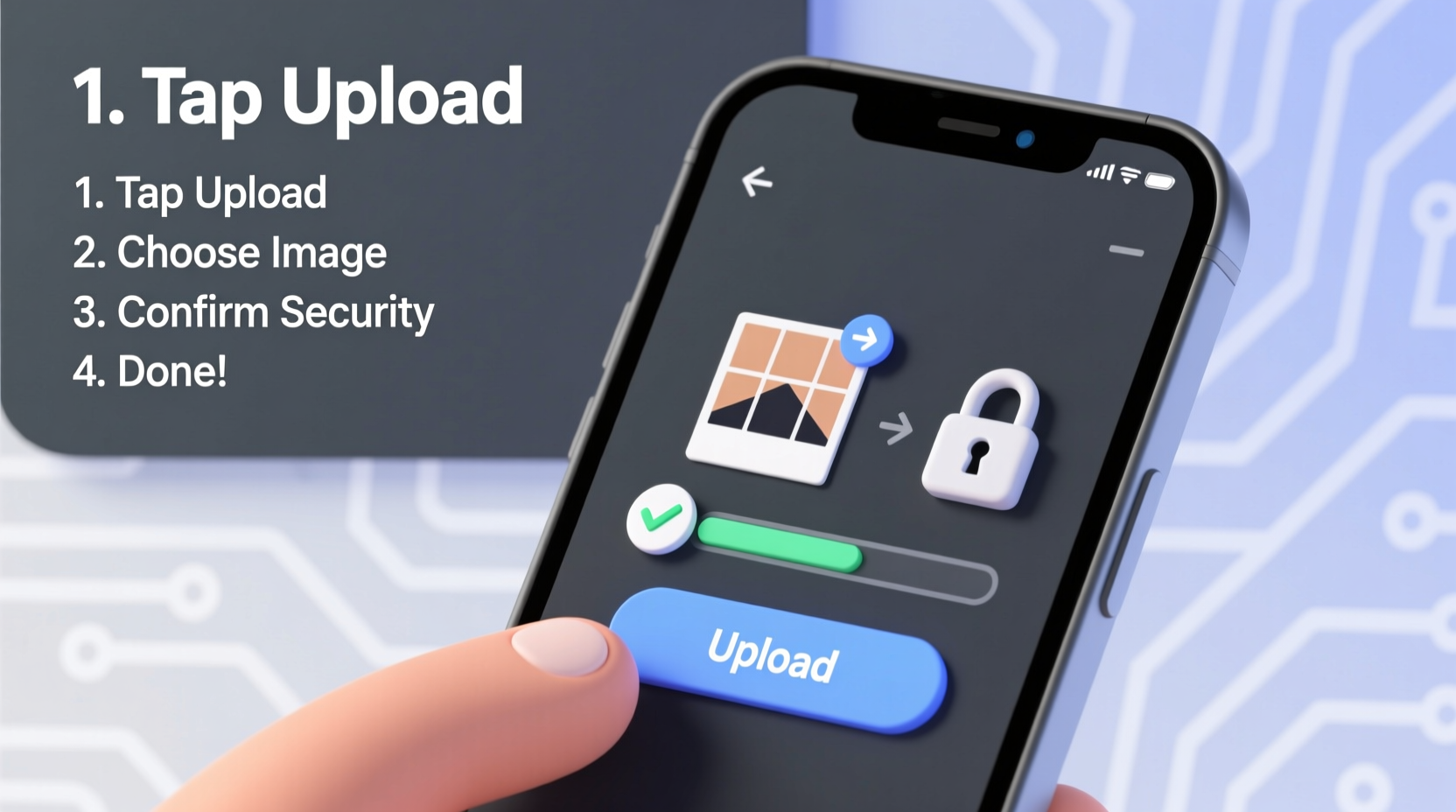
Every uploaded image carries metadata—information such as location, device type, and timestamps. If unchecked, this data can expose personal details. Additionally, uploading to unsecured platforms may result in public indexing, misuse, or long-term storage without consent. According to a 2023 report from the Cybersecurity & Infrastructure Security Agency (CISA), over 40% of unintentional data leaks stemmed from improperly shared media files.
“Images are more than pixels—they’re digital footprints. Securing them starts before the upload begins.” — Dr. Lena Patel, Digital Privacy Researcher at MIT
Beyond privacy, poorly optimized images can degrade website performance. Large files increase load times, which impacts user experience and search engine rankings. The goal is not only safety but also efficiency.
Step-by-Step: The Secure Image Upload Process
1. Prepare Your Image
Before uploading, optimize the file. Start by renaming it to something descriptive and professional (e.g., sunset-hiking-trail.jpg instead of IMG_1234.jpg). This improves accessibility and SEO if used online.
Next, adjust the dimensions and file size:
- Crop unnecessary areas.
- Resize to match the intended display size (e.g., 1200px wide for blogs).
- Compress using tools like TinyPNG, Squoosh, or built-in software (Photoshop, Preview).
2. Remove Sensitive Metadata
Most cameras and smartphones embed EXIF data into images. To remove it:
- On Windows: Right-click the image > Properties > Details > “Remove Properties and Personal Information.”
- On macOS: Open Preview > Tools > Show Inspector > Exif tab > click the arrow and select “Remove Location.”
- Use online tools like MetaFT or ExifCleaner for bulk processing.
For developers or advanced users, command-line tools like exiftool -all= image.jpg offer precise control.
3. Choose a Secure Upload Platform
Not all hosting services are equal. Consider purpose, audience, and retention policy. Below is a comparison of common platforms:
| Platform | Best For | Security Features | Retention |
|---|---|---|---|
| Google Drive | Private sharing, collaboration | Two-factor authentication, encryption at rest | Indefinite (unless deleted) |
| Dropbox | Team workflows, syncing | Password-protected links, remote wipe | Lifetime unless removed |
| Imgur | Public forums, Reddit | Limited; no password protection | Potentially permanent |
| Amazon S3 (with bucket policies) | Business websites, developers | Granular permissions, TLS encryption | Configurable |
| Firefox Send (discontinued alternatives: Onionshare, Tresorit Send) | One-time secure sharing | End-to-end encryption, auto-expire links | Set by user (e.g., 7 days) |
Select platforms that align with your privacy needs. For sensitive content—medical records, identification, internal documents—opt for encrypted, access-controlled environments.
4. Upload Using a Secure Connection
Ensure the website uses HTTPS. Look for the padlock icon in the browser’s address bar. Uploading over HTTP exposes your file to interception on public networks.
If you're on public Wi-Fi, use a trusted Virtual Private Network (VPN) to encrypt traffic. Avoid uploading confidential images from shared devices unless you log out completely afterward.
5. Set Permissions and Verify Access
After uploading, review sharing settings immediately:
- Disable public search indexing if available.
- Set expiration dates for temporary shares.
- Require passwords or login credentials where possible.
- Limit download rights when supported.
Test the link in an incognito window to confirm it behaves as expected—does it ask for permission? Is it viewable without authorization?
Real-World Example: Secure Client Submission
Sarah, a freelance photographer, needed to send finalized wedding photos to her clients. Instead of emailing large attachments, she compressed the images, stripped metadata, and uploaded them to a password-protected Dropbox folder. She set the link to expire in 30 days and shared the password separately via text message. The clients accessed the gallery securely, downloaded their favorites, and Sarah retained full control over distribution. No third-party platforms indexed the images, and she avoided email size limits.
This method ensured professionalism, speed, and compliance with her privacy policy—all critical for client trust.
Essential Checklist for Every Image Upload
Before finalizing any upload, run through this checklist:
- ✅ Renamed file with clear, relevant title
- ✅ Resized and compressed for optimal performance
- ✅ Removed EXIF and metadata
- ✅ Verified platform supports HTTPS
- ✅ Selected appropriate sharing settings (private vs. public)
- ✅ Enabled password protection or access controls if needed
- ✅ Set expiration date for time-sensitive content
- ✅ Tested access from external session (e.g., incognito mode)
- ✅ Confirmed receipt or visibility with recipient (if shared)
- ✅ Logged out of shared devices after upload
Common Mistakes to Avoid
- Uploading directly from smartphone without review: Mobile apps often skip compression and retain full location data.
- Using public image hosts for private content: Platforms like Imgur are searchable and lack access controls.
- Sending links via unencrypted channels: Never share sensitive links over SMS or standard email without additional safeguards.
- Ignoring file format implications: JPEGs are great for photos but lose quality when edited repeatedly; PNG preserves transparency but results in larger files.
- Forgetting to delete after use: Clean up temporary uploads from cloud storage to reduce exposure risk.
“Security isn’t a one-time action—it’s a habit. Every upload should be treated as a potential entry point.” — Marcus Tran, Senior Cloud Security Engineer at Azure
Frequently Asked Questions
Can I upload images anonymously?
Yes, but with limitations. Use platforms like Onionshare (which runs over Tor) or temporary encrypted services like Tresorit Send. Avoid logging into accounts during upload, disable cookies, and use privacy-focused browsers. Note that complete anonymity requires technical diligence and may not be necessary for most users.
What’s the safest file format for secure uploads?
No format is inherently “safer,” but PNG and JPEG are widely supported and less likely to carry executable code. Avoid formats like TIFF or BMP with embedded scripts unless you control the processing environment. Regardless of format, security depends more on transmission protocol, access control, and metadata hygiene.
How do I know if my uploaded image is truly private?
Check three things: (1) The URL is not guessable (random characters, not your name or date), (2) the platform requires authentication or a password to view, and (3) the page blocks search engine indexing (via robots.txt or meta tags). You can test visibility using Google’s “cached” search or tools like Screaming Frog.
Final Thoughts: Make Security Seamless
Uploading an image should be simple—but never careless. By integrating preparation, platform awareness, and access management into your routine, you protect both your content and your reputation. Whether you're a blogger, business owner, or casual user, treating every upload as a security checkpoint builds resilience over time.




 浙公网安备
33010002000092号
浙公网安备
33010002000092号 浙B2-20120091-4
Comments
No comments yet. Why don't you start the discussion?