
Facebook Messenger has become a primary communication tool for millions, serving both personal and professional needs. Over time, conversations accumulate, and many users turn to archiving as a way to declutter their inbox without permanently deleting messages. While archiving is convenient, it can be confusing when you need to retrieve an old conversation. Unlike deleted messages, archived ones are preserved—but only if you know where to look.
This guide walks through the complete process of accessing, managing, and organizing archived Facebook messages across devices. Whether you're using a smartphone or desktop, this practical walkthrough ensures no important message stays out of reach.
Understanding Message Archiving on Facebook
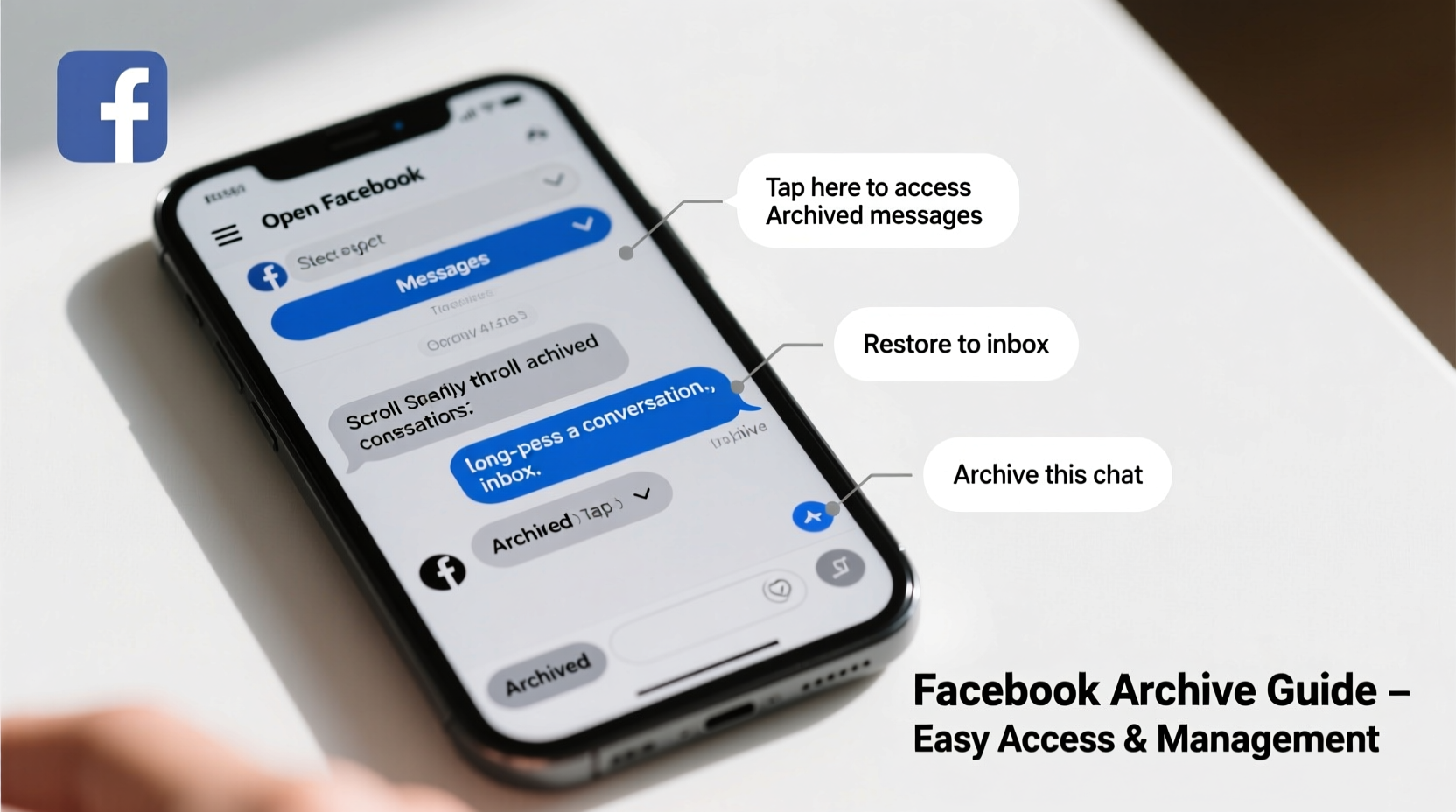
Archiving a conversation on Facebook does not delete it. Instead, it removes the chat from your main inbox and stores it in a separate section, keeping all messages intact. The other person in the conversation won’t be notified. You can still receive new messages from them, which will reappear in your active inbox once they reply.
Archiving is ideal for:
- Cleaning up your main inbox
- Temporarily hiding inactive conversations
- Preserving messages you might need later
Unlike deletion, archiving is fully reversible. This makes it a safer option than removing chats permanently, especially when dealing with sentimental or important exchanges.
How to Access Archived Messages on Mobile (iOS & Android)
Accessing archived messages on mobile requires navigating through the Facebook or Messenger app. The steps differ slightly between apps, but both lead to the same destination.
- Open the Messenger app on your device. Ensure you’re logged into the correct account.
- Tap your profile picture in the top-left corner to open the menu.
- Scroll down and select “Archived Chats” under the “Privacy and Support” section.
- Browse or search through the list of archived conversations. Tap any chat to open it.
- To return a chat to your inbox, tap the three-dot menu (⋮) within the conversation and choose “Unarchive.”
If you use the main Facebook app instead of Messenger:
- Go to your Chats tab
- Tap the search bar at the top
- Type the name of the person whose archived chat you’re looking for
- If the conversation appears but isn’t in your main list, it’s likely archived—tap it to open and unarchive if needed
How to Find Archived Messages on Desktop
Managing archived messages via desktop offers more screen space and easier navigation, especially when searching through multiple conversations.
- Log in to Facebook.com using your preferred browser.
- Navigate to Messenger by clicking the chat icon in the top-right toolbar.
- Click “See All in Messenger” to open the full Messenger interface.
- On the left sidebar, scroll down and click “More”, then select “Archived”.
- Review your list of archived conversations. Hover over any chat to reveal options.
- To restore, simply click on the conversation. It will automatically move back to your main inbox.
You can also use the search bar at the top of the Messenger window. Typing a contact’s name may surface archived chats directly, even if they don’t appear in your active list.
“Archiving is one of Facebook’s most underused organizational tools. It helps maintain digital hygiene without sacrificing message history.” — Lena Patel, Digital Communication Specialist
Managing and Organizing Your Archived Conversations
Over time, archived messages can grow disorganized. A few proactive habits can help you manage them efficiently.
Best Practices for Organization
| Action | Benefit | Frequency |
|---|---|---|
| Label key archived chats | Easier retrieval later | As needed |
| Search with keywords | Faster access to specific messages | When needed |
| Unarchive inactive chats after review | Reduces clutter | Monthly |
| Delete unnecessary archives permanently | Free up space and improve focus | Quarterly |
Note: Facebook doesn’t allow labeling or tagging archived chats directly, but you can use external notes or reminders to track important ones by date, person, or context.
Mini Case Study: Recovering Lost Job Offer Details
Sophie, a freelance graphic designer, archived a Messenger thread with a client after completing a project. Three months later, she was asked to provide details about the original agreement for tax documentation. Initially panicked, she followed the desktop archive retrieval steps. Within two minutes, she found the exact message containing payment terms and deliverables. By preserving the chat instead of deleting it, Sophie avoided a potential audit complication.
This real-world example shows how archiving—when understood—acts as a silent backup system for crucial communications.
Common Issues and Troubleshooting
Despite its simplicity, users often encounter confusion when trying to locate archived messages. Here are frequent problems and their solutions:
- Can’t find “Archived Chats” in the app? Ensure you’re using the latest version of Messenger. Outdated apps may hide or rename features.
- Chat disappeared after archiving? If a conversation vanishes entirely, check whether it was accidentally deleted. Deleted messages cannot be recovered unless backed up externally.
- New messages from archived contacts not appearing? They should reappear automatically in your inbox when the person replies. If not, check notification settings or internet connection.
Checklist: Managing Your Facebook Archives Effectively
- ✅ Regularly review your archived messages every 30–60 days
- ✅ Use search functions to locate specific archived chats quickly
- ✅ Unarchive conversations you want to actively monitor
- ✅ Delete irrelevant archives to reduce digital clutter
- ✅ Backup critical messages outside Facebook (e.g., email or notes)
Frequently Asked Questions
Do archived messages disappear after a certain time?
No. Facebook retains archived messages indefinitely unless you delete them manually. They remain accessible as long as your account exists.
Can someone tell if I’ve archived our conversation?
No. Archiving is a private action. The other person sees no change in their chat interface or message status.
What happens when someone sends me a message while our chat is archived?
The conversation automatically reappears in your main inbox with the new message at the top. No action is required on your part.
Take Control of Your Messaging History
Archived Facebook messages are not lost—they’re just out of sight. With the right knowledge, you can reclaim full control over your digital conversations. Whether you're recovering old plans, revisiting emotional exchanges, or verifying business agreements, understanding how to access and manage archived chats empowers you to use Messenger more effectively.
Don’t let valuable information stay buried. Apply these steps today to streamline your messaging experience and ensure nothing important slips through the cracks.




 浙公网安备
33010002000092号
浙公网安备
33010002000092号 浙B2-20120091-4
Comments
No comments yet. Why don't you start the discussion?