
Personal Folder Files (PST) are essential components of Microsoft Outlook, storing emails, contacts, calendar entries, tasks, and other data locally on your device. While PST files offer flexibility and offline access, improper handling can lead to performance issues, corruption, or data loss. Mastering how to access and manage these files ensures seamless email operations, especially for users who rely on Outlook for personal or professional communication.
Whether you're archiving old messages, migrating data between computers, or troubleshooting a slow Outlook profile, understanding the mechanics behind PST files is crucial. This guide walks through practical steps, tools, and strategies to help you manage PST files with confidence and efficiency.
Understanding PST Files: What They Are and Why They Matter
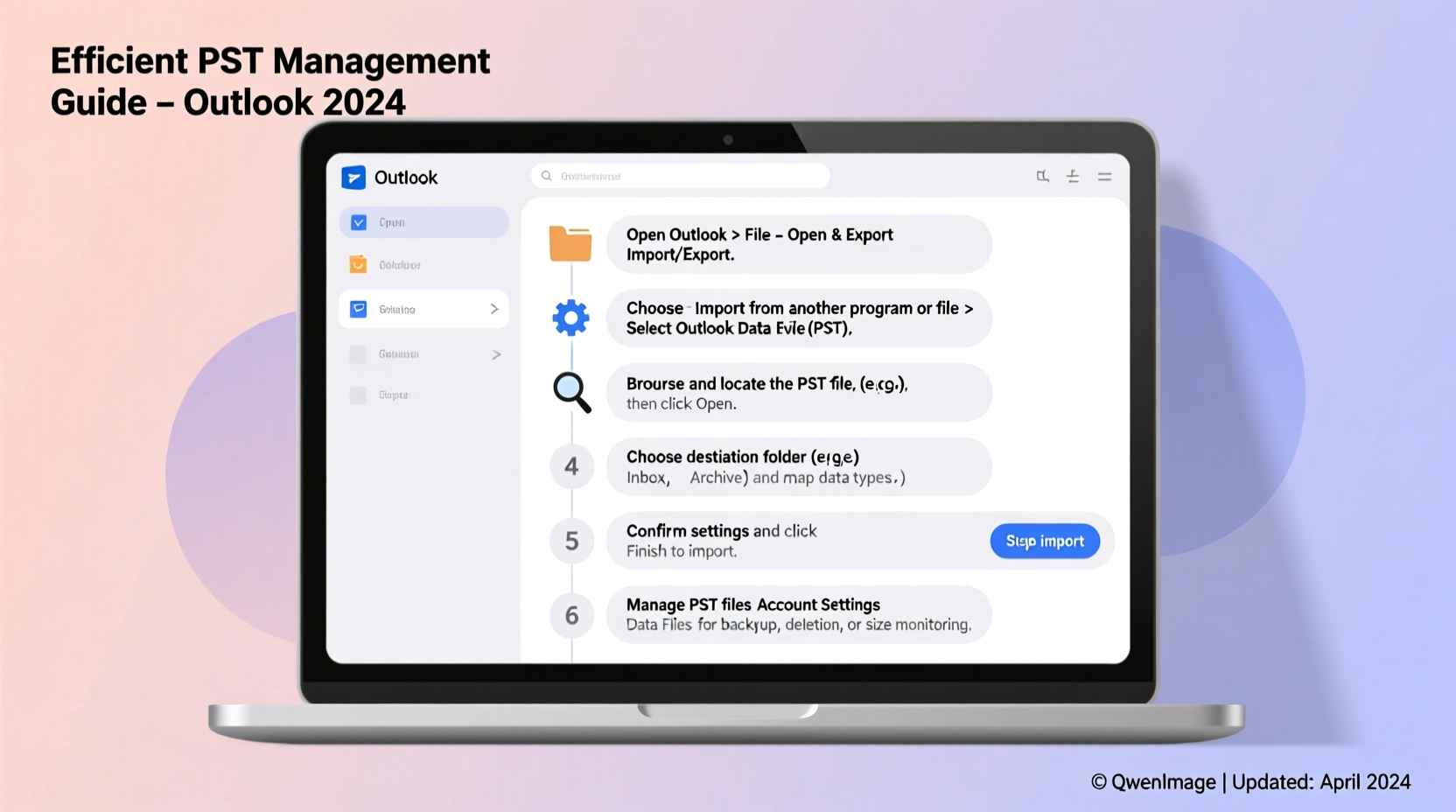
PST files are local storage containers used by Outlook when IMAP, POP3, or offline Exchange accounts are configured. Unlike online mailbox data stored on servers, PSTs reside on your hard drive—typically under the AppData folder in Windows. This local nature allows access without an internet connection but also introduces risks such as file size limits, fragmentation, and vulnerability to system crashes.
There are two main types of PST files:
- ANSI PST: Used in older versions of Outlook (pre-2007), limited to 2 GB in size.
- Unicode PST: Supported from Outlook 2007 onward, capable of holding up to 50 GB (though performance degrades beyond 10–15 GB).
Over time, excessive accumulation of emails and attachments can bloat PST files, leading to sluggish Outlook performance or even crash errors. Regular maintenance—not just creation—is key to keeping them functional.
“Proper management of PST files reduces the risk of data loss by over 70% in organizations relying on decentralized email storage.” — IT Infrastructure Report, Gartner, 2023
Step-by-Step Guide to Access PST Files in Outlook
Accessing a PST file requires deliberate action within Outlook. Follow this sequence to open and verify your data:
- Launch Microsoft Outlook with your primary profile active.
- Navigate to File > Open & Export > Open Outlook Data File.
- Browse your system to locate the desired .pst file (common paths include
C:\\Users\\[Username]\\AppData\\Local\\Microsoft\\Outlook\\). - Select the file and click Open.
- The PST will appear under your account list in the folder pane, labeled with its filename.
Once added, folders inside the PST behave like any other mailbox section—you can read emails, search content, drag messages into other mailboxes, or export further subsets.
Best Practices for Managing PST Files
Efficient management goes beyond simply opening files. It involves organization, optimization, and proactive safeguards. Implement these practices to maintain control:
1. Regular Archiving
Use Outlook’s built-in AutoArchive feature to move older items into a separate PST. Go to File > Options > Advanced > AutoArchive Settings and set intervals (e.g., archive items older than 6 months).
2. Limit File Size
Keep individual PST files under 10 GB to prevent lag and reduce corruption risks. Split large archives into smaller, date-based chunks (e.g., Q1_2024.pst, Q2_2024.pst).
3. Use Compression Tools
Right-click the PST folder in Outlook > Data File Properties > Compact Now. This removes deleted-item remnants and shrinks disk usage.
4. Back Up Frequently
Copy PST files to external drives or cloud storage weekly. Ensure Outlook is closed during backup to avoid file locking issues.
5. Avoid Simultaneous Access
Never open the same PST file from multiple Outlook profiles or devices at once. This causes synchronization conflicts and possible corruption.
| Action | Recommended Frequency | Tool/Method |
|---|---|---|
| Archive old emails | Monthly | Outlook AutoArchive |
| Compact PST | Quarterly or after major deletions | Data File Properties > Compact Now |
| Backup PST | Weekly | Manual copy or scheduled script |
| Scan for errors | Biannually or if Outlook crashes | SCANPST.EXE (Inbox Repair Tool) |
Troubleshooting Common PST Issues
Even well-maintained PST files can encounter problems. Here are frequent scenarios and solutions:
PST Not Opening or Missing After Reinstall
If Outlook doesn’t detect your PST post-reinstallation, manually reattach it via File > Open & Export > Open Outlook Data File. Confirm the file path hasn't changed due to user profile differences.
Outlook Running Slowly with Large PST
Disable unnecessary add-ins (File > Options > Add-ins) and split the PST into smaller archives. Also, disable cached mode if using Exchange alongside large PSTs.
Corrupted PST Preventing Access
Use Microsoft’s free SCANPST.EXE tool located in: C:\\Program Files\\Microsoft Office\\root\\OfficeXX\\SCANPST.EXE (replace XX with version number).
Select the corrupted file, scan, and allow repairs. Always back up the original first.
Mini Case Study: Recovering Critical Client Emails
Sarah, a project manager at a mid-sized consulting firm, faced a crisis when her laptop crashed unexpectedly. She relied heavily on a PST containing three years of client correspondence, all un-backed-up. After reinstalling Windows and Outlook, she discovered the PST wouldn’t load, displaying “File not found” despite locating it on disk.
She followed these steps:
- Copied the PST to her desktop to eliminate path permission issues.
- Ran SCANPST.EXE, which detected minor index corruption.
- Repaired the file and successfully reopened it in Outlook.
- Moved critical emails to her Exchange mailbox and created quarterly backups going forward.
This experience prompted her team to adopt a formal PST policy, including automatic scripts to back up all staff PSTs every Friday evening.
Frequently Asked Questions
Can I open a PST file without Outlook?
Yes, third-party tools like LibreOffice, Kernel PST Viewer, or SysTools PST Viewer allow read-only access. However, full functionality—including sending replies or managing calendars—requires Outlook.
Is it safe to store PST files on OneDrive or Dropbox?
No. Cloud sync services may lock or corrupt PST files during upload, especially if Outlook is running. Only store copies—not active files—on cloud drives.
How do I remove a PST from Outlook without deleting it?
Right-click the PST folder in the navigation pane > Close [filename]. The file remains on your system and can be re-added anytime via Open Outlook Data File.
Conclusion: Take Control of Your Email Data Today
PST files remain a powerful yet often misunderstood aspect of Outlook. When managed correctly, they enhance productivity by enabling offline access, long-term archiving, and smooth transitions between devices. But neglect leads to slowdowns, data loss, and avoidable stress.
Start today: audit your current PST files, compact oversized ones, schedule regular backups, and document file locations. Small actions now prevent major disruptions later. Empower yourself with organized digital habits—your future self will thank you.




 浙公网安备
33010002000092号
浙公网安备
33010002000092号 浙B2-20120091-4
Comments
No comments yet. Why don't you start the discussion?