
Facebook profiles serve as digital representations of our lives, and one of the most meaningful ways to personalize them is through life events. Whether it's a graduation, new job, relationship milestone, or travel adventure, documenting these moments adds depth and authenticity to your online presence. Unlike regular posts that fade into the timeline, life events are permanently archived in a dedicated section, making them easy to revisit and share. This guide walks you through how to add, edit, and customize life events with precision and care—so your profile reflects the story you want to tell.
Understanding Life Events on Facebook
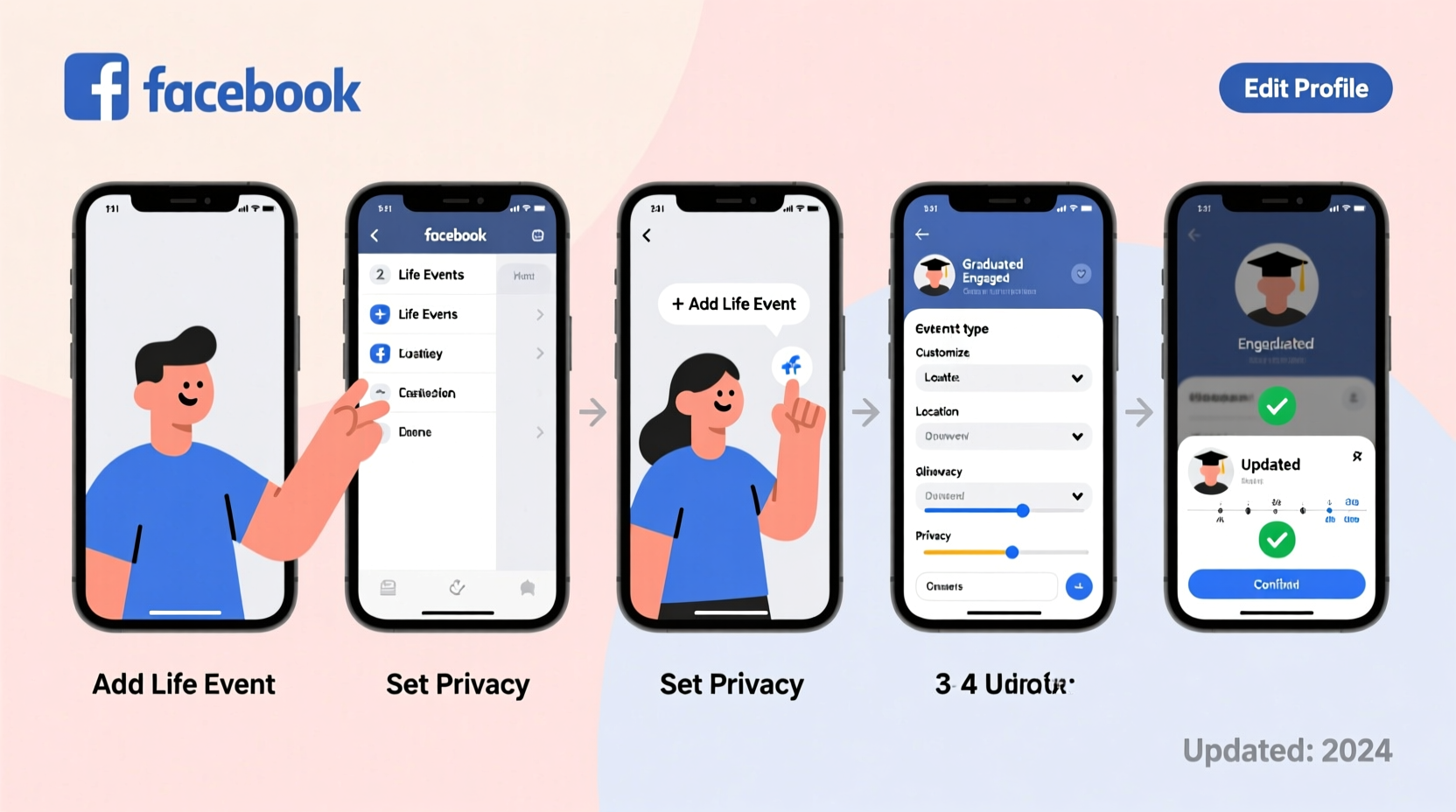
Life events on Facebook are more than just status updates—they're curated milestones organized chronologically on your timeline. These appear in a designated \"Life Events\" section, accessible from your profile, and can include everything from career achievements to family changes. Facebook categorizes these into predefined types such as “Started a New Job,” “Got Engaged,” or “Moved to a New City,” but also allows custom entries for unique experiences.
The advantage of using life events over regular posts lies in their permanence and visibility. While a birthday announcement might get buried under newsfeed content, a life event stays pinned in context, reinforcing your identity and journey. Additionally, life events can be shared selectively with friends, specific groups, or kept private—giving you control over who sees what.
How to Add a Life Event Step by Step
Adding a life event is straightforward, but doing it correctly ensures clarity and consistency across your timeline. Follow this sequence to publish a well-documented milestone:
- Navigate to your profile: Click your name at the top of any Facebook page to go to your timeline.
- Locate the “Add Life Event” button: Scroll down to the Life Events section (usually below your bio and featured posts). If no events exist yet, you’ll see a prompt like “Add a Life Event.”
- Select a category: Choose from Facebook’s dropdown menu—options include Education, Family & Relationships, Work, Milestones, and More.
- Enter details: Input the title (e.g., “Graduated from University”), location (if applicable), and date. You can specify exact dates or ranges (e.g., “June 2020”).
- Add a description or photo (optional): Enhance the entry with a short note or upload an image. This makes the event more engaging and memorable.
- Adjust privacy settings: Before saving, choose who can see the event—Public, Friends, Only Me, or a custom list.
- Click “Add”: The event will now appear on your timeline in chronological order.
This process works whether you’re recording a recent achievement or reflecting on past experiences. Retroactively adding events helps build a richer profile history.
Customizing and Editing Existing Life Events
Mistakes happen—maybe you selected the wrong date or forgot to add a photo. Fortunately, Facebook allows full editing of life events after publication.
To edit an existing event:
- Go to your profile and find the Life Events section.
- Hover over the event you want to change and click the three dots (⋯) in the top-right corner.
- Select “Edit” from the dropdown menu.
- Update any field: title, date, description, media, or privacy setting.
- Click “Save” to apply changes.
You can also delete an event entirely if it no longer feels relevant. Keep in mind that removing an event also deletes associated photos and comments unless saved elsewhere.
| Action | Can Be Edited? | Privacy Adjustable? |
|---|---|---|
| Title | Yes | No (but overall event privacy applies) |
| Date | Yes | No |
| Description | Yes | No |
| Photo | Yes (add or replace) | Yes (via post-level settings) |
| Event Category | No (must delete and re-add) | N/A |
Real Example: Building a Professional Timeline
Sophia, a marketing consultant, wanted her Facebook profile to reflect her career growth without appearing overly promotional. She used life events strategically: adding each job role under “Work,” certifications under “Education,” and major client wins under “Milestones.” For each, she included a brief description and sometimes a photo from a team event or award ceremony.
When potential clients visited her profile, they saw a clear progression—not just random posts, but documented achievements in context. One client later mentioned that Sophia’s timeline gave them confidence in her experience before even reviewing her LinkedIn. This illustrates how thoughtfully curated life events can enhance personal branding beyond traditional platforms.
“People don’t just connect with resumes—they connect with stories. Life events turn scattered moments into a coherent journey.” — Jamal Reed, Digital Identity Consultant
Best Practices and Common Pitfalls
While adding life events seems simple, small oversights can reduce their impact. Below is a checklist to ensure every entry adds value:
📋 **Life Event Optimization Checklist**- ✅ Use clear, descriptive titles (e.g., “Published First Book” instead of “Big News!”)
- ✅ Verify dates for accuracy—especially important for employment or education
- ✅ Add context with a short description (1–2 sentences)
- ✅ Attach a relevant photo when appropriate (e.g., diploma, workplace, celebration)
- ✅ Set appropriate privacy levels—don’t overshare sensitive events
- ✅ Review all events periodically for outdated or redundant entries
Avoid overposting minor events. While Facebook allows unlimited entries, cluttering your timeline with trivial updates diminishes the significance of major milestones. Prioritize events that represent real change or achievement.
Frequently Asked Questions
Can other people add life events to my profile?
No, only you can add or edit life events on your own profile. However, friends can comment on or react to events you’ve published. Tagged posts related to milestones may appear on your timeline, but they won’t be integrated into the official Life Events section unless manually added by you.
Do life events show up in News Feed when added?
Yes, when you add a new life event, it typically appears in the News Feeds of your friends unless you set the privacy to “Only Me.” If you prefer discretion, adjust the audience before publishing.
Can I add a life event from a mobile device?
Absolutely. The Facebook app supports full functionality for adding and editing life events. Tap your profile picture, scroll to the Life Events section, and follow the same steps as on desktop.
Conclusion: Shape Your Story with Intention
Your Facebook profile is more than a social hub—it’s a living archive of your personal and professional evolution. By thoughtfully adding and customizing life events, you transform isolated moments into a cohesive narrative. Each entry becomes a chapter in a story that others can follow, understand, and connect with.
Start today: review your timeline, identify key milestones worth highlighting, and begin building a profile that truly reflects who you are and where you’ve been. Whether for networking, nostalgia, or self-expression, a well-maintained life events section adds lasting value to your digital footprint.




 浙公网安备
33010002000092号
浙公网安备
33010002000092号 浙B2-20120091-4
Comments
No comments yet. Why don't you start the discussion?