
Effective communication in professional environments often hinges on organization and precision. One of the most powerful tools at your disposal is Microsoft Outlook, which goes beyond simple email management. When used strategically, Outlook can help you build, maintain, and leverage a well-structured email list that enhances collaboration, streamlines outreach, and strengthens relationships.
Whether you're managing a team, coordinating with clients, or organizing internal communications, a properly maintained email list ensures messages reach the right people without clutter or confusion. This guide walks through the essential steps to create and manage an efficient email list using Outlook’s native features—without relying on third-party tools.
Step 1: Set Up Your Contacts Systematically
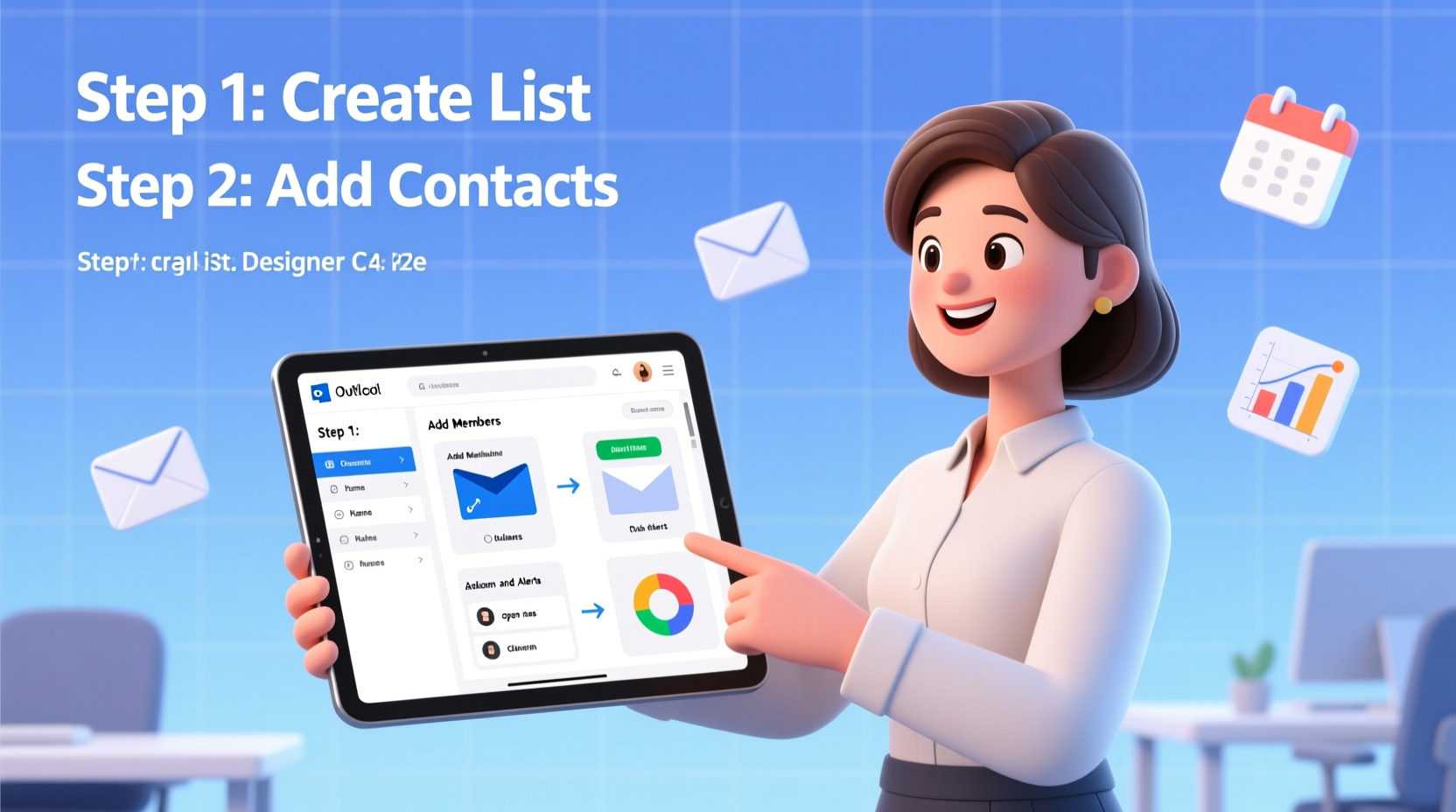
The foundation of any effective email list is a clean, organized contact database. Start by auditing existing contacts and entering new ones with consistent formatting.
- Open Outlook and navigate to the People section (or Contacts, depending on your version).
- Click New Contact to manually add individuals, or import from a CSV file if you have bulk data.
- Fill in key fields: full name, job title, company, primary email, and phone number.
- Use the Notes field to record context such as meeting dates, preferences, or project involvement.
For teams or departments, consider creating a shared contact folder so multiple users can access and update information collaboratively—especially useful in enterprise environments using Microsoft 365 or Exchange Server.
Step 2: Organize Contacts into Categories and Groups
Once your contacts are entered, grouping them logically increases efficiency. Outlook allows two main methods: Categories and Contact Groups (formerly known as Distribution Lists).
Using Categories for Tagging
Categories let you label contacts based on roles, projects, or priority levels. For example:
- Category: “Clients – Active”
- Category: “Internal Team – Marketing”
- Category: “Vendors – IT Services”
To assign a category, open a contact, click the Categorize button, and choose or create a tag. You can filter your entire contact list by category later.
Creating Contact Groups
Contact Groups function like mailing lists. They allow you to send one email to multiple recipients under a single name.
- In the People section, click New Contact Group.
- Name it clearly (e.g., “Project Phoenix Team” or “Monthly Newsletter Subscribers”).
- Add members by typing their names and selecting from your address book.
- Save and close.
Now, when composing an email, simply type the group name in the “To” field to include all members instantly.
Step 3: Maintain Accuracy and Relevance
An outdated email list reduces credibility and risks miscommunication. Regular maintenance keeps your list reliable and effective.
| Action | Frequency | Purpose |
|---|---|---|
| Review contact details | Quarterly | Update job titles, emails, and companies after role changes |
| Remove inactive contacts | Semi-annually | Reduce clutter and bounce rates |
| Verify group membership | Before major campaigns | Ensure only relevant stakeholders receive messages |
| Backup contact list | Annually or after major updates | Prevent data loss due to device failure |
Step 4: Use Smart Communication Practices
Building the list is only half the battle. How you communicate matters just as much.
When sending emails to groups, personalize where possible. Use the BCC field when privacy is important—especially for external newsletters or mass updates. Avoid overwhelming recipients with unnecessary CCs.
“Clarity and relevance determine whether an email gets read—or deleted.” — Laura Simmons, Corporate Communications Director
Consider these best practices:
- Subject lines: Be specific and action-oriented (e.g., “Action Required: Budget Review by Friday” vs. “Update”)
- Content structure: Use bullet points, headings, and short paragraphs for readability
- Timing: Send during business hours (typically 9–11 AM) for higher open rates
Mini Case Study: Streamlining Internal Updates
Jamie, a project manager at a mid-sized tech firm, struggled with inconsistent team communication. After consolidating her department’s contacts into labeled categories and creating dynamic contact groups for each sprint team, she reduced follow-up emails by 40%. By scheduling weekly status updates via a dedicated “Dev Team – Sprint 7” group and archiving old members promptly, clarity improved across the board.
Step 5: Monitor Engagement and Adjust Accordingly
Even within Outlook, you can track engagement indirectly. While native read receipts aren’t always reliable, you can observe response patterns and adjust your approach.
If certain group emails consistently go unanswered, evaluate whether the audience is appropriate or if the message needs refinement. Consider splitting large groups into subcategories for more targeted messaging.
Also, train team members on list etiquette. Everyone should understand how to add new contacts, request group updates, and respect confidentiality settings.
Checklist: Building and Managing Your Outlook Email List
- ✅ Audit and enter all relevant contacts with complete information
- ✅ Categorize contacts by role, project, or relationship type
- ✅ Create named Contact Groups for recurring communication needs
- ✅ Schedule quarterly reviews to remove outdated entries
- ✅ Use BCC for sensitive or broad distributions
- ✅ Backup your contact list annually or after major changes
- ✅ Train team members on proper list usage and permissions
Frequently Asked Questions
Can I sync my Outlook contact groups with mobile devices?
Yes. If you’re using an Exchange account or have IMAP set up, your contact groups will sync across devices logged into the same Outlook profile. Note that some mobile apps may not display groups directly but still support sending to them.
What’s the difference between a Contact Group and a Microsoft 365 Group?
A Contact Group is a simple mailing list stored in your personal or shared mailbox. A Microsoft 365 Group is a broader collaboration space that includes shared mail, calendar, files, and Teams integration. Use Contact Groups for lightweight distribution; use M365 Groups for active team collaboration.
How many people can be in a single Contact Group?
Outlook allows up to 1,000 members per Contact Group. For larger audiences, consider segmenting into thematic subgroups (e.g., “Clients – East Region,” “Clients – West Region”) to improve targeting and performance.
Conclusion
Building and managing an email list in Outlook isn’t about complexity—it’s about consistency and intentionality. With a structured approach to contacts, smart use of groups, and disciplined maintenance, you transform Outlook from a basic inbox into a powerful communication engine.
Start small: clean up ten contacts today, create one meaningful group, and schedule a reminder to review your list next quarter. These incremental actions compound into significant improvements in clarity, professionalism, and responsiveness. The result? Stronger relationships, fewer misunderstandings, and more impactful messages that get noticed.




 浙公网安备
33010002000092号
浙公网安备
33010002000092号 浙B2-20120091-4
Comments
No comments yet. Why don't you start the discussion?