
Every time you click \"Download,\" your files land in the same folder—usually the Downloads directory on your main drive. Over time, this can lead to clutter, wasted space, and difficulty locating important files. Changing your default download location is a simple yet powerful way to take control of your digital workflow. Whether you're using Chrome, Firefox, Safari, Edge, or managing downloads on mobile, this guide walks you through every method with clear, actionable steps.
Why Change Your Default Download Location?
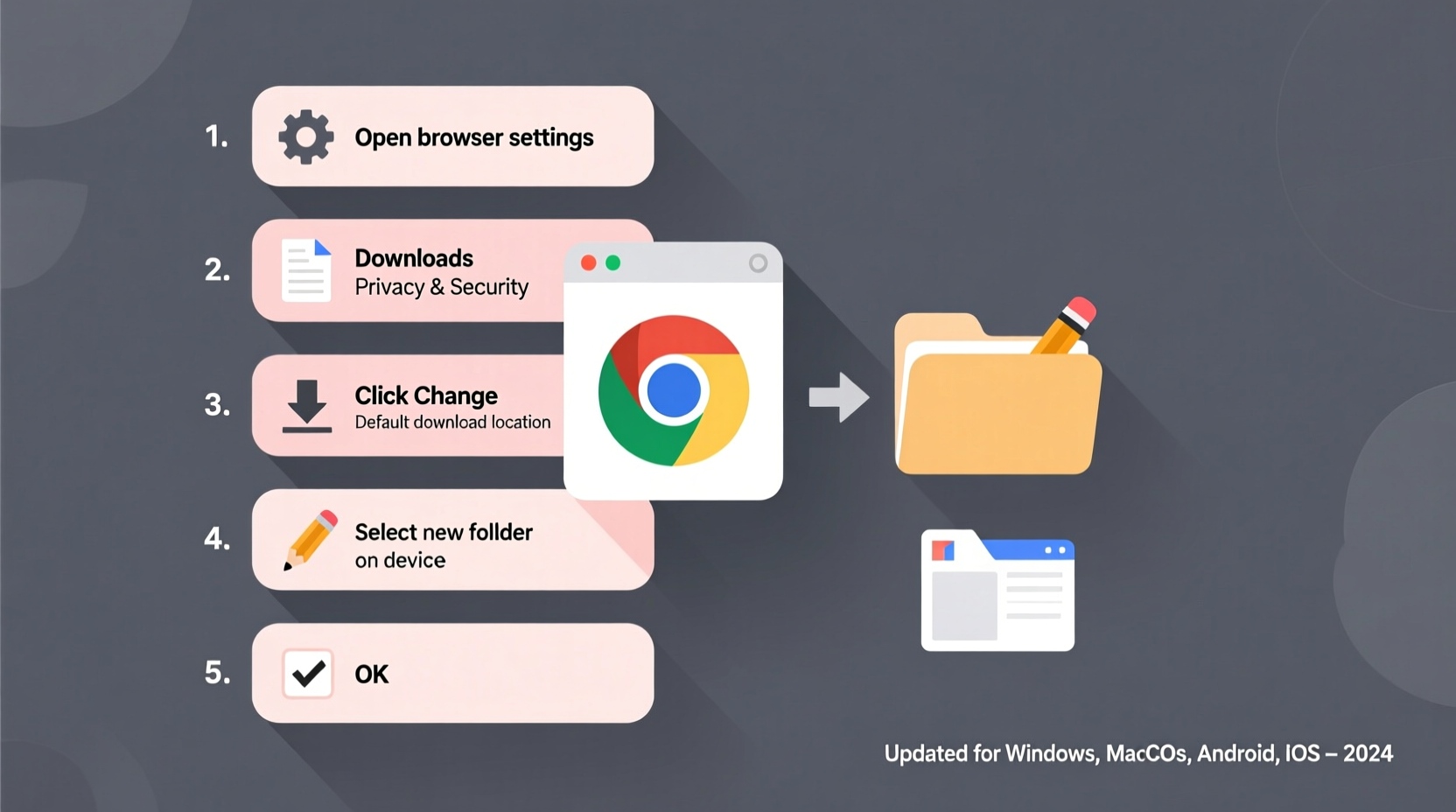
The default Downloads folder is convenient but rarely optimal. Most operating systems place it on the system drive (typically C: on Windows or Macintosh HD on macOS), which may have limited space or be backed up unnecessarily. By redirecting downloads to an external drive, secondary partition, or cloud-synced folder, you gain several advantages:
- Better disk space management
- Easier file organization
- Reduced risk of filling up your system drive
- Improved backup efficiency
- Simplified access across devices when using synced folders
How to Change Download Location in Major Web Browsers
Each browser handles download settings slightly differently. Below are detailed instructions for the most widely used desktop browsers.
Google Chrome (Windows, macOS, Linux)
- Open Chrome and click the three-dot menu in the top-right corner.
- Select Settings.
- Scroll down and click Downloads in the sidebar.
- Next to “Location,” click Change.
- Navigate to your preferred folder (e.g., D:\\Files\\Downloads or /Users/Name/Documents/Downloads).
- Select the folder and confirm.
From now on, all new downloads will go directly to your chosen directory. You can still choose a different location for individual files by checking “Ask where to save each file before downloading” in the same menu.
Mozilla Firefox
- Click the hamburger menu (three horizontal lines) and select Settings.
- Go to the General tab.
- Scroll to the “Files and Applications” section.
- Next to “Save files to,” click Browse and select your desired folder.
- To override this per download, enable “Always ask you where to save files.”
Firefox also allows you to set exceptions for specific file types, giving you granular control over where documents, videos, or executables are stored.
Microsoft Edge
- Click the three-dot menu and choose Settings.
- Select Downloads from the left panel.
- Under “Location,” click Change.
- Pick a new folder and confirm your selection.
Like Chrome, Edge offers the option to always prompt for a save location—a useful feature if you frequently save files to different places.
Safari (macOS)
- Open Safari and go to Safari > Settings (or Preferences).
- Click the General tab.
- Find “File download location” and select “Other” from the dropdown.
- Choose your custom folder and close the window.
Safari doesn’t offer a per-download prompt option, so choosing a well-organized central folder is especially important for Mac users.
Changing Download Locations on Mobile Devices
Mobile platforms handle downloads differently than desktops, often limiting user control—but customization is still possible.
Android (Chrome and Default Browser)
- Open Chrome and tap the three-dot menu.
- Tap Settings > Downloads.
- Tap “Download location” and choose between internal storage or SD card.
- Select a folder such as
/SDCard/MyDownloads.
Note: Some Android versions restrict this option based on app permissions. If unavailable, consider using a third-party file manager that supports default path changes.
iOS (iPhone and iPad)
iOS does not allow changing the default download location for Safari. All downloads go to the Downloads folder within the Files app. However, you can immediately move files after downloading:
- After downloading, open the Files app.
- Navigate to On My iPhone > Downloads.
- Long-press the file, tap “Move,” and select a new destination.
For more flexibility, use alternative browsers like Documents by Readdle, which function as full download managers with customizable save paths.
Operating System-Level Download Management
Beyond browsers, your operating system plays a role in how downloads are handled—especially when apps initiate downloads outside the browser.
Windows: Modify User Profile Download Path
You can change the system-level Downloads folder location, which affects all apps that use the default path.
- Navigate to
C:\\Users\\[YourUsername]. - Right-click the Downloads folder and select Properties.
- Go to the Location tab.
- Click Move and select a new folder (e.g., D:\\Data\\Downloads).
- Confirm and let Windows transfer existing files.
This change applies system-wide, so any app relying on the standard Downloads path will follow the new route.
macOS: Symbolic Links for Advanced Control
If you want to redirect the Downloads folder without breaking app expectations, use a symbolic link:
- Create a new folder in your desired location:
mkdir /Volumes/External/Downloads. - Delete or rename the original Downloads folder in your home directory.
- Open Terminal and run:
ln -s /Volumes/External/Downloads ~/Downloads
This creates a symbolic link, making the system think the folder is still in its original place while storing files elsewhere.
“Redirecting downloads off the system drive is one of the most overlooked yet effective ways to extend SSD lifespan and maintain performance.” — David Lin, Systems Architect at TechFlow Solutions
Best Practices and Common Pitfalls
Changing your download location seems straightforward, but missteps can lead to lost files or permission errors. Follow these best practices:
| Do’s | Don’ts |
|---|---|
| Choose a drive with sufficient free space | Set the download folder on a removable drive that isn’t always connected |
| Use clear, consistent folder naming | Use spaces or special characters in folder names |
| Enable “Ask where to save” for sensitive files | Forget to back up important downloads automatically |
| Regularly clean and organize the download folder | Store downloads permanently without sorting |
Mini Case Study: Remote Worker Streamlines File Management
Sophie, a freelance graphic designer, used to lose client assets in her bloated Downloads folder. Her laptop’s SSD was nearly full, causing slowdowns. She moved her default download location to a 1TB external SSD labeled “Projects.” She configured Chrome and Firefox to save directly there, organized subfolders by client, and set up weekly backups using Time Machine. Within a month, her system ran faster, and she reduced file retrieval time by over 70%.
Frequently Asked Questions
Will changing my download location affect already-downloaded files?
No. Only future downloads will go to the new location. Existing files remain where they were saved unless manually moved.
Can I set different download folders for different browsers?
Yes. Each browser manages its own download settings independently. For example, you can set Chrome to save to D:\\Work and Firefox to C:\\Temp.
What happens if the download drive is disconnected?
The browser will usually show an error or fail silently. Downloads won’t proceed until the drive is reconnected. Avoid setting defaults on drives that aren’t always available.
Final Checklist Before You Make the Switch
- ✅ Identify a reliable, high-capacity storage location
- ✅ Create a dedicated downloads folder with a clear name
- ✅ Update settings in all active browsers
- ✅ Test by downloading a small file to confirm the new path works
- ✅ Set up automated cleanup or backup if needed
Take Control of Your Digital Workflow Today
Changing your default download location is a small adjustment with long-term benefits. It reduces clutter, protects your system drive, and makes file management intuitive. Whether you're a student, professional, or casual user, taking just ten minutes to reconfigure your settings can save hours down the line. Don’t wait for a full hard drive or lost file to act—customize your setup now and build smarter digital habits.




 浙公网安备
33010002000092号
浙公网安备
33010002000092号 浙B2-20120091-4
Comments
No comments yet. Why don't you start the discussion?