
Updating your Facebook profile isn’t just about swapping out an old photo. It’s an opportunity to refine your digital presence, strengthen personal branding, and ensure your online identity aligns with who you are today—whether that’s professionally, personally, or both. Many users overlook the full potential of their profile, treating it as static rather than strategic. But with the right approach, a well-crafted Facebook profile can open doors, build trust, and enhance visibility.
This guide walks through every critical element of optimizing your Facebook profile with precision, from profile and cover photos to privacy settings and bio details. Whether you're refreshing your image after a career shift, rebranding for business, or simply want to present yourself more thoughtfully, these steps will help you execute the change like a seasoned pro.
Step 1: Audit Your Current Profile
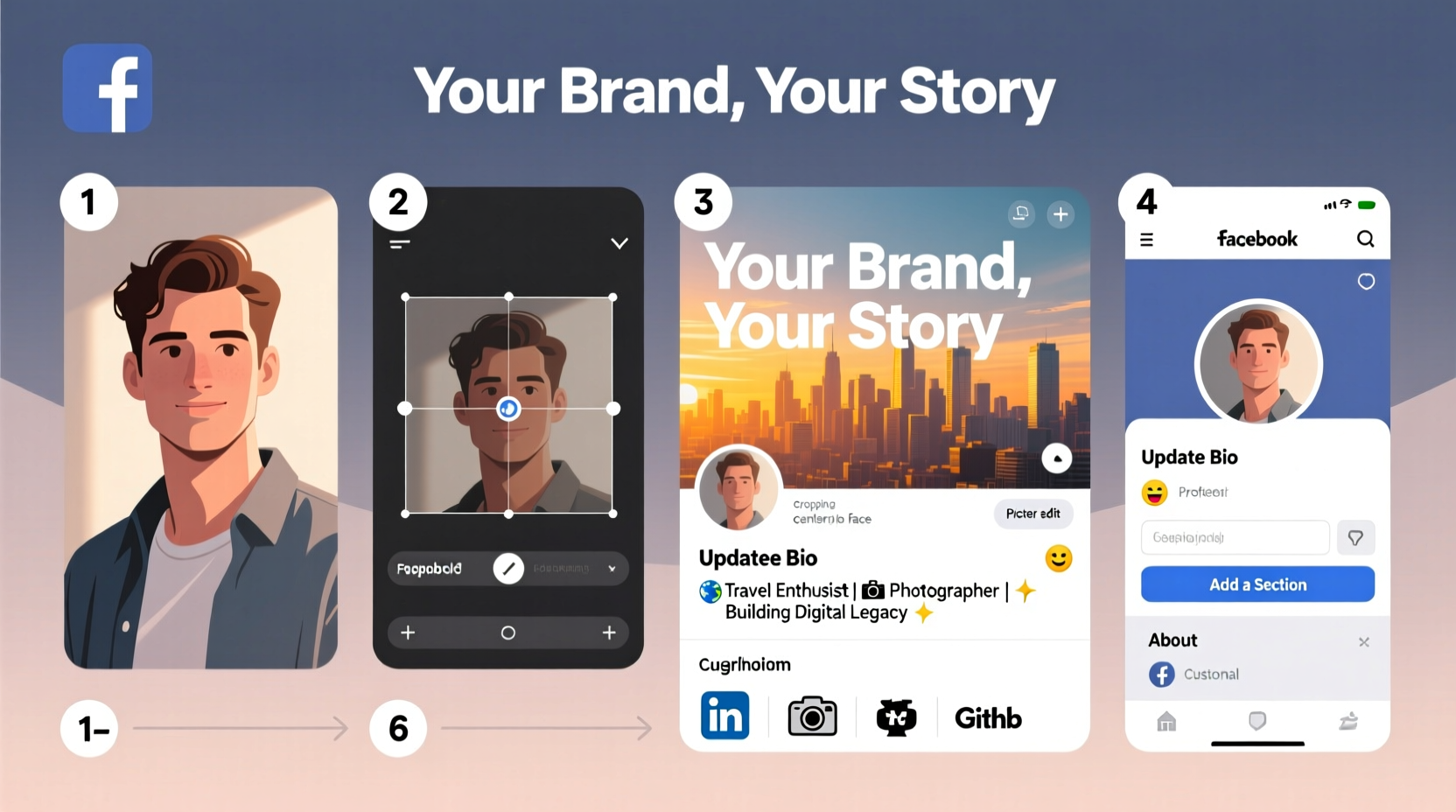
Before making any changes, take a moment to evaluate what’s already live on your profile. Log in from a desktop browser for full access to settings and layout options. Scroll through your timeline, check your profile picture, cover photo, bio sections, and recent posts visible to others.
Ask yourself:
- Does my current profile reflect my present goals?
- Are there outdated photos, job titles, or locations?
- Is my tone consistent with how I want to be perceived?
- What information is publicly visible?
This audit sets the foundation for intentional updates. Note anything that feels misaligned or unprofessional. This includes blurry images, vague bios, or outdated relationship statuses that might confuse visitors.
Step 2: Optimize Your Profile Picture and Cover Photo
Your profile picture and cover photo are the first visual impressions people get. Professionals recommend choosing high-resolution images that are clear, well-lit, and context-appropriate.
Profile Picture Best Practices:
- Use a close-up headshot with a neutral or professional background if branding for work.
- Ensure your face takes up at least 60% of the frame.
- Smile naturally—approachability builds connection.
- Avoid filters, sunglasses, or cluttered group shots unless relevant.
Cover Photo Strategy:
- Use dimensions of 820 x 312 pixels (desktop) or 640 x 360 (mobile) to avoid cropping.
- Incorporate subtle branding elements like a logo, tagline, or color scheme if used for business.
- Rotate seasonally or to highlight current projects, events, or campaigns.
“Your profile photo is your digital handshake. Make it count.” — Sarah Lin, Personal Branding Consultant
Step 3: Craft a Clear and Compelling Bio
The About section is often underutilized. Yet, it's one of the most visited parts of your profile. A strong bio tells people who you are, what you do, and why they should care—all in a concise format.
Update each subsection deliberately:
| Section | Do’s | Don’ts |
|---|---|---|
| Work and Education | List current roles with brief descriptions; include companies with public pages. | Leave blank or use vague titles like “Doing stuff.” |
| Places Lived | Add cities relevant to your story or network. | Include every town you’ve passed through. |
| Contact Info | Share only what you’re comfortable with—email, website, phone. | Post personal numbers or addresses publicly. |
| Basic Info | Update relationship status, religion, or political views only if meaningful. | Feel obligated to fill every field. |
Write a short summary in the \"Intro\" box—a customizable snippet that appears at the top of your profile. Example: “Digital marketer | Helping startups grow online | Coffee enthusiast | Based in Austin.”
Step 4: Adjust Privacy and Audience Settings
Changing your profile isn’t complete without reviewing who sees what. Facebook offers granular control over visibility—use it wisely.
Navigate to Settings & Privacy > Privacy Shortcuts to quickly manage key areas:
- Who can see your future posts? Choose Friends, Only Me, or a custom list.
- Who can send you friend requests? Keep this set to “Everyone” unless receiving spam.
- How people can find and contact you? Limit search visibility if desired, especially for safety or focus.
For individual profile elements (like birthday or email), go to your profile, click the pencil icon next to each section, and adjust the audience selector (globe, friends, lock).
Mini Case Study: Rebranding After a Career Shift
Jamal, a former accountant, transitioned into freelance graphic design. His old profile showed corporate headshots and listed his previous employer prominently. After updating his profile picture to a creative casual shot, changing his cover photo to showcase his portfolio, and rewriting his bio to highlight design skills and availability, he noticed a 40% increase in inbound messages from potential clients within three weeks. The visual and textual alignment with his new identity made him appear credible and accessible.
Step 5: Clean Up Past Content and Boost Engagement
A polished profile should also reflect a curated past. Scroll through your timeline and consider removing or archiving posts that no longer represent you—especially those with controversial opinions, excessive party photos, or outdated beliefs.
To archive a post:
- Hover over the post on your timeline.
- Click the three dots in the top-right corner.
- Select “Edit Post,” then choose “Archive Post.”
Archiving removes it from public view but keeps it accessible to you. You can also unpublish or delete entirely if preferred.
After cleanup, engage strategically. Pin a recent post that reflects your current interests—such as a project launch, article, or community event—to the top of your timeline. This gives visitors immediate insight into what matters to you now.
Checklist: Finalizing Your Professional Profile Update
- ✅ Updated profile picture with high-quality, appropriate image
- ✅ Designed and uploaded a relevant cover photo
- ✅ Revised all About sections for accuracy and clarity
- ✅ Set proper privacy levels for sensitive information
- ✅ Archived or deleted outdated or inappropriate posts
- ✅ Pinned a meaningful recent post to your timeline
- ✅ Reviewed profile using “View As” to confirm appearance
Frequently Asked Questions
How often should I update my Facebook profile?
Review your profile every 6–12 months, or whenever you experience a major life or career change. Regular updates keep your presence accurate and engaging.
Can I have a professional and personal Facebook profile?
No—Facebook’s terms prohibit multiple personal accounts. Instead, use a Facebook Business Page for professional branding while keeping your personal profile authentic but polished.
Will my friends get notified when I change my profile picture?
Yes, unless you disable activity notifications. To prevent alerts, go to Settings > Profile > Edit Profile Settings and turn off “Notify friends when you update your profile picture.”
Mastery Starts With Intention
Revamping your Facebook profile isn’t a one-time chore—it’s part of ongoing personal branding. Every detail, from the smile in your photo to the pronouns in your bio, contributes to how you’re perceived. By following these steps methodically, you transform your profile from passive to purposeful.
Take action today: spend 20 minutes auditing your current setup, then implement one improvement. Small, consistent efforts compound into a powerful digital presence. And once you’ve refined your profile, consider helping a colleague or friend do the same—sharing knowledge strengthens everyone’s reach.




 浙公网安备
33010002000092号
浙公网安备
33010002000092号 浙B2-20120091-4
Comments
No comments yet. Why don't you start the discussion?