
Apple has integrated artificial intelligence deeply into the iPhone experience, from Siri suggestions and predictive text to photo recognition and app tracking. While these features aim to enhance convenience, they often come at the cost of user privacy. If you're concerned about how much data your iPhone collects, processes, or shares through AI-driven functions, you have the right to limit or eliminate them.
This guide walks you through every major AI-powered feature on iOS and shows you exactly how to disable them—step by step. Whether you're a privacy advocate, a security-conscious professional, or simply want more control over your device, this comprehensive approach will help you reclaim your digital autonomy.
Understanding AI on the iPhone
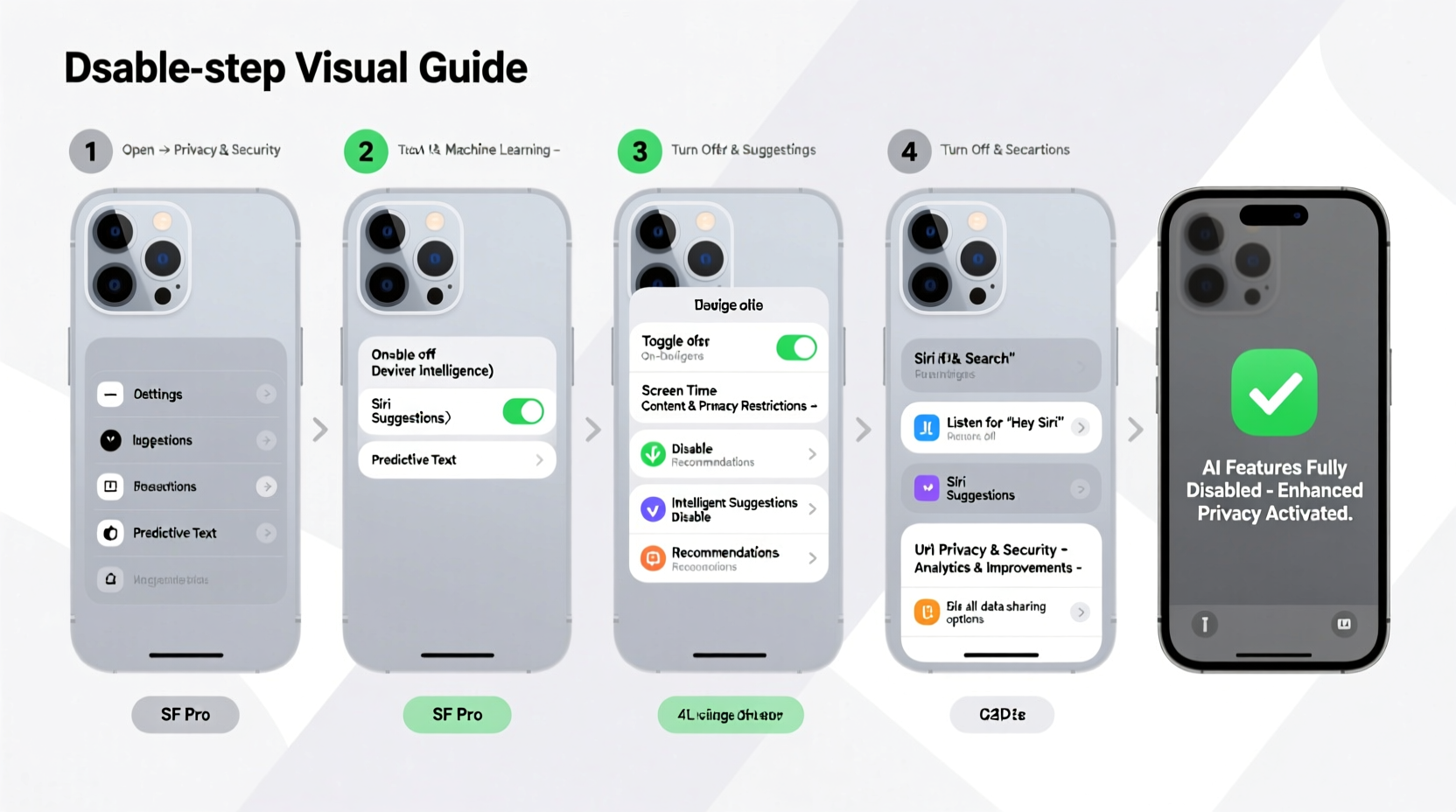
When Apple refers to \"on-device intelligence,\" it means machine learning models running directly on your iPhone to analyze behavior, predict actions, and personalize experiences. These systems don’t always require sending data to the cloud, but they still collect and process sensitive information locally—including your typing habits, photo content, location patterns, and app usage.
Key AI-powered features include:
- Siri & Dictation: Voice processing with natural language understanding.
- Predictive Text & QuickType: Learning from your messages to suggest words.
- Photos App Intelligence: Facial recognition, object detection, and memory suggestions.
- App Suggestions & Spotlight Search: Predicting which apps you’ll open next.
- Analytics & Improvements: Sharing usage data with Apple to train future models.
Disabling these features reduces profiling, minimizes background data processing, and limits potential exposure—even if the processing is local.
Step-by-Step: How to Disable AI Features on Your iPhone
Follow this structured sequence to systematically remove AI functionality across all core areas of iOS.
1. Turn Off Siri and Dictation
Siri is one of the most pervasive AI components. Even when not actively used, it listens for “Hey Siri” and learns from interactions.
- Open Settings.
- Tap Siri & Search.
- Toggle off:
- Listen for “Hey Siri”
- Press Side Button for Siri
- Allow Siri When Locked
- Scroll down and tap Keyboard Dictation.
- Toggle off Enable Dictation.
2. Disable On-Device Intelligence in Keyboard
The iPhone keyboard uses on-device machine learning to predict your next word and learn from conversations.
- Go to Settings > General > Keyboard.
- Turn off:
- Prediction
- Auto-Correction
- Check Spelling
- Predictive Layout (if available)
- Also disable Shortcuts and clear existing text replacements.
3. Limit AI in the Photos App
iOS uses AI to scan your photos for faces, locations, pets, and objects—then creates albums, memories, and suggestions.
- Navigate to Settings > Photos.
- Disable:
- Memories
- People & Pets (Facial Recognition)
- Places
- Suggestions
- To prevent iCloud Photos from syncing AI metadata, go to iCloud > Photos and toggle off Synchronize Across Devices.
“Machine learning in photo libraries may seem harmless, but it builds detailed behavioral profiles based on what you capture.” — Dr. Lena Torres, Digital Privacy Researcher, MIT Media Lab
4. Stop App and Search Suggestions
iOS predicts which apps you’ll use and surfaces them on the home screen and in search.
- Open Settings > Siri & Search.
- Select each installed app and disable:
- Show in Search
- Show on Home Screen
- List in Suggested Apps
- Go to Settings > Home Screen and turn off Suggest Apps.
- In Settings > Spotlight Search, disable all categories except those you absolutely need (e.g., Contacts).
5. Disable Analytics and Improvement Programs
Apple collects anonymized usage data to improve its AI models. You can opt out entirely.
- Go to Settings > Privacy & Security > Analytics & Improvements.
- Turn off:
- Share iPhone Analytics
- Share iCloud Analytics
- Improve Face ID Accuracy
- Improve Voice Recognition
Privacy Protection Checklist
Use this checklist to ensure no AI feature remains active:
- ✅ Siri disabled (voice activation and button access)
- ✅ Keyboard dictation turned off
- ✅ Predictive text and auto-correction disabled
- ✅ Facial recognition and Memories turned off in Photos
- ✅ App suggestions removed from Home Screen and Search
- ✅ Spotlight suggestions minimized
- ✅ All Analytics & Improvement sharing disabled
- ✅ Background app refresh limited or turned off
- ✅ Personalized Ads turned off in Apple ID settings
Do’s and Don’ts: Managing AI and Privacy
| Do | Don't |
|---|---|
| Review privacy settings monthly for updates after iOS upgrades | Assume that “on-device” AI means private—data can still be inferred or leaked |
| Use Airplane Mode or Do Not Disturb when maximum disconnection is needed | Leave Siri enabled just for convenience—it continuously monitors audio cues |
| Store sensitive photos in encrypted third-party vaults | Trust default settings—they are optimized for engagement, not privacy |
Real Example: A Journalist Secures Their Device
Maria, an investigative reporter covering government surveillance, needed to ensure her iPhone wasn’t leaking behavioral data. After discovering that her photo library was auto-tagging faces of confidential sources, she followed a strict AI disablement protocol. She turned off facial recognition, disabled Siri, and wiped predictive text history. She also disabled all analytics and ensured Spotlight didn’t surface recent files. As a result, her device no longer generated behavioral logs that could be subpoenaed or exploited. Her workflow became slightly less convenient—but her sources remained protected.
Frequently Asked Questions
Will disabling AI features slow down my iPhone?
No. In fact, turning off background AI processes like photo indexing and app prediction can improve battery life and reduce system load. The performance boost may be subtle, but the reduction in background activity is measurable.
Can Apple still track me if I disable all AI features?
While disabling AI limits behavioral profiling, basic tracking via iCloud, Apple ID, and network usage may still occur. For maximum anonymity, consider using a secondary Apple ID without personal details, disabling Location Services, and avoiding iCloud sync for sensitive data.
Is on-device AI really a privacy risk?
Yes. Even though processing happens locally, the AI builds detailed models of your behavior—what you type, who you message, where you go, and what you photograph. These models exist on your device and could be accessed through forensic tools, malware, or legal seizure. Minimizing their creation is a proactive privacy measure.
Final Steps and Ongoing Maintenance
After completing the steps above, restart your iPhone to clear any cached AI processes. Going forward, be cautious during iOS updates—Apple often re-enables certain features by default or introduces new AI integrations. Always review privacy settings after installing a system update.
You may notice reduced convenience: slower typing without predictions, fewer smart reminders, and static photo albums. But in exchange, you gain control, transparency, and peace of mind knowing your habits aren’t being analyzed—even by your own device.
“Privacy isn’t about hiding something—it’s about preserving autonomy in a world designed to profile you.” — Edward Snowden, Author and Whistleblower
Take Control Today
Your iPhone should serve you—not silently study you. By following this guide, you’ve taken decisive action to minimize AI-driven surveillance and protect your personal data. Share this knowledge with others who value digital freedom. The more users who demand transparency and control, the more pressure companies face to prioritize privacy by design.




 浙公网安备
33010002000092号
浙公网安备
33010002000092号 浙B2-20120091-4
Comments
No comments yet. Why don't you start the discussion?