
Google Groups remains a powerful platform for connecting professionals, hobbyists, educators, and support communities around shared interests. Whether you're joining a tech forum, managing a company-wide discussion thread, or participating in an alumni network, accessing your group efficiently is essential. While the login process may seem straightforward, users—especially those new to Google’s ecosystem—can encounter confusion due to multiple account types, two-factor authentication, or unclear navigation.
This comprehensive guide walks you through every stage of logging into Google Groups, from initial access to navigating your dashboard. You'll also learn how to troubleshoot common issues, maintain secure access, and make the most of your community experience.
1. Understanding Google Groups and Account Requirements
Before logging in, it's important to understand what Google Groups is and what type of account you need. Google Groups allows users to create or join email-based discussion forums where members can send messages, share files, and organize topics. The platform integrates tightly with Google Workspace (formerly G Suite) and personal Google accounts.
To access Google Groups, you must have one of the following:
- A personal Gmail account (e.g., username@gmail.com)
- A Google Workspace account provided by an organization (e.g., user@company.com)
Both account types use the same sign-in system via Google’s authentication portal. However, access to specific groups may be restricted based on membership settings—public, private, or invitation-only.
2. Step-by-Step Login Process
Follow this clear sequence to log into Google Groups without complications.
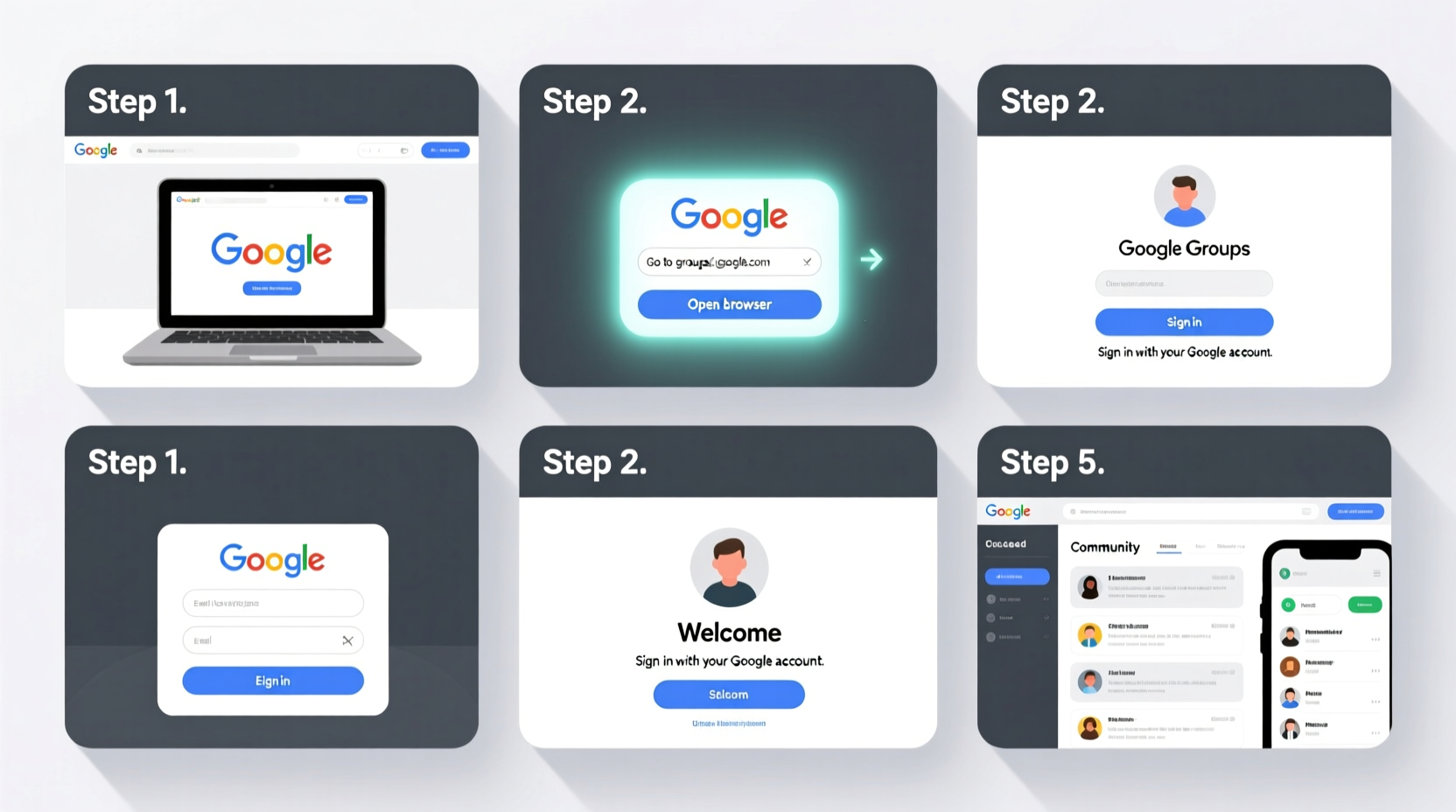
- Open your web browser and navigate to https://groups.google.com.
- If you're not already signed in to a Google account, you’ll see a prompt asking you to “Sign in.” Click this button.
- Enter your email address associated with your Google account (Gmail or Workspace).
- Click “Next,” then enter your password.
- If two-factor authentication (2FA) is enabled, complete the verification step—this could be a code from your phone, a prompt on your device, or a security key.
- After successful authentication, you’ll be redirected to the Google Groups homepage.
Once logged in, you’ll see a list of groups you’re a member of on the left sidebar. If this is your first time using Google Groups, the interface may appear minimal until you join or are added to a community.
Navigating the Dashboard After Login
The main screen displays three primary sections:
- My Groups: Lists all communities you belong to, sorted by recent activity.
- All Messages: Shows unread and recent posts across all groups.
- Categories: Optional filters like “Popular,” “Recommended,” or custom labels if set up.
Clicking on any group opens its message feed. From here, you can read discussions, reply, start new topics, or adjust notification preferences.
3. Troubleshooting Common Login Issues
Even with careful steps, problems can arise. Below are frequent obstacles and their solutions.
| Issue | Possible Cause | Solution |
|---|---|---|
| “Account not found” error | Typo in email or incorrect account selected | Double-check spelling; use the “Try another account” option to switch profiles |
| Password rejected | Forgotten password or expired credentials | Use “Forgot password?” to reset; ensure caps lock is off |
| Stuck on verification screen | Lost 2FA device or no backup codes | Use Google’s account recovery form at accounts.google.com/signin/recovery |
| No groups visible after login | Not yet joined any groups or sync delay | Wait a few minutes or search for a known group using the top search bar |
“Over 70% of login issues stem from using the wrong Google profile or outdated passwords. Always verify your active account at the top-right corner.” — Lena Torres, IT Support Specialist
4. Joining and Accessing Private Communities
Logging in gets you into the platform—but accessing a specific community requires additional steps if it's private.
Public groups appear in search results and allow anyone with a Google account to join freely. Private groups require approval or an invitation. Here’s how to gain access:
- Search for the group by name or email address in the Google Groups search bar.
- On the group’s landing page, click “Join Group” or “Request Membership.”
- Some groups ask you to answer screening questions set by moderators.
- Wait for admin approval. You’ll receive an email once accepted.
If you were invited via email, simply open the invitation and click “Accept.” This automatically adds you to the group upon login.
Mini Case Study: Regaining Access as a Returning Member
Sarah, a former member of a university alumni group, hadn’t logged in for over two years. When she tried to return, her old password didn’t work, and she wasn’t sure which email she used. She followed these steps:
- Visited Google Account Recovery and entered likely email addresses.
- Used her recovery phone number to verify identity after resetting the password.
- Once logged in, she searched “Alumni Network 2015” and found the group under public listings.
- She clicked “Join,” answered a brief question about graduation year, and was approved within 24 hours.
Sarah now receives updates and participates in job postings—a reminder that persistence pays when reconnecting with digital communities.
5. Best Practices for Secure and Smooth Access
Maintaining consistent, secure access ensures you never miss critical discussions. Follow this checklist to stay connected.
Access & Security Checklist
- ✅ Use a password manager to store your Google account credentials securely.
- ✅ Enable two-factor authentication for stronger protection.
- ✅ Regularly review active sessions under Google Account > Security > Device Activity.
- ✅ Update recovery email and phone number if they change.
- ✅ Clear browser cache monthly if experiencing loading issues.
- ✅ Use Chrome or another updated browser for full compatibility.
Avoid using public computers to log in unless absolutely necessary. If you must, always sign out completely and avoid saving passwords.
Frequently Asked Questions
Can I access Google Groups without a Gmail account?
No. You must have a Google account, which can be either a Gmail address or a Google Workspace account provided by an organization. There is no guest or anonymous access outside the Google ecosystem.
Why can’t I see a group I know I’m a member of?
This may happen if the group owner changed privacy settings, removed you, or there’s a syncing delay. Try searching for the group directly. If still invisible, contact the group moderator or administrator for clarification.
Is Google Groups being discontinued?
No. While Google has sunsetted some legacy features, Google Groups remains fully operational, especially within Google Workspace environments. It continues to serve enterprise, education, and public forums.
Conclusion: Take Control of Your Online Communities
Logging into Google Groups is more than just entering a password—it's the gateway to meaningful conversations, professional networks, and ongoing learning. By understanding the login mechanics, preparing for potential hiccups, and securing your account, you ensure uninterrupted participation in communities that matter to you.
Now that you’re equipped with a reliable process, revisit your groups, re-engage with discussions, or explore new ones aligned with your goals. Digital communities thrive when members show up consistently.




 浙公网安备
33010002000092号
浙公网安备
33010002000092号 浙B2-20120091-4
Comments
No comments yet. Why don't you start the discussion?