
For developers working with native C++ projects on Windows, knowing the exact version of Microsoft C++ Build Tools installed is essential. Whether you're troubleshooting a failed compilation, ensuring compatibility with third-party libraries, or setting up a CI/CD pipeline, having accurate build tool information prevents wasted time and mismatched dependencies. Unlike full Visual Studio installations, the standalone Build Tools don’t always present their version through a GUI, making discovery less intuitive. This guide provides clear, reliable methods to identify your Microsoft C++ Build Tools version—no guesswork required.
Why Knowing Your Build Tools Version Matters
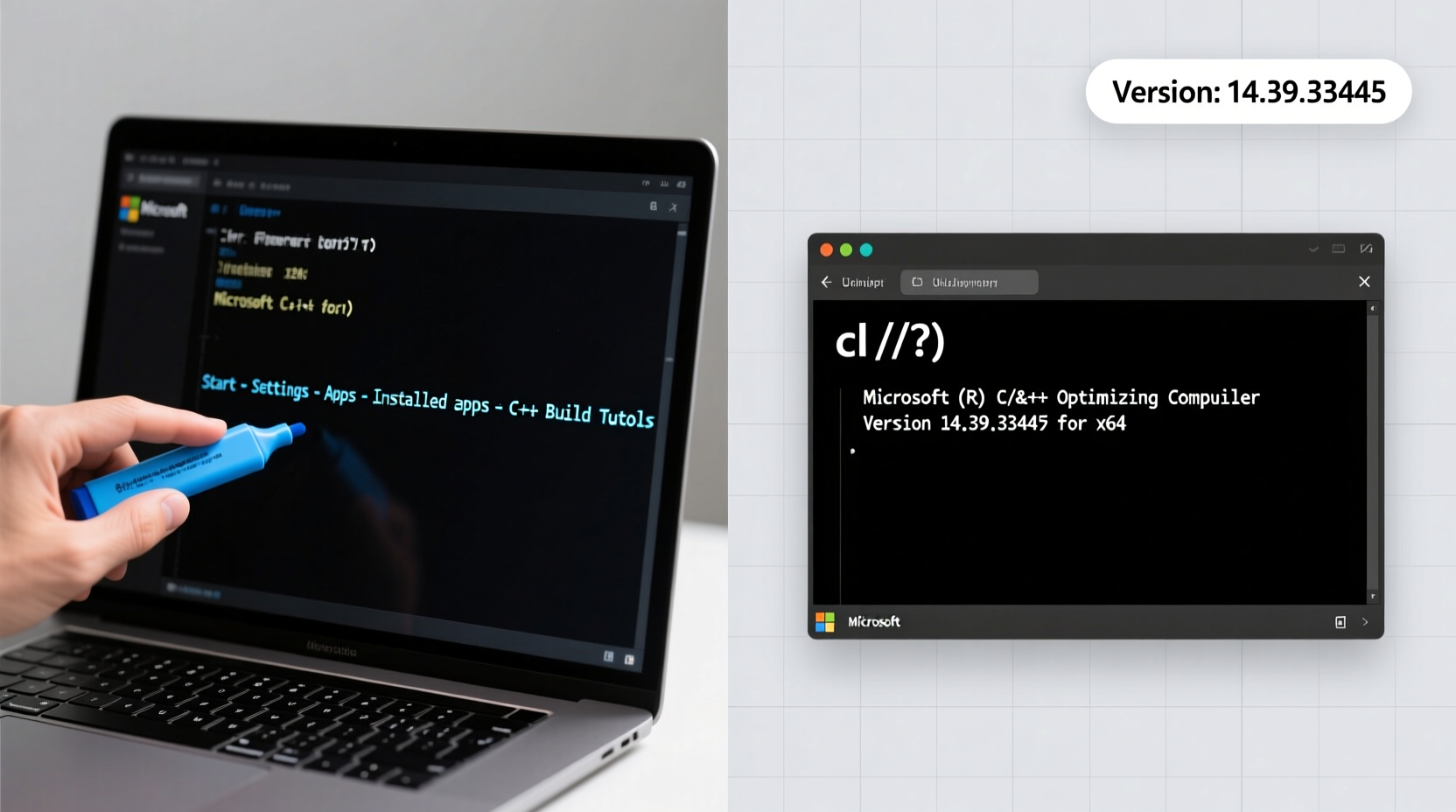
The Microsoft C++ Build Tools include the MSVC compiler (cl.exe), linker (link.exe), libraries, headers, and other components needed to compile C and C++ code without installing the full Visual Studio IDE. These tools are tied to specific Visual Studio releases and updated monthly via \"release channels.\" Each version corresponds to a particular MSVC toolset version and compiler update level. Using an outdated or incorrect version can lead to:
- Linker errors due to incompatible runtime libraries
- Inability to use newer C++ language features
- Conflicts when building Node.js native modules or Python extensions
- CI/CD failures from environment mismatches
Microsoft uses a three-part versioning scheme: Major.Minor.Build.Revision, such as 14.36.32532.1. The major and minor numbers align with the Visual Studio release (e.g., 14.36 = VS 2022 version 17.6). Matching this correctly ensures consistency across development and deployment environments.
Step-by-Step: How to Identify Your Installed Build Tools Version
Follow these steps in order to reliably detect which version of the Microsoft C++ Build Tools is active on your system.
- Open a Developer Command Prompt
Navigate to Start > Type “x64 Native Tools Command Prompt” or “Developer Command Prompt for VS.” If you have multiple versions, select the one corresponding to your expected installation. This ensures environment variables likeVCToolsInstallDirandVSINSTALLDIRare properly set. - Run the cl.exe Compiler with No Arguments
In the command prompt, type:
The first few lines of output will display the full version string of the MSVC compiler. Example output:cl
Here,Microsoft (R) C/C++ Optimizing Compiler Version 19.36.32532.1 for x6419.36.32532.1is the compiler version tied to the Build Tools package. - Verify the Installation Path
Run:
This typically returns a path like:echo %VCToolsInstallDir%
The final folder name (C:\\Program Files\\Microsoft Visual Studio\\2022\\BuildTools\\VC\\Tools\\MSVC\\14.36.32532\\14.36.32532) matches the MSVC toolset version and directly correlates with the compiler version shown earlier. - Cross-Check Using vswhere (Recommended)
Microsoft providesvswhere.exeto query installed Visual Studio and Build Tools instances. Run:
Output:\"C:\\Program Files (x86)\\Microsoft Visual Studio\\Installer\\vswhere.exe\" -products * -latest -property displayName
To get detailed version info:Microsoft Visual Studio Build Tools 2022
This returns the semantic version, e.g.,\"C:\\Program Files (x86)\\Microsoft Visual Studio\\Installer\\vswhere.exe\" -products * -requires Microsoft.VisualStudio.Component.VC.Tools.x86.x64 -property catalog_productSemanticVersion17.6.3, indicating Visual Studio 2022 version 17.6. - Use PowerShell for Scriptable Detection
For automation or scripting, run in PowerShell:
This extracts the version folder name programmatically.$vsPath = & \"${env:ProgramFiles(x86)}\\Microsoft Visual Studio\\Installer\\vswhere.exe\" -latest -products * -requires Microsoft.VisualStudio.Component.VC.Tools.x86.x64 -find VC\\Tools\\MSVC\\*\\bin\\Hostx64\\cl.exe $version = Split-Path (Split-Path $vsPath -Parent) -Parent | Split-Path -Leaf Write-Host \"MSVC Toolset Version: $version\"
Understanding the Version Mapping
The version numbers reported by cl.exe and file paths may seem inconsistent at first. Understanding how they map to official releases is crucial.
| Compiler Version (cl.exe) | Toolset Version (Folder) | Visual Studio Release | Release Date |
|---|---|---|---|
| 19.30.xxxxx | 14.30.xxxxx | VS 2022 v17.0 | Nov 2021 |
| 19.33.xxxxx | 14.33.xxxxx | VS 2022 v17.3 | Aug 2022 |
| 19.36.xxxxx | 14.36.xxxxx | VS 2022 v17.6 | May 2023 |
| 19.40.xxxxx | 14.40.xxxxx | VS 2022 v17.10 | Oct 2023 |
Note that the compiler version (starting with 19.x) reflects internal MSVC versioning, while the toolset folder (14.x) aligns with the Visual Studio 2022 series. Both are valid identifiers but must be interpreted in context.
“We often see support tickets where developers assume they’re using the latest toolset, only to discover an old cl.exe is in their PATH. Always verify via the command line.” — David Crooks, Senior DevOps Engineer at Stackify
Troubleshooting Common Detection Issues
Sometimes, the wrong version appears, or no version is detected at all. Consider these scenarios:
- Mixed Installations: Multiple versions of Visual Studio or Build Tools may coexist. Use
vswherewith-allto list every instance. - Outdated Environment Variables: Restart your shell after installing new tools to refresh PATH and VCToolsInstallDir.
- Missing Components: Ensure “MSVC v143 – VS 2022 C++ x64/x86 build tools” is selected during installation.
- Wrong Architecture Prompt: Using “x86” prompt when targeting x64 may load different binaries. Match architecture carefully.
where cl to confirm which
cl.exe is being executed. This helps detect shadowed or duplicated installations.
Real-World Example: Debugging a Node.js Native Module Build Failure
A frontend developer attempts to install a Node.js package requiring native compilation (e.g., node-gyp). The build fails with:
LINK : fatal error LNK1104: cannot open file 'kernel32.lib'Initial suspicion points to missing Windows SDK. However, investigation reveals:
- Running
clshows version19.16.27030.1, indicating an old VS 2017 toolset. - But the system has VS 2022 Build Tools installed.
- Further inspection with
vswhereconfirms a partial VS 2017 installation still present. - The PATH prioritizes the older
cl.exe.
Resolution: Reinstall the Build Tools using the Visual Studio Installer, ensuring the latest MSVC and Windows SDK components are checked, then use the correct Developer Command Prompt. After cleanup, the module compiles successfully.
Checklist: Confirming Your Build Tools Setup
- ✅ Open the correct Developer Command Prompt for your intended toolset
- ✅ Run
cland record the version number - ✅ Check
%VCToolsInstallDir%to confirm the toolset folder - ✅ Use
vswhere.exeto validate the latest installed instance - ✅ Run
where clto ensure no conflicting versions are in PATH - ✅ Verify required components (C++ build tools, Windows SDK) are installed via Visual Studio Installer
Frequently Asked Questions
Can I have multiple versions of the Build Tools installed?
Yes. Microsoft supports side-by-side installation of multiple versions. Use the Developer Command Prompt corresponding to the version you want to activate, or set environment variables manually using vcvarsall.bat.
What if vswhere returns nothing?
If vswhere produces no output, either the installer is missing or no compatible instance is found. Reinstall the Build Tools or download vswhere directly from GitHub if the installer directory was moved.
How do I update my Build Tools?
Launch the Visual Studio Installer, locate “Build Tools for Visual Studio,” and click “Update.” Avoid uninstalling first—updates preserve existing configurations while adding new components.
Final Recommendations and Next Steps
Accurate identification of your Microsoft C++ Build Tools version isn’t just about curiosity—it’s a foundational practice for reliable software development on Windows. Whether you're maintaining legacy systems or building modern applications, version clarity prevents hours of debugging and integration issues. Make it a habit to verify your toolset at the start of any new project or environment setup.
Automate detection scripts for CI pipelines, document your team’s expected versions, and standardize prompts and PATH usage. The small effort invested today pays off in consistent, reproducible builds tomorrow.
cl, and verify your current build tools version. Share this guide with your team to ensure everyone is on the same page.




 浙公网安备
33010002000092号
浙公网安备
33010002000092号 浙B2-20120091-4
Comments
No comments yet. Why don't you start the discussion?