
WhatsApp has become one of the most essential communication tools worldwide, offering fast, secure messaging, voice calls, video chats, and file sharing across devices. Whether you're switching phones or using a smartphone for the first time, getting WhatsApp up and running is straightforward—if you know the right steps. This guide walks you through every phase of installation and setup, tailored for both Android and iOS users, ensuring your account is activated correctly and securely.
Step 1: Check Device Compatibility and Requirements
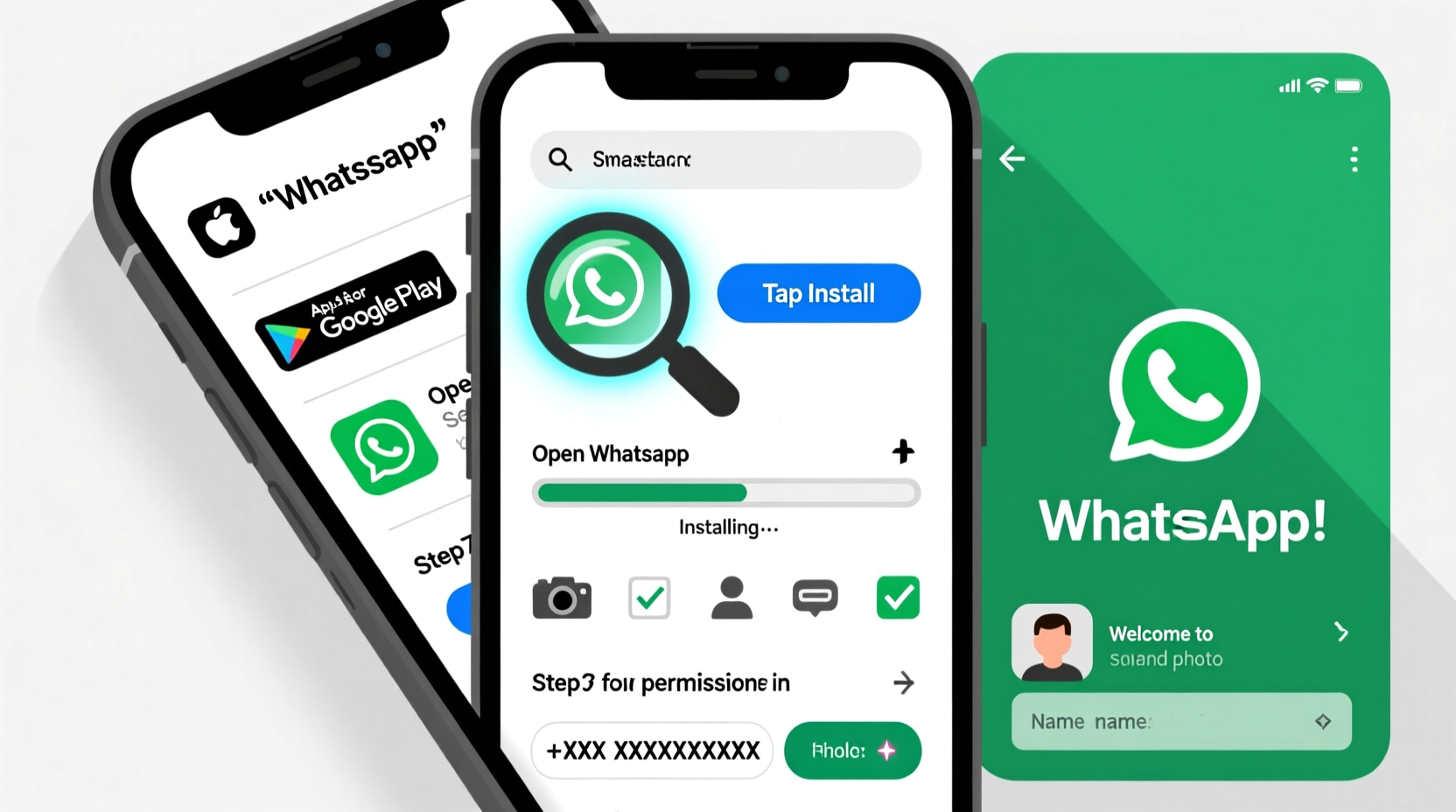
Before downloading WhatsApp, confirm your device meets the minimum system requirements. While most modern smartphones support the app, outdated models or operating systems may not be compatible.
| Platform | Minimum OS Version | Internet Requirement | Phone Number Type |
|---|---|---|---|
| Android | Android 5.0 (Lollipop) or later | Wi-Fi or mobile data | Active SIM card with calling capability |
| iOS (iPhone) | iOS 12 or later | Wi-Fi or cellular data | Active phone number capable of receiving SMS or calls |
If your device runs an older version of the operating system, consider updating it before proceeding. Without a compatible OS, you won’t be able to install or use WhatsApp effectively.
Step 2: Download and Install the Official WhatsApp App
The safest way to install WhatsApp is directly from your device’s official app store. Avoid third-party websites or APK files, which can pose security risks.
- For Android Users: Open the Google Play Store, search for “WhatsApp Messenger,” and select the app published by WhatsApp Inc.. Tap “Install” and wait for the download to complete.
- For iPhone Users: Launch the App Store, search for “WhatsApp,” and ensure the developer listed is WhatsApp Inc.. Tap “Get” and authenticate using Face ID, Touch ID, or your Apple ID password.
Once installed, tap the WhatsApp icon on your home screen to launch the app. The setup wizard will begin automatically.
“Always verify the app developer. Fraudulent versions of WhatsApp exist and can steal personal data.” — Cybersecurity Advisory, Federal Trade Commission
Step 3: Verify Your Phone Number
This is the most critical part of the setup process. WhatsApp uses your phone number as your unique identifier.
When you open the app for the first time, you’ll be prompted to:
- Select your country code from the dropdown menu.
- Enter your full phone number (without any leading zeros or special characters).
- Confirm the number and choose verification via SMS or phone call.
You’ll receive a 6-digit verification code. Enter it into the app within 15 minutes. If the code doesn’t arrive:
- Check your signal strength and internet connection.
- Wait up to 10 minutes—delays can occur due to carrier issues.
- Request a call instead of SMS if messages are blocked.
In rare cases, WhatsApp may require additional verification through email or two-factor authentication if suspicious activity is detected.
Step 4: Set Up Your Profile and Privacy Settings
After successful verification, you’ll be guided to create your profile. This includes:
- Name: Enter your real name or preferred display name (visible to contacts who have your number saved).
- Profile Photo: Optional but recommended. Tap the camera icon to upload an image from your gallery or take a new photo.
- About: A short status message (e.g., “Available for chat”) that others can see.
Next, review privacy settings carefully. These determine who can see your information:
| Setting | Options | Recommendation |
|---|---|---|
| Last Seen & Online | Everyone, My Contacts, Nobody | My Contacts |
| Profile Photo | Everyone, My Contacts, Nobody | My Contacts |
| Status | Everyone, My Contacts, My Contacts Except… | My Contacts Except… (exclude specific people) |
| Read Receipts | On or Off | Keep On (turning off disables blue ticks globally) |
These choices affect how others interact with you. For maximum privacy, limit visibility to trusted contacts only.
Step 5: Restore Chats (If Switching Devices)
If you’re reinstalling WhatsApp or moving from an old phone, restoring previous conversations ensures continuity.
For Android:
- Ensure your previous chats were backed up to Google Drive.
- During setup, after verification, WhatsApp will detect a backup and prompt you to restore.
- Tap “Restore” and wait for the process to finish before continuing.
For iPhone:
- Backups must be stored in iCloud.
- Sign in to the same Apple ID used for the backup.
- When prompted, tap “Restore Chat History” to retrieve messages.
Note: Media files (photos, videos) may take longer to reappear, especially if “Include Videos” was selected in backup settings. Wi-Fi is strongly recommended for large restores.
Mini Case Study: Maria Transfers Her Account Successfully
Maria upgraded from an older Samsung Galaxy to a new iPhone. She had years of family photos and business discussions saved in WhatsApp. Before setting up her new phone, she ensured her Android device had completed a final Google Drive backup. After activating WhatsApp on her iPhone, she signed in with the same number and restored her chat history from iCloud—which she had manually synced prior to the switch. Within 20 minutes, all her messages, groups, and shared media were accessible. By following proper backup procedures, Maria avoided losing irreplaceable data.
Essential Tips for a Smooth Setup Experience
To avoid common pitfalls, follow these best practices:
- Use a stable internet connection—preferably Wi-Fi during initial setup.
- Do not uninstall WhatsApp without backing up if you want to keep your history.
- Enable two-step verification under Settings > Account > Two-step verification to add extra security.
- Avoid using virtual numbers or VoIP lines (like Google Voice) for registration—they’re often unsupported.
FAQ: Common Questions During Installation
Can I use WhatsApp without a phone number?
No. WhatsApp requires a valid, active mobile number capable of receiving SMS or calls for account verification. Virtual numbers and landlines are generally not supported.
What should I do if my verification code doesn’t arrive?
First, confirm your network signal and internet connection. Then, request a call instead of SMS. If issues persist, wait 30 minutes before retrying—WhatsApp limits repeated attempts to prevent abuse.
Is it safe to install WhatsApp on a work or shared device?
Only if you control access to the device. WhatsApp does not have a built-in logout timer, so anyone with physical access can read your messages unless the app is locked via device-level biometrics or screen lock.
Final Checklist Before You Start Messaging
- ✅ Installed the official WhatsApp app from Google Play or App Store
- ✅ Verified your phone number successfully
- ✅ Set up your profile (name and photo)
- ✅ Reviewed and adjusted privacy settings
- ✅ Restored chat history (if applicable)
- ✅ Enabled two-step verification for added security
- ✅ Added important contacts and tested a message
Conclusion
Setting up WhatsApp is more than just downloading an app—it’s about establishing a secure, reliable channel for daily communication. By following these precise steps, you ensure your account is protected, your data preserved, and your experience seamless across devices. Whether you're connecting with family, coordinating with colleagues, or managing customer inquiries, a properly configured WhatsApp account enhances both convenience and trust.




 浙公网安备
33010002000092号
浙公网安备
33010002000092号 浙B2-20120091-4
Comments
No comments yet. Why don't you start the discussion?