
Connecting your Instagram profile to an existing business account is a critical move for brands, entrepreneurs, and marketers aiming to unlock advanced tools like professional insights, contact buttons, ad creation, and catalog integration. While the process seems straightforward, many users encounter confusion—especially when dealing with multiple Facebook Pages or unclear admin permissions. This comprehensive guide walks you through every stage of securely and correctly linking your current business presence to Instagram, ensuring full functionality and alignment across Meta’s platforms.
Why Linking to a Business Account Matters
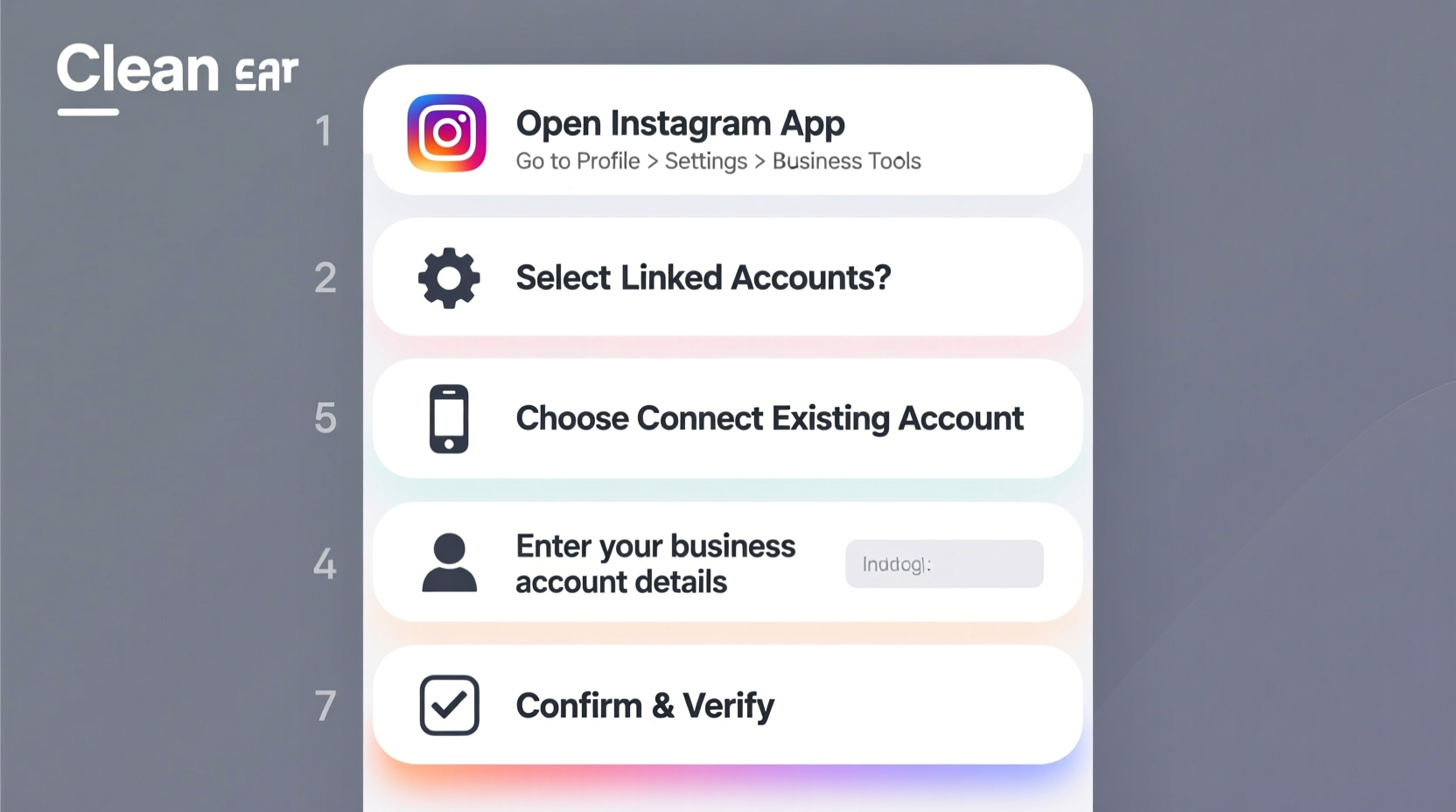
Switching from a personal to a business profile on Instagram unlocks features essential for brand growth. You gain access to follower demographics, post performance analytics, messaging tools, and most importantly—the ability to run paid campaigns. But these tools only become available when your Instagram account is connected to a Facebook Business Page, not just any Facebook profile.
Without this connection, your profile remains limited to consumer-level interactions. For example, you can’t add a “Contact” button, schedule posts via Meta Business Suite, or tag products in your feed. Linking ensures your Instagram operates as part of a broader digital ecosystem managed through Meta Business Manager.
Prerequisites Before You Begin
Before initiating the link, ensure your setup meets the following criteria:
- An active Instagram account — Must be logged in and verified (email or phone).
- A Facebook Business Page — Already created and published, representing your brand or company.
- Admin rights on the Facebook Page — You must be listed as an Admin, not just a Viewer or Editor.
- The Facebook app installed — Or access via desktop browser with login credentials.
- Consistent business information — Name, category, and contact details should match across platforms.
If you don’t yet have a Facebook Business Page, pause here and create one under your business name. Use accurate information; inconsistent naming can trigger verification delays or rejection during linking.
“Brands that integrate their social profiles into a unified system see up to 40% higher engagement efficiency.” — Lena Patel, Digital Strategy Director at BrandFlow Analytics
Step-by-Step Guide to Linking Your Instagram to a Business Account
Follow this sequence carefully to avoid common pitfalls such as failed connections or accidental profile switches.
- Open the Instagram app and go to your profile by tapping your profile picture in the bottom right.
- Tap the menu icon (three lines) in the top right corner, then select “Settings and privacy.”
- Navigate to “Account” > “Switch to professional account”. If already using a professional account, look for “Account type & tools” instead.
- Select “Business account” when prompted. Instagram will ask for permission to access your public Facebook Page.
- You’ll be shown a list of Facebook Pages you manage. Select the correct existing business page from the dropdown.
- Confirm the selection. Instagram will sync basic info—profile photo, bio, and username—from your current setup unless changes are manually requested.
- Once linked, return to “Professional dashboard” in Settings to verify connection status and enable additional features like call-to-action buttons.
If the correct Facebook Page doesn’t appear, double-check your role on the Page. Only admins can connect external platforms. Editors or moderators won’t see the Page in the selection list.
Troubleshooting Common Connection Issues
Even with correct credentials, some users face obstacles. Below are frequent problems and their solutions:
| Issue | Possible Cause | Solution |
|---|---|---|
| No Facebook Page appears in the list | Lack of admin privileges or unverified Page | Contact the Page owner to assign admin role or check Page visibility settings |
| Error: “Couldn’t switch account” | Instagram and Facebook email mismatch | Ensure both accounts use the same primary email address |
| Profile reverts to personal after linking | Session timeout or unstable internet | Reconnect using stable Wi-Fi and restart the app |
| Catalog or shopping features unavailable | Page not approved for commerce | Submit your Page for review via Meta Business Manager |
One often-overlooked issue is two-factor authentication (2FA) conflicts. If your Facebook account uses 2FA but your device isn’t recognized, Instagram may block the handshake process. Temporarily disable 2FA during setup if necessary, then re-enable it afterward for security.
Mini Case Study: How Bloom & Vine Grew Engagement After Proper Linking
Bloom & Vine, a boutique plant shop based in Portland, struggled with low visibility despite consistent posting. Their Instagram was set up as a personal account years ago, and attempts to run ads led to repeated rejection notices.
Upon audit, they discovered their Facebook Page had been created under an employee’s personal profile, who had since left the company. The current manager had Editor access but couldn’t link the Instagram account due to missing admin rights.
After reclaiming admin control of the Facebook Page and properly connecting it to Instagram, Bloom & Vine activated Insights, added a “Book Now” button, and launched targeted local ads. Within six weeks, appointment bookings increased by 65%, and follower growth doubled compared to the previous quarter.
This case underscores the importance of ownership clarity and technical alignment—not just creativity—in social media success.
Essential Checklist for a Smooth Transition
Use this checklist before, during, and after linking your Instagram to a business account:
- ✅ Confirm you’re logged into the correct Instagram account
- ✅ Verify admin access to the intended Facebook Business Page
- ✅ Ensure business name, category, and contact info are consistent
- ✅ Back up important data (e.g., saved drafts, highlights order)
- ✅ Complete the linking process on a stable network
- ✅ Test all new features (contact button, insights, promotions)
- ✅ Set up two-factor authentication post-linking for security
Frequently Asked Questions
Can I link one Instagram account to multiple Facebook Pages?
No. Each Instagram account can only be connected to a single Facebook Page at a time. However, you can switch between Pages if needed, provided you have admin access to each.
Will linking delete my existing posts or followers?
No. Linking does not affect your content, followers, or engagement history. It only enhances backend capabilities and adds business-specific features.
What if I want to unlink later?
You can disconnect at any time by going to Settings > Account > Access Data > Linked Accounts > Facebook. Note that doing so disables professional tools until reconnected.
Maximizing Value After the Link
Once your Instagram is successfully tied to your business account, leverage the full suite of tools now available. Schedule content using Meta Business Suite, analyze audience behavior through Insights, and create high-converting ads directly from your phone. Consider enabling messaging automation to improve customer response times, and integrate product tags if selling goods.
Regularly audit your profile’s performance—review which posts generate the most reach, monitor direct message inquiries, and update your contact options as your business evolves. Treat your Instagram not just as a visual portfolio, but as a dynamic sales and service channel.
Conclusion: Take Control of Your Brand’s Online Presence
Linking your Instagram profile to an existing business account is more than a technical checkbox—it's a strategic decision that empowers your brand with data, scalability, and professionalism. By following the steps outlined here, avoiding common missteps, and maintaining proper access controls, you position your business to grow efficiently within Meta’s ecosystem.




 浙公网安备
33010002000092号
浙公网安备
33010002000092号 浙B2-20120091-4
Comments
No comments yet. Why don't you start the discussion?