
Many people rely on Gmail not just for email but as a central hub for managing personal and professional relationships. One of the most valuable features is its integrated contact management system, which syncs across devices and platforms. However, finding a specific mobile number among hundreds—or even thousands—of contacts can become frustrating if you don’t know how to navigate the interface efficiently. Whether you’re trying to reconnect with an old colleague or confirm a family member’s updated phone number, this guide walks you through every method available to locate mobile numbers in your Gmail contacts quickly and accurately.
Understanding How Gmail Stores Contact Information
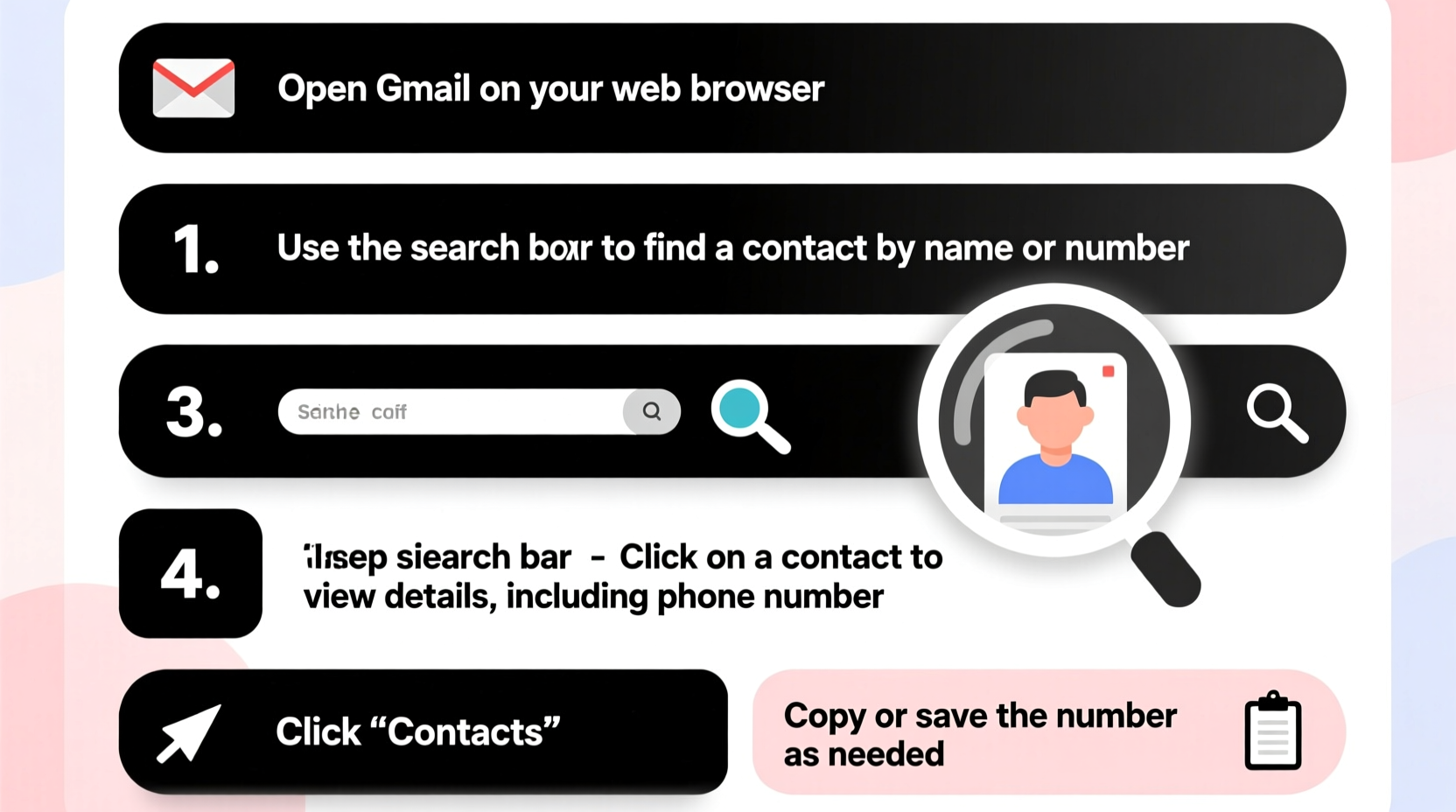
Gmail itself doesn’t directly store contacts; instead, it integrates with Google Contacts, a cloud-based service that manages all your personal and professional connections. When someone sends you an email, their information may be automatically saved under \"Other Contacts\" unless you manually add them to your main list. This distinction is crucial because mobile numbers are typically only visible when they’ve been explicitly added during a manual save or synced from another source like your smartphone.
Google Contacts categorizes entries into three primary groups:
- My Contacts – People you've manually added or starred.
- Other Contacts – Addresses collected from emails sent or received.
- Shared Contacts – Available only in Workspace accounts, used by teams.
Mobile numbers usually appear only in “My Contacts” if entered intentionally. If someone was auto-saved via email exchange, their phone number won’t show up unless previously shared in correspondence and extracted by Google’s parsing tools—which isn't guaranteed.
Step-by-Step Guide to Finding Mobile Numbers in Gmail Contacts
Follow this structured process to locate any mobile number stored within your Google ecosystem.
- Open Google Contacts
Go to contacts.google.com and sign in using your Gmail account. Ensure you're logged into the correct account if you manage multiple profiles. - Use the Search Bar Effectively
Type the person’s name, email address, or even partial phone number into the search field at the top. Google Contacts searches across names, emails, notes, and phone numbers—including mobile digits. - Review Search Results
If the contact appears, click their name to open the full profile. Look under the “Phone” section where numbers are labeled (e.g., Mobile, Home, Work). A mobile number will often have a mobile icon (📱) or be tagged explicitly as “Mobile.” - Check for Multiple Entries
Sometimes, the same person appears more than once due to syncing issues between devices. Click “Merge & fix” at the bottom of the page to combine duplicate entries and ensure no number is missed. - Filter by Label (Optional)
If you use labels, filter results using categories like “Friends” or “Clients” to narrow down your search scope. - Access via Gmail Interface (Alternative Method)
While composing an email in Gmail, start typing the contact’s name in the “To” field. As suggestions appear, hover over each option. A tooltip will display associated details, including phone numbers if available.
Using Advanced Search Operators
For power users, Google Contacts supports limited advanced filtering. While there's no direct syntax like Gmail’s email filters, combining precise keywords improves accuracy. Try searching with both first and last names, or include location clues (e.g., “John Smith NYC”) if common names return too many results.
Syncing Mobile Numbers Across Devices
Your ability to find mobile numbers depends heavily on whether your devices are properly synced with Google Contacts. Smartphones running Android typically sync contacts automatically when enabled in settings. iPhone users must install the Google Contacts app or enable contact sync through iCloud settings linked to their Google account.
| Device Type | Sync Method | Tips for Success |
|---|---|---|
| Android | Built-in sync via Google Account | Ensure “Contacts” toggle is on in Accounts & Sync settings |
| iOS (iPhone) | Manual setup via Settings > Mail > Accounts | Download Google Contacts app for easier access |
| Desktop | Web browser access at contacts.google.com | Bookmark the page for quick retrieval |
Without proper syncing, changes made on one device might not reflect elsewhere, leading to outdated or missing mobile numbers.
“Most contact-related frustrations stem from incomplete synchronization rather than data loss. Always verify that your devices are actively syncing with your Google account.” — David Lin, Digital Productivity Consultant
Real Example: Recovering a Lost Emergency Contact Number
Sarah, a project manager based in Portland, needed her sister’s mobile number after switching phones. She remembered emailing her recently but couldn’t recall the exact address. By logging into Google Contacts and typing her sister’s first name, she found two entries: one labeled “Personal” and another under “Other Contacts.” The latter had no phone number. She clicked the correct entry, saw the mobile number listed under “Mobile,” and verified it matched previous records. Because she had merged duplicates weeks earlier, the information was consolidated and easy to retrieve—even under stress.
This example illustrates why proactive organization pays off during urgent situations.
Common Pitfalls and How to Avoid Them
Despite its robust design, users often encounter obstacles when trying to locate mobile numbers. Here are frequent mistakes and how to prevent them:
- Assuming all contacts include phone numbers – Only manually added or explicitly shared numbers appear. Auto-saved email contacts rarely contain mobile digits.
- Ignoring duplicate entries – Duplicates split information across profiles, making it seem like data is missing.
- Not checking synced accounts – Third-party accounts (like Outlook or Yahoo) linked to Gmail may not transfer contact details fully.
- Using outdated apps – Older versions of the Google Contacts app may lack search functionality or fail to load recent updates.
Do’s and Don’ts Summary
| Do | Don't |
|---|---|
| Regularly merge duplicate contacts | Ignore sync errors on mobile devices |
| Label important contacts with custom tags | Assume a contact has a mobile number without verification |
| Search using partial numbers or alternate spellings | Delete contacts without backing them up first |
Frequently Asked Questions
Can I search Google Contacts by phone number alone?
Yes. Enter the full or partial number in the search bar at contacts.google.com. If the number exists in your contact list, it will appear in results regardless of whether it's labeled as mobile, home, or work.
Why can’t I see a mobile number even though I know I saved it?
This could happen if the contact is duplicated, the label wasn’t saved correctly, or syncing failed on one of your devices. Check all instances of the contact, merge duplicates, and force a manual sync on your phone and computer.
Is it possible to export contacts to view mobile numbers offline?
Absolutely. In Google Contacts, click “Export” in the left sidebar, choose the desired format (CSV recommended), and download the file. Open it in Excel or Google Sheets to sort and filter by phone type.
Final Tips for Maintaining Reliable Access to Mobile Numbers
To ensure long-term accessibility, treat your Google Contacts like a living database. Set reminders every few months to clean up outdated entries, confirm critical numbers, and back up your entire list. Enable two-factor authentication on your Google account to protect sensitive personal data. Consider starring key contacts (like family members or emergency responders) so they appear at the top of search results.
Take Action Today
Your contacts are more than just names and numbers—they represent relationships, responsibilities, and lifelines. Taking a few minutes now to audit and optimize your Google Contacts can save significant time and reduce stress later. Whether you're preparing for travel, organizing team communications, or simply staying connected with loved ones, mastering this essential digital skill puts reliable information at your fingertips. Start reviewing your contacts today, apply these steps, and share your experience with others who might benefit.




 浙公网安备
33010002000092号
浙公网安备
33010002000092号 浙B2-20120091-4
Comments
No comments yet. Why don't you start the discussion?