
Managing multiple Facebook accounts—whether for personal brands, businesses, clients, or marketing agencies—can quickly become overwhelming without a structured approach. Many professionals juggle several profiles and pages daily, increasing the risk of mistakes, security breaches, or policy violations. With the right tools, permissions, and strategies, however, it’s possible to maintain control, streamline workflows, and ensure compliance with Facebook’s evolving policies.
This guide provides a comprehensive, practical roadmap for organizing, accessing, and securely linking multiple Facebook accounts while maximizing efficiency and minimizing risks.
Understanding Facebook’s Account Structure
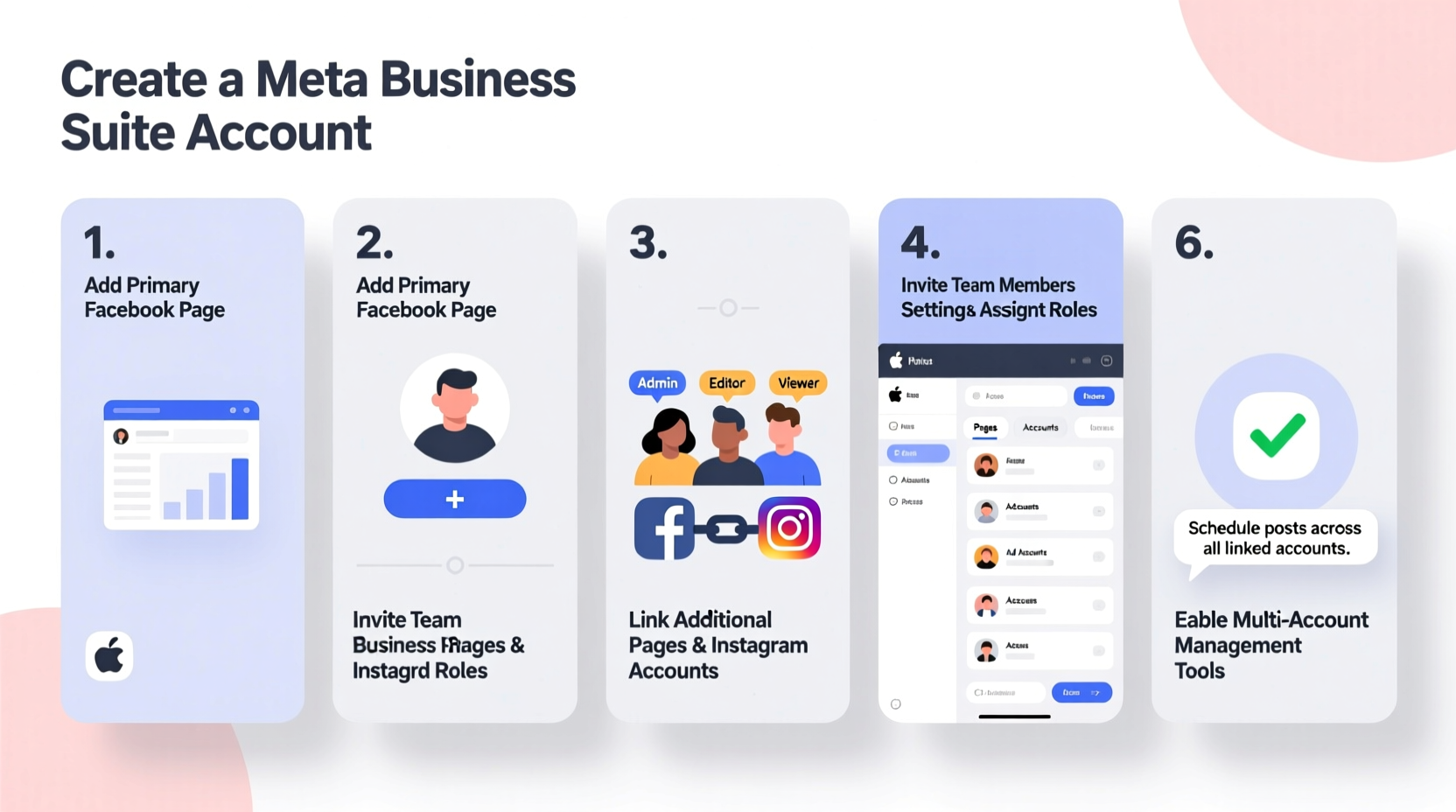
Before diving into management techniques, it's essential to understand how Facebook organizes digital identities. Facebook operates on a hierarchy: one personal account can manage multiple Pages, Groups, and Business assets through Meta Business Suite and Facebook’s permission system.
Your personal Facebook profile is your identity—the foundation from which all access flows. You cannot have more than one personal account per individual under Facebook’s terms. However, that single profile can be granted roles on multiple Pages, ad accounts, Instagram profiles, and even other people’s assets via collaboration invitations.
For businesses and agencies, this structure enables centralized control. A marketing manager might oversee five brand Pages, two ad accounts, and three client Instagram handles—all from one login, provided proper access has been granted.
Step-by-Step Guide to Linking and Managing Multiple Accounts
Follow this logical sequence to organize and connect your Facebook presence efficiently and securely.
- Create a Master Personal Account
Use your real identity to set up one primary Facebook profile. This will serve as your central hub for managing all other assets. Avoid using fake names or duplicate profiles, as they violate Facebook’s Community Standards and may result in suspension. - Set Up Meta Business Suite
Go to business.facebook.com and create a Business Suite account. This free tool allows you to manage Pages, ad accounts, Instagram profiles, and team members from a single dashboard. Assign your business a name (e.g., “Marketing Agency LLC”) and verify your email. - Add Pages and Assets
In Meta Business Suite, click “Add” next to “Pages.” You can claim ownership of existing Pages linked to your profile or request access to Pages owned by clients or partners. The Page admin must approve your request. - Assign Roles and Permissions
Within each Page or ad account settings, assign appropriate roles: Admin, Editor, Moderator, Advertiser, or Analyst. Limit full admin rights to trusted individuals. For example, a content writer only needs Editor access, not Admin. - Link Instagram Accounts
If managing visual content, connect Instagram profiles to corresponding Facebook Pages. Go to Settings > Instagram in your Page dashboard. Only verified business accounts can be linked. - Enable Two-Factor Authentication (2FA)
Protect your master account and any high-level roles by enabling 2FA under Security Settings. Use an authenticator app rather than SMS for better security. - Train Team Members and Document Access
Maintain a log of who has access to which accounts and at what level. Regularly audit permissions, especially when employees leave or roles change.
Best Practices for Secure and Efficient Management
Efficiency means nothing without security. Mismanaged access can lead to hacked accounts, unauthorized posts, or data leaks. Follow these best practices to protect your digital ecosystem.
| Practice | Do | Don't |
|---|---|---|
| Access Control | Assign granular roles based on job function | Give everyone admin access “just in case” |
| Password Management | Use a secure password manager like Bitwarden or 1Password | Share passwords via email or text |
| Account Monitoring | Review active sessions and logins monthly | Ignore login alerts from unknown devices |
| Client Workflows | Use Meta Business Suite to request access formally | Create fake profiles to bypass approval |
Checklist: Monthly Account Audit
- Review all active users and their roles across Pages and ad accounts
- Remove access for former team members or contractors
- Check for unrecognized login activity
- Update contact information for each business asset
- Ensure 2FA is active on all admin accounts
- Back up critical content (posts, media, insights) externally
Real-World Example: Managing Client Accounts at Scale
Sarah runs a small digital marketing agency serving local restaurants. She manages six Facebook Pages and four Instagram accounts across her clients. Initially, she logged in and out constantly, risking confusion and accidental posting. After setting up Meta Business Suite, she invited each client to assign her as an Admin or Editor on their Page. She never asked for their personal passwords.
Now, Sarah accesses all accounts from one dashboard. She schedules posts using Meta’s native planner, monitors comments, and runs targeted ads—all without switching logins. When a client decides to end their contract, she removes herself from the Page, maintaining professionalism and trust.
“Using formal access requests made me look more credible,” Sarah says. “Clients feel safer knowing I’m not holding their password hostage.”
“Proper access delegation isn’t just about convenience—it’s a cornerstone of digital ethics and client trust.” — Mark Tran, Digital Marketing Consultant & Meta Certified Professional
Frequently Asked Questions
Can I have two personal Facebook accounts?
No. Facebook’s Terms of Service allow only one personal account per individual. Creating multiple personal profiles may result in all accounts being disabled. Instead, use one personal account to manage multiple Pages and business assets through Meta Business Suite.
How do I switch between managed accounts quickly?
Once you’ve been granted access to Pages or ad accounts, use the dropdown menu in the top-left corner of Facebook (next to your profile picture). This lets you switch between your personal profile and any Page you manage instantly.
What happens if my client revokes my access?
You’ll lose the ability to post, respond to messages, or run ads on that Page. Ensure you export performance reports and content calendars regularly. Always maintain open communication with clients about access changes.
Maximizing Efficiency with Tools and Automation
While Facebook doesn’t support third-party multi-account logins due to security concerns, several tools integrate safely within its ecosystem. Consider using:
- Meta Business Suite Scheduler: Plan and publish posts across multiple Pages and Instagram accounts.
- Facebook Creator Studio (legacy): Still accessible for some users; useful for cross-posting and analytics.
- Agency Management Tools: Platforms like Hootsuite, Buffer, or Sprout Social allow scheduling and monitoring across connected Pages—provided you’ve granted them limited access via OAuth.
Note: These tools require permission per Page, not personal profile access. They cannot bypass Facebook’s authentication protocols.
Conclusion: Build a Sustainable, Scalable System
Managing multiple Facebook accounts doesn’t have to be chaotic. By leveraging Meta’s official tools, respecting access boundaries, and maintaining clear documentation, you can build a reliable system that grows with your needs. Whether you're handling one side hustle or twenty client campaigns, the principles remain the same: centralize control, minimize risk, and operate transparently.




 浙公网安备
33010002000092号
浙公网安备
33010002000092号 浙B2-20120091-4
Comments
No comments yet. Why don't you start the discussion?