
The System Management Controller (SMC) is a critical component of your Mac that manages essential hardware functions such as thermal control, power delivery, battery management, fan speed, and lighting. When certain hardware-related issues arise—like fans running at high speed without cause, unresponsive indicators, or unexpected power behavior—a reset of the SMC can often resolve the problem. This guide walks you through everything you need to know about identifying when an SMC reset is necessary, how to perform it correctly based on your Mac model, and what to expect afterward.
When Should You Reset the SMC?
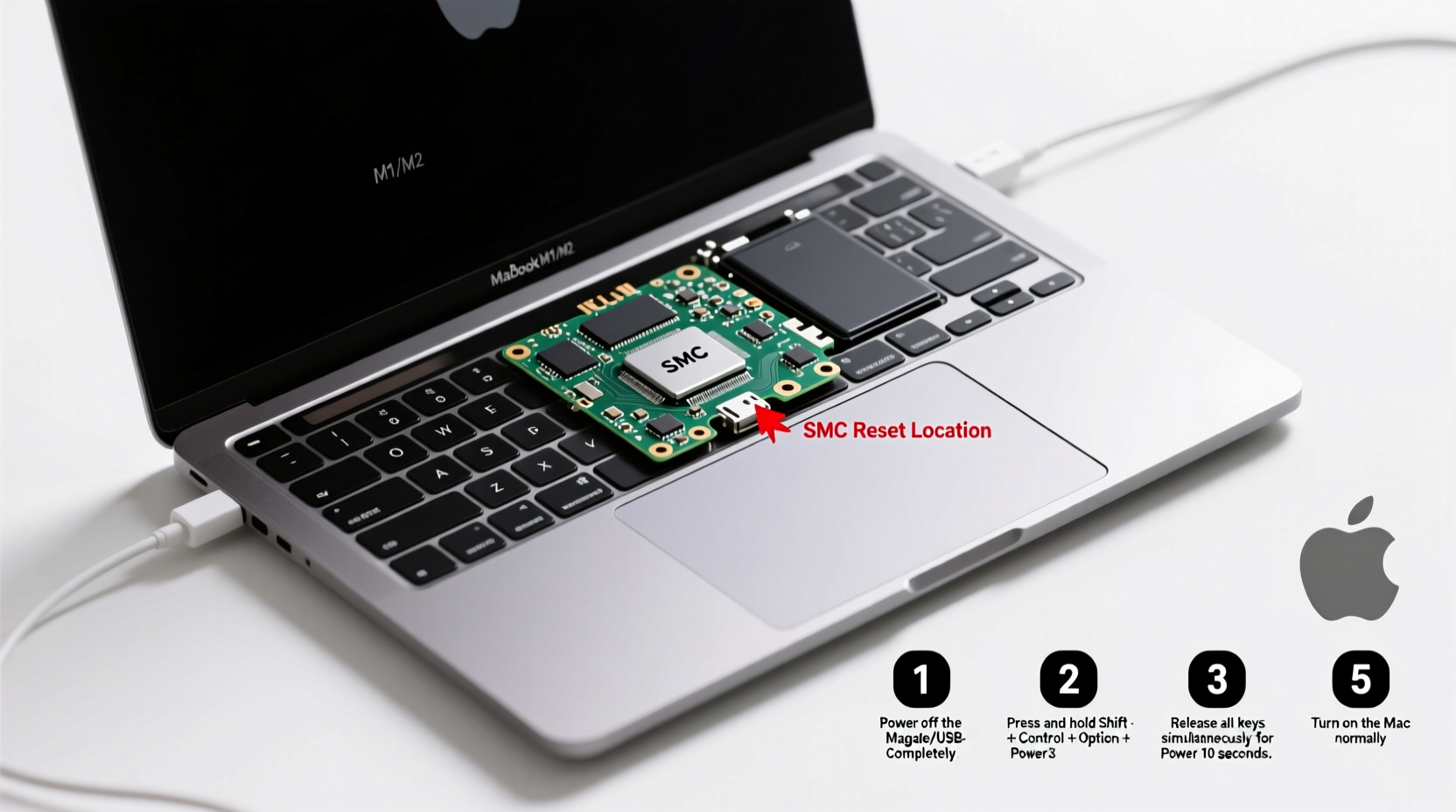
Apple recommends resetting the SMC only when specific symptoms point to underlying hardware communication issues. It’s not a general troubleshooting step for software glitches or slow performance unrelated to physical components.
Common signs indicating a potential need for an SMC reset include:
- Fans running at high speed even when the Mac isn’t under heavy load
- The Mac doesn’t respond properly to the power button
- Battery charging issues (e.g., not charging despite being plugged in)
- Inconsistent sleep or wake behavior
- Indicator lights (like MagSafe) behaving abnormally
- Display backlight failing to adjust automatically
Understanding the SMC Across Mac Models
The process of resetting the SMC varies significantly depending on your Mac's architecture and whether it has a T2 Security Chip, Apple Silicon (M1/M2), or older Intel-based processors. Confusing these models can lead to incorrect procedures or unnecessary attempts.
| Mac Type | Processor | SMC Reset Required? | Key Identifier |
|---|---|---|---|
| Intel Mac with removable battery | Intel (pre-2009) | Yes | User-replaceable battery |
| Intel Mac with non-removable battery | Intel (2009–2020) | Yes | Unibody design, MagSafe |
| Intel Mac with T2 Chip | Intel (2018–2020) | Yes | Touch ID, internal SMC firmware |
| Apple Silicon Mac (M1/M2/M3) | Apple Silicon | No | No SMC; uses System Policy Controller |
“Resetting the SMC can restore baseline communication between your Mac’s operating system and its core hardware systems.” — Apple Support Engineering Team
Step-by-Step Guide to Resetting the SMC
Follow the correct procedure based on your Mac model. Performing the wrong steps will have no effect and may delay resolution.
For Intel-Based Macs with Apple Silicon (No SMC Reset Needed)
If your Mac uses an M1, M2, or later chip, there is no traditional SMC. Instead, Apple integrates those functions into the unified architecture. Most issues are resolved via restarts or recovery mode resets.
To troubleshoot hardware-like behavior:
- Shut down your Mac completely.
- Wait 15 seconds.
- Press and hold the power button for 10 seconds, then release.
- Wait a few moments, then press the power button again to turn on the Mac.
For Intel Macs with Non-Removable Batteries (Most Common Post-2009 Models)
This category includes MacBook Air and MacBook Pro models from 2009 onward that lack user-accessible batteries.
- Shut down your Mac using the Apple menu.
- Connect the power adapter and ensure it’s properly seated.
- On the built-in keyboard, press and hold Shift + Control + Option on the left side along with the Power button.
- Hold all four keys for 10 seconds, then release them simultaneously.
- Press the power button to turn your Mac back on.
For Intel Macs with Removable Batteries (Rare, Pre-2009 Models)
These older models allow direct battery access. If you own one, proceed carefully.
- Shut down the computer.
- Remove the battery entirely.
- Press and hold the power button for 5 seconds, then release.
- Reinsert the battery and reconnect the power adapter.
- Turn on the Mac normally.
For Mac Desktops (iMac, Mac Mini, Mac Pro – All Intel)
Desktop Macs require a slightly different approach due to their external power supply.
- Shut down the Mac.
- Unplug the power cord.
- Wait 15 seconds.
- Plug the power cord back in.
- Wait 5 seconds, then press the power button to turn the machine on.
Troubleshooting Tips and Best Practices
An SMC reset should be part of a broader diagnostic strategy, not a standalone fix. Use this checklist to ensure comprehensive troubleshooting:
✅ SMC Reset Checklist
- Identify your Mac model (click > About This Mac)
- Determine if your Mac uses Intel or Apple Silicon
- Back up important data before any reset
- Disconnect external devices except keyboard, mouse, and display
- Ensure the power adapter is connected during the reset (if applicable)
- Perform the exact key combination or timing required for your model
- Observe changes after reboot: fan noise, battery status, power response
If problems persist after a successful SMC reset, consider additional actions:
- Reset NVRAM/PRAM (for issues like volume settings or display resolution)
- Run Apple Diagnostics (hold 'D' during startup on Intel Macs)
- Update macOS to the latest version
- Contact Apple Support or visit an Apple Store for hardware diagnostics
Real-World Example: Resolving Persistent Fan Noise
Sarah, a freelance video editor using a 2019 MacBook Pro, noticed her fans spinning loudly even when idle. She initially assumed a background app was causing high CPU usage, but Activity Monitor showed minimal load. After trying a restart and closing apps, the issue continued.
She checked online and found references to SMC resets for fan control issues. Confirming her model used an Intel processor with a non-removable battery, she followed the Shift+Control+Option+Power method. Upon reboot, the fans ran quietly, and temperature regulation returned to normal. The root cause was likely a sensor miscommunication temporarily corrected by the SMC reset.
Frequently Asked Questions
Does resetting the SMC erase my data?
No. The SMC controls low-level hardware functions and does not store user data. A reset affects only system settings like fan curves and power responses—it won’t delete files or change preferences.
How often should I reset the SMC?
Only when needed. There’s no benefit to routine resets. Frequent need for SMC resets may indicate deeper hardware issues requiring professional evaluation.
Can I damage my Mac by resetting the SMC incorrectly?
No. Attempting the wrong procedure simply won’t work. However, avoid repeatedly pressing buttons or forcing shutdowns beyond the prescribed steps.
Conclusion: Take Control of Your Mac’s Hardware Health
Understanding how to reset the SMC empowers you to address subtle but disruptive hardware behaviors that impact performance and usability. While modern Macs are designed for reliability, occasional hiccups in power management or thermal regulation can occur. Knowing the right reset method—and when to apply it—can save time, reduce frustration, and extend the life of your device.
Now that you’ve learned the proper techniques, observe your Mac’s behavior closely and act decisively when symptoms align. Share this knowledge with fellow Mac users who might be struggling with mysterious fan noise or charging quirks. A small intervention can make a big difference in daily performance.




 浙公网安备
33010002000092号
浙公网安备
33010002000092号 浙B2-20120091-4
Comments
No comments yet. Why don't you start the discussion?