
Removing the boot pin from a mobile phone is a delicate procedure typically required during advanced troubleshooting, firmware recovery, or hardware-level repairs. The boot pin—often located on the motherboard—is used to force a device into bootloader or download mode when software commands fail. While powerful, improper handling can lead to permanent damage, short circuits, or bricked devices. This guide walks you through the process with precision, safety, and real-world best practices.
Understanding the Boot Pin and Its Role
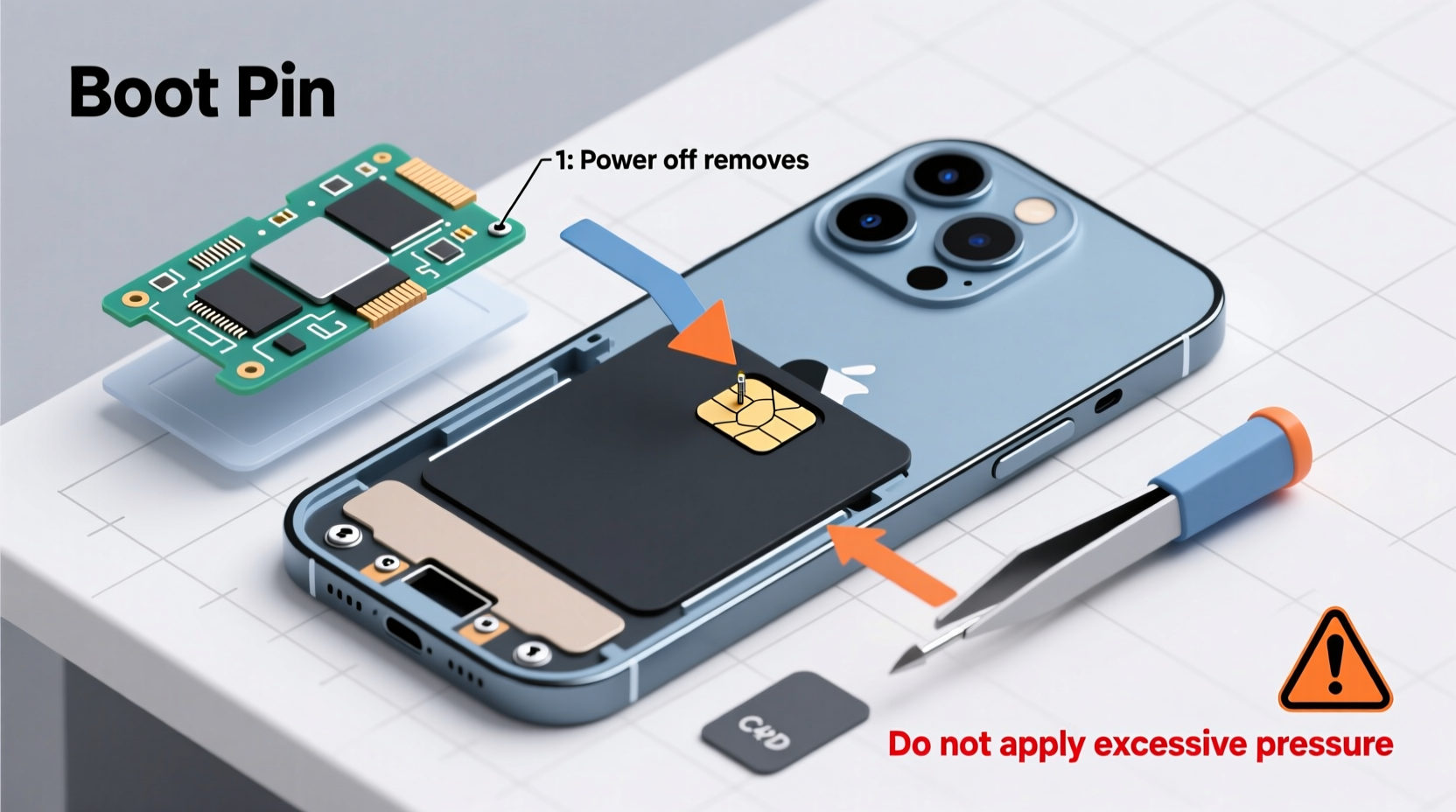
The boot pin is a small physical contact point on the phone’s printed circuit board (PCB) that, when grounded or bridged with another pin, triggers the device to enter a low-level system mode. This is essential when:
- The phone won’t power on normally.
- Firmware corruption prevents standard recovery access.
- Flashing new operating systems requires forced entry into download mode.
- Unlocking the bootloader on certain Android models.
Unlike button combinations (e.g., Volume Down + Power), using the boot pin bypasses unresponsive input hardware. However, because it involves direct contact with the motherboard, one slip can cause irreversible harm.
“Working at the PCB level demands patience and precision. A single misaligned probe can fry critical components.” — Rajiv Mehta, Senior Mobile Hardware Engineer at TechFix Labs
Essential Tools and Safety Precautions
Before attempting any internal work, gather the correct tools and establish a safe workspace. Static electricity, dust, and poor lighting are common causes of failure.
Required Tools
- Precision screwdriver set (Phillips #000, P2)
- Plastic pry tools or spudgers
- Anti-static wrist strap
- Magnifying glass or illuminated loupe
- Grounded soldering iron (if desoldering is needed)
- Insulated test probes or non-conductive tweezers
- Isopropyl alcohol (90% or higher) and lint-free swabs
Safety Checklist
- Work in a clean, dry, well-lit area free of static-generating materials (e.g., plastic, wool).
- Wear an anti-static wristband connected to a grounded surface.
- Power down the phone and disconnect the battery as early as possible.
- Label screws and components during disassembly to avoid confusion.
- Never use metal tools near live circuits unless intentionally grounding.
Step-by-Step Procedure to Locate and Remove the Boot Pin
Follow this sequence carefully. Each stage builds on the previous one to minimize risk.
Step 1: Disassemble the Device
Remove the back cover or screen depending on the model. Use heat (a hairdryer or heat gun on low) to soften adhesive if necessary. Unscrew all visible fasteners and gently separate casing layers using plastic tools to avoid scratching or cracking.
Step 2: Identify the Motherboard
Once internal components are exposed, locate the main logic board. It’s usually the largest circuit board, often secured with additional screws or tape. Carefully disconnect connectors for the display, battery, and camera using a spudger.
Step 3: Locate the Boot Pin
This is the most critical phase. Boot pins vary by manufacturer and model. Common locations include near the power IC, USB port, or memory chip. Refer to service manuals or schematics specific to your device. Look for labeled test points such as “BOOT,” “MODE,” or “EM,” often marked with a small dot or “TP” prefix.
Use a magnifying lens to inspect tiny markings. If unsure, consult online repair databases like GSMArena, iFixit, or specialized forums like XDA Developers.
Step 4: Access and Isolate the Boot Pin
If the boot pin is covered by protective coating (conformal coating), gently scrape it away with a non-conductive tool. Avoid metal contact unless intentional. Once exposed, verify continuity using a multimeter in continuity mode—touch one probe to the boot pin and another to ground (usually a screw hole or shield).
To “remove” the boot pin effectively means disabling its function temporarily—either by lifting the trace, covering it with insulating epoxy, or desoldering associated resistors. Most users aim to prevent accidental triggering, not destroy the feature.
Step 5: Perform the Removal (Non-Destructive Method)
For reversible removal:
- Apply a small drop of insulating varnish or UV-curable resin over the boot pin contact.
- Allow it to cure completely under sunlight or UV light.
- Test functionality by attempting to trigger boot mode via buttons only.
This method preserves the ability to restore access later by removing the coating.
Do’s and Don’ts When Handling Boot Pins
| Do’s | Don’ts |
|---|---|
| Use schematic diagrams for your exact model | Guess which pin is the boot pin |
| Double-check grounding points before testing | Bridge pins with metal tools carelessly |
| Work slowly under magnification | Rush the process under poor lighting |
| Document every step with notes or photos | Assume all phones have the same layout |
| Reassemble and test incrementally | Power on the device before reconnecting all cables |
Real-World Scenario: Recovering a Bricked Smartphone
A technician in Mumbai received a Samsung Galaxy A52 that wouldn’t boot after a failed custom ROM flash. Button combinations did nothing. Using the service manual, they identified two test points labeled TP17 and TP18 near the USB controller—known to be BOOT and GND respectively.
After safely opening the device and disconnecting the battery, they bridged the pins with a non-conductive probe while connecting the charger. The phone immediately entered Download Mode, allowing re-flashing of stock firmware via Odin. Post-recovery, they applied a micro-dot of insulating resin over TP17 to prevent future accidental activation during servicing.
The entire process took 45 minutes, saved the customer from data loss, and avoided a costly motherboard replacement.
Frequently Asked Questions
Can I permanently damage my phone by touching the boot pin?
Yes. Accidentally shorting the boot pin to a power line or signal trace can overload sensitive ICs. Always confirm pin identity and use insulated tools. Even low voltage from a multimeter in resistance mode can harm some chips if applied incorrectly.
Is removing the boot pin the same as unlocking the bootloader?
No. Removing physical access to the boot pin prevents unintended mode entry, but does not affect software bootloader unlock status. Unlocking is done via developer settings or fastboot commands and is unrelated to the physical pin.
Will this void my warranty?
In most cases, yes. Opening the device breaks tamper-evident seals. Manufacturers like Apple, Samsung, and Google consider internal access grounds for denying warranty claims, even if no damage occurs. Proceed only if the device is already out of warranty or repair costs exceed replacement value.
Final Thoughts and Recommendations
Removing or disabling the boot pin is not a routine task—it belongs in the toolkit of skilled technicians or informed hobbyists who understand electronics fundamentals. When executed correctly, it enables deep recovery options otherwise unavailable. But the margin for error is narrow.
If you're uncertain about identifying components or lack proper tools, seek professional repair services. Many independent shops offer affordable diagnostics and firmware recovery without requiring full disassembly.




 浙公网安备
33010002000092号
浙公网安备
33010002000092号 浙B2-20120091-4
Comments
No comments yet. Why don't you start the discussion?