
Keeping your iPhone updated is one of the most effective ways to maintain its speed, security, and overall functionality. Apple regularly releases iOS updates that include critical security patches, performance improvements, bug fixes, and new features. However, many users delay updates out of fear of data loss, installation errors, or unexpected issues. The truth is, when done correctly, updating your iPhone is a seamless process that enhances your device’s lifespan and user experience.
This guide walks you through each phase of the update process—preparation, execution, and post-update optimization—with actionable steps, expert insights, and real-world examples to ensure your iPhone upgrade goes smoothly and delivers maximum benefit.
Why Updating Your iPhone Matters
iOS updates are not just about flashy new features. They play a vital role in protecting your personal data from emerging threats, improving battery efficiency, and ensuring compatibility with modern apps. Over time, outdated software can lead to slower performance, app crashes, and even increased vulnerability to malware.
Apple emphasizes security in every release. According to Craig Federighi, Apple’s Senior Vice President of Software Engineering:
“Each iOS update strengthens the foundation of privacy and performance that our users rely on every day.”
Delaying updates may seem harmless, but it exposes your device to known exploits and prevents you from benefiting from behind-the-scenes optimizations that keep your iPhone running like new.
Step-by-Step Guide to a Safe iPhone Update
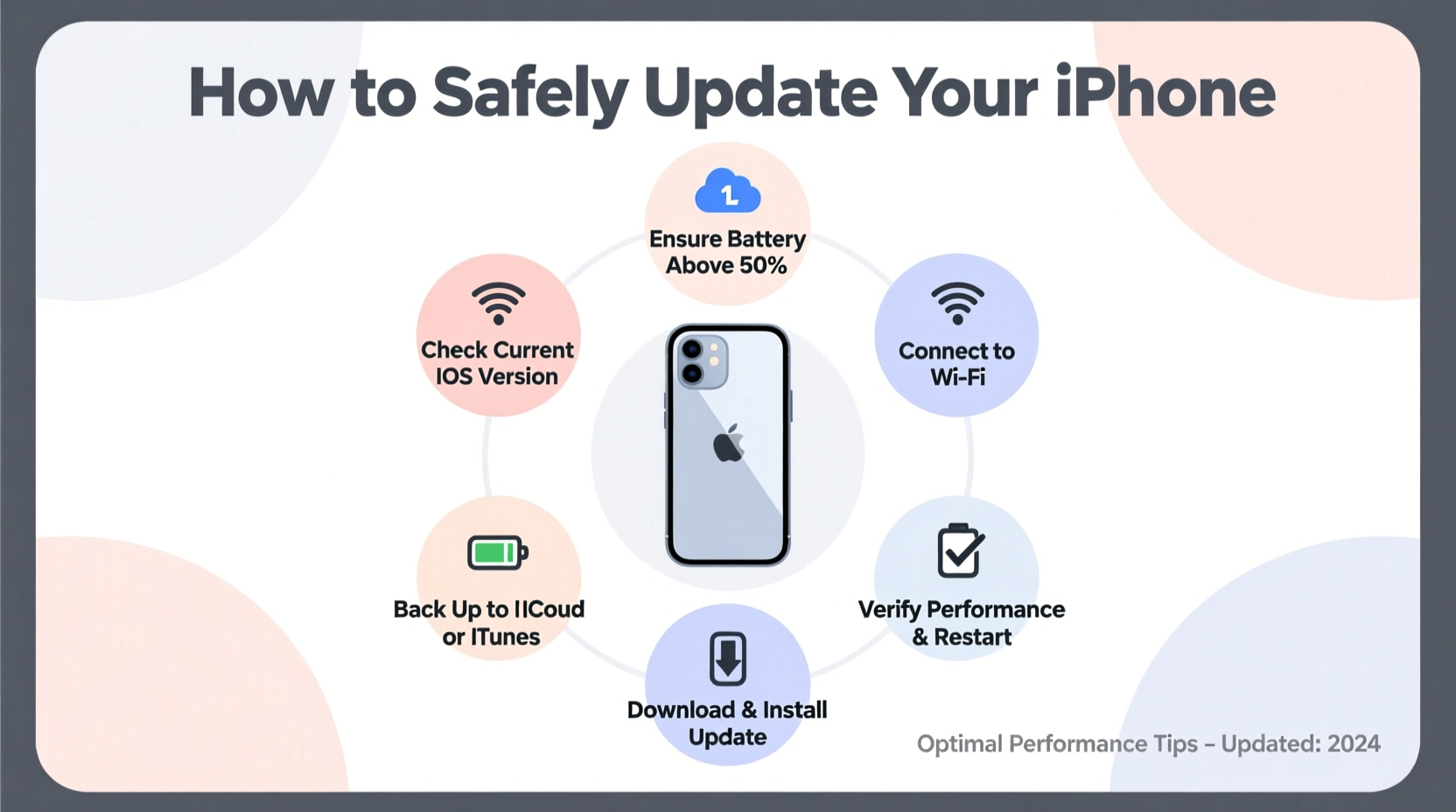
Follow this structured timeline to ensure a secure and efficient update process without risking data loss or technical hiccups.
- Check Compatibility: Not all devices support the latest iOS version. Visit Settings > General > About to see your model number, then verify compatibility on Apple’s official website.
- Back Up Your Data: Before proceeding, back up your iPhone using iCloud or a computer. Go to Settings > [Your Name] > iCloud > iCloud Backup and tap “Back Up Now,” or connect to a Mac/PC and use Finder (macOS) or iTunes (Windows).
- Free Up Storage Space: iOS updates require several gigabytes of free space. Delete unused apps, photos, or videos. Navigate to Settings > General > iPhone Storage to review recommendations.
- Connect to Wi-Fi: Ensure a stable internet connection. Public or weak networks can interrupt downloads and cause failed installations.
- Charge Your Device: Plug your iPhone into a power source or ensure it has at least 50% battery. Interruptions during an update can corrupt the system.
- Download and Install the Update: Go to Settings > General > Software Update. If an update is available, tap “Download and Install.” Follow on-screen prompts and agree to terms.
- Wait for Installation: Once downloaded, your phone will restart and install the update. This may take 10–20 minutes. Do not force restart or disconnect during this phase.
- Set Up Post-Update: After rebooting, check for any app updates in the App Store and allow permissions if prompted. Review settings that may have reset.
Essential Pre-Update Checklist
Use this checklist to prepare thoroughly before initiating any update:
- ✅ Confirm your iPhone model supports the latest iOS version
- ✅ Back up data via iCloud or computer
- ✅ Free up at least 5 GB of storage space
- ✅ Connect to a trusted Wi-Fi network
- ✅ Charge battery to 50% or higher (preferably plug in)
- ✅ Disable Low Power Mode (Settings > Battery)
- ✅ Turn off Find My iPhone temporarily if restoring from backup (optional)
- ✅ Note down important login credentials or two-factor recovery codes
Common Pitfalls and How to Avoid Them
Even with good intentions, users often encounter issues due to oversights. Below is a comparison of recommended actions versus common mistakes.
| Do’s | Don’ts |
|---|---|
| Back up before updating | Skip backups assuming everything is synced |
| Use a stable Wi-Fi connection | Attempt updates over cellular data or spotty Wi-Fi |
| Ensure sufficient battery or stay plugged in | Let the phone die mid-update |
| Verify app compatibility after update | Ignore app crashes post-update without troubleshooting |
| Review new privacy settings introduced in the update | Accept default settings without reviewing permissions |
Real Example: Sarah’s Smooth iOS 17 Upgrade
Sarah, a freelance photographer, relies heavily on her iPhone 13 for client shoots and editing. When iOS 17 was released, she hesitated—her last update caused her camera app to glitch. This time, she followed a structured approach.
She backed up her entire library to both iCloud and her MacBook, cleared old drafts to free up 7 GB, and scheduled the update for Saturday morning while her phone charged. The download took 12 minutes, and installation completed without issue. After restarting, she noticed improved photo sorting in the Photos app and faster Face ID response.
One app—her preferred editing tool—was incompatible initially. She visited the App Store, found an update labeled “iOS 17 Optimized,” installed it, and resumed work within an hour. By preparing properly, Sarah avoided downtime and gained tangible performance benefits.
Frequently Asked Questions
What should I do if my iPhone gets stuck during the update?
If your iPhone freezes on the Apple logo or progress bar for more than 20 minutes, try a forced restart. For iPhone 8 and later: press and release Volume Up, then Volume Down, then hold the Side button until the Apple logo appears. For older models, hold Home and Power buttons together. If the issue persists, connect to a computer and use Recovery Mode via Finder or iTunes.
Can I downgrade to an older iOS version after updating?
Generally, no. Apple signs only the latest iOS versions for a short window after a new release. Once that period ends (typically 7–10 days), you cannot revert unless you have a saved SHSH blob (advanced users only). Always ensure you’re ready before updating.
Will updating erase my messages or photos?
No—updating iOS does not delete personal data when performed correctly. However, unforeseen errors can occur. That’s why backing up beforehand is non-negotiable. A backup ensures you can restore everything if something goes wrong.
Maximizing Performance After the Update
An iOS update can breathe new life into your iPhone, but a few follow-up steps help lock in those gains:
- Clear Cache: Open Safari > Clear History and Website Data to remove clutter.
- Re-enable Background App Refresh Selectively: Go to Settings > General > Background App Refresh and disable it for non-essential apps to save battery.
- Review New Features: Explore enhancements like StandBy mode, improved autocorrect, or Focus filters to get the most from the update.
- Update All Apps: Open the App Store, tap your profile icon, and update all apps to ensure full compatibility.
- Restart Once More: A final reboot clears residual processes and stabilizes the system.
Conclusion: Stay Current, Stay Secure
Updating your iPhone doesn’t have to be stressful. With proper preparation and a clear plan, it becomes a routine maintenance task that protects your investment and enhances daily usability. From stronger security to smoother operation, the benefits far outweigh the minor time commitment required.
Your iPhone is designed to evolve with you—but only if you let it. Take control today: back up your data, follow the steps outlined here, and enjoy a faster, safer, and more capable device. Don’t wait for a crash or breach to act. An ounce of prevention keeps your iPhone performing at its peak, year after year.




 浙公网安备
33010002000092号
浙公网安备
33010002000092号 浙B2-20120091-4
Comments
No comments yet. Why don't you start the discussion?