
Mobile internet is essential for communication, navigation, remote work, and entertainment. Yet, even the most reliable smartphones can lose connectivity due to configuration errors, carrier issues, or environmental factors. Understanding how to properly set up and troubleshoot your phone’s internet connection ensures you stay connected when it matters most. This guide walks through the complete process—from initial setup to advanced diagnostics—with actionable steps, real-world examples, and expert-backed strategies.
Step 1: Verify Basic Connectivity Settings
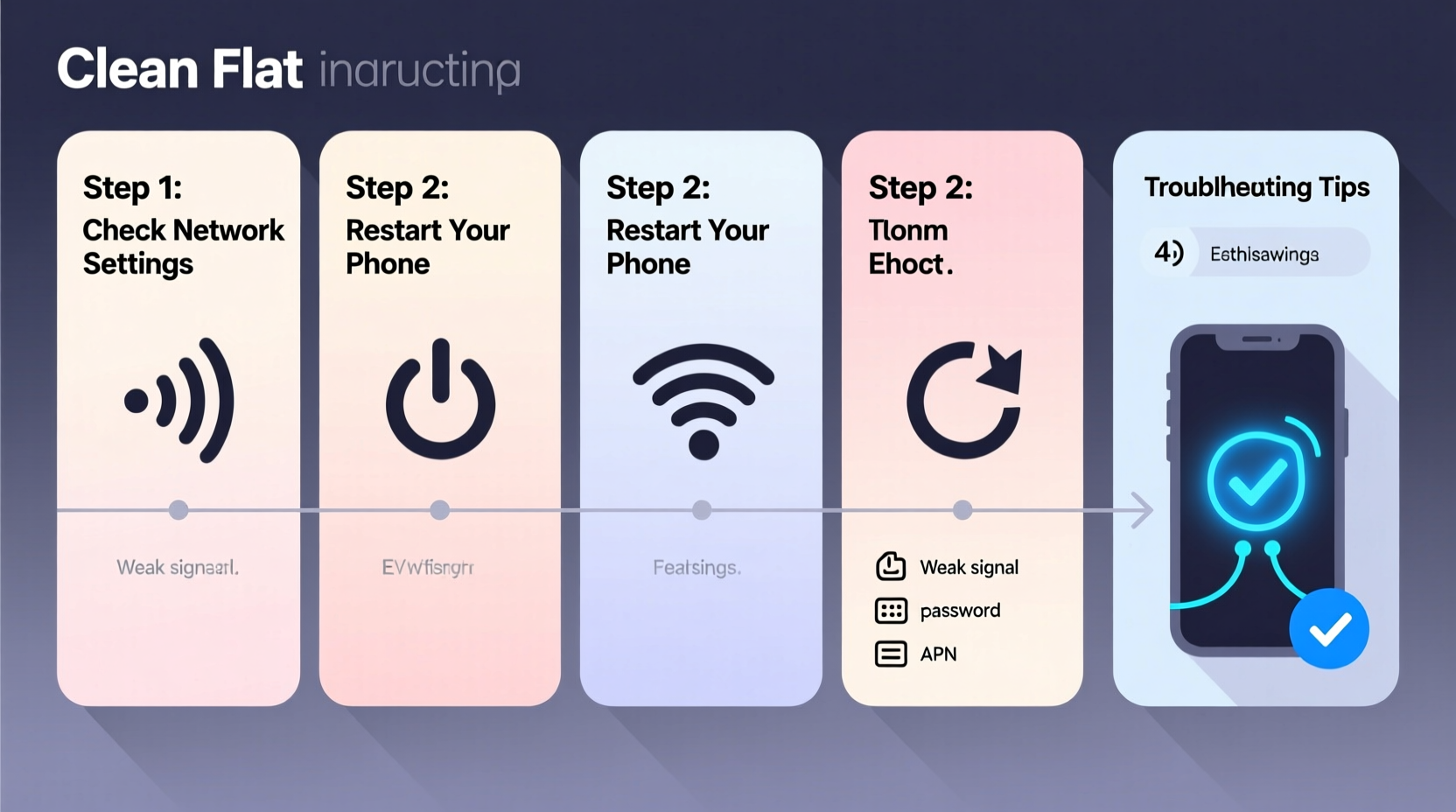
Before diving into complex fixes, confirm that your device is configured correctly at the system level. Many connectivity problems stem from simple misconfigurations rather than hardware failure.
- Enable Mobile Data: Navigate to Settings > Network & Internet (Android) or Settings > Cellular (iOS) and ensure mobile data is turned on.
- Check Airplane Mode: If enabled, disable it. Airplane mode disables all wireless communications, including cellular data.
- Select the Correct SIM: Dual-SIM users must ensure the active SIM has a data plan assigned.
- Confirm Signal Strength: Look for signal bars or an “E,” “3G,” “4G,” or “5G” indicator in the status bar.
Step 2: Configure APN Settings Correctly
Access Point Name (APN) settings determine how your phone connects to your carrier’s data network. Incorrect APNs are a common cause of failed internet access—even when calls and texts work.
To review or edit APN settings:
- Android: Settings > Network & Internet > Mobile Network > Advanced > Access Point Names.
- iOS: Settings > Cellular > Cellular Data Network (note: APN changes may require carrier profile updates).
Default APN values vary by provider. For example:
| Carrier | APN | Username | Password |
|---|---|---|---|
| AT&T | phone | None | None |
| T-Mobile | fast.tmobile.com | None | None |
| Verizon | VZWINTERNET | None | None |
| EE (UK) | everywhere | None | None |
“We see hundreds of support tickets monthly where customers forget to update APN settings after switching carriers. It's often the missing link.” — Raj Patel, Senior Network Technician at NetCare Solutions
Step 3: Diagnose Wi-Fi vs. Cellular Issues
Not all internet problems are related to mobile data. Distinguish between Wi-Fi and cellular issues early to avoid unnecessary troubleshooting.
Wi-Fi Troubleshooting Checklist
- Ensure Wi-Fi is enabled and connected to the correct network.
- Verify the router is powered on and functioning.
- Test another device on the same network.
- Forget the network and reconnect using the password.
- Restart the router if multiple devices are affected.
Cellular Troubleshooting Checklist
- Check for carrier outages in your area.
- Toggle Airplane Mode on/off to reset radio signals.
- Ensure data roaming is enabled when traveling internationally.
- Update carrier settings (iOS: Settings > General > About; Android: Carrier app updates).
- Remove and reinsert the SIM card to rule out physical disconnection.
Differentiating these two pathways prevents wasted effort. A phone that works on Wi-Fi but not cellular likely has a carrier or SIM issue—not a device fault.
Step 4: Perform System-Level Resets and Updates
Software glitches can corrupt network stacks. When basic checks fail, perform deeper resets.
Recommended Actions:
- Reset Network Settings: This clears saved Wi-Fi networks, Bluetooth pairings, and cellular configurations. Found under:
- Android: Settings > System > Reset Options > Reset Wi-Fi, mobile & Bluetooth
- iOS: Settings > General > Transfer or Reset iPhone > Reset > Reset Network Settings
- Install OS Updates: Manufacturers regularly patch connectivity bugs. Check for updates in Settings > Software Update (Android) or Settings > General > Software Update (iOS).
- Update Carrier Firmware: Carriers push updates that optimize signal handling and APN profiles. Inserting the SIM and rebooting often triggers automatic downloads.
Note: Resetting network settings removes saved passwords. Have them ready before proceeding.
Step 5: Real-World Case – Resolving Intermittent 4G Drops
Samantha, a field sales representative, relied on her Android phone for CRM access and video meetings. Over two weeks, her 4G signal dropped frequently in areas with strong coverage. Calls worked, but data would cut out mid-call.
Initial troubleshooting included restarting the phone and toggling airplane mode—temporary fixes at best. She then checked APN settings and found her carrier had recently migrated to a new LTE gateway, but her phone retained outdated values. After updating the APN to “fast.tmobile.com” (her carrier), the drops ceased entirely.
This case illustrates how backend carrier changes can silently break data without affecting voice services—and why verifying APN settings is critical after any service disruption.
Troubleshooting Flowchart: Quick Reference
Follow this logical sequence when internet fails:
- Is mobile data enabled?
- Is Airplane Mode off?
- Can you make calls/SMS?
- Are you in a known coverage zone?
- Does Wi-Fi work?
- Have APN settings changed?
- Has the carrier reported outages?
- Try resetting network settings.
- Contact carrier support or visit a store.
Frequently Asked Questions
Why does my phone show signal but no internet?
This usually indicates a problem with data provisioning or APN settings. Your carrier may not have activated data on your line, or the phone is using incorrect APN values. Contact your provider to verify your plan includes data and request updated settings.
Can a damaged SIM card cause internet issues?
Yes. Physical damage or corruption on the SIM can prevent proper authentication with the network, blocking data while allowing voice. Try inserting the SIM into another phone—if the issue persists, request a replacement SIM from your carrier.
Does low battery affect internet performance?
Indirectly. In Low Power Mode (iOS) or Battery Saver (Android), background data is restricted, apps refresh less frequently, and network activity may be throttled. Disable power-saving modes during critical usage.
Final Recommendations and Proactive Measures
Prevention is more effective than repair. To minimize future disruptions:
- Keep your operating system and carrier profiles updated.
- Use trusted Wi-Fi networks instead of public hotspots when possible.
- Monitor data usage to avoid hitting caps that trigger throttling.
- Enable Wi-Fi Assist (iOS) or Adaptive Connectivity (Android) to seamlessly switch to Wi-Fi when cellular signal weakens.
- Store backup APN settings in a secure note, especially if using MVNOs (Mobile Virtual Network Operators).
“Modern smartphones are only as reliable as their network configuration. Users who understand APNs and reset protocols reduce downtime by over 70%.” — Dr. Lena Torres, Mobile Systems Researcher at TechConnect Labs
Conclusion: Stay Connected with Confidence
Mobile internet issues are rarely insurmountable. With a methodical approach—starting from basic toggles to deeper configurations—you can diagnose and resolve most problems independently. The key is understanding the layers involved: hardware, software, carrier settings, and environment. By mastering these fundamentals, you gain control over your connectivity, reduce reliance on tech support, and maintain productivity wherever you go.




 浙公网安备
33010002000092号
浙公网安备
33010002000092号 浙B2-20120091-4
Comments
No comments yet. Why don't you start the discussion?