
Every time you use Google—whether through a browser, mobile app, or voice command—your activity may be saved if you're signed in and have tracking enabled. This includes searches, websites visited, videos watched, and even locations visited. While this data helps personalize your experience, it also raises privacy concerns for many users. Understanding how to view and manage your Google search history is essential for maintaining control over your digital footprint.
Google provides tools that allow you full visibility and control over what’s stored. From reviewing past searches to pausing future tracking or deleting specific entries, the process is straightforward once you know where to look. This guide walks you through each step clearly and securely, ensuring you can take charge of your online privacy without confusion.
Why Managing Your Search History Matters
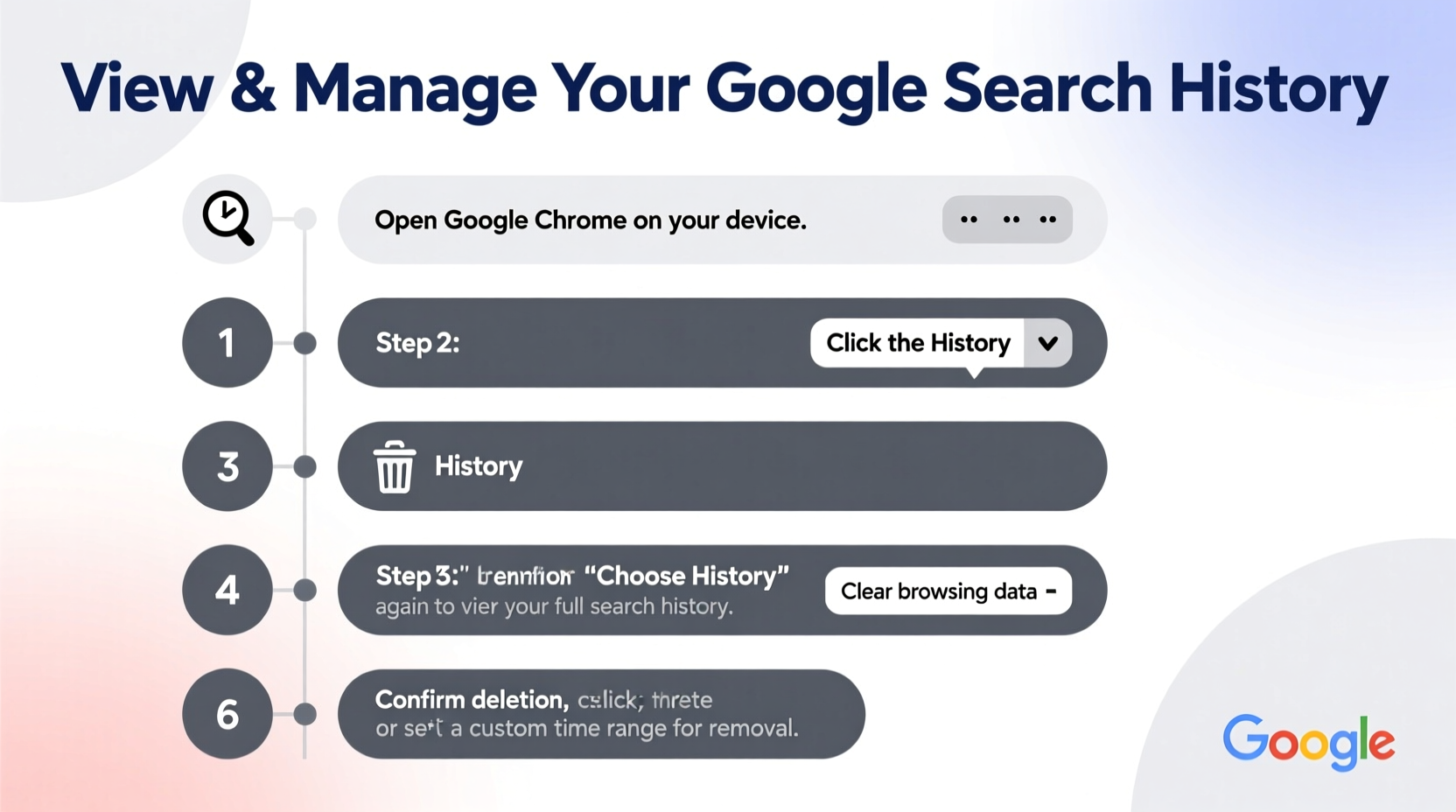
Your Google search history isn’t just a log—it shapes what ads you see, which results appear first, and even influences recommendations across YouTube, Maps, and Gmail. Over time, this builds a detailed profile of your interests, habits, and routines. For some, this personalization improves convenience. For others, especially those concerned about surveillance, data mining, or targeted advertising, it represents an unwanted exposure.
Regularly managing your history ensures that outdated, sensitive, or irrelevant data doesn’t linger. It also reduces the risk of someone accessing your device and seeing your private queries. Whether motivated by security, performance, or peace of mind, taking control of your search history is a proactive step toward digital well-being.
“Users who actively review their digital trails are more likely to detect anomalies, prevent misuse, and maintain autonomy over their online identities.” — Dr. Lena Torres, Digital Privacy Researcher at Stanford Cyber Initiative
Step-by-Step: How to View Your Google Search History
Accessing your search history requires only a few clicks. Follow these steps from any device where you’re logged into your Google account:
- Go to Google.com and sign in using your Google account credentials (Gmail, password).
- In the top-right corner, click your profile picture or initial. A dropdown menu will appear.
- Select “Manage your Google Account”.
- Navigate to the Data & Privacy tab on the left sidebar.
- Scroll down to the section labeled “History settings” and click “Web & App Activity”.
- If prompted, re-enter your password to confirm identity.
- You’ll now see a timeline of your recent activity, including search terms, visited sites, and app usage tied to your account.
This page displays all recorded actions chronologically. You can expand individual entries to see details like timestamps, devices used, and associated services (e.g., Chrome, YouTube). To refine results, use the filters at the top—such as date range, product (Search, Maps, Assistant), or keywords.
How to Pause or Resume Web & App Activity
If you'd prefer Google not store your activity going forward, you can pause tracking entirely:
- From the Web & App Activity page, toggle off the switch next to “Include Chrome history and activity from websites and apps on other Google services.”
- Choose whether to keep existing history or delete it when turning off.
- Confirm your choice. Once disabled, new searches won’t be saved to your account.
Note: Disabling Web & App Activity affects personalization. Features like predictive search suggestions, tailored ads, and location-based recommendations may become less accurate or stop working altogether.
You can re-enable tracking at any time by returning to the same setting and toggling it back on. This flexibility allows temporary pauses during sensitive tasks, such as researching medical issues or planning surprises.
Deleting Specific Entries or Entire History
Sometimes, you may want to remove only certain items rather than disable tracking completely. Google lets you delete entries individually or in bulk.
Delete Individual Items
- On the Web & App Activity page, locate the entry you wish to delete.
- Hover over it and click the three-dot menu icon (⋯) on the right.
- Select Delete.
- Confirm deletion. The item disappears immediately.
Delete in Bulk by Date Range
- Click “Delete activity by” on the left panel under Web & App Activity.
- Select a date range: last hour, day, week, 4 weeks, or custom period.
- Choose which service data to delete (e.g., Search, YouTube, Maps).
- Click Next, then Delete.
Delete All Time History
- Select “All time” as the date range.
- Be aware: this removes years of accumulated data and cannot be undone.
- After deletion, previously learned preferences (like autocomplete suggestions) may reset.
| Action | Effect on Personalization | Reversibility |
|---|---|---|
| Delete single item | Minimal impact | Irreversible |
| Bulk delete (last month) | Moderate loss of context | Irreversible |
| Pause Web & App Activity | Gradual decline in relevance | Reversible anytime |
| Delete all history | Resets most personalization | Irreversible |
Managing Auto-Delete Settings for Long-Term Control
To reduce manual cleanup, Google offers automatic deletion options. You can set your history to erase itself every 3 months or 18 months.
To enable auto-delete:
- Go to Web & App Activity settings.
- Click “Auto-delete” below the main toggle.
- Select either 3 months or 18 months.
- Click Next, then Turn On.
Once activated, Google will permanently remove old activity according to your chosen schedule. New entries continue to accumulate until they reach the threshold. This feature strikes a balance between usability and privacy, minimizing long-term data retention without sacrificing short-term convenience.
Real Example: Taking Back Control After a Security Concern
Sophie, a freelance writer based in Portland, noticed unusual ad targeting after researching anxiety treatments online. Ads for therapy apps and medications followed her across unrelated websites. Concerned about being profiled, she decided to audit her Google history.
She followed the steps outlined above: reviewed her Web & App Activity, deleted all health-related searches from the past six months, and turned on auto-delete for future entries. She also paused activity during private sessions using incognito mode. Within days, the intrusive ads disappeared, and she regained confidence in her browsing privacy.
Sophie now reviews her history monthly and uses auto-delete as a default safeguard—a small habit that significantly improved her sense of digital safety.
Frequently Asked Questions
Will deleting my search history log me out of accounts?
No. Clearing your Google search history does not affect login sessions, saved passwords, or bookmarks. It only removes records of your activity linked to your Google account.
Can someone else see my search history if I share my device?
If you remain signed in on a shared device, yes—anyone with access can view your history unless you use Guest mode or sign out after use. Always log out or enable screen locks to protect your data.
Does pausing Web & App Activity stop all tracking?
No. While it stops Google from saving your activity to your account, some anonymized data may still be collected for system improvements and ads. For stronger privacy, combine this with ad personalization controls and browser-level protections.
Essential Checklist for Managing Google Search History
- ✅ Sign in to your Google Account
- ✅ Navigate to Data & Privacy > Web & App Activity
- ✅ Review recent search and browsing activity
- ✅ Delete unwanted entries manually or in bulk
- ✅ Turn off Web & App Activity if desired
- ✅ Set up auto-delete (every 3 or 18 months)
- ✅ Use incognito mode for private searches
- ✅ Log out of shared devices
Take Charge of Your Digital Life
Your search history reflects more than curiosity—it reveals patterns, preferences, and personal moments. By understanding how to view and manage this data, you reclaim agency over how your information is used. These tools exist not to complicate your experience, but to empower it.
Start today: spend ten minutes auditing your history, adjust your settings, and set up automatic safeguards. Small actions now create lasting benefits for your privacy, focus, and digital freedom.




 浙公网安备
33010002000092号
浙公网安备
33010002000092号 浙B2-20120091-4
Comments
No comments yet. Why don't you start the discussion?