
When Apple replaced the traditional mute switch with the new Action Button on the iPhone 15 Pro, it sparked immediate debate. Was this a thoughtful evolution of smartphone control, or merely a flashy feature with little practical value? Positioned along the left edge of the device, the Action Button replaces the long-standing ring/silent toggle that had been a staple since the original iPhone. Unlike its predecessor, this new button is fully customizable—programmable to launch apps, trigger shortcuts, activate Focus modes, or control camera settings. But does this flexibility translate into meaningful utility, or is it simply another example of innovation for innovation’s sake?
The answer isn’t binary. For some users, the Action Button has become an indispensable shortcut to daily workflows. For others, it remains underused, forgotten after initial curiosity fades. To understand its true impact, we need to examine not just what it can do, but how it fits into real-life usage patterns, accessibility needs, and long-term usability.
What the Action Button Actually Does
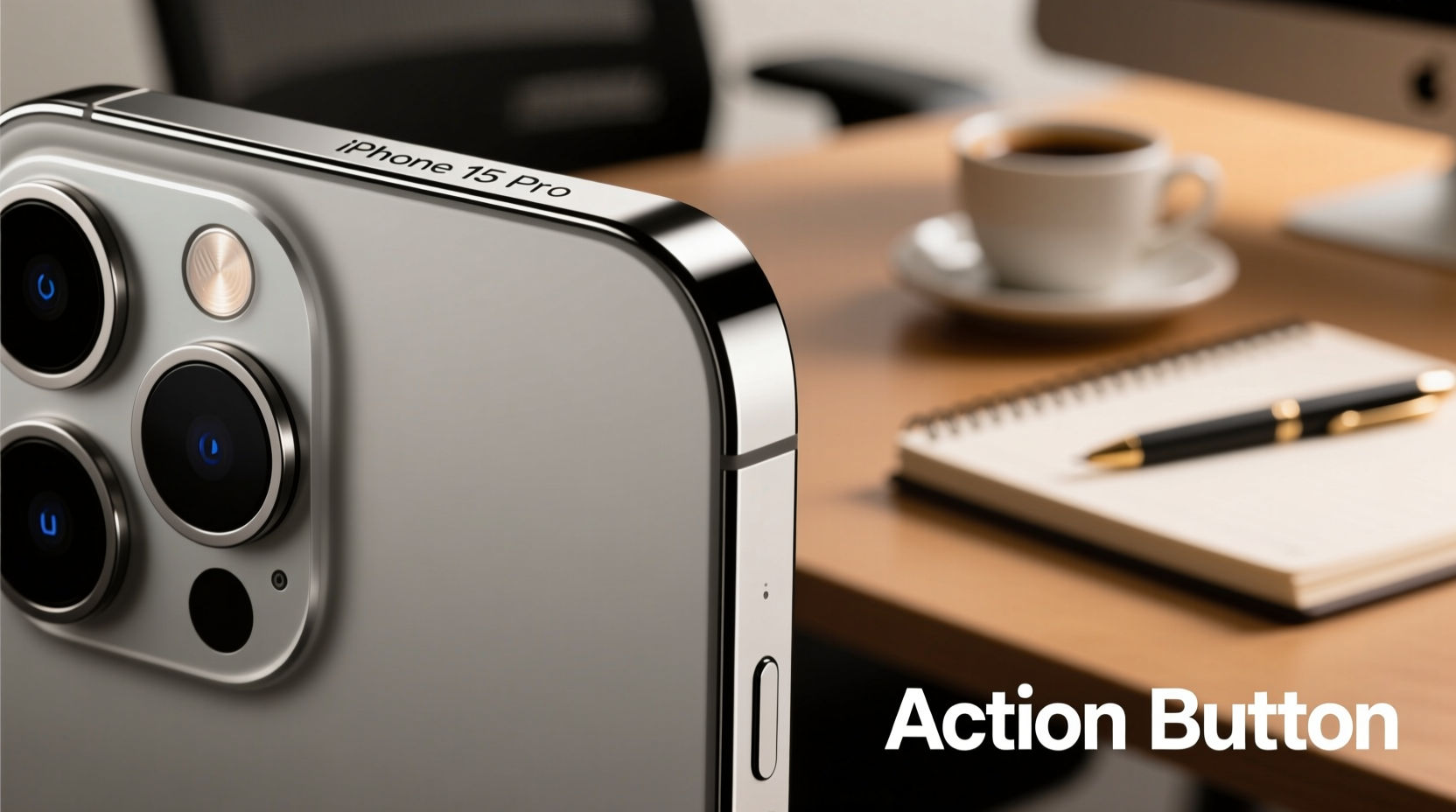
The Action Button is a pressure-sensitive, haptic-feedback-enabled physical switch that replaces the hardware mute switch. Instead of toggling between ring and silent modes, users can assign one of several functions:
- Launch the Camera app
- Activate Voice Memos
- Toggle flashlight
- Trigger a custom Shortcuts automation
- Switch between Focus modes (e.g., Work, Sleep, Personal)
- Open Translate or Magnifier
- Start a specific music playlist or podcast
Apple designed the button to provide tactile access to frequently used tools without requiring screen interaction. It clicks when pressed and delivers subtle haptic feedback, reinforcing the sense of direct control. This design aligns with Apple’s broader philosophy of intuitive, gesture-based interaction—but now reintroduces a dedicated physical input in an era dominated by touchscreens.
Game Changer: Where the Action Button Shines
For power users and those invested in Apple’s ecosystem, the Action Button offers tangible benefits. Its programmability allows for personalized efficiency gains. Consider a photographer who sets the button to instantly open the Camera app in Pro mode with specific settings. No swiping, no unlocking—just press and shoot. In low-light environments or fast-moving situations, that split-second advantage matters.
Likewise, professionals managing notifications can use the button to toggle between Focus modes. Press once to enter “Work Mode,” silencing social apps and enabling Slack alerts; press again later to revert to personal settings. This eliminates the need to navigate through Control Center or Settings—a small time-saver that compounds over days and weeks.
“The Action Button brings back intentional physical interaction in a way that feels modern, not nostalgic.” — David Liu, UX Designer at a leading mobile interface firm
Another compelling use case is accessibility. Users with motor impairments or visual challenges benefit from consistent tactile cues. Relying on muscle memory to perform tasks—such as activating VoiceOver or launching a hearing aid-compatible audio profile—can significantly reduce friction in daily phone use.
Real-World Example: The Travel Photographer
Meet Sarah, a travel journalist who frequently captures candid moments in bustling markets and remote villages. On her iPhone 14 Pro, she relied on the lock screen camera swipe, which sometimes failed due to accidental touches or slow response. After upgrading to the iPhone 15 Pro, she programmed the Action Button to open the camera with a single press and automatically switch to 24mm wide-angle mode—her preferred setting for environmental shots.
During a recent trip to Morocco, she credited the button with helping her capture a fleeting moment: children chasing a soccer ball through narrow alleyways. “I didn’t have time to unlock my phone or tap anything. I just raised it and pressed the side button. That shot made the cover of the feature,” she said. For Sarah, the Action Button wasn’t a novelty—it was a functional upgrade that directly impacted her work.
The Gimmick Argument: Why Some Remain Unconvinced
Critics argue that the Action Button solves a problem few users actually had. The mute switch was straightforward and universally understood. Replacing it with a multi-function button introduces ambiguity. New users often press it expecting silence, only to launch a random app or activate a Focus mode they didn’t know existed.
Moreover, unlike Android devices with dedicated camera or voice assistant buttons—which serve singular, predictable purposes—the Action Button requires setup and ongoing management. If users don’t customize it, it defaults to opening the Action button sheet, a menu that adds more steps than it saves. This defeats the purpose of a quick-access control.
There’s also the issue of discoverability. Apple doesn’t heavily promote the customization options during setup, leaving many unaware of its full potential. As a result, a significant number of iPhone 15 Pro owners either leave it on default settings or reassign it back to mute—essentially replicating the old function, but with extra steps.
Do’s and Don’ts of Using the Action Button
| Do | Don't |
|---|---|
| Assign it to a high-frequency task like Camera or Flashlight | Leave it on the default \"Open Actions\" menu |
| Use it to trigger complex Shortcuts with multiple steps | Change the function too often—consistency builds habit |
| Test different haptic feedback levels for better tactile response | Expect all third-party apps to support direct button integration |
| Customize based on context (e.g., workout, commute, sleep) | Ignore accessibility features it can enable, like AssistiveTouch triggers |
Step-by-Step Guide to Maximizing the Action Button
To get the most out of the Action Button, follow this setup process:
- Open Settings → Tap “Action Button.”
- Select your preferred function: Choose from Camera, Flashlight, Mute, Voice Memos, etc.
- For advanced use, pick “Shortcuts” → Tap “+” to create a new automation.
- Build your shortcut: Add actions like “Set Brightness to 50%,” “Play Podcast,” or “Send Text to Spouse.”
- Name and save the shortcut, then assign it to the Action Button.
- Test the button in real scenarios—walking, driving, low light—to gauge usefulness.
- Adjust periodically based on changing routines (e.g., seasonal adjustments).
This process takes less than ten minutes but can yield months of streamlined interaction. Over time, the button becomes second nature—much like using volume keys or the side button to power on the device.
Comparison: Action Button vs. Previous Mute Switch
| Feature | Mute Switch (Legacy) | Action Button (iPhone 15 Pro) |
|---|---|---|
| Purpose | Dedicated ring/silent toggle | Customizable function launcher |
| User Learning Curve | None – universally understood | Moderate – requires setup and recall |
| Flexibility | None | High – supports apps, shortcuts, modes |
| Accessibility | Excellent – tactile, immediate | Excellent – if properly configured |
| Default Behavior | Always mutes ringer | Opens Action menu unless customized |
| Long-Term Utility | Consistent but limited | High potential, variable adoption |
The data suggests a trade-off: simplicity versus versatility. While the mute switch was foolproof, the Action Button offers depth—if users are willing to invest in personalization.
Frequently Asked Questions
Can I make the Action Button work like the old mute switch?
Yes. In Settings > Action Button, you can select “Mute” as the function. When enabled, pressing the button will toggle between ring and silent modes, replicating the behavior of older iPhones.
Does the Action Button work when the phone is locked or asleep?
Absolutely. One of its key advantages is functionality without unlocking the device. Whether the screen is off or the phone is locked, a press will trigger the assigned action—ideal for quick access to camera or flashlight.
Can third-party apps integrate with the Action Button?
Not directly. Apple restricts native integration to its own apps and the Shortcuts app. However, you can create a Shortcut that launches a third-party app, effectively bypassing the limitation. For example, a shortcut can open Spotify and start your morning playlist with one press.
Tips for Getting the Most Out of the Action Button
- Align with routines: Assign functions that match your daily rhythm—morning, commute, workout, bedtime.
- Keep it consistent: Avoid rotating functions weekly. Muscle memory works best with repetition.
- Leverage haptics: Adjust feedback intensity in Accessibility settings to enhance tactile confirmation.
- Combine with other controls: Pair the Action Button with the Dynamic Island or Control Center for layered efficiency.
Final Verdict: Game Changer or Gimmick?
The truth lies in usage. For casual users who rarely customize settings, the Action Button may indeed feel like a gimmick—an unnecessary replacement for a perfectly functional mute switch. Without setup, it adds confusion rather than convenience.
But for those willing to engage with its potential, the Action Button represents a meaningful step forward in personalized device interaction. It transforms a static hardware element into a dynamic tool that adapts to individual needs. When programmed thoughtfully, it reduces cognitive load, speeds up common tasks, and enhances accessibility.
In this sense, the Action Button isn’t inherently revolutionary—it’s *potentially* revolutionary. Its success depends not on Apple’s engineering, but on the user’s willingness to personalize and integrate it into their digital lifestyle.
Conclusion: Make It Yours
The iPhone 15 Pro’s Action Button won’t change your life by default. But with a few minutes of setup, it can become one of the most efficient tools on your device. Whether you're capturing spontaneous moments, managing focus, or streamlining routines, the button puts control literally at your fingertips.
Instead of asking whether it’s a game changer, ask yourself: What task do I perform every day that deserves a single-press solution? Find that task, assign it, and test it for a week. You might discover that the future of smartphone interaction isn’t just about bigger screens or faster chips—it’s about smarter, more intentional design.




 浙公网安备
33010002000092号
浙公网安备
33010002000092号 浙B2-20120091-4
Comments
No comments yet. Why don't you start the discussion?