
For Mac users who value visual clarity and streamlined connectivity, upgrading to an external 4K monitor can transform their workflow. Whether you're editing photos, coding, or managing multiple documents, a high-resolution display enhances productivity and comfort. But not every 4K monitor delivers the same experience—especially when pairing with macOS. The ideal match offers sharp visuals, accurate color reproduction, and the convenience of USB-C for both power delivery and data transfer—all without breaking the bank.
The good news is that several monitors now deliver premium features at accessible price points. These models support Apple’s Retina-level clarity expectations, offer plug-and-play compatibility via USB-C, and maintain excellent color accuracy out of the box. Below is a detailed guide to help you identify the best affordable 4K monitors tailored for Mac users.
Why a 4K Monitor Makes a Difference on Mac
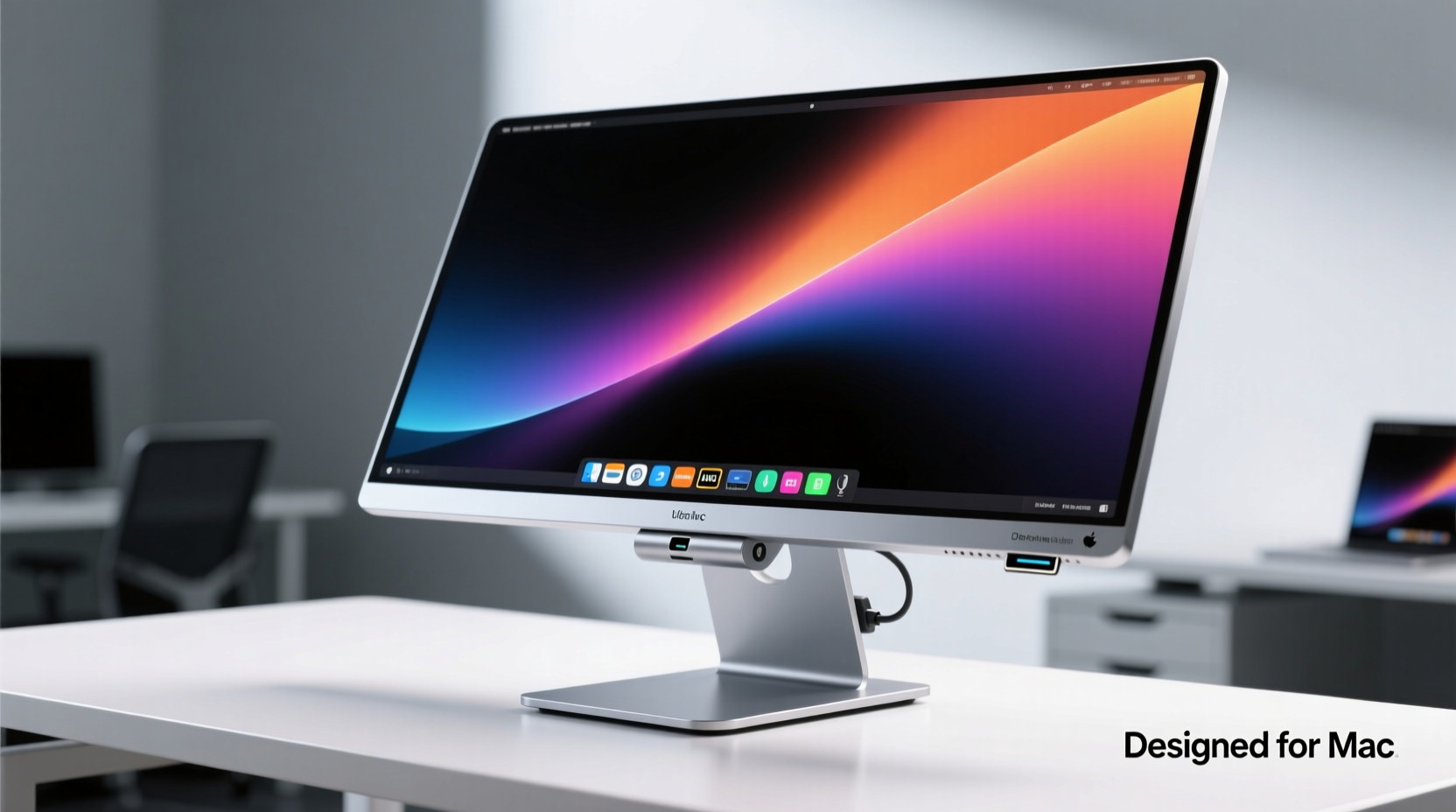
Apple’s built-in Retina displays set a high standard for pixel density and color fidelity. When connecting an external monitor, matching that quality ensures a seamless transition between screens. A 4K resolution (3840 x 2160) provides four times the pixels of Full HD, delivering crisper text, smoother gradients, and more screen real estate for multitasking.
macOS handles high-DPI scaling exceptionally well, but only if the monitor supports it properly. Affordable 4K monitors designed with IPS panels and proper HDR support can replicate the Mac aesthetic—vibrant yet natural colors, wide viewing angles, and consistent brightness.
“Choosing the right external display isn’t just about resolution—it’s about maintaining the integrity of your creative output.” — Jordan Lee, UI/UX Designer & Mac Workflow Consultant
Key Features to Look for in a Mac-Compatible 4K Monitor
Not all 4K monitors work flawlessly with Macs. Some require additional adapters, lack proper scaling options, or produce inaccurate colors. To avoid frustration, prioritize these features:
- USB-C with Power Delivery (PD): Allows single-cable connection for video, data, and charging—especially useful for MacBook Air and Pro models.
- IPS Panel: Ensures accurate color reproduction and wide viewing angles, critical for design and photo editing.
- 99% sRGB or better color coverage: Matches Mac’s native color space for consistent visuals across devices.
- macOS Scaling Support: Enables \"HiDPI\" mode, making text and UI elements appear sharp instead of blurry.
- Adjustable Stand: Offers height, tilt, and swivel adjustments for ergonomic comfort during long sessions.
- HDMI 2.0 or DisplayPort 1.4: Ensures full 4K at 60Hz; older HDMI versions may limit performance.
Top 5 Affordable 4K Monitors for Mac Users
The following monitors balance cost, performance, and Mac compatibility. All support USB-C with power delivery, offer sharp 4K IPS displays, and are priced under $500—making them excellent choices for students, freelancers, and professionals seeking value.
| Model | Price Range | Panel Type | USB-C PD | Color Coverage | Stand Adjustability |
|---|---|---|---|---|---|
| Dell UltraSharp U2723QE | $450–$500 | IPS Black (enhanced contrast) | Yes (90W) | 100% sRGB, 100% Rec 709 | Height, tilt, swivel, pivot |
| LG 27UP850-W | $380–$430 | IPS | Yes (96W) | 99% sRGB, HDR10 | Height, tilt |
| Samsung M70B (S32M700TC) | $400–$450 | IPS | Yes (65W) | 99% sRGB | Tilt only |
| AOC U27U2DS | $360–$400 | IPS | Yes (65W) | 100% sRGB | Height, tilt, swivel |
| Philips 276E8VJSB | $320–$360 | IPS | Yes (65W) | 117% sRGB (slightly oversaturated) | Height, tilt |
All five models support 4K at 60Hz over USB-C, eliminating the need for separate power bricks or HDMI cables. The Dell and LG models stand out for superior factory calibration and consistent macOS integration, while the AOC and Philips offer strong value for budget-conscious buyers.
Setting Up Your 4K Monitor with Mac: A Step-by-Step Guide
Connecting a 4K monitor should be simple, but optimal configuration requires attention to detail. Follow these steps to ensure the sharpest possible display:
- Connect via USB-C: Use the cable provided with your monitor or a certified USB-C to USB-C cable.
- Wait for detection: macOS usually detects the display within seconds. If not, go to System Settings > Displays and click “Detect Displays.”
- Enable HiDPI scaling: In Display settings, hold Option and click “Scaled” to reveal hidden resolutions. Select a scaled resolution labeled “(Looks like X)” for crisp text.
- Adjust refresh rate: Ensure the monitor runs at 60Hz. Lower rates can cause lag or stuttering.
- Calibrate colors (optional): Use macOS Display Calibrator Assistant or a hardware calibrator for professional-grade accuracy.
- Set arrangement: Drag the white menu bar in the display layout to choose which screen is primary.
Real-World Example: Freelancer Workflow Upgrade
Jamie, a freelance graphic designer using a MacBook Air M1, struggled with limited screen space while juggling design tools and client communication. After researching options under $450, she purchased the LG 27UP850-W. With its USB-C connectivity, she connected her laptop with one cable—charging it while extending her workspace.
The 4K IPS panel rendered Adobe Photoshop layers with precision, and colors matched her MacBook’s display closely. The 96W power delivery kept her MacBook charged through full workdays. Within a week, Jamie reported a noticeable boost in efficiency, especially when using split-screen layouts for design and feedback apps.
“It felt like getting a desktop upgrade without buying a new computer,” she said. “The screen is sharp, and not having extra cables on my desk makes my setup feel professional.”
Checklist: Choosing the Right 4K Monitor for Your Mac
Before purchasing, verify the following:
- ✅ Supports 4K resolution at 60Hz via USB-C
- ✅ Includes at least 65W USB-C power delivery
- ✅ Uses an IPS panel for accurate colors and viewing angles
- ✅ Offers adjustable stand or VESA mount compatibility
- ✅ Has positive user reviews specifically from Mac owners
- ✅ Enables HiDPI mode on macOS without third-party tools
- ✅ Includes a three-year warranty or reliable customer support
Frequently Asked Questions
Do all USB-C 4K monitors work with MacBooks?
No. While most modern MacBooks support DisplayPort Alt Mode over USB-C, some budget monitors don’t properly implement it, leading to blurry text or no signal. Always confirm macOS compatibility in product specs or user forums.
Can I daisy-chain two 4K monitors to my Mac?
Only if your Mac model supports it. M1 and later MacBooks support one external display natively. For dual 4K monitors, you’ll need Thunderbolt docks or a Mac Studio/Pro with multiple ports. Most affordable 4K monitors don’t support daisy-chaining anyway.
Is HDR important for Mac users?
For general use, HDR is a bonus. However, if you edit video or view HDR content, look for monitors with HDR10 support. True HDR performance (with high peak brightness and local dimming) is rare in budget models, so manage expectations.
Final Thoughts and Next Steps
An affordable 4K monitor with USB-C convenience doesn’t have to mean compromise. Models like the Dell U2723QE, LG 27UP850-W, and AOC U27U2DS prove that sharp visuals, clean cable management, and Mac-friendly features are within reach of most budgets. The key is prioritizing true HiDPI support, solid color accuracy, and sufficient power delivery.
Investing in the right external display enhances not just your Mac’s capabilities, but also your daily comfort and efficiency. Whether you're working from home, studying, or creating digital art, a well-chosen 4K monitor becomes an extension of your Mac’s excellence.




 浙公网安备
33010002000092号
浙公网安备
33010002000092号 浙B2-20120091-4
Comments
No comments yet. Why don't you start the discussion?