
A well-designed Android home screen does more than look good—it enhances usability, reduces distraction, and integrates seamlessly with your daily routine. The best layouts aren’t always the most expensive or complex; often, simplicity paired with smart automation delivers the best results. With a growing number of free or low-cost tools, you can create a personalized, efficient interface that feels futuristic without requiring high-end devices or premium subscriptions.
The key is balancing aesthetics with functionality. Whether you're managing work tasks, tracking fitness goals, or controlling smart home devices, your home screen should serve as a command center—not a cluttered afterthought. This guide explores budget-friendly strategies, essential apps, and intelligent design principles to help you build an Android home screen that’s both beautiful and highly functional.
Design Principles for a Smarter Home Screen
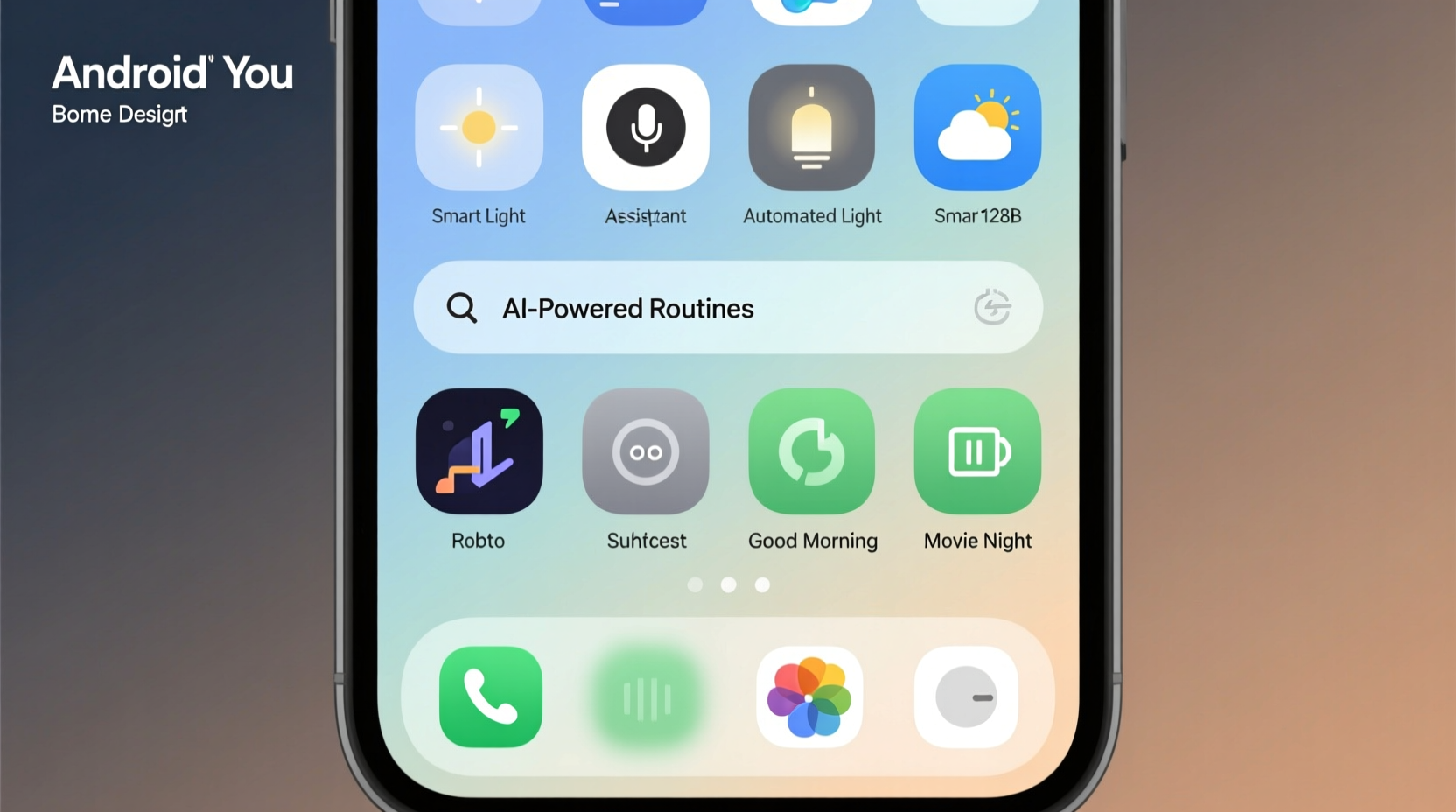
An effective home screen starts with intention. Before installing launchers or widgets, consider how you use your phone. Do you prioritize communication? Health tracking? Smart home control? Mapping out your core needs helps eliminate unnecessary icons and streamline navigation.
Three foundational principles guide successful layouts:
- Minimalism: Limit app icons to only those used daily. Hide the rest in folders or app drawers.
- Hierarchy: Place frequently used apps and widgets within thumb reach (lower-center area).
- Consistency: Use uniform icon packs and font styles to create visual harmony.
Adopting these principles reduces cognitive load and improves efficiency. A clean layout also complements smart technology integration by making automation controls easy to access.
Affordable Tools That Deliver Premium Results
You don’t need to spend money to achieve a polished, intelligent home screen. Many powerful tools are free or offer robust free tiers. Below is a comparison of top budget-friendly options across categories.
| Tool | Type | Key Feature | Cost |
|---|---|---|---|
| Niagara Launcher | Launcher | Minimalist design with smart app suggestions | Free (Pro: $3.99) |
| Kustom Live Wallpaper (KLWP) | Customization | Create dynamic, interactive wallpapers | $3.99 |
| Tasker | Automation | Advanced scripting for routines and triggers | $3.99 |
| Microsoft Launcher | Launcher | Cross-device sync with Windows | Free |
| Home Assistant | Smart Home | Open-source hub for device control | Free |
These tools allow deep customization while remaining accessible. For example, KLWP enables animated widgets that respond to time, battery level, or weather—all without coding expertise. Tasker automates actions like silencing your phone at bedtime or turning on lights when you arrive home.
Step-by-Step: Building Your Layout in Under 30 Minutes
Follow this streamlined process to upgrade your home screen quickly and affordably.
- Choose a launcher: Install Niagara or Microsoft Launcher from the Play Store. Both offer intuitive interfaces and support widgets and icon packs.
- Select a cohesive icon pack: Try “Whicons” or “Linebit,” both free and compatible with major launchers. Apply via launcher settings.
- Add essential widgets: Include a calendar, weather, and to-do list. Position them on your main screen for visibility.
- Organize apps into folders: Group by function—e.g., Social, Finance, Utilities. Label clearly and limit folder size to six apps.
- Integrate smart tech: Link your phone to Google Home or Home Assistant. Add a widget to control lights, thermostat, or security cameras.
- Set up one automation: Use Tasker or the built-in Routines feature (on Samsung) to trigger actions based on location or time.
This sequence ensures a functional, scalable layout. You can refine it over time, but this foundation supports both simplicity and scalability.
Real-World Example: Maria’s Morning Routine Upgrade
Maria, a teacher and mother of two, found herself constantly checking her phone for reminders, weather, and school alerts. Her home screen was cluttered with 40+ icons, making it hard to find anything quickly.
She redesigned her layout using Niagara Launcher, added a custom KLWP wallpaper showing the time, weather, and next calendar event, and created a “Family” folder with school apps, messaging, and grocery lists. She used Tasker to auto-enable DND during school hours and trigger her smart coffee maker when she unlocked her phone in the morning.
The result? She reduced app-opening time by 60% and reported feeling less stressed during mornings. “It’s not just about looks,” she said. “Now my phone works *with* me instead of against me.”
“Smartphone interfaces should adapt to human behavior, not the other way around.” — Dr. Lin Zhao, HCI Researcher at MIT Media Lab
Essential Checklist for Your Smart Home Screen
Before finalizing your layout, run through this checklist to ensure it’s optimized for performance and convenience.
- ✅ Only 5–7 app icons visible on the main screen
- ✅ At least one active widget providing real-time info (weather, schedule, etc.)
- ✅ All non-essential apps hidden in folders or drawer
- ✅ Consistent icon pack applied across all apps
- ✅ One automation rule active (e.g., night mode at sunset)
- ✅ Smart home controls accessible in one tap
- ✅ Dark mode enabled during evening hours
This checklist balances minimalism with utility. It prevents over-customization while ensuring critical functions remain instantly available.
Frequently Asked Questions
Can I achieve a smart home screen without root or paid apps?
Absolutely. Most modern Android devices support automation via Google Assistant Routines, Tasker (one-time purchase), and free launchers like Evie or Nova. No root required.
How do I prevent my customizations from slowing down my phone?
Avoid excessive live wallpapers or too many background widgets. Stick to 2–3 active widgets and use lightweight launchers. Test performance after each change.
Is it safe to use Home Assistant on my phone?
Yes, if self-hosted securely. Use strong passwords, enable two-factor authentication, and avoid exposing your instance to the public internet without a VPN or reverse proxy.
Final Thoughts: Simplicity Meets Intelligence
The best Android home screen isn’t defined by flashy animations or complex scripts—it’s defined by how effortlessly it supports your life. Affordable tools now offer capabilities once reserved for high-end setups. With thoughtful organization and a few smart integrations, your phone can become a proactive assistant rather than a passive device.
Start small: pick one launcher, add one useful widget, and automate one daily task. Build from there. Over time, your home screen will evolve into a personalized dashboard that saves time, reduces stress, and connects seamlessly with your smart environment.




 浙公网安备
33010002000092号
浙公网安备
33010002000092号 浙B2-20120091-4
Comments
No comments yet. Why don't you start the discussion?