
If your AirPods are only playing sound in one ear, you're not alone. This issue affects many users across different models — from the original AirPods to AirPods Pro and AirPods Max. While it can be frustrating during calls, music, or workouts, most cases have simple solutions. Before assuming hardware failure, explore a range of software, connectivity, and maintenance fixes that often resolve the imbalance quickly.
Check Audio Balance Settings
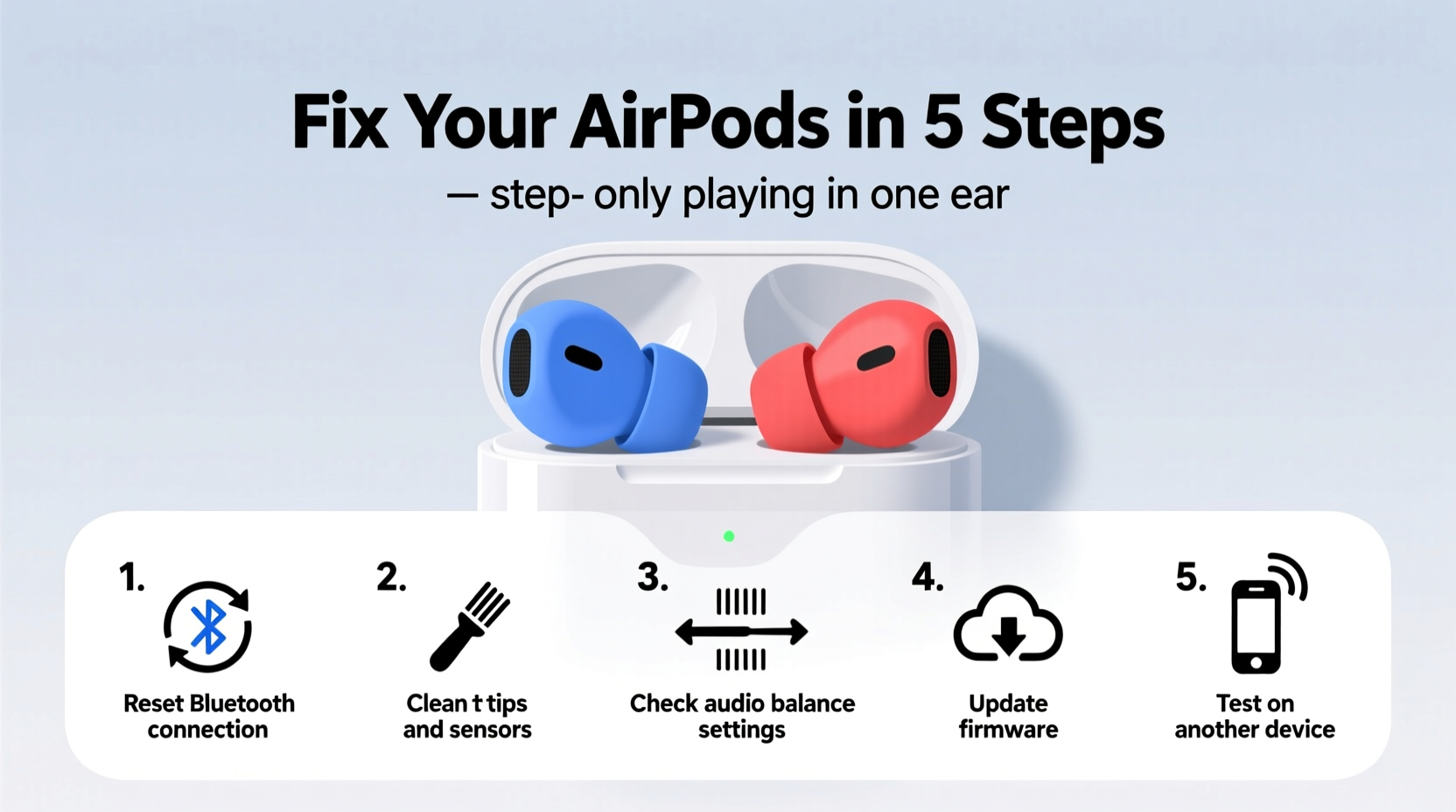
One of the most common causes of one-sided audio is an imbalanced stereo setting on your device. iOS and macOS allow users to adjust left-right audio levels for accessibility, but accidental changes can mute one side entirely.
- Open Settings on your iPhone or iPad.
- Navigate to Accessibility > Audio/Visual.
- Tap Balance under the Hearing section.
- Ensure the slider is centered between Left (L) and Right (R).
If the slider is shifted toward one side, move it back to the middle. Test playback immediately using a song or podcast. On Mac, go to System Settings > Accessibility > Audio and check the same balance control.
Clean Your AirPods Properly
Dirt, earwax, and debris buildup can block sound output, especially in the smaller speaker grilles of AirPods Pro or second-gen models. A clogged mesh can mimic a malfunction when the issue is simply physical obstruction.
To clean your AirPods safely:
- Power them off and remove from the case.
- Use a dry, lint-free cloth to wipe the exterior.
- Gently brush the speaker mesh with a soft-bristled toothbrush (clean and dry).
- Avoid liquids, compressed air, or sharp objects that could damage internal components.
- For AirPods Pro, carefully remove the silicone ear tips and rinse with lukewarm water (no soap). Dry completely before reattaching.
After cleaning, play audio at moderate volume to assess improvement. Repeat if necessary.
Restart and Re-pair Your AirPods
Bluetooth connectivity glitches can cause uneven audio delivery. Resetting the connection forces your device to re-establish a clean link with both earbuds.
Step-by-Step Re-pairing Guide
- Place both AirPods in the charging case and close the lid.
- Wait 30 seconds, then open the lid.
- On your iPhone, go to Settings > Bluetooth.
- Tap the “i” icon next to your AirPods and select Forget This Device.
- Press and hold the setup button on the back of the case for about 15 seconds until the status light flashes amber, then white.
- Reopen the case near your iPhone and follow the on-screen pairing prompt.
This process clears corrupted Bluetooth profiles and reinstalls firmware handshake protocols. It resolves many intermittent audio issues, including single-ear silence.
Test with Another Device
Isolate whether the problem lies with your AirPods or the source device. Connect your AirPods to a different phone, tablet, or laptop.
| Device Type | Expected Result | Troubleshooting Path |
|---|---|---|
| iPhone/iPad | Sound in both ears | Issue likely with original device settings |
| Android/Mac | No sound or one-sided audio | Problem is with AirPods hardware or firmware |
| All devices | Only one ear works | Probable hardware defect |
If the issue persists across multiple devices, the fault likely resides within the AirPods themselves — possibly a damaged driver or internal wiring.
Firmware and Software Updates
Apple occasionally releases firmware updates for AirPods that fix bugs related to audio synchronization and stability. These updates install automatically when your AirPods are connected to an updated iOS device and placed in the charging case.
To ensure your system supports the latest firmware:
- Update your iPhone or iPad to the latest version of iOS.
- Keep your AirPods in the case and connected to power.
- Leave the case near your paired device for several hours.
You cannot manually trigger firmware updates, but keeping your ecosystem up to date maximizes compatibility and performance.
“Many one-ear issues stem from outdated firmware or mismatched software versions. Ensuring all devices are current eliminates a major variable.” — Jordan Lee, Senior Audio Technician at SoundSync Labs
Check Mono Audio and Accessibility Features
iOS includes a mono audio option designed for users with hearing differences. When enabled, it combines left and right channels into both earbuds. However, if misconfigured, it may appear as though one earbud isn’t working.
How to Verify Mono Audio Setting
- Go to Settings > Accessibility > Audio/Visual.
- Toggle off Play Stereo Audio as Mono.
- Test playback in both ears.
If the feature was already off, toggling it on and off again can reset the audio engine and correct routing errors.
Real-World Example: Sarah’s AirPods Fix
Sarah, a fitness instructor, noticed her AirPods Pro only played audio in her right ear during online classes. She tried restarting her iPhone and cleaning the earbuds, but the issue remained. Frustrated, she nearly ordered a replacement.
Instead, she tested the AirPods with her partner’s Android phone. Both ears worked perfectly. That pointed to her device, not the hardware. She checked her iPhone’s Accessibility settings and found the audio balance slider had been accidentally shifted all the way to the right during a previous workout app session.
Centering the slider restored full stereo sound instantly. A five-second fix saved her $249.
When to Seek Hardware Repair
If all software and cleaning efforts fail, consider hardware failure. Common signs include:
- Crackling or distorted sound in one ear
- Complete silence despite charging and pairing
- Intermittent cutouts even after resets
- Physical damage or liquid exposure
Apple offers repair or replacement services through Apple Support, either via mail-in or at an Apple Store. If your AirPods are under warranty or covered by AppleCare+, you may qualify for free service. Out-of-warranty replacements start at around $49–$89 per earbud, depending on model.
Quick Troubleshooting Checklist
Follow this checklist in order to systematically resolve one-ear playback issues:
- ✅ Check audio balance settings (centered)
- ✅ Clean speaker meshes and ear tips
- ✅ Disable mono audio and accessibility overrides
- ✅ Restart your iPhone or connected device
- ✅ Forget and re-pair AirPods
- ✅ Test with another device
- ✅ Ensure iOS and firmware are up to date
- ✅ Contact Apple Support if no resolution
Frequently Asked Questions
Why are my AirPods not connecting both ears?
This usually happens due to a pairing glitch, low battery in one bud, or a firmware sync issue. Try resetting the connection by forgetting the device and re-pairing. Also, ensure both AirPods are charged and seated properly in the case.
Can I replace just one AirPod if it stops working?
Yes. Apple sells individual replacements for lost or defective AirPods and charging cases. You’ll need to provide the serial number, and the replacement will be new or equivalent to new. Pairing with your existing bud is seamless once received.
Do sweat and moisture cause AirPods to fail in one ear?
While AirPods Pro have IPX4 resistance, repeated exposure to sweat or humidity can degrade internal components over time. Always dry your AirPods after workouts and avoid wearing them in the shower or pool.
Final Thoughts
An AirPod playing in only one ear doesn’t always mean it’s broken. Most issues stem from preventable or reversible causes — misconfigured settings, debris buildup, or temporary connectivity hiccups. By methodically testing each potential factor, you can often restore full audio without cost or hassle.




 浙公网安备
33010002000092号
浙公网安备
33010002000092号 浙B2-20120091-4
Comments
No comments yet. Why don't you start the discussion?