
Seeing an orange light flash on your AirPods charging case can be unsettling—especially when your earbuds suddenly disconnect or refuse to pair. Unlike the familiar white blinking light that signals pairing mode, an amber or orange flash often indicates a deeper issue. It could point to low battery, pairing glitches, firmware conflicts, or even hardware faults. Understanding what the orange light means—and knowing how to respond—is essential for restoring seamless functionality.
This guide breaks down the exact implications of an orange-flashing AirPods case, walks you through proven troubleshooting methods, and helps prevent future connectivity problems. Whether you're using first-gen AirPods or the latest model, this information applies across the board.
What Does an Orange Flash Mean on the AirPods Case?
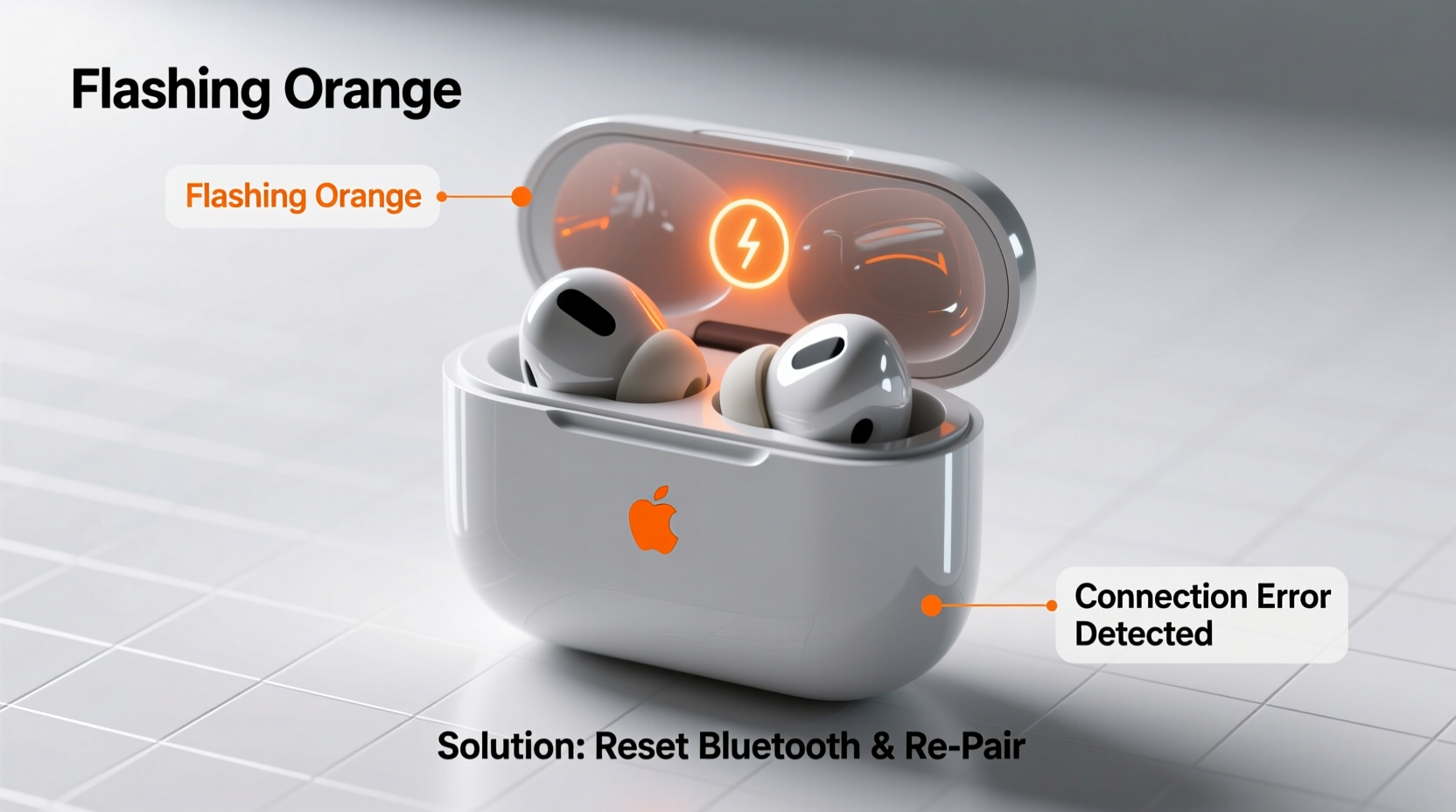
The status light on your AirPods case provides real-time feedback about battery levels and connection states. The color and pattern of the light are key indicators:
- White, flashing: AirPods are in pairing mode and ready to connect to a new device.
- Amber/orange, steady: AirPods are charging inside the case.
- Amber/orange, flashing: There is a problem with pairing or setup.
- No light: Case is either off (not recently opened) or fully drained.
When the case flashes orange while open and the AirPods are inside, Apple’s official documentation defines this as a “setup issue.” In practical terms, it means the AirPods have lost their trusted connection with your primary device and cannot re-establish it automatically. This doesn’t always mean hardware failure—it's often software-related or caused by interference.
“An orange flash typically reflects a failed handshake between the AirPods and the connected device. Most cases resolve with a reset and re-pairing process.” — Jordan Lee, Senior Audio Technician at SoundSync Labs
Step-by-Step Guide to Fix the Orange Flash Error
Before assuming your AirPods are defective, follow this structured approach. Many users report success after completing these steps in order.
- Charge Both AirPods and Case Fully
Connect the charging case to a reliable power source using the original cable and adapter. Let it charge for at least 20–30 minutes. A weak battery can prevent proper communication during reset attempts. - Place AirPods Inside the Case and Close the Lid
Allow them to sit for 30 seconds. This ensures both earbuds are powered down and synchronized within the case environment. - Open the Lid and Press the Setup Button
Locate the small circular button on the back of the case. Press and hold it for **at least 15 seconds** until the status light changes from amber to white and begins flashing rapidly. - Release the Button and Enter Pairing Mode
Once the white flash appears, your AirPods are now in factory reset mode and ready to reconnect. - Reconnect to Your Device
Bring your iPhone or iPad close to the open case. A popup should appear showing your AirPods. Tap “Connect” and follow the prompts to complete setup.
Advanced Troubleshooting: When Resetting Isn't Enough
If the orange light persists after resetting, consider these advanced solutions. These address less obvious but common causes such as Bluetooth stack corruption, outdated firmware, or iCloud sync issues.
Forget the Device and Clear Bluetooth Cache
Sometimes, your phone retains corrupted pairing data that interferes with reconnection.
- Go to Settings > Bluetooth on your iPhone.
- Tap the “i” icon next to your AirPods listing.
- Select Forget This Device.
- Restart your iPhone completely.
- After rebooting, open the AirPods case near your phone and re-pair as if new.
Update Firmware and iOS
Apple releases periodic firmware updates for AirPods that improve stability and fix bugs. However, these updates occur silently when your AirPods are connected to an iOS device.
- Ensure your iPhone is updated to the latest version of iOS (Settings > General > Software Update).
- Leave your AirPods in the case, connected to power, and paired to your iPhone overnight. Firmware updates usually happen during idle periods.
Check for Interference and Network Congestion
Bluetooth operates on the 2.4 GHz band, which is shared by Wi-Fi routers, microwaves, and other wireless devices. High congestion can disrupt signal handshakes.
Do’s and Don’ts: Common Mistakes That Worsen the Problem
| Do’s | Don’ts |
|---|---|
| Use the original charging cable and adapter | Use cheap third-party chargers without MFi certification |
| Reset AirPods properly using the setup button | Assume the AirPods are broken after one failed attempt |
| Keep iOS and firmware up to date | Ignore persistent connection warnings |
| Store AirPods in a dry, cool place | Expose them to moisture or extreme temperatures |
| Restart your phone before troubleshooting | Try multiple fixes simultaneously without testing results |
Real Example: Sarah’s AirPods Wouldn’t Connect After iOS Update
Sarah upgraded her iPhone to iOS 17.5 and immediately noticed her AirPods Pro wouldn’t reconnect. Each time she opened the case, the light flashed orange. She tried restarting her phone and placing the AirPods back in the case multiple times, but nothing worked.
She followed the full reset procedure: forgetting the device in Bluetooth settings, holding the setup button for 15 seconds until the light turned white, then re-pairing. Within two minutes, her AirPods appeared on screen and connected successfully. Later, she discovered a pending firmware update had installed overnight, stabilizing performance.
Sarah’s experience highlights how software updates can temporarily disrupt Bluetooth profiles—and why methodical resets are more effective than repeated pairing attempts.
Checklist: How to Resolve AirPods Case Flashing Orange
Use this concise checklist to ensure no step is missed:
- ✅ Charge the AirPods case fully using a certified cable
- ✅ Place AirPods inside and close the lid for 30 seconds
- ✅ Press and hold the setup button for 15+ seconds until light flashes white
- ✅ On your iPhone, go to Settings > Bluetooth and forget the AirPods
- ✅ Restart your iPhone
- ✅ Reopen the AirPods case near the phone and tap “Connect”
- ✅ Confirm firmware is updated by leaving AirPods connected overnight
- ✅ Test audio playback across apps (Music, Phone, YouTube)
Frequently Asked Questions
Why do my AirPods flash orange even when fully charged?
An orange flash isn’t about battery level—it’s a pairing alert. Even with full charge, AirPods may enter recovery mode due to lost connections, failed updates, or Bluetooth conflicts. Perform a reset to resolve it.
Can I fix flashing orange without an iPhone?
Yes, but pairing will require a compatible device running iOS or iPadOS. You can also use a Mac with macOS Monterey or later. Open System Settings > Bluetooth, put AirPods in pairing mode, and click “Connect” when they appear.
Is a constantly flashing orange light a sign of a dead battery?
Not necessarily. While a dead case battery shows no light at all, a flashing orange light suggests the system has power but cannot initiate pairing. If the case won’t charge at all, test the cable and port; if still unresponsive, contact Apple Support.
Preventing Future Connection Errors
Maintaining consistent performance requires proactive habits. Consider these long-term strategies:
- Limit exposure to moisture: Avoid wearing AirPods in heavy rain or high-sweat environments unless using Water Resistance models like AirPods Pro.
- Avoid dropping the case: Impacts can damage internal circuitry or misalign the charging contacts.
- Pair only trusted devices: Excessive switching between phones, tablets, and laptops increases pairing complexity.
- Clean the charging contacts monthly: Use a dry cotton swab to remove lint and debris from the case and AirPod stems.
“The most overlooked factor in AirPods longevity is digital hygiene—regularly clearing old Bluetooth pairings and updating firmware quietly extends usability far beyond expectations.” — Dr. Lena Torres, Wireless Systems Researcher at TechInsight Group
Conclusion: Take Control of Your AirPods Experience
An orange light on your AirPods case doesn’t have to mean frustration or replacement. With the right knowledge, most connection issues are reversible using simple resets and clean pairing procedures. The key is understanding that the flash is a diagnostic signal—not a death sentence for your earbuds.
By following the steps outlined here, you’ve already taken control of the problem. Whether it was a firmware hiccup, a forgotten device setting, or environmental interference, resolution is within reach. Now that your AirPods are working again, maintain them with care: keep software current, store them properly, and perform occasional maintenance checks.




 浙公网安备
33010002000092号
浙公网安备
33010002000092号 浙B2-20120091-4
Comments
No comments yet. Why don't you start the discussion?