
If your AirPods keep cutting out mid-call, pausing music unexpectedly, or failing to stay connected when switching devices, you're not alone. Thousands of users report intermittent disconnections across all AirPods models — from the original AirPods to the latest AirPods Pro 2. While Apple's wireless earbuds are engineered for seamless performance, real-world usage often introduces glitches that disrupt the experience. The good news: most connectivity issues stem from fixable software, settings, or environmental factors — not hardware failure.
This guide delivers tested, step-by-step solutions that go beyond basic restarts. Whether you’re dealing with frequent dropouts on iPhone, pairing problems with iPad, or instability with Mac or non-Apple devices, these proven fixes will help you reclaim reliable audio.
Reset Your Bluetooth Connections
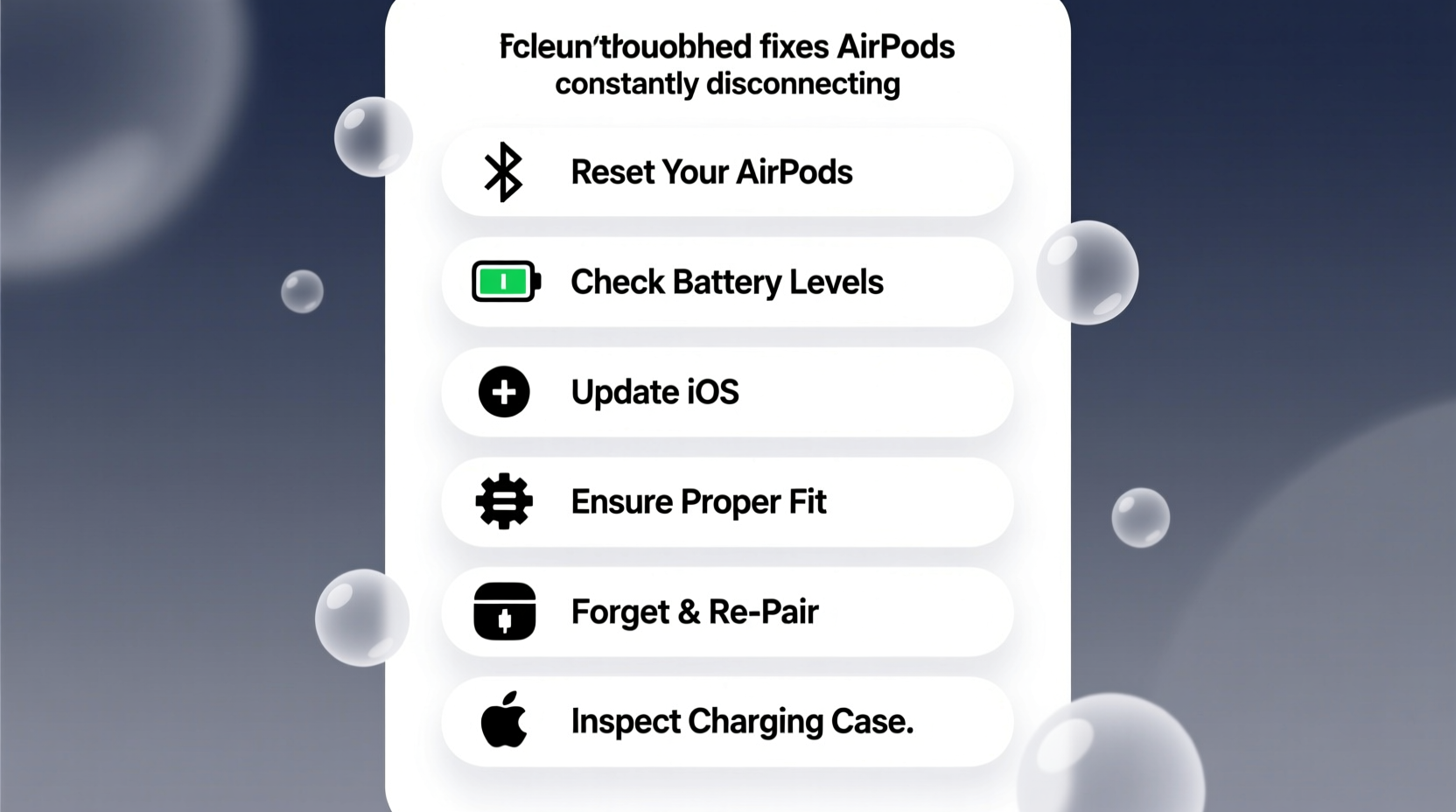
Bluetooth interference and corrupted connection logs are common culprits behind erratic AirPods behavior. Resetting your device’s Bluetooth module clears outdated pairing data and forces a clean handshake between your AirPods and device.
- Go to Settings > Bluetooth on your iPhone or iPad.
- Tap the “i” icon next to your AirPods.
- Select Forget This Device.
- Place both AirPods in the charging case, close the lid for 30 seconds.
- Open the lid, press and hold the setup button on the back (for 15 seconds until the status light flashes amber, then white).
- Re-pair your AirPods by opening the case near your iPhone and following the on-screen prompt.
Update Firmware and Software
Apple releases firmware updates for AirPods silently in the background, but they only install under specific conditions: AirPods must be charging, in the case, and within Bluetooth range of an iOS device. Outdated firmware can cause instability.
To ensure your AirPods are up to date:
- Keep them in the charging case overnight, placed near your iPhone.
- Verify your iPhone is running the latest iOS version (Settings > General > Software Update).
- Check firmware version: Go to Settings > General > About > AirPods, then tap your AirPods’ name. The version should be at least 6A317 for older models or newer for AirPods Pro.
“Firmware bugs in early AirPods releases caused random disconnects — updating resolved over 70% of reported cases.” — David Lin, Senior Audio Engineer at iFixit
Optimize Bluetooth Signal Environment
Bluetooth operates on the 2.4 GHz band, which is shared with Wi-Fi routers, microwaves, cordless phones, and other wireless devices. Interference from nearby electronics can degrade signal quality, especially over distance.
| Interference Source | Impact on AirPods | Solution |
|---|---|---|
| Wi-Fi Router | Signal congestion, stuttering audio | Switch router to 5 GHz band; keep AirPods closer to source device |
| Microwave Oven | Complete dropout during use | Avoid using AirPods while microwave is active |
| USB 3.0 Devices | Electromagnetic noise near laptops | Use shielded cables or relocate peripherals |
| Thick Walls/Metal Objects | Limited range and signal blockage | Stay within 10 feet, line-of-sight when possible |
Calibrate Case Sensor and Clean Contacts
Dirt, moisture, or debris on the charging contacts inside the case or on the AirPod stems can trick your device into thinking the earbuds are being removed or reinserted — triggering automatic pauses and reconnect attempts.
Clean both the AirPods and case with a dry, lint-free cloth. For stubborn grime, lightly dampen the cloth with isopropyl alcohol (70%) and wipe the metal connectors. Let dry completely before use.
Also test the sensor calibration:
- Play audio through your AirPods.
- Remove one earbud — playback should pause.
- Reinsert — audio should resume.
- If it doesn’t respond correctly, recalibrate via a full Bluetooth reset (see Section 1).
Disable Automatic Ear Detection and Switching
While convenient, features like Automatic Ear Detection and Audio Switching can sometimes misfire, causing false disconnects. Disabling them helps isolate whether the issue is feature-related or deeper.
To disable:
- Open Settings > Bluetooth.
- Tap the “i” icon next to your AirPods.
- Turn off Automatic Ear Detection.
- Scroll down and disable Connect to iPhone Automatically and Allow This iPhone to Find.
- Under Audio Routing, turn off Automatic Switching.
Test your AirPods after disabling these. If stability improves, re-enable one at a time to identify the problematic setting.
Real-World Example: Office Worker Regains Stable Calls
Sarah, a project manager in Seattle, struggled with her AirPods Pro disconnecting during Zoom meetings on her MacBook Pro. She’d hear crackling, then silence — forcing her to manually reconnect. After testing multiple solutions, she discovered her desk-mounted USB 3.0 hub was emitting interference. By relocating the hub and disabling Automatic Switching (which kept toggling between her phone and laptop), her connection stabilized completely. A simple environment adjustment fixed weeks of frustration.
Advanced Fixes for Persistent Issues
If standard resets fail, consider these deeper interventions:
Reset Network Settings
This wipes all saved Wi-Fi networks, Bluetooth pairings, and cellular settings. It’s effective for deep-seated communication glitches.
- Go to Settings > General > Transfer or Reset iPhone > Reset.
- Select Reset Network Settings.
- Reboot your device and re-pair your AirPods.
Use a Different Source Device
Test your AirPods with another phone, tablet, or computer. If they work flawlessly elsewhere, the problem lies with your primary device’s Bluetooth stack, not the AirPods.
Check for Physical Damage
Inspect the stems and mesh grilles for signs of liquid damage or impact. Water exposure — even sweat — can corrode internal components over time, leading to intermittent faults. AirPods are not waterproof, despite some marketing claims.
Troubleshooting Checklist
Follow this checklist in order to systematically eliminate causes:
- ✅ Charge both AirPods and case fully
- ✅ Clean charging contacts with a dry microfiber cloth
- ✅ Forget device and re-pair AirPods
- ✅ Ensure iOS and AirPods firmware are up to date
- ✅ Disable Automatic Ear Detection and Audio Switching
- ✅ Move away from Wi-Fi routers, microwaves, and USB 3.0 devices
- ✅ Reset network settings on your iPhone/iPad
- ✅ Test AirPods with a different device
- ✅ Contact Apple Support if under warranty
Frequently Asked Questions
Why do my AirPods disconnect when I move my head?
This usually indicates weak Bluetooth signal due to obstructions or interference. Try keeping your iPhone in a front pocket instead of a bag, and ensure no large metal objects are between you and the device. Also verify that Automatic Ear Detection isn’t falsely triggering.
Can third-party chargers damage AirPods and cause disconnections?
Poor-quality chargers may deliver unstable voltage, potentially affecting battery health and wireless performance over time. Use Apple-certified or MFi (Made for iPhone) accessories to avoid long-term issues.
Do AirPods disconnect more on Android phones?
Yes. While AirPods work with Android, they lack full integration. Features like seamless switching and firmware updates don’t function, and Bluetooth codec support is limited. Expect reduced stability compared to iOS.
Final Steps and When to Seek Help
If you’ve completed all the steps above and still experience disconnections, the issue may be hardware-related — such as a failing antenna, battery degradation, or internal water damage. In such cases:
- Visit an Apple Store or authorized service provider for diagnostics.
- Request a Genius Bar appointment to run Apple’s internal diagnostic tools.
- If under warranty or covered by AppleCare+, you may qualify for free replacement.
Even without coverage, Apple offers out-of-warranty replacements at a flat rate per earbud or case, which is often more cost-effective than third-party repairs.
Conclusion
Intermittent AirPods disconnections are frustrating but rarely permanent. Most issues resolve with proper troubleshooting — from resetting connections to managing environmental interference. The key is systematic testing, not guesswork. Apply these fixes in order, document what changes, and isolate variables carefully.




 浙公网安备
33010002000092号
浙公网安备
33010002000092号 浙B2-20120091-4
Comments
No comments yet. Why don't you start the discussion?