
Apple’s Airtag is designed to provide seamless, real-time tracking of personal items through the Find My network. But when your Airtag stops updating its location—or shows “No Location Found”—it can be frustrating, especially if you're relying on it to locate a lost item. The good news is that most issues preventing location updates are fixable with systematic troubleshooting. Whether it's a connectivity hiccup, battery issue, or software glitch, this guide walks you through every practical step to restore your Airtag’s functionality.
Why Your Airtag Might Not Be Updating
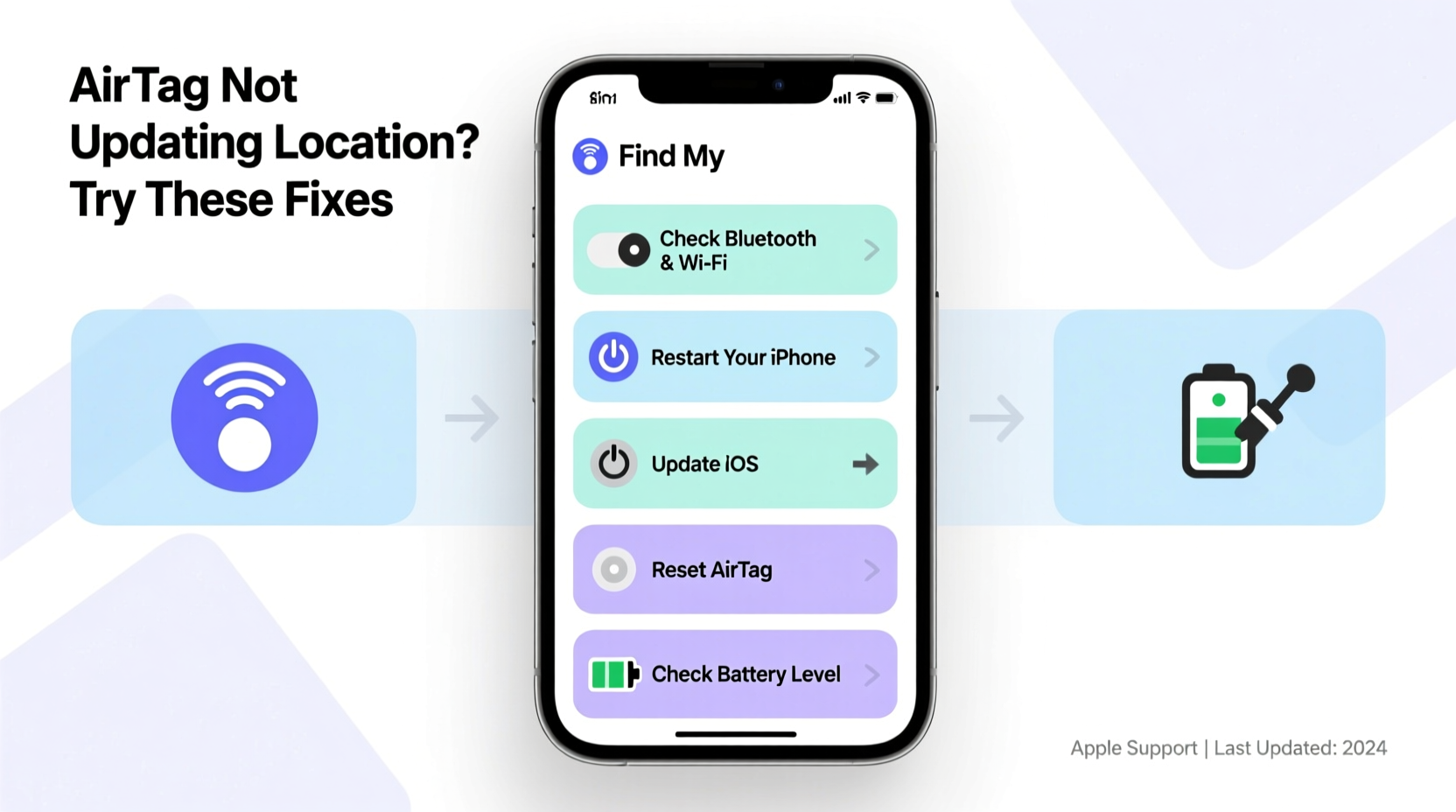
Airtags rely on Bluetooth, ultra-wideband (UWB), and the vast Find My network to relay their position. When an Airtag isn’t updating, the root cause typically falls into one of these categories:
- Low or dead battery – Airtags use CR2032 coin batteries that last about a year.
- No nearby Apple devices – If no iPhones, iPads, or Macs pass near your Airtag, it can't report its location.
- Bluetooth disabled or interference – Bluetooth must be active on your device for proximity detection.
- Software bugs in iOS or Find My app – Outdated or buggy firmware can disrupt syncing.
- Physical obstructions or signal blockage – Metal cases, thick materials, or enclosed spaces can block signals.
- Airtag disconnection or reset needed – Sometimes the device simply needs to be re-paired.
Step-by-Step Troubleshooting Guide
Follow this logical sequence to diagnose and resolve your Airtag location problem efficiently.
- Check Battery Status
Open the Find My app, tap the Items tab, and select your Airtag. If the battery level is low or not showing, replace the CR2032 battery immediately. Even if the battery appears functional, try replacing it with a fresh, high-quality brand-name battery. - Ensure Bluetooth and Location Services Are On
Go to Settings > Bluetooth and confirm it’s enabled. Then navigate to Settings > Privacy & Security > Location Services and ensure it’s turned on. For Airtag tracking, both services must be active. - Refresh the Find My App
Close the Find My app completely and relaunch it. On iPhone, swipe up from the bottom (or double-click Home button) and swipe the app away. Reopen to force a refresh. - Check Network Coverage
If your Airtag is far from any Apple device, it won’t update. Wait until someone with an iPhone passes nearby, or consider using Precision Finding if you’re within Bluetooth range (about 30–50 feet). - Reset and Re-pair Your Airtag
Unscrew the Airtag, remove the battery, then reinsert it. Wait for the status light to flash white. Press the back repeatedly until you hear a sound confirming pairing mode. In the Find My app, choose “Connect” and follow the prompts to re-pair. - Update Your iPhone’s iOS
Outdated software may prevent proper communication. Go to Settings > General > Software Update and install any available updates. - Test in an Open Area
Move closer to the suspected location of your Airtag. Avoid basements, metal drawers, or shielded environments that block Bluetooth signals.
Do’s and Don’ts: Airtag Maintenance Checklist
| Do’s | Don’ts |
|---|---|
| Replace the battery annually or when low | Don’t use rechargeable batteries (Airtags require 3V CR2032) |
| Keep Bluetooth and Location Services enabled | Don’t wrap Airtag in aluminum foil or metal cases |
| Use official Apple accessories for better signal access | Don’t assume the Airtag is broken after one failed update |
| Regularly check the Find My app for alerts | Don’t leave the Airtag in extreme temperatures |
| Re-pair the Airtag if unresponsive | Don’t ignore firmware update notifications |
Real-World Example: Recovering a Lost Backpack
Samantha left her backpack in a café, with an Airtag inside. When she opened the Find My app, it showed “Location Not Available.” She panicked but remembered reading about delayed updates. Over the next two hours, she kept checking. Eventually, a customer with an iPhone walked past the bag, triggering a location update. The Airtag pinged within minutes, showing the exact café. Samantha returned and recovered her belongings. This scenario highlights how the Find My network relies on crowd-sourced data—sometimes patience is key.
“Even if your Airtag isn’t updating in real time, it’s likely still functional. The distributed nature of Apple’s network means location data can take minutes—or even hours—to appear.” — David Lin, Mobile Technology Analyst at GadgetInsight
Advanced Fixes for Persistent Issues
If basic steps fail, try these deeper solutions:
- Remove and Re-add the Airtag
In the Find My app, go to Items, tap your Airtag, scroll down, and select “Remove Item.” Then re-pair it as if it were new. This clears any corrupted pairing data. - Reset Network Settings
If Bluetooth behaves erratically, go to Settings > General > Transfer or Reset iPhone > Reset > Reset Network Settings. Note: This will erase saved Wi-Fi passwords. - Check for Interference from Other Devices
Multiple Bluetooth devices (e.g., headphones, speakers) operating nearby can cause congestion. Turn off unused Bluetooth peripherals temporarily. - Use Precision Finding (iPhone 11 and later)
If you’re near the Airtag, open the Find My app, select the item, and tap “Find.” Hold your iPhone and follow the visual, haptic, and audio cues to locate it precisely.
Frequently Asked Questions
How long does it take for an Airtag to update its location?
Updates are usually instant when within Bluetooth range of your iPhone. If out of range, it depends on when another Apple device passes nearby—this could take minutes or several hours. There’s no guaranteed timeline, but the global Find My network increases chances significantly.
Can someone disable my Airtag?
Yes. If an unknown Airtag is detected moving with someone who doesn’t own it, iOS will notify them and allow them to disable it by removing the battery. However, legitimate owners receive alerts if their Airtag is separated from them unexpectedly.
Does an Airtag work without Wi-Fi?
Yes. Airtags don’t need Wi-Fi or cellular data. They use Bluetooth to connect to nearby Apple devices, which then securely relay the location to iCloud via the internet. So as long as any iOS device passes by, it can update its position.
Conclusion: Stay Proactive and Regain Control
An Airtag that isn’t updating isn’t necessarily broken—it might just need a quick reset, battery change, or environmental adjustment. By methodically checking power, connectivity, and settings, most users can restore full functionality in under 15 minutes. Remember, the strength of the Find My ecosystem lies in its scale: millions of Apple devices act as anonymous scouts for lost items. While delays happen, they’re often temporary.




 浙公网安备
33010002000092号
浙公网安备
33010002000092号 浙B2-20120091-4
Comments
No comments yet. Why don't you start the discussion?