
Android Auto transforms your daily commute into a safer, smarter experience by bringing essential apps like Google Maps, WhatsApp, and Spotify directly to your car’s dashboard. But when it fails to connect or suddenly stops working, the frustration can turn a smooth drive into a distraction-filled ordeal. The good news: most Android Auto problems have straightforward solutions. Whether your phone won’t connect, the screen freezes, or voice commands fail, this guide walks you through the most common issues and provides practical, tested fixes to restore functionality quickly.
Why Android Auto Fails: Understanding the Core Causes
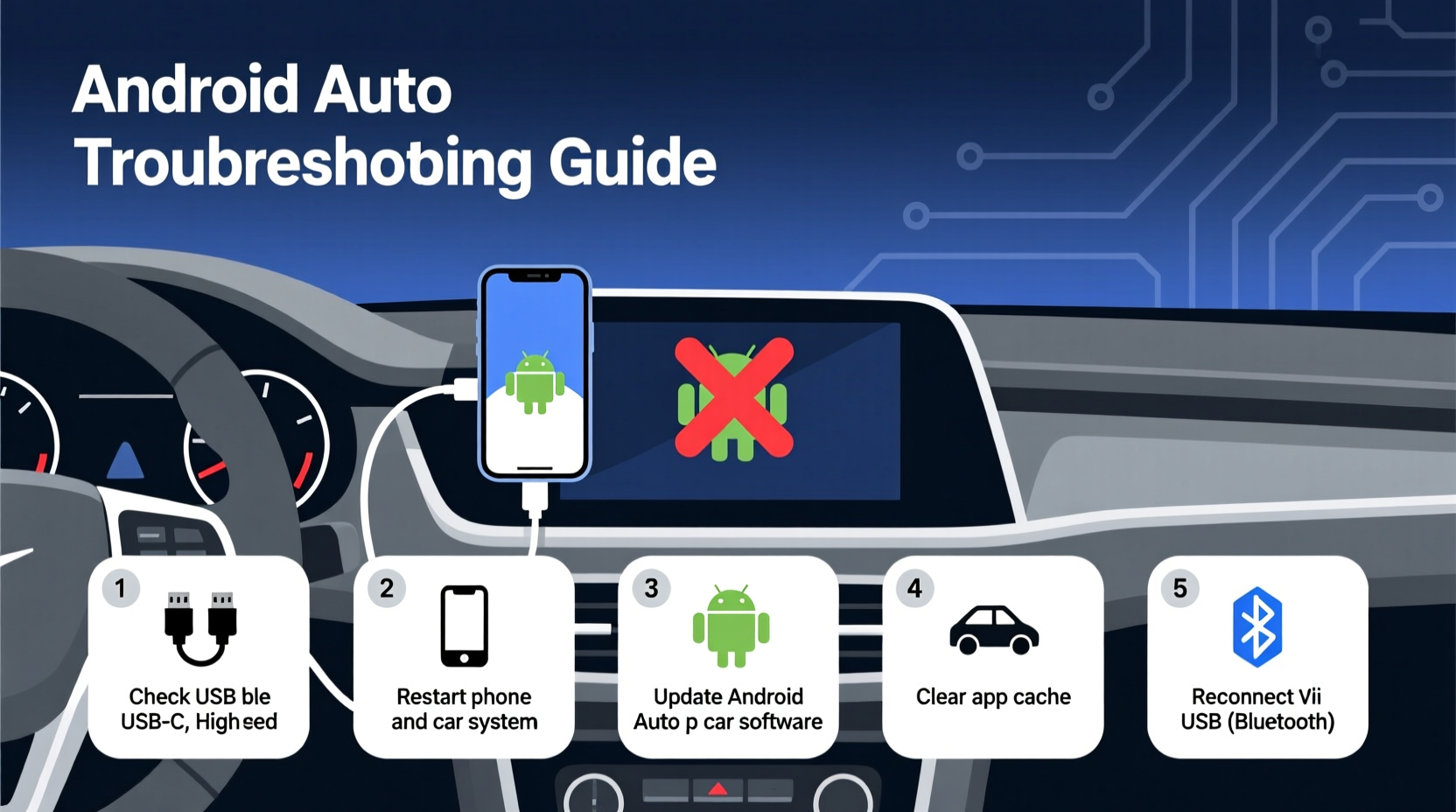
Before troubleshooting, it helps to understand what might be going wrong. Android Auto relies on a stable connection between your smartphone, USB cable, car’s infotainment system, and sometimes Wi-Fi or Bluetooth. Issues typically stem from one of these areas:
- Hardware limitations – Older phones or incompatible car systems may not support Android Auto.
- Cable quality – Not all USB cables are designed to handle data transfer required for Android Auto.
- Software conflicts – Outdated apps, OS bugs, or background processes can interfere with performance.
- Connection instability – Poor USB port contact or wireless interference can disrupt pairing.
- User settings – Disabled permissions or incorrect configurations often prevent proper operation.
Identifying the root cause saves time and prevents unnecessary replacements. Start with the simplest explanations—like a faulty cable—before diving into software updates or factory resets.
Step-by-Step Troubleshooting Guide
Follow this logical sequence to diagnose and resolve Android Auto issues efficiently. Many users fix their problem within minutes using just the first few steps.
- Check the basics: Ensure your car supports Android Auto. Most vehicles manufactured after 2016 do, but verify compatibility via the official Android Auto website.
- Use the correct USB cable: Swap in a known-working cable, preferably the one that came with your phone or a certified high-speed data cable.
- Try a different USB port: Some cars have multiple ports; test each one to rule out a damaged or low-power port.
- Restart both devices: Power cycle your phone and car’s infotainment system. Turn off the car, disconnect your phone, wait 30 seconds, then restart.
- Reconnect Android Auto: After restarting, plug your phone back in and allow Android Auto to launch automatically.
If the app still doesn’t load, proceed to deeper diagnostics.
Clearing Cache and Data for Android Auto
Corrupted temporary files can prevent the app from launching. Clearing cache and data often resolves this silently.
- Go to your phone’s Settings.
- Navigate to Apps > Android Auto.
- Select Storage.
- Tap Clear Cache, then Clear Data.
- Relaunch Android Auto and reconfigure preferences.
This process resets saved connections and app settings but removes no personal data from your phone.
Updating Software Components
Outdated software is a leading cause of connectivity failures. Ensure all relevant components are current:
- Android Auto app: Update via Google Play Store.
- Google Play Services: Critical for background operations; check for updates.
- Phone operating system: Install any pending Android updates.
- Car head unit firmware: Consult your vehicle manual or dealer for update procedures.
Manufacturers release patches regularly to improve compatibility and fix bugs. Ignoring updates increases the risk of persistent issues.
Common Issues and Their Proven Fixes
Below are frequent user-reported problems, along with targeted solutions based on real-world testing and expert recommendations.
Issue 1: Android Auto Won’t Connect at All
Symptoms: No prompt appears on the car screen when plugging in the phone.
Possible causes:
- Faulty USB cable or port
- Disabled USB debugging or file transfer mode
- App permissions blocked
Solution: Plug your phone into a computer and select “File Transfer” (MTP) mode when prompted. This forces data connection capability. Also, go to Developer Options (enable via Build Number tap in Settings > About Phone) and disable USB Debugging if enabled—it can interfere.
Issue 2: App Crashes or Freezes During Use
Symptoms: Screen locks up, audio cuts out, or navigation stops responding.
Solution: Close all background apps before connecting. Heavy multitasking strains resources needed for Android Auto. Additionally, disable battery optimization for the Android Auto app:
- Settings > Apps > Android Auto > Battery.
- Select “Unrestricted” to prevent Android from throttling the app.
Issue 3: Wireless Android Auto Disconnects Frequently
Symptoms: Connection drops after a few minutes despite being paired.
Wireless Android Auto requires strong Bluetooth and Wi-Fi Direct signals. Interference from other devices or weak hardware can break the link.
To stabilize the connection:
- Forget the car in Bluetooth settings and pair again.
- Ensure Wi-Fi is enabled on your phone—even though it doesn’t use your network, Wi-Fi Direct depends on it.
- Limit other connected Bluetooth devices (e.g., smartwatches).
Do’s and Don’ts: Best Practices Table
| Do’s | Don’ts |
|---|---|
| Use a certified USB-C or micro-USB cable rated for data transfer | Use charging-only cables or worn-out cords |
| Keep Android Auto and related apps updated | Ignore software update notifications |
| Allow necessary permissions (location, microphone, contacts) | Deny permissions without reviewing their purpose |
| Restart your car’s infotainment system monthly | Assume the issue is always with your phone |
| Test with another compatible phone to isolate hardware faults | Replace the car stereo immediately without diagnosis |
Real-World Example: Sarah’s Commute Rescue
Sarah, a marketing executive in Chicago, relied on Android Auto for her 45-minute commute. One morning, her phone connected but displayed only a black screen. She tried restarting her phone—no change. Panicked about missing a client call, she followed a systematic approach:
- She switched from her third-party USB cable to the original charger.
- She cleared the Android Auto app cache.
- She disabled battery saver mode, which had been turned on overnight.
The app launched successfully on the second try. Later, she discovered her budget cable didn’t support full data throughput. Replacing it with a certified Anker cable eliminated future hiccups. Her experience highlights how small oversights can disrupt even routine tech use—and how methodical checks lead to fast resolutions.
“Most Android Auto issues aren’t systemic—they’re symptomatic of overlooked details like cable quality or permission settings.” — Rajiv Mehta, Mobile Integration Engineer at a major auto OEM
Essential Checklist Before Every Drive
Prevention beats troubleshooting. Run through this quick checklist to avoid last-minute surprises:
- ✅ Charge your phone to at least 50% before long trips
- ✅ Confirm Android Auto is set as default launcher (if used)
- ✅ Enable “Driving Mode” or “Do Not Disturb” for fewer distractions
- ✅ Verify that Google Assistant has microphone access
- ✅ Test connection while parked to catch issues early
- ✅ Keep your phone cool—avoid direct sunlight on dashboards
Spending 30 seconds on preparation can save you from dangerous distractions on the road.
Frequently Asked Questions
Can I use Android Auto without a USB cable?
Yes, if your car and phone support wireless Android Auto. Compatible phones include Google Pixel series (3 and later), Samsung Galaxy S8 and newer (with specific models), and select Motorola and OnePlus devices. Your car must also list wireless Android Auto in its features.
Why does Android Auto keep asking me to reconnect?
This usually points to an unstable connection. Check your USB cable integrity, ensure the port isn’t loose, and confirm that no power-saving modes are interrupting the data link. Also, outdated firmware on the car’s system may require a dealer-level update.
Is Android Auto safe to use while driving?
Yes, when used responsibly. Android Auto simplifies access to navigation, calls, and messages using large icons and voice control via Google Assistant. However, avoid interacting with the screen while moving. Rely on voice commands and glance briefly when stopped or parked.
Final Thoughts: Stay Connected, Stay Safe
Android Auto is more than a convenience—it’s a tool designed to reduce distraction and enhance safety on the road. When it works, it streamlines your journey. When it fails, simple fixes are usually within reach. By understanding common pitfalls, maintaining your equipment, and applying consistent troubleshooting methods, you regain control over your in-car experience.
Don’t accept glitches as inevitable. A few minutes of maintenance can restore seamless functionality. Whether you're navigating city streets or heading out on a road trip, a fully operational Android Auto setup keeps you informed, entertained, and focused where it matters most—on the road ahead.




 浙公网安备
33010002000092号
浙公网安备
33010002000092号 浙B2-20120091-4
Comments
No comments yet. Why don't you start the discussion?