
For aspiring digital artists, choosing the right tablet is one of the first major decisions that can shape both the learning experience and creative output. Two dominant platforms dominate the market: Android tablets and Apple’s iPad. While both offer compelling options, the differences in cost, software ecosystem, stylus technology, and long-term value can significantly impact a beginner’s journey. Understanding these distinctions isn’t just about saving money—it’s about investing wisely in tools that support growth, creativity, and technical fluency.
This guide breaks down the core factors—price, performance, app availability, accessories, and future scalability—to help beginners make an informed decision based on realistic needs rather than brand appeal.
Price Comparison: Entry-Level Options and Hidden Costs
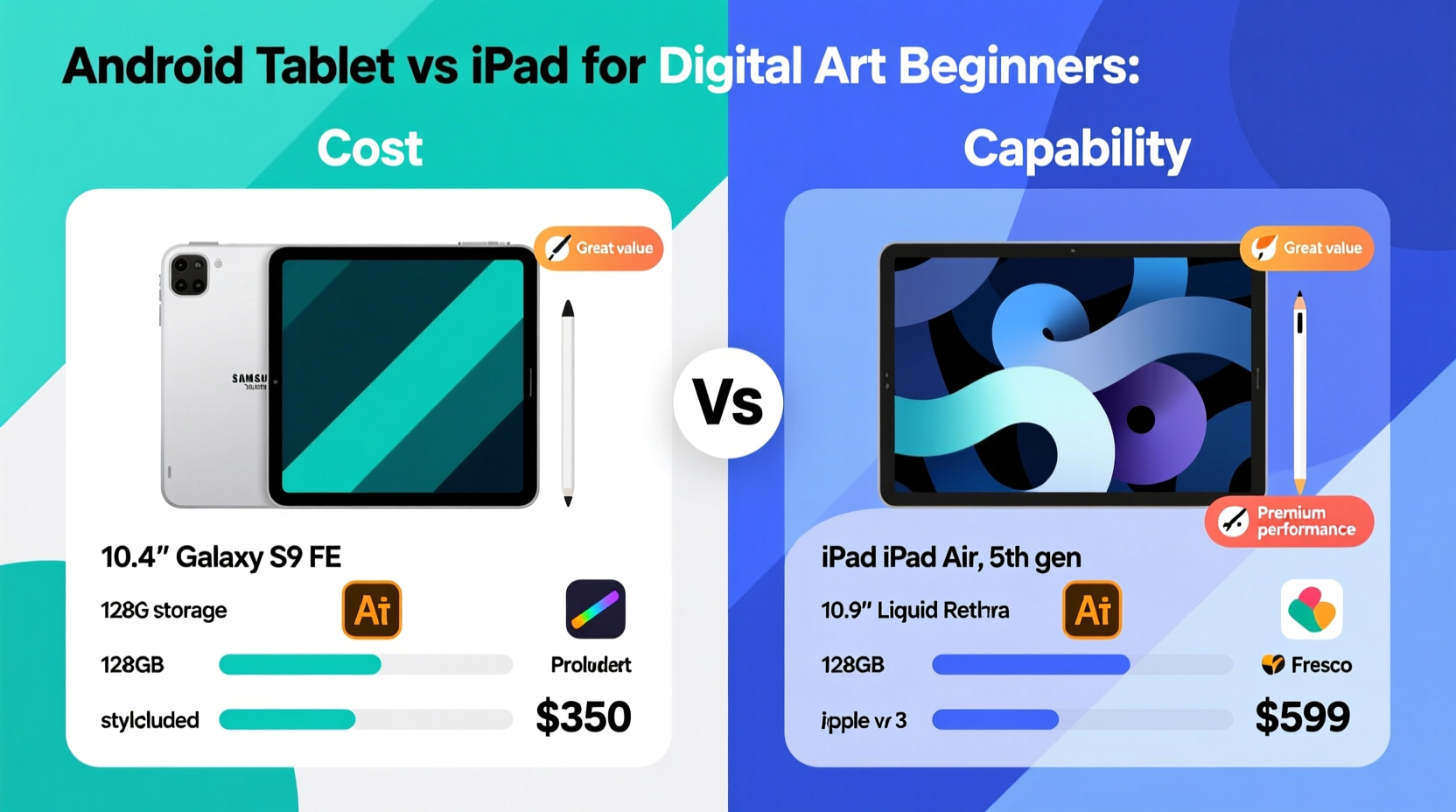
The most immediate difference between Android tablets and iPads lies in upfront pricing. Android offers a broad spectrum of devices at various price points, while Apple maintains tighter control over its product range with higher base costs.
| Device | Starting Price (USD) | Stylus Included? | Keyboard Support |
|---|---|---|---|
| Samsung Galaxy Tab A9+ (Android) | $279 | No (sold separately) | Limited third-party options |
| Samsung Galaxy S9 FE | $499 | Yes (S Pen included) | Full keyboard dock available |
| Apple iPad (10th gen, 64GB) | $449 | No (1st-gen Apple Pencil sold separately) | Supported via Smart Keyboard Folio ($249) |
| Apple iPad Air + Apple Pencil (2nd gen) | $799 + $129 | No | Yes, full compatibility |
At first glance, budget Android tablets appear more accessible. However, adding essential accessories like a capable stylus often brings total costs closer to entry-level iPad pricing. For example, pairing a mid-range Android tablet with a premium stylus may exceed $500—nearly matching the iPad’s starting configuration. The iPad, while pricier upfront, benefits from consistent hardware standards and seamless accessory integration.
Software Ecosystem and Creative App Availability
Performance matters, but so does what you can do with it. The availability, optimization, and long-term support of creative apps differ markedly between platforms.
iPadOS leads in professional-grade drawing applications. Industry-standard tools like Procreate, Adobe Fresco, and Autodesk Sketchbook are either exclusive to or best optimized for iPad. Procreate alone—a one-time $9.99 purchase—offers layering, blending modes, custom brushes, and animation features unmatched by most Android alternatives. Its interface is intuitive, making it ideal for beginners who want powerful tools without complexity.
On Android, viable options exist—Ibispaint X, Krita, and Infinite Painter are well-regarded—but they often lack the polish, stability, or feature depth found on iPad. Some apps suffer from inconsistent updates or fragmented compatibility across device models. Because Android supports a wide variety of screen sizes and aspect ratios, developers face challenges in optimizing user interfaces uniformly.
“Procreate lowers the barrier to entry for digital painting while still offering depth for advanced users. It’s become the de facto starter app for art educators.” — Lena Torres, Digital Art Instructor at Austin Creative Academy
Moreover, Apple’s App Store enforces stricter quality control than Google Play, reducing the risk of downloading poorly performing or ad-laden apps. For a beginner focused on learning fundamentals—brush dynamics, color theory, composition—this reliability translates into fewer distractions and smoother workflow.
Hardware Performance and Stylus Technology
Drawing responsiveness hinges on three key elements: screen latency, pressure sensitivity, and palm rejection. These depend on both hardware design and software integration.
Apple’s iPad and Apple Pencil combination remains the gold standard. With near-zero latency, 20ms response time, and pixel-precise input, the experience mimics traditional media. The magnetic attachment, wireless charging, and automatic pairing streamline daily use. Palm rejection works flawlessly across all major apps because Apple controls both hardware and operating system.
Android has made strides, especially with Samsung’s S Pen on Galaxy Tab S-series devices. The S Pen offers 4,096 levels of pressure sensitivity and low latency, rivaling the Apple Pencil in specs. However, real-world performance varies. On non-Samsung Android tablets, stylus support is often limited to basic input, and third-party pens may introduce lag or inconsistent behavior. Even on supported devices, palm rejection can fail in certain apps, forcing users to wear a glove or disable touch input entirely.
Additionally, iPad processors—especially the A14 Bionic and later chips—are consistently faster and better optimized for graphics-intensive tasks. This means smoother zooming, quicker brush rendering, and stable performance when working with large canvases or multiple layers. Most Android tablets in the sub-$400 range use mid-tier chipsets that struggle under sustained load, leading to lag during complex strokes or undo operations.
Key Technical Differences Summary
- Latency: iPad + Apple Pencil ≈ 20ms; mid-tier Android tablets ≈ 40–60ms
- Pressure Sensitivity: Apple Pencil (2nd gen): 8,192 levels; Samsung S Pen: 4,096 levels
- Palm Rejection: Native and universal on iPad; spotty on Android outside Samsung
- Screen Refresh Rate: iPad Pro: 120Hz; most Android tablets: 60Hz (except high-end models)
Real-World Example: Maya’s First Year as a Digital Artist
Maya, a college student studying graphic design, started her digital art journey with a $299 Amazon Fire HD 10 paired with a generic capacitive stylus. Excited by the low cost, she downloaded free drawing apps but quickly became frustrated. The stylus lacked pressure sensitivity, the screen felt sluggish, and frequent crashes disrupted her workflow. After three months, she switched to a refurbished iPad 9th generation ($329) and bought a used first-generation Apple Pencil ($70).
The change was transformative. “It felt like I finally had control,” she said. “I could actually see how hard I was pressing, and Procreate made learning fun.” Within six months, she completed her first illustrated children’s book mockup and began selling prints online. Though her initial investment increased by $110, the improved experience accelerated her skill development and confidence.
Her story illustrates a critical point: the cheapest option often costs more in lost time, motivation, and re-purchase expenses.
Step-by-Step Guide: Choosing Your First Art Tablet
Follow this practical sequence to make a confident decision tailored to your goals and budget.
- Define your primary use: Will you sketch casually, create comics, design logos, or study formally? Heavy creative work favors iPad.
- Set a realistic budget: Include stylus, case, and any subscription fees. Aim for at least $500 for a functional setup.
- Test devices in person: Visit a retailer to try drawing with available pens. Pay attention to grip, weight, and screen texture.
- Check app compatibility: Ensure your preferred apps (e.g., Procreate, Krita) run smoothly on the device.
- Consider future needs: Will you want animation, multitasking, or external monitor support? iPads scale better.
- Read user reviews: Focus on long-term durability and customer service experiences.
- Buy with return options: Start with a model that allows returns in case it doesn’t meet expectations.
Frequently Asked Questions
Can I learn digital art effectively on a budget Android tablet?
Yes, but with limitations. Tablets like the Samsung Galaxy Tab A9+ or Lenovo Tab P11 can run drawing apps adequately for light sketching. However, expect compromises in stylus accuracy, software stability, and screen responsiveness. If your goal is casual exploration, it’s feasible. For structured learning or portfolio development, consider upgrading within a year.
Is Procreate worth switching to iPad for?
For most beginners, yes. Procreate’s intuitive interface, vast brush library, and active community make it an exceptional learning tool. Its one-time cost is lower than many subscription-based apps. While Android has capable alternatives, none match Procreate’s balance of power and accessibility.
Do I need an expensive stylus?
Affordable passive styluses lack pressure sensitivity and tilt detection—core features for expressive drawing. Active pens like the Apple Pencil or Samsung S Pen are essential for meaningful progress. Think of them not as accessories, but as fundamental tools, like paintbrushes for a painter.
Final Recommendation: Value Over Price
When weighing Android tablets against iPads, the question isn’t just about cost—it’s about capability per dollar. While Android offers lower entry prices, the iPad delivers superior integration, software quality, and long-term usability. For a beginner, this means less frustration, faster learning, and greater creative freedom.
If budget is tight, consider a refurbished iPad 9th or 10th generation with a used Apple Pencil. This setup typically costs under $500 and outperforms similarly priced Android devices in every artistic metric. Alternatively, if committed to Android, invest in a Samsung Galaxy Tab S9 FE or higher—a device with native S Pen support and strong app optimization.
Ultimately, the best tablet is the one that encourages you to draw daily. Choose reliability over novelty, precision over promise, and ecosystem strength over isolated specs.




 浙公网安备
33010002000092号
浙公网安备
33010002000092号 浙B2-20120091-4
Comments
No comments yet. Why don't you start the discussion?