
Digital art is no longer reserved for professionals with high-end gear. Today’s tablets offer powerful tools at accessible prices, making it easier than ever to start creating. But for beginners working within a strict budget, choosing between an Android tablet and an iPad can feel overwhelming. Both platforms promise drawing capabilities, stylus support, and creative apps—but they deliver very different experiences under the hood.
The decision isn’t just about price tags. It’s about long-term usability, app ecosystem maturity, stylus compatibility, and how smoothly your device will grow with your skills. This guide breaks down every critical factor, from entry-level hardware performance to hidden costs, so you can invest wisely without sacrificing creativity.
Understanding Your Needs as a Beginner Artist
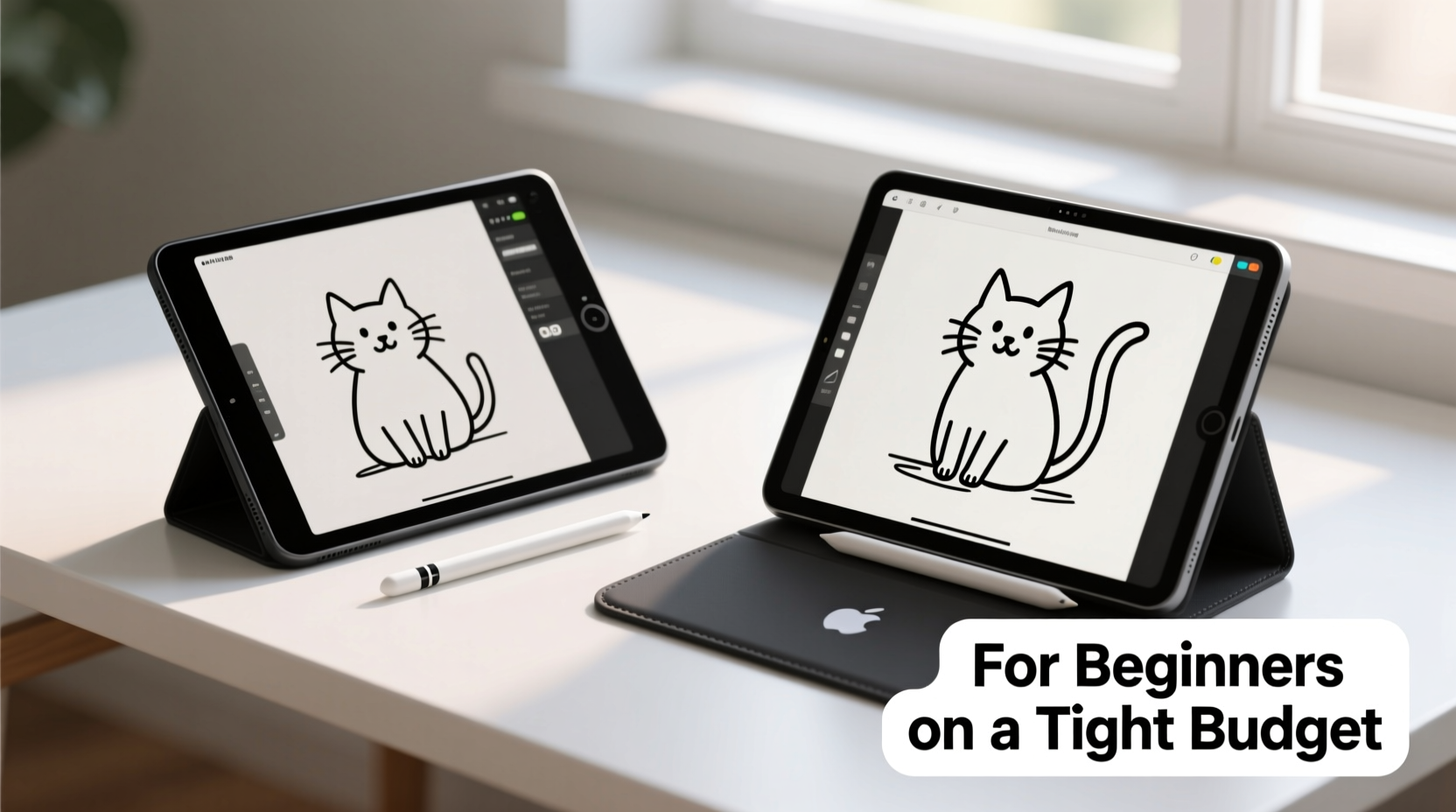
Before comparing devices, define what you actually need. As a beginner, your focus should be on learning fundamentals—line work, shading, color theory—not rendering 4K animations or managing complex layers in professional workflows. That means your ideal tablet doesn’t need top-tier specs, but it must deliver reliable responsiveness, low latency, and access to intuitive drawing software.
Consider these core requirements:
- Screen size: At least 8 inches for comfortable canvas space.
- Stylus support: Pressure sensitivity (at minimum 1024 levels) for expressive control.
- Lag-free input: Minimal delay between pen movement and line appearance.
- App availability: Access to beginner-friendly drawing tools with tutorials and export options.
- Battery life: Sustained use during long sketch sessions without frequent charging.
You don’t need ProMotion refresh rates or Apple Pencil hover detection when starting out. However, poor palm rejection or jittery lines can frustrate early progress and discourage practice.
Price Comparison: Upfront Costs and Hidden Expenses
At first glance, Android tablets dominate the budget category. You’ll find models under $150 with stylus support, while iPads start at $329 for the base model. But cost extends beyond purchase price—accessories, required upgrades, and software subscriptions add up quickly.
“Many budget buyers overlook accessory costs. A $120 tablet requiring a $70 stylus ends up costing more than an all-inclusive alternative.” — Raj Mehta, Tech Educator & Digital Art Instructor
Let’s break down typical expenses:
| Device | Base Price | Required Stylus | Best Drawing App (Free/Paid) | Total Entry Cost |
|---|---|---|---|---|
| Samsung Galaxy Tab A9+ (8.7\") | $200 | $50 (S Pen required) | Infinite Painter (Free), Concepts ($10/yr) | $250–$260 |
| Lenovo Xiaoxin Pad Plus | $160 | $40 (Active Pen) | Krita (Free), Ibis Paint X (Free) | $200 |
| Apple iPad 9th Gen (10.2”) | $329 | $99 (Apple Pencil 1st gen) | Procreate ($12.99 one-time), Tayasui Sketches (Free) | $441 |
| Refurbished iPad 8th Gen + Used Pencil | $250 | $60 (used) | Procreate ($12.99) | $323 |
While Android leads in initial affordability, note that many budget Android pens lack true pressure sensitivity or require Bluetooth pairing. The iPad’s higher entry cost comes with unmatched software synergy—especially with Procreate, widely considered the gold standard for mobile digital painting.
Software Ecosystem: Where Creativity Actually Happens
Hardware enables creation, but software defines it. This is where the gap widens significantly between platforms.
iPadOS offers a mature, artist-focused app environment. Procreate alone justifies the premium for many users. Its fluid interface, rich brush library, time-lapse recording, and layer system rival desktop programs. Other polished tools like Affinity Designer, Adobe Fresco, and Concepts provide scalable paths into advanced design work—all optimized specifically for Apple Pencil input.
Android’s ecosystem is fragmented. While capable apps exist—such as Ibis Paint X, Krita, and Infinite Painter—they vary in quality across devices. Some rely on ads or in-app purchases to unlock essential features. Driver inconsistencies between brands mean that even if an app supports pressure sensitivity, it may not function correctly on certain tablets.
Additionally, iOS updates are uniform and long-supported. An iPad from 2018 can still run the latest version of Procreate. Most Android tablets receive only two major OS updates, limiting future app compatibility. After three years, your once-reliable drawing tool might no longer support new file formats or cloud sync services.
Real-World Example: Maya’s First Year of Digital Art
Maya, a college student majoring in illustration, had $300 to spend on her first digital setup. She chose the Lenovo Xiaoxin Pad Plus at $160, adding a $40 active pen. For six months, she used Krita and Ibis Paint X, enjoying basic sketching and coloring.
By month eight, she wanted to experiment with animation and layered compositions. She discovered that Krita’s Android version lacked frame-by-frame timeline editing. Ibis Paint required a subscription to export in HD. When she tried downloading Infinite Painter, the brushes lagged noticeably despite being “optimized.”
Meanwhile, her classmate using a refurbished iPad with Procreate was exporting portfolio-ready pieces, sharing timelapses on Instagram, and importing PSD files from Photoshop assignments.
After nine months, Maya sold her Android tablet for $80 and upgraded to a used iPad + secondhand Apple Pencil, spending nearly the same total—but losing valuable learning time due to platform limitations.
Her experience reflects a common pattern: short-term savings sometimes lead to mid-term frustration and eventual replacement.
Step-by-Step Guide: Choosing the Right Device on a Budget
Follow this sequence to make a confident, informed decision:
- Set a realistic total budget including stylus and any essential apps. Aim for $250–$350 for best results.
- List your primary goals: Will you draw casually? Study formally? Share artwork online?
- Research stylus compatibility: Does the included pen support pressure sensitivity? Is it sold separately?
- Verify app support: Search Google Play or the App Store to confirm your desired apps run well on the device.
- Check update policy: How many OS updates does the manufacturer promise? Can it run current versions of key apps?
- Read user reviews focused on drawing: Look for mentions of lag, palm rejection issues, or battery drain during prolonged use.
- Consider resale value: iPads retain value better. If you upgrade later, you’ll recover more cost.
- Try before you buy (if possible): Visit a store to test pen feel and screen clarity.
Key Differences Summary: Do’s and Don’ts
| Action | Recommended for Android | Recommended for iPad |
|---|---|---|
| Starting with casual doodling | ✅ Yes – great value | ✅ Also good, but pricier |
| Planning to pursue formal art education | ❌ Limited growth path | ✅ Strong long-term option |
| Wanting Procreate | ❌ Not available | ✅ Exclusive to iPad |
| Need maximum portability | ✅ Many compact options | ✅ Lightweight models available |
| Expecting 3+ years of reliable use | ⚠️ Unlikely on budget models | ✅ Realistic with older iPads |
Frequently Asked Questions
Can I use a cheap Bluetooth stylus with any tablet?
No. Generic capacitive pens or unpaired Bluetooth styli do not support pressure sensitivity and often have noticeable lag. They mimic finger touch rather than functioning as true drawing tools. For meaningful control, use manufacturer-approved active pens designed for your device.
Is Procreate worth the extra cost of an iPad?
For most serious beginners, yes. Procreate combines ease of use with professional-grade features—non-destructive layers, custom brushes, blending modes, and animation tools—in a single one-time purchase. No Android equivalent matches its polish and community support. Tutorials, brush packs, and templates are abundant, accelerating learning curves significantly.
Are there any affordable iPads with good stylus support?
Yes. Consider purchasing a certified refurbished iPad (9th or 8th generation) from Apple’s website or trusted resellers. Pair it with a used Apple Pencil (1st generation fits older iPads). This combo often lands around $300–$350 fully equipped—competitive with mid-range Android setups while offering superior longevity and software access.
Final Checklist Before Buying
- ☐ Total cost includes stylus and essential apps
- ☐ Stylus supports pressure sensitivity and tilt recognition (if needed)
- ☐ Primary drawing app is available and runs smoothly on the device
- ☐ Device receives regular OS updates (minimum 2 years remaining)
- ☐ Screen is matte or compatible with anti-glare film
- ☐ Battery lasts at least 6 hours during continuous drawing
- ☐ Palm rejection works reliably in tested conditions
- ☐ Option to expand storage (if relying on local files)
Conclusion: Make the Choice That Supports Your Growth
Choosing between an Android tablet and an iPad isn’t about which brand is “better”—it’s about aligning your tools with your ambitions. If you’re exploring digital art casually and want to keep costs minimal, a well-chosen Android tablet like the Samsung Galaxy Tab A9+ or Lenovo Xiaoxin Pad Plus offers a functional starting point. Just be aware of software ceilings and shorter lifespans.
But if you’re committed to improving, joining art communities, building a portfolio, or pursuing further study, investing in an iPad—even a slightly used one—provides a smoother, more sustainable journey. The combination of Procreate, consistent updates, and robust accessory support creates an ecosystem built for creators, not just consumers.
Your first tablet doesn’t have to be perfect. But it should empower you to keep going, not hold you back. Weigh immediate savings against long-term satisfaction. Sometimes, spending a little more upfront saves money, time, and frustration down the road.




 浙公网安备
33010002000092号
浙公网安备
33010002000092号 浙B2-20120091-4
Comments
No comments yet. Why don't you start the discussion?