
Digital artists today face a critical decision when choosing their primary creative device: should they go with an iPad or an Android tablet? While both platforms offer powerful hardware and capable styluses, the choice often comes down to one key factor—stylus precision. For illustrators, concept artists, and graphic designers, even minor differences in responsiveness, tilt detection, or line accuracy can impact workflow and final output quality. This article dives deep into the technical and experiential aspects of stylus performance on iPads using the Apple Pencil and Android tablets using styluses like Samsung’s S Pen, comparing latency, pressure sensitivity, palm rejection, and real-world usability.
Understanding Stylus Precision: What Matters Most
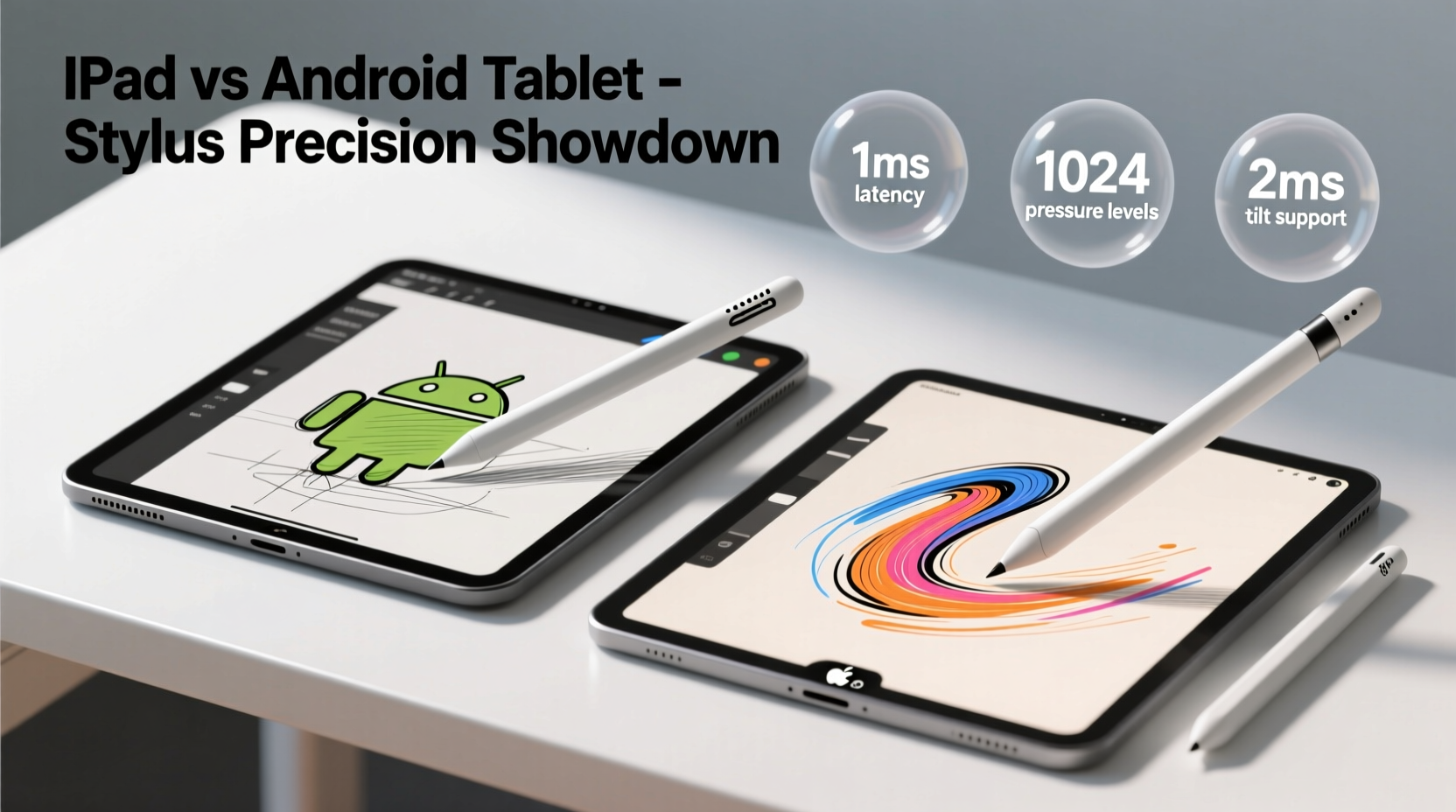
Stylus precision isn’t just about how thin a line you can draw—it encompasses multiple interrelated factors that determine how naturally and accurately a digital pen responds to your hand. Key components include:
- Latency: The delay between pen contact and on-screen mark appearance. Lower latency means more immediate feedback.
- Pressure Sensitivity: The number of levels a stylus can detect when you press harder or softer. Higher sensitivity allows for more expressive strokes.
- Tilt Recognition: Ability to detect the angle of the pen relative to the screen, enabling shading effects similar to traditional pencils or brushes.
- Palm Rejection: Prevents accidental touches from your hand while drawing, essential for natural hand placement.
- Pixel-Level Accuracy: How closely the stylus tip aligns with the cursor, especially during fine detailing.
These features are tightly integrated with both hardware and software. Even if two devices have similar specs on paper, real-world performance can differ significantly due to driver optimization, screen refresh rate, and app support.
iPad + Apple Pencil: Benchmark for Digital Drawing?
The iPad, particularly the iPad Pro series, has long been considered the gold standard for mobile digital art. Paired with the Apple Pencil (2nd generation), it delivers industry-leading performance across all precision metrics.
The Apple Pencil boasts 20 ms of latency on iPad Pro models with ProMotion displays (120Hz refresh rate). This near-instantaneous response creates a seamless drawing experience, making it feel as though you're sketching on paper. Its pressure sensitivity reaches 4,096 levels, and it supports full tilt detection, allowing artists to create realistic hatching and shading without switching tools.
Apple’s proprietary integration between hardware and software ensures consistent performance across apps like Procreate, Adobe Fresco, and Affinity Designer. The operating system-level palm rejection is so refined that users can rest their hand comfortably on the screen while drawing—a crucial feature for long sessions.
“After testing over a dozen styluses, the Apple Pencil still feels the most natural. It’s not just about specs—it’s how everything works together.” — Lena Torres, Professional Illustrator and Art Educator
Additionally, the magnetic attachment and wireless charging eliminate pairing hassles, and the matte finish of the pencil provides excellent grip control. However, this level of performance comes at a premium price, both for the iPad Pro and the Apple Pencil itself.
Android Tablets and the S Pen: Competitive Alternative?
Among Android tablets, Samsung’s Galaxy Tab S series stands out as the primary competitor, thanks to its inclusion of the S Pen. Unlike many third-party styluses, the S Pen is designed specifically for Samsung’s tablets and offers strong hardware-software synergy.
The latest Galaxy Tab S9 Ultra, for example, features a 120Hz AMOLED display and an S Pen with 2.4ms of Bluetooth latency and reported active latency as low as 2.8ms. On paper, these numbers surpass even the Apple Pencil. However, real-world usage reveals nuances. While the S Pen is highly responsive, some artists report a slightly “floaty” sensation—where the cursor seems to lag microscopically behind the physical tip during fast strokes.
The S Pen also supports 4,096 levels of pressure sensitivity and tilt recognition, matching the Apple Pencil. Samsung’s Wacom-based electromagnetic resonance (EMR) technology doesn’t require battery charging in most models, giving it an edge in convenience. You never have to worry about the stylus dying mid-session.
Software support, however, varies. While Samsung’s own apps like Clip Studio Paint and Adobe Illustrator Draw perform well, the broader Android ecosystem lacks the depth of optimized creative applications found on iPadOS. Some apps don’t fully utilize tilt or pressure data, leading to inconsistent results.
Direct Comparison: iPad vs Android Tablet Stylus Precision
| Feature | iPad + Apple Pencil | Galaxy Tab S9 + S Pen |
|---|---|---|
| Latency | ~20 ms (ProMotion) | ~2.8 ms (active), ~9 ms (real-world average) |
| Pressure Sensitivity | 4,096 levels | 4,096 levels |
| Tilt Support | Yes | Yes |
| Battery Requirement | Yes (charges via iPad) | No (EMR tech) |
| Palm Rejection | Excellent (system-wide) | Very Good (Samsung apps), inconsistent in third-party) |
| Pixel Accuracy | Exceptional | Very High, slight offset in fast strokes |
| App Ecosystem | Rich (Procreate, Fresco, etc.) | Good (limited high-end options) |
| Price (Device + Stylus) | High ($799+) | Moderate to High ($899+) |
While the S Pen technically reports lower latency, real-world perception favors the Apple Pencil due to smoother rendering pipelines and superior app optimization. Artists consistently note that lines feel “tighter” and more predictable on the iPad, especially when zoomed in for detailed work. The consistency across apps gives iPad an edge in professional environments where reliability matters.
Mini Case Study: Freelance Artist Switches Platforms
Jamie Rivera, a freelance concept artist based in Portland, used an iPad Pro for five years before switching to a Galaxy Tab S8 Ultra for cost and multitasking reasons. Initially impressed by the S Pen’s responsiveness and lack of charging needs, Jamie soon noticed subtle issues during tight linework and cross-hatching.
“I could feel the difference when doing intricate details. The lines weren’t snapping exactly where I wanted. In Procreate, my strokes were crisp; in Clip Studio on Android, there was a tiny wobble. Not enough to ruin a piece, but enough to slow me down.”
After six months, Jamie returned to the iPad Pro, citing consistency and app maturity as decisive factors. “The hardware is close,” they said, “but the ecosystem makes the difference.”
Step-by-Step Guide: Choosing Based on Your Needs
Selecting the right tablet isn’t just about raw specs—it’s about aligning the tool with your creative goals. Follow this sequence to make an informed decision:
- Assess Your Art Style: If you do fine line art, technical illustration, or detailed coloring, prioritize pixel accuracy and low perceived latency (favor iPad).
- Evaluate Software Needs: Check if your primary app (e.g., Procreate, Krita, ibisPaint) is available and well-optimized on each platform.
- Test Real-World Performance: Visit a store or borrow devices to draw freehand lines, circles, and pressure gradients. Notice any lag or jitter.
- Consider Workflow Integration: Do you need desktop-like multitasking? Android offers split-screen and DeX mode, while iPadOS excels in app continuity with Macs.
- Factor in Long-Term Costs: Apple Pencil replacements cost $99; S Pen replacements are around $40 and don’t require charging.
Expert Tips for Maximizing Stylus Precision
- Keep your screen clean—dust or oil can interfere with touch detection.
- Use a matte screen protector designed for drawing; glossy screens increase finger slippage and glare.
- Disable unnecessary gestures in settings to prevent accidental inputs during drawing.
- Update your OS and apps regularly—manufacturers often improve stylus drivers through updates.
- Calibrate your stylus if the option exists (available on some Samsung models).
Frequently Asked Questions
Is the Apple Pencil more precise than the S Pen?
In real-world use, yes—especially in professional art apps. While both styluses offer identical pressure and tilt specs, the Apple Pencil benefits from deeper software integration, resulting in tighter line control and more consistent responsiveness across apps.
Can I use an iPad for professional illustration?
Absolutely. Many professional illustrators, including those in animation and publishing, rely on iPad Pro and Procreate for client work. The combination of precision, portability, and powerful apps makes it a viable replacement for traditional desktop setups.
Do Android tablets support pressure-sensitive apps well?
Top-tier apps like Clip Studio Paint and Adobe Illustrator Draw offer excellent support, but the overall selection is smaller than on iPad. Some free or lesser-known apps may not fully utilize pressure or tilt data, limiting expressive potential.
Conclusion: Making the Right Creative Investment
When it comes to stylus precision for digital art, the iPad currently holds a narrow but meaningful advantage over Android tablets. The Apple Pencil’s seamless integration with iPadOS, coupled with a mature ecosystem of art-focused applications, delivers a more consistent and reliable drawing experience—particularly under demanding conditions like fine detailing or long sessions.
That said, Android tablets—especially Samsung’s flagship models—are closing the gap. The S Pen offers compelling advantages like no-battery operation and competitive latency, and Android’s flexibility appeals to users who value multitasking or prefer open ecosystems. For hobbyists, students, or budget-conscious creators, Android remains a strong contender.
Ultimately, the best choice depends on how you create. If precision, consistency, and creative workflow are non-negotiable, the iPad is still the top pick. But if you value versatility, longer stylus uptime, and lower long-term costs, a high-end Android tablet deserves serious consideration.




 浙公网安备
33010002000092号
浙公网安备
33010002000092号 浙B2-20120091-4
Comments
No comments yet. Why don't you start the discussion?