
Digital artists today face a critical choice when selecting their creative tools: Should they go with an iPad and Apple Pencil, or opt for an Android tablet paired with a compatible stylus? While both platforms offer capable hardware and software ecosystems, the tactile experience of drawing—the “feel” of the stylus on screen—is often what separates a good device from a great one. For artists who rely on precision, responsiveness, and natural hand movement, this distinction is not just preference—it's fundamental to workflow and expression.
The debate isn’t merely about brand loyalty or app availability. It’s rooted in how each system translates physical input into digital output. Factors like latency, pressure sensitivity, tilt recognition, palm rejection, and even the weight and texture of the stylus itself shape the artist’s perception of realism. This article dives deep into these elements, comparing leading Android tablets (like Samsung Galaxy Tab S series) with iPads (especially iPad Pro and iPad Air), focusing specifically on which stylus delivers a more natural drawing experience.
Pressure Sensitivity and Tilt Response: The Foundation of Realism
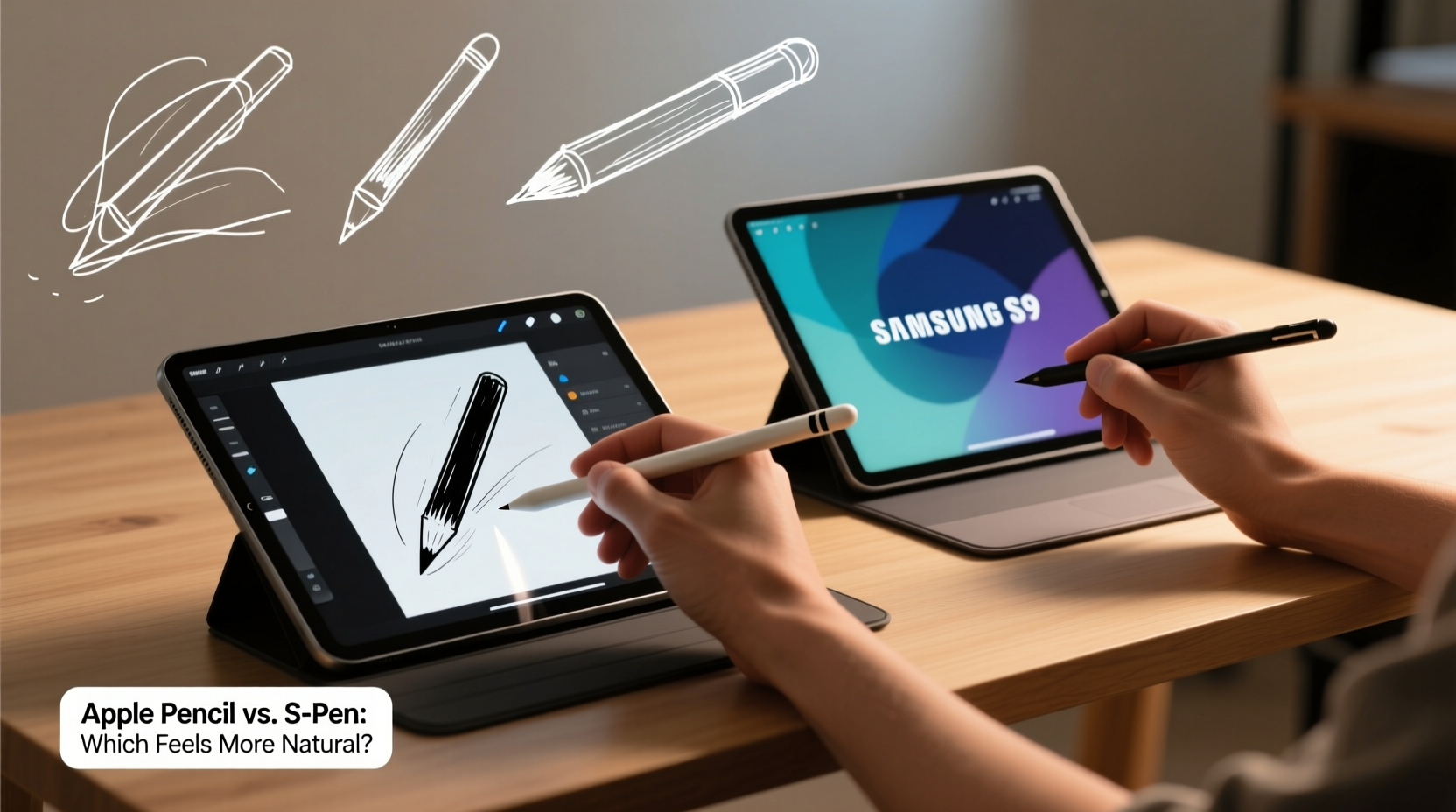
One of the most important aspects of a natural-feeling stylus is its ability to detect subtle variations in pressure and angle. Traditional artists are accustomed to controlling line thickness, opacity, and shading through hand pressure and pen tilt—skills that must be replicated digitally for seamless transition.
The Apple Pencil (2nd generation) supports up to 2048 levels of pressure sensitivity and full tilt detection. When used with apps like Procreate, Affinity Designer, or Adobe Fresco, it enables dynamic brush behavior that closely mimics real-world media such as charcoal, ink, and watercolor. The response is immediate, and the variation between light sketching and bold strokes feels intuitive.
On the Android side, Samsung’s S Pen—available with Galaxy Tab S9, S8, and other premium models—offers 4096 levels of pressure sensitivity, technically surpassing the Apple Pencil. Higher sensitivity can allow for finer control in theory, but real-world performance depends heavily on software optimization. Apps like Clip Studio Paint, ibisPaint X, and Autodesk Sketchbook make excellent use of the S Pen’s capabilities, especially in manga and illustration workflows.
“With the right calibration, the S Pen can rival traditional tools in expressiveness—but consistency across apps still lags behind iOS.” — Lena Park, Digital Illustration Instructor at Seoul Arts Academy
Tilt functionality is well-implemented on both platforms. The Apple Pencil uses internal sensors to detect angle changes, enabling realistic shading when using soft brushes. Similarly, the S Pen detects tilt and responds accordingly in supported applications. However, some users report slightly delayed tilt interpretation on Android, particularly during fast gestures or complex strokes.
Latency and Responsiveness: How Fast Is “Instant”?
Latency—the delay between stylus contact and visual feedback—is arguably the most crucial factor in determining how “natural” a stylus feels. Even a few milliseconds of lag can disrupt rhythm and break immersion, making drawing feel artificial or disconnected.
iPad Pro models equipped with Apple Silicon (M1 chip and later) boast ultra-low latency of around 9ms when paired with the Apple Pencil. Combined with ProMotion technology (120Hz refresh rate), this creates a near-instantaneous response that many artists describe as “pen-on-paper.” The high refresh rate ensures smooth stroke rendering, even during rapid sketching or inking.
Samsung’s flagship tablets also feature 120Hz displays and advertise latency as low as 2.8ms under ideal conditions. In practice, real-world testing shows average latency between 15–25ms depending on the app and background processes. While impressive, this variability means the experience isn’t always consistent. Some users notice a slight “floatiness” or ghosting effect, especially in less-optimized apps.
Moreover, iPadOS maintains tighter integration between hardware and software. Because Apple controls both the operating system and the stylus protocol, developers can optimize their apps more effectively. On Android, fragmentation across devices and manufacturers leads to inconsistent performance—even within the same brand family.
| Feature | iPad + Apple Pencil | Android Tablet + S Pen |
|---|---|---|
| Max Pressure Levels | 2048 | 4096 (Samsung) |
| Reported Latency | ~9ms | ~15–25ms (varies by app) |
| Refresh Rate | 120Hz (ProMotion) | 120Hz (Galaxy Tab S series) |
| Tilt Support | Yes (hardware-based) | Yes (software/hardware hybrid) |
| Palm Rejection | Excellent, system-wide | Good, app-dependent |
| Battery-Free Stylus | Yes (Apple Pencil 2) | No (S Pen requires charging on newer models) |
Palm Rejection and Ergonomics: Drawing Like You Mean It
Natural drawing involves resting your hand on the surface while sketching—an action that would smudge a touchscreen without proper palm rejection. Both platforms handle this differently, and the results significantly impact comfort and authenticity.
iPadOS features robust, system-level palm rejection. Artists can comfortably rest their hand on the screen while drawing with the Apple Pencil, and the system reliably ignores all non-stylus contact. This allows for long sessions without fatigue or awkward wrist positioning. The feature works consistently across all major creative apps.
Android tablets, particularly Samsung models, have improved palm rejection dramatically in recent years. Galaxy Tabs now include \"palm detection\" that blocks unintended touches during stylus use. However, some users report occasional interference—such as partial palm blocking or accidental erasing—especially when leaning heavily on the screen. Performance also varies by application; third-party apps may not fully leverage Samsung’s Wacom-powered input stack.
Ergonomically, the design of the stylus matters too. The Apple Pencil has a sleek, minimalist aluminum body that feels balanced but can be slippery without a grip accessory. In contrast, the S Pen has a matte finish and slightly textured tip area, offering better friction. Many illustrators prefer the S Pen’s shape for extended use, though personal preference plays a large role.
Mini Case Study: Freelance Illustrator Chooses Platform Based on Workflow Needs
Raj Mehta, a freelance concept artist based in Mumbai, switched from iPad to Galaxy Tab S9 Ultra after five years of using Procreate. His decision wasn’t driven by price, but by ergonomics and multitasking needs. “I spend 6–8 hours a day drawing,” he explains. “The S Pen’s higher pressure sensitivity gives me more control in fine linework, and I appreciate being able to run two reference images side-by-side while working.”
However, Raj admits the transition had challenges. “Some apps don’t respond as smoothly to tilt. And occasionally, my palm gets registered if I press too hard. But overall, the larger screen and customizable shortcuts make it worth the trade-offs.”
He still keeps his iPad Air for client presentations, citing smoother animations and better app polish. “For pure drawing feel, I’d say the Apple Pencil wins. But for productivity and flexibility, Android pulls ahead.”
Software Ecosystem and App Optimization
No matter how advanced the hardware, the final drawing experience depends on software support. Here, iOS holds a distinct advantage due to its maturity and focus on creative professionals.
Procreate remains the gold standard for raster-based digital painting on mobile. Its optimized codebase takes full advantage of Apple Pencil capabilities, including predictive stroke tracking and advanced gesture controls. Other top-tier apps like Adobe Fresco and Affinity Designer offer vector and live brush technologies that simulate real media with remarkable accuracy.
Android has strong contenders, particularly Clip Studio Paint, which is beloved by comic and manga artists. It supports animation timelines, vector layers, and highly customizable brushes. However, performance can vary across devices. A Galaxy Tab S9 runs it flawlessly, but mid-range Android tablets struggle with large canvases or complex layer stacks.
Furthermore, Android lacks a unified stylus API. While Samsung uses Wacom AES technology, other brands like Lenovo or Huawei employ different protocols. This makes cross-device compatibility unpredictable. An app optimized for the S Pen might not perform as well on a Pixel Tablet with Google’s stylus.
Step-by-Step Guide: Choosing the Right Device for Natural Drawing Feel
- Assess Your Primary Use Case: Are you sketching casually, creating professional illustrations, or doing detailed technical drawings? High-pressure precision favors iPad for now.
- Test Latency in Person: Visit a store and draw quick lines and circles. Notice any lag or jitter. Compare directly between iPad and Android if possible.
- Check App Compatibility: Ensure your go-to creative software is available and well-optimized on the platform.
- Evaluate Palm Rejection: Rest your hand naturally on the screen while drawing. Does the system ignore it consistently?
- Consider Ergonomics: Hold both styluses. Which feels more comfortable for prolonged use? Try adding a screen protector to simulate paper texture.
- Review Battery & Charging: The Apple Pencil charges wirelessly and never runs out mid-session. The S Pen now requires occasional charging—factor this into your workflow.
- Factor in Price-to-Performance: iPads with Apple Pencil are often more expensive. If budget is key, high-end Android tablets offer compelling value despite minor compromises.
Frequently Asked Questions
Is the Apple Pencil really more natural than the S Pen?
Many professional artists say yes, primarily due to lower latency, better palm rejection, and superior app optimization. The Apple Pencil’s seamless pairing and lack of battery concerns also contribute to a distraction-free experience. However, the S Pen offers higher pressure sensitivity and greater customization, which some find advantageous for specific styles.
Can I use an iPad for professional illustration work?
Absolutely. Thousands of illustrators, concept artists, and designers use iPads professionally. With Procreate, Adobe Creative Cloud, and external monitor support via Stage Manager, modern iPads are capable of handling entire production pipelines—from sketch to final artwork.
Do Android tablets support pressure-sensitive styli from other brands?
Limited support exists, but most high-end functionality (like tilt and precise pressure) only works with manufacturer-specific pens. For example, the S Pen won’t work fully on non-Samsung tablets, and vice versa. Stick to the native stylus for best results.
Conclusion: Which Feels More Natural?
After evaluating pressure response, latency, palm rejection, software integration, and real-world usability, the verdict leans toward the iPad and Apple Pencil for delivering the most natural drawing experience. Its tight ecosystem, industry-leading apps, and refined hardware integration create a cohesive toolset that responds intuitively to the artist’s hand.
That said, Android tablets—particularly Samsung’s Galaxy Tab series—are closing the gap. With higher pressure sensitivity, larger screens, multitasking strengths, and growing app support, they present a powerful alternative, especially for artists who value flexibility and customization over pure refinement.
In the end, “natural” is subjective. It depends on your technique, preferred software, and how your body interacts with the tool. The best approach is hands-on testing. But if you prioritize immediacy, consistency, and a frictionless creative flow, the iPad with Apple Pencil remains the benchmark for natural-feeling digital art.




 浙公网安备
33010002000092号
浙公网安备
33010002000092号 浙B2-20120091-4
Comments
No comments yet. Why don't you start the discussion?