
In the ongoing battle between Android and iOS, one of the most debated aspects is how each platform handles personalization and efficiency through home screen tools. At the heart of this discussion are Android widgets and iOS Shortcuts—two systems designed to bring information and actions to the forefront of the user experience. While both aim to reduce friction and increase usability, they differ fundamentally in philosophy, implementation, and depth of customization. Understanding these differences reveals not just technical disparities but also contrasting visions of what mobile computing should be.
Android has long championed openness and user control, allowing deep system-level modifications. Apple, by contrast, prioritizes consistency, elegance, and curated experiences. This foundational difference shapes how widgets and shortcuts function—and how much freedom users truly have when customizing their devices.
Understanding Widgets and Shortcuts: Core Definitions
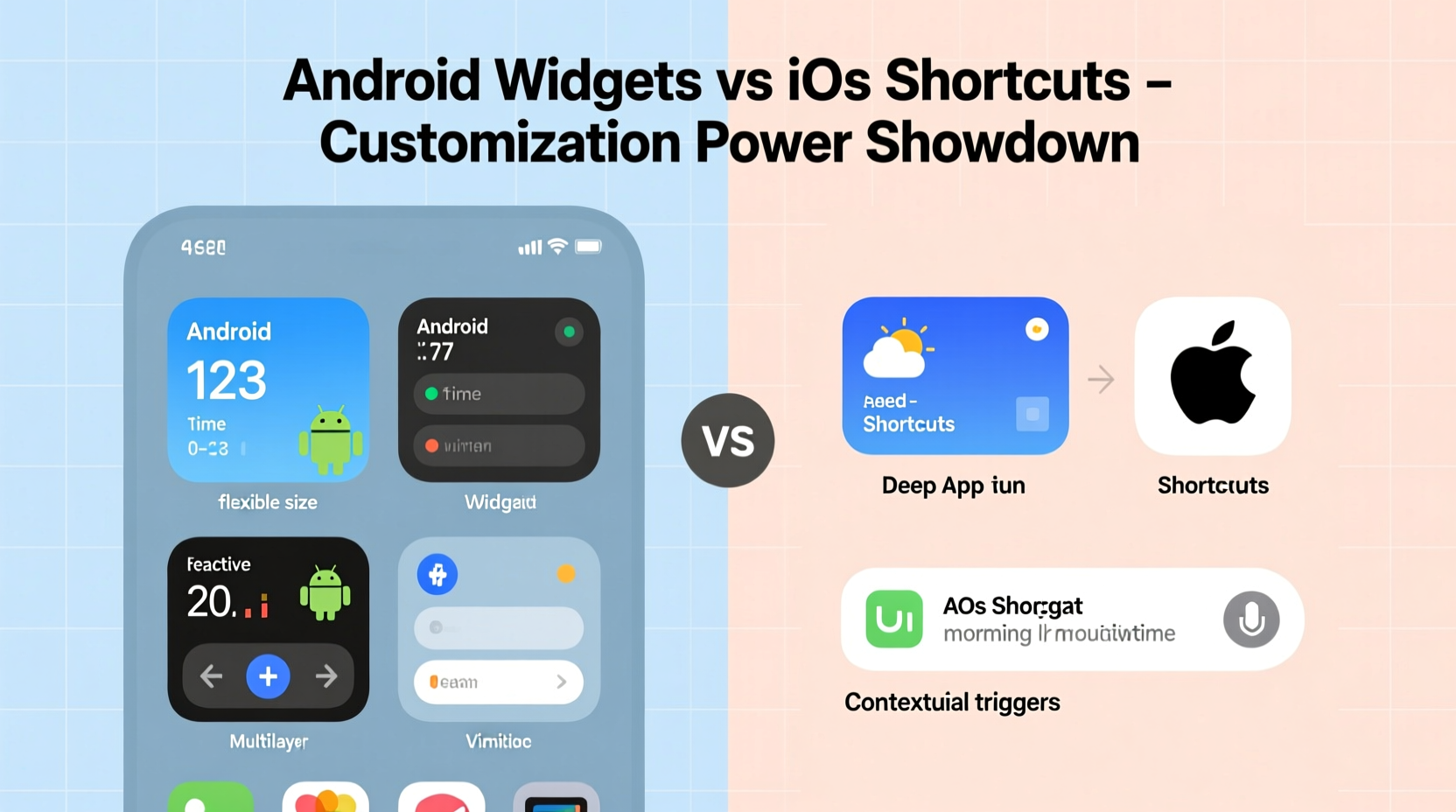
Before comparing customization capabilities, it's essential to clarify what we mean by \"widgets\" and \"shortcuts.\"
Android widgets are miniature app interfaces that live directly on the home screen or within folders. They can display dynamic content such as weather forecasts, calendar events, music playback controls, or unread email counts—all without opening the associated app. More importantly, many widgets allow interactive input, like toggling settings (Wi-Fi, flashlight) or controlling smart home devices.
iOS Shortcuts, introduced with iOS 12 and expanded significantly in later versions, are automated workflows or quick-access icons that trigger specific actions. These range from simple one-tap commands (e.g., “Start Workout”) to complex multi-step automations involving multiple apps and conditions (e.g., “When I arrive home, turn on lights and play relaxing music”). With iOS 14, Apple added App Shortcuts and WidgetKit, enabling small, medium, and large widgets on the home screen.
The key distinction lies in purpose: widgets emphasize information display and lightweight interaction; shortcuts prioritize automation and task execution. However, recent convergence means iOS widgets now show data, while Android’s integration with Google Assistant and Tasker enables powerful automation too.
Customization Depth: Layout, Design, and Flexibility
When evaluating customization power, layout freedom is a critical factor. Here, Android clearly leads in raw flexibility.
On Android, users can:
- Resize widgets freely by dragging corners (subject to developer support).
- Place widgets anywhere on the home screen, including over wallpaper elements.
- Stack multiple widgets vertically for compact organization.
- Use third-party launchers (e.g., Nova Launcher, Microsoft Launcher) to further customize icon styles, grid size, animations, and even gesture controls.
iOS imposes stricter constraints. Since iOS 14, widgets can be placed on the home screen, but only within predefined sizes (small, medium, large). Users cannot freely resize them or place them pixel-perfectly. Instead, iOS uses an adaptive grid system that snaps widgets into position. While this ensures visual harmony, it limits fine-grained control.
Moreover, iOS widgets are managed via the \"Today View\" or home screen suggestions, often requiring a swipe right from the first home screen page. Though they can be added directly to the home screen, the process feels secondary compared to Android’s native embedding model.
Design Freedom and Visual Personalization
Android allows deeper aesthetic integration. Third-party launchers enable complete UI overhauls—icon packs, fonts, transparency effects, and custom dock designs. Widgets themselves can adopt various color schemes, transparency levels, and update frequencies depending on the app (e.g., KWGT for fully customizable widgets).
iOS maintains tight design guidelines. All widgets follow Apple’s Human Interface Guidelines, resulting in uniform rounded corners, limited transparency, and consistent typography. While visually pleasing, this reduces individuality. Even with the introduction of customizable fonts and wallpapers, iOS widgets remain constrained in appearance.
“We designed WidgetKit to balance utility with simplicity. Too much customization can lead to clutter and performance issues.” — Craig Federighi, Apple SVP of Software Engineering
Functional Power: Interactivity and Automation Capabilities
While Android excels in spatial and visual customization, iOS Shortcuts shine in functional complexity.
The Shortcuts app lets users build intricate automations using hundreds of available actions across system functions and third-party apps. For example:
- Automatically send a text when leaving work.
- Download podcast episodes over Wi-Fi only.
- Create a morning routine that reads headlines, checks the weather, and starts coffee brewing via smart home integration.
These workflows can be triggered manually, by time, location, device state (like charging), or even NFC tags (on supported models).
Android does offer automation through built-in features like Google Assistant Routines and third-party tools such as Tasker and MacroDroid. Tasker, in particular, provides granular control over sensors, network states, and background processes—far beyond what iOS permits due to sandboxing restrictions. However, Tasker has a steep learning curve and isn’t pre-installed, making it less accessible than Apple’s integrated solution.
| Feature | Android Widgets | iOS Shortcuts |
|---|---|---|
| Visual Customization | High (size, placement, themes) | Low (fixed sizes, strict design rules) |
| Interactive Elements | Yes (buttons, sliders) | Limited (tap-only navigation) |
| Automation Depth | Moderate (via third-party apps) | High (native Shortcuts app) |
| User Accessibility | Mixed (depends on launcher) | High (built-in, intuitive interface) |
| System Integration | Deep (open OS access) | Controlled (sandboxed environment) |
Real-World Example: The Productivity-Focused User
Consider Sarah, a freelance designer who relies on her phone for time tracking, client communication, and creative inspiration. Her ideal setup includes real-time updates, minimal tapping, and contextual automation.
On **Android**, she installs Niagara Launcher for a minimalist interface and uses KWGT to create a custom widget showing upcoming deadlines, current Toggl timer status, and inspirational quotes pulled from a cloud sheet. She places this resizable widget prominently on her home screen, styled to match her dark theme. Using Tasker, she sets up a profile that silences notifications when her stylus is removed from the case—indicating she’s entering focused drawing mode.
On **iOS**, Sarah uses the Shortcuts app to build a “Work Mode” automation triggered at 9 AM on weekdays. It turns on Do Not Disturb, launches her planner, and sends a Slack status update. She adds a Medium-sized widget from her time-tracking app and another from Pinterest for mood board ideas. While functional, she cannot combine both data streams into one unified visual element, nor can she resize the widgets to fit her preferred layout exactly.
Sarah finds Android gives her superior visual control, but praises iOS for smoother automation creation without needing external apps.
Step-by-Step: Building a Custom Dashboard Experience
For users seeking maximum customization, here’s how to build a personalized dashboard on each platform.
- Identify Key Information Needs: What do you check most? Calendar, fitness stats, commute time, news?
- Choose Your Platform Approach:
- Android: Focus on widgets + launcher customization.
- iOS: Combine widgets with automation routines.
- Select Supporting Apps:
- Android: KWGT Kustom Widget, Zooper Widget, Tasker.
- iOS: Shortcuts, Scriptable, Widgetsmith.
- Build and Arrange:
- Android: Add widgets, resize, layer, and style using Kustom if needed.
- iOS: Use Widgetsmith to create custom data displays; add to home screen in desired order.
- Integrate Automation:
- Android: Set up Tasker profiles based on time, location, or sensor input.
- iOS: Create personal and automation shortcuts in the Shortcuts app.
- Test and Refine: Monitor battery impact, accuracy, and daily usefulness. Adjust frequency of updates and triggers accordingly.
Checklist: Maximizing Customization on Either Platform
- ✅ Audit your daily digital habits to identify priority data points.
- ✅ Choose a launcher (Android) or widget-enhancing app (iOS) to extend functionality.
- ✅ Group related widgets or shortcuts onto a dedicated home screen page.
- ✅ Use consistent color schemes and transparency levels for visual cohesion.
- ✅ Automate common routines (morning, bedtime, commute) to reduce manual steps.
- ✅ Review privacy permissions—especially for automation tools accessing messages or location.
- ✅ Periodically clean up outdated shortcuts or unused widgets to maintain performance.
Frequently Asked Questions
Can I make iOS widgets look like Android-style custom widgets?
Not natively, but apps like Widgetsmith and Scriptable allow significant styling options—custom text, colors, backgrounds, and data sources. You can simulate a high degree of personalization, though not with the same direct manipulation freedom as Android.
Are Android widgets worse for battery life?
Some can be, especially those that update frequently or pull data from the internet every few minutes. However, modern Android versions include aggressive background restrictions and adaptive battery management. Well-coded widgets from reputable developers have minimal impact.
Do I need coding skills to use iOS Shortcuts or Android automation tools?
No. iOS Shortcuts uses a drag-and-drop interface suitable for beginners. Android’s Tasker is more complex but offers templates and communities sharing ready-made projects. For basic needs, no programming knowledge is required.
Conclusion: Where Does True Customization Power Lie?
The question of whether Android widgets or iOS shortcuts offer more customization power doesn’t have a single answer—it depends on what kind of customization matters most to you.
If you value visual freedom, spatial control, and deep UI modification, Android is unmatched. Its open ecosystem empowers users to reshape their home screens into personalized dashboards, blending aesthetics with utility in ways iOS simply cannot replicate.
But if your priority is functional intelligence, seamless automation, and ease of use, iOS Shortcuts provide a remarkably capable and polished experience. The ability to string together cross-app actions without writing code represents a different kind of power—one rooted in productivity rather than appearance.
In truth, Android offers broader customization potential, but iOS delivers more accessible and reliable automation out of the box. The most empowered users will recognize strengths in both systems and choose based on lifestyle, technical comfort, and design preferences.




 浙公网安备
33010002000092号
浙公网安备
33010002000092号 浙B2-20120091-4
Comments
No comments yet. Why don't you start the discussion?